



App Cleaner & Uninstaller for Mac v9.0 Essential Chinese Activated Version Download
This page provides App Cleaner & Uninstaller for Mac v9.0 Essential Chinese Activated Version Download | Love Mac, tested and working. If you encounter invalid links or installation issues after download, please leave a comment to contact us.
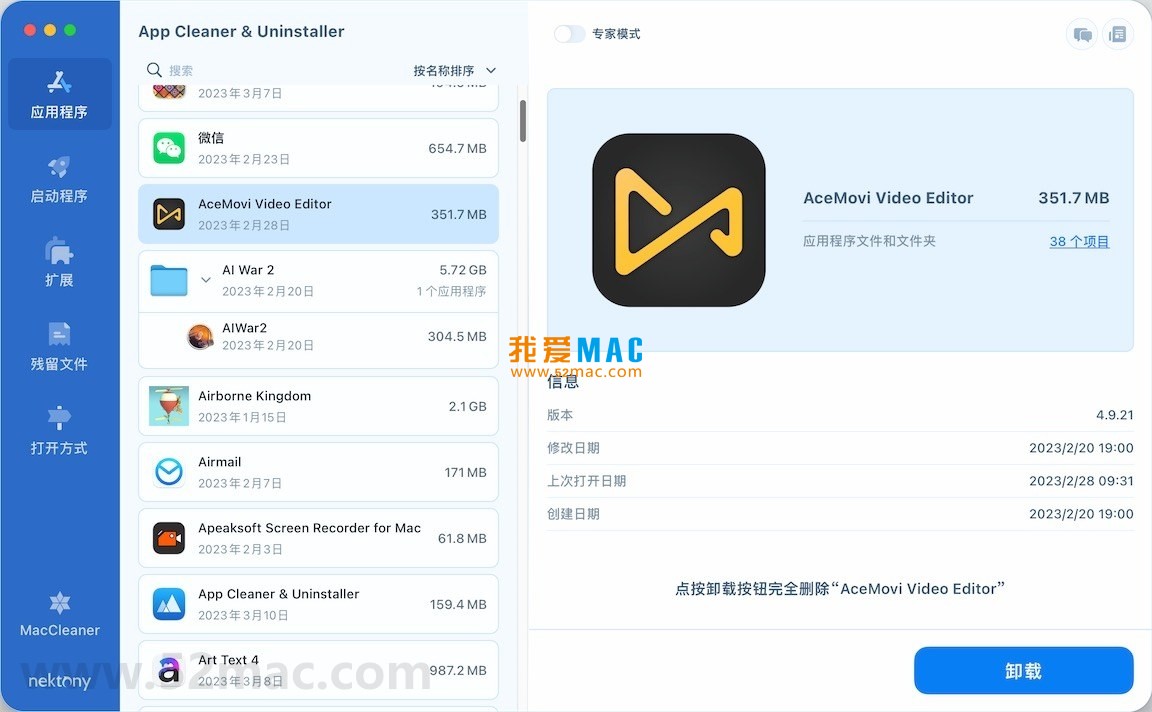
App Cleaner & Uninstaller is a professional-grade software uninstaller and system optimization tool designed specifically for macOS. Its core value lies in thoroughly removing applications and all their associated files and folders, effectively freeing up disk space and maintaining system stability. Additionally, the tool can deeply scan and clean redundant system files (such as unused language packs, cache files, etc.), thereby significantly improving Mac performance.
Important Notes:
This software is a comprehensive uninstaller and system cleaning assistant for Mac, designed to provide deeper management capabilities beyond the built-in uninstall method.
Too many startup programs can slow down system boot and consume resources. This tool allows you to:
Provides centralized management of system-level and user-level extensions, including:
Easily manage macOS file association settings, allowing you to specify default opening programs for specific file types. This feature provides an intuitive way to reset or modify associations between files and applications.
To ensure you can use App Cleaner & Uninstaller smoothly, we have prepared the following step-by-step installation guide. Please follow the order strictly.
Obtain the software package from the download link provided on this page. After downloading, double-click the .dmg file to mount the disk image. In the pop-up window, you will see the software icon and the Applications folder shortcut.
Drag the App Cleaner & Uninstaller icon directly onto the “Applications” folder icon on the right. The system will automatically complete the copying process, usually taking a few seconds.
Open “Launchpad”, find and click the App Cleaner & Uninstaller icon. On first launch, macOS will prompt “App Cleaner & Uninstaller wants to access System Preferences”. Please click “Allow”. Subsequently, the software will automatically request Accessibility permissions, which are crucial for its deep scanning.
Go to “System Settings” > “Privacy & Security” > “Accessibility”. Click the lock icon in the lower left corner to unlock. In the list on the right, check “App Cleaner & Uninstaller”. If it is not listed, click the “+” button and manually add it from the Applications folder.
After completing the permission settings, close the settings window. Return to the software’s main interface and click any functional module (such as “Uninstaller”). If the interface loads normally and displays the list of installed applications, the installation is successful.
Mastering the following tips will help you use this tool more efficiently and keep your Mac in top shape.
When you need to uninstall multiple unused applications, there is no need to do it one by one. In the “Uninstaller” module, hold the Command key (⌘) and click multiple applications. After selecting them, click the “Uninstall” button in the lower right corner to complete batch cleaning at once, greatly saving time.
Some software leaves preference files hidden deep after uninstallation. Use the “Residual Files” scanner, which can penetrate system levels to find “leftovers” located in directories such as ~/Library/Preferences/ and ~/Library/Application Support/. It is recommended to run this feature once a month.
Xiao Li’s Mac was booting slower and slower. He opened the “Startup Programs” module in App Cleaner & Uninstaller and found there were actually 12 login items. After careful review, he disabled 6 unnecessary launch agents (such as cloud sync tools and update checkers). After restarting the computer, the boot speed improved by about 40%.
If you accidentally set all .jpg images to open with an old editor you no longer use, you can use the “File Associations” module to find the “JPEG” file type and reset its default application to “Preview” or “Photos”, fixing it with one click.
Mastering shortcuts is key to improving Mac efficiency. Below is a carefully compiled list of common shortcuts.
| Shortcut Combination | Function Description | Use Case |
|---|---|---|
| Command + Q | Quit current application completely | Close program, free up memory |
| Command + W | Close current window | Close tab or dialog |
| Command + Option + Esc | Force quit applications | Handle unresponsive software |
| Command + Shift + Delete | Empty Trash | Confirm file deletion |
| Command + Space | Bring up Spotlight search | Quickly find files or launch apps |
| Command + Tab |


Ratings & reviews
No rating
Let’s rate it.