



App Cleaner & Uninstaller for Mac v8.6.2 – Software Uninstaller | Chinese Activated Version Download
This page provides App Cleaner & Uninstaller for Mac v8.6.2 – Software Uninstaller | Chinese Activated Version Download | Love Mac. Tested and working. If you encounter a broken link or cannot install after downloading, please leave a comment to contact us.
App Cleaner & Uninstaller is a professional-grade software uninstaller and system optimization tool designed specifically for macOS. Its core value lies in its ability to thoroughly remove applications and all their associated files, caches, and leftovers, thereby effectively freeing up disk space and improving system performance and stability. In addition, the software offers a range of system cleaning and management features, making it a powerful assistant for maintaining Mac performance.
Important Notice:
This software is a comprehensive uninstaller and system cleaning assistant for the Mac platform. Its main advantages are as follows:
Unlike simply dragging an app to the Trash, this tool deeply scans and removes all files associated with an application, including:
This ensures a thorough uninstall and prevents junk files from occupying storage space over time.
Too many login items and launch agents can slow down system startup and performance. With this feature, you can:
Provides centralized management of user-level and core-level system extensions, including:
Deeply scans the disk to find and safely delete leftovers from previous incomplete uninstalls, such as:
This feature is key to reclaiming disk space and keeping the system clean.
Easily change the default application for specific file types, create or modify associations between file types and applications. The operation is more intuitive and centralized than the native system settings.
What’s new in the latest version 8.6.2:
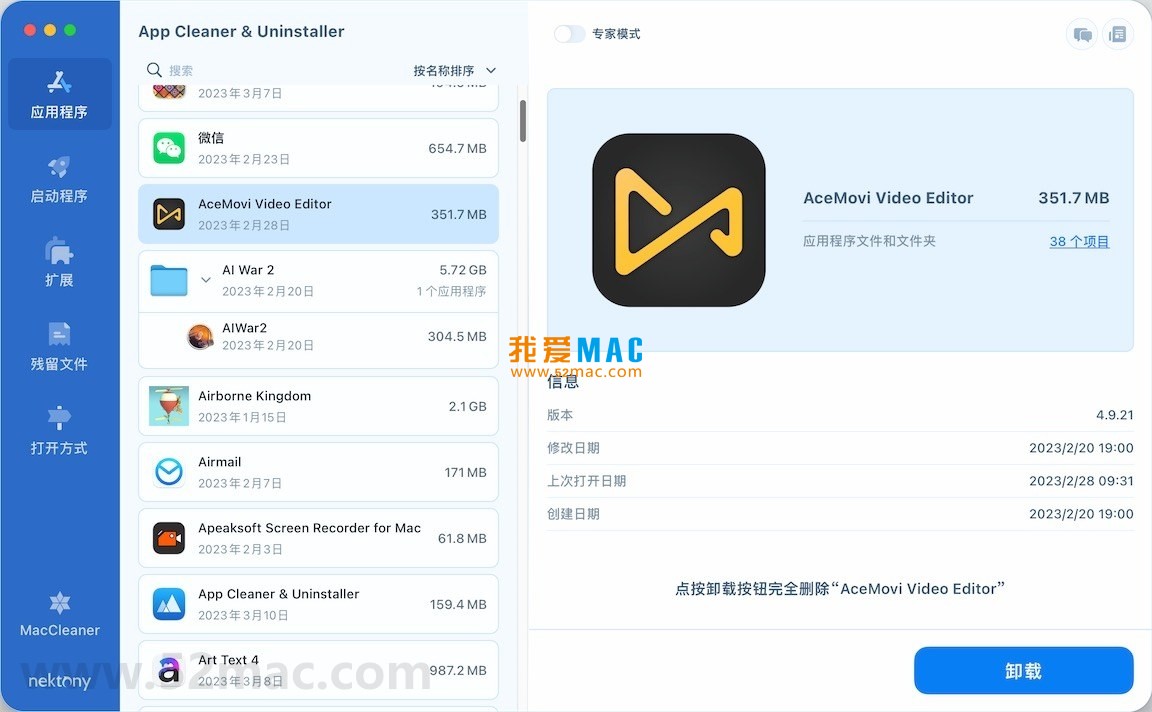
The following are screenshots of the main features of App Cleaner & Uninstaller:
To ensure a smooth installation, please follow the steps below. The entire process takes about 5 minutes and is suitable for Mac users of all levels.
First, please confirm that your Mac is running macOS 10.12 or later. Download the dmg image file from the link provided on this page.
After downloading, double-click the dmg file to mount it. A disk icon named “App Cleaner & Uninstaller” will appear on your desktop.
Open the mounted disk window. You will see the application icon and a shortcut pointing to the “Applications” folder.
Drag the App Cleaner & Uninstaller icon directly onto the “Applications” folder shortcut on the right. The system will automatically complete the copy.
If the system prompts “Cannot be opened”, go to “System Settings” > “Privacy & Security” and click the “Open Anyway” button at the bottom of the page. This is a macOS security protection mechanism.
After installation, find and open App Cleaner & Uninstaller in the “Applications” folder.
On first launch, the software will request “Accessibility” permission. In the pop-up dialog, click “Open System Settings” and check App Cleaner & Uninstaller in “Privacy & Security” > “Accessibility”.
This step is crucial because it allows the software to monitor and thoroughly remove all application leftovers. According to Apple’s official documentation, such permissions are a necessary condition for deep system cleaning tools.
If using the activated version, please copy the provided activation code into the software’s “Activate” menu. After entering, click the “Activate” button.
Verify activation status: Click “App Cleaner & Uninstaller” > “About” in the menu bar to check if the version information shows “Activated”.
If activation fails, please check your network connection or try running the software as an administrator. It is recommended to keep a backup of the activation code.
We have compiled the 10 most common questions users encounter to help you quickly resolve doubts during use.
First, check if your macOS version meets the requirements. Second, try re-downloading the installation package, as the download process may have corrupted the file.
If the problem persists, go to “System Settings” > “Privacy & Security” and check if there is a blocked record. Click “Open Anyway” to proceed.
This is usually caused by the Launchpad cache not refreshing. Open “Terminal” and enter sudo find /private/var/folders -name "com.apple.dock.launchpad" -exec rm -rf {} ;, then restart your Mac.
This command will clear the Launchpad database cache, which will be automatically rebuilt on the next startup.
macOS restricts the deletion of built-in system apps (such as Safari, Mail). This software can clean the caches and leftovers of these apps, but cannot remove the app itself.
For third-party apps, this tool can achieve 100% thorough cleaning. It is recommended to prioritize non-system apps.
In most cases, yes. However, it is recommended to carefully check the file paths. If they contain “CoreServices” or “System”, please proceed with caution.
Safe practice: After selecting all files, click “View Details” to confirm there are no important system files before deleting.
This software has been rigorously tested, and the probability of accidental deletion is extremely low. Its scanning algorithm is based on Apple’s official file system specifications and can accurately identify application-associated files.
However, it is recommended to back up your data via Time Machine before major cleanups. This aligns with best practices for data security.
Accessibility permission is a privileged interface provided by macOS for system tools. With this permission, the software can deeply scan and clean application leftovers.
This is an industry-standard practice. Professional tools like CleanMyMac X also require this permission. Please grant it with confidence.
This may be due to the system rebuilding caches. Usually, restarting your Mac will restore normal operation. If the problem persists, check if any important services were accidentally deleted.
It is recommended to restart immediately after cleaning to allow the system to complete index rebuilding. This process generally takes 1-2 minutes.
Open this software, select the “Leftovers” module, and click “Scan”. The software will list all files left behind by uninstalled applications.
You can sort by file size or name to quickly locate large leftover items.
Version 8.6.2 has been adapted for macOS Sequoia (Tahoe) Beta. Please update promptly after the official version is released.
We recommend using it cautiously on beta systems and prioritizing operations on stable systems.
If you encounter issues not covered on this page, please leave a comment below. We will reply within 24 hours.
You can also visit the developer’s official website to submit a ticket for official support. We also regularly compile user feedback and update the FAQ content.
Mastering the following shortcuts can greatly improve your Mac operation efficiency. We have compiled the most practical key combinations.
| Shortcut | Function Description | Use Case |
|---|---|---|
Command + Q |
Quit the current application completely | Completely close the program, not minimize |
Command + W |
Close the current window | Keep the application running in the background |
Command + Tab |
Switch applications | Quickly jump between running applications |
Command + Space |
Open Spotlight search | Quickly launch applications or search for files |
Command + Shift + 3 |
Capture the entire screen | Save a screenshot of the whole screen to the desktop |
Command + Shift + 4 |
Capture a selected area | Save a screenshot of a selected area to the desktop |
This resource requires login to download
Log in
DaisyDisk for Mac 4.6.5 Find and Delete Useless Files Chinese Activated Version Download
Downloads:2131 | 2026-10-17
DaisyDisk for Mac v4.11 Find Useless Files Chinese Activated Version Download
Downloads:2779 | 2026-10-17

Sensei for Mac v1.5.2 Software and Hardware Optimization Tool Chinese Activated Version Download
Downloads:803 | 2026-10-17

CleanMyMac for Mac v5.0.4 System Cleaner & App Uninstaller_CleanMyMac Mac Download Activated Version
Downloads:1688 | 2026-10-17


Ratings & reviews
No rating
Let’s rate it.