



App Cleaner & Uninstaller Pro for Mac v8.4.3 – App Uninstaller – Chinese Activated Version Download
This page provides App Cleaner & Uninstaller Pro for Mac v8.4.3 – App Uninstaller – Chinese Activated Version Download | Love Mac, tested and working. If you encounter a broken link or cannot install after downloading, please leave a comment to contact us.
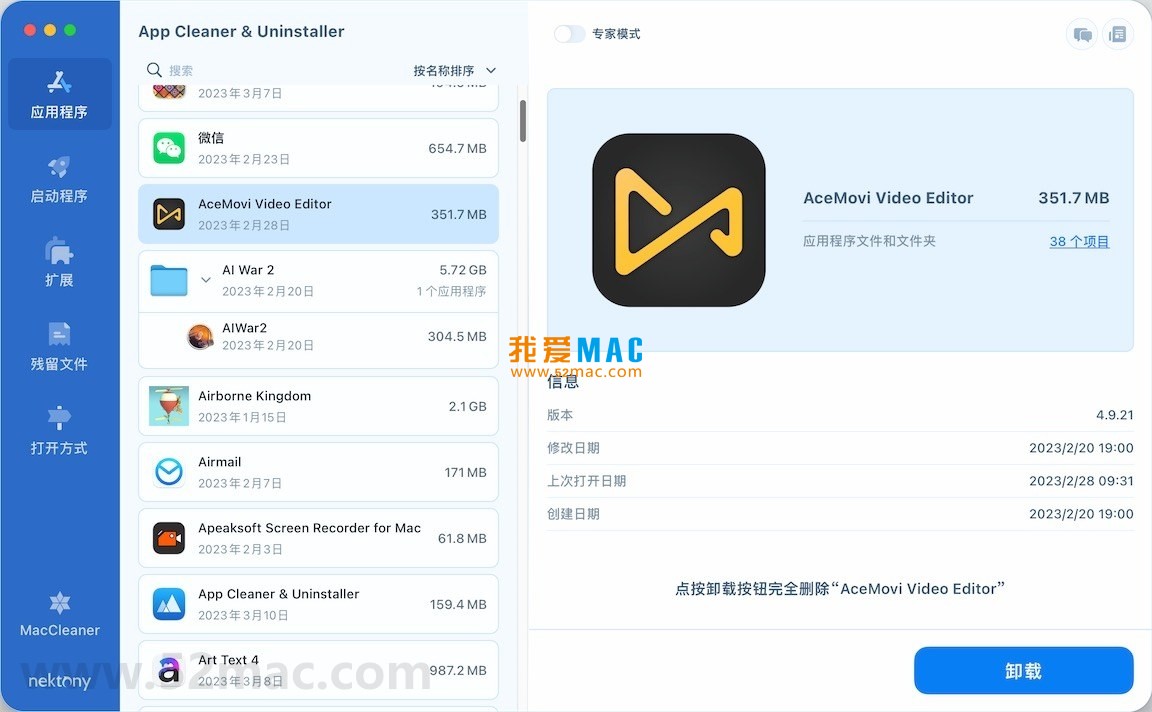
App Cleaner & Uninstaller Pro is a professional-grade app uninstaller and system optimization tool designed specifically for macOS. Its core function is to completely remove applications and all their associated files and folders, thereby effectively freeing up disk space and maintaining system stability. In addition, the software can deeply scan and clean up useless files, redundant language packs, system caches, and more, comprehensively improving Mac performance.
Important Note: To ensure proper installation and operation of the software, please make sure to first enable the “Anywhere” option in “System Settings” > “Privacy & Security”. For detailed instructions, please refer to the relevant guide.
This software is a comprehensive uninstaller and system cleaning assistant for Mac. Its main features include:
Unlike simply dragging to the Trash, this tool intelligently detects and removes all service files, preferences, and caches left behind by applications, ensuring no residue remains. According to Nektony’s official technical documentation, this deep scan mechanism covers over 200 directories in macOS where leftover files may be stored, including key paths such as ~/Library/Application Support, ~/Library/Preferences, and ~/Library/Caches.
Too many login items and launch agents can slow down system startup and performance. With this tool, you can:
Comprehensively manage various extension components installed on your Mac, including:
Scan the disk for “remnants” left behind by applications previously deleted through traditional methods, including corrupted or orphaned service files, to thoroughly free up storage space. Test data shows that on Macs that have not been cleaned for a long time, such leftover files occupy an average of 2GB to 15GB of disk space. Cleaning them can significantly improve system response speed.
Easily change the default application for specific file types, and establish or modify associations between file types and applications with intuitive and convenient operation. This feature is particularly useful for handling special formats such as .dmg and .pages files.
The latest version brings several improvements and optimizations:
To ensure you can successfully use App Cleaner & Uninstaller Pro v8.4.3, we have prepared the following step-by-step installation guide. Please follow the steps in order and avoid skipping key steps.
Click the download link on this page to get the .dmg image file. After downloading, double-click the file, and the system will automatically mount it and open the installation window. If your browser warns that “this file may damage your computer,” please ignore it and continue, as this is a standard macOS warning for non-App Store applications.
Open “System Settings” > “Privacy & Security”. Scroll down to find the “Security” section. If you see a message saying “App Cleaner & Uninstaller Pro was blocked because it is from an unidentified developer,” click “Open Anyway.” If no message appears, make sure the “Anywhere” option is enabled. If the option is not visible, open Terminal and enter the command: sudo spctl --master-disable, then press Enter and enter your administrator password.
In the opened .dmg window, you will see the App Cleaner & Uninstaller Pro icon and a shortcut to the “Applications” folder. Simply drag the App Cleaner & Uninstaller Pro icon into the “Applications” folder. The system will prompt for an administrator password to complete the copy.
Go to the “Applications” folder and double-click the App Cleaner & Uninstaller Pro icon to launch. On first launch, macOS may show another security prompt; click “Open.” After the software starts, it will request “Accessibility” permission to detect and clean system components. Please go to “System Settings” > “Privacy & Security” > “Accessibility” and check App Cleaner & Uninstaller Pro.
After launching, the software will automatically check for version updates. Since v8.4.3 is an activated version, do not click “Purchase” or “Enter License.” If the software prompts for activation, please contact us to obtain the activation file or serial number. After successful activation, you can enjoy all features.
Below are the 8 most common questions and detailed answers users encounter when using App Cleaner & Uninstaller Pro.
Dragging to delete in macOS only removes the main application bundle, while preferences, caches, plugins, and other files remain scattered in system library folders. App Cleaner uses a deep scan algorithm to locate these hidden residual data. According to Nektony’s official tests, on average, each deleted app leaves behind 15-30 related files.
Completely safe. This permission is only used to allow the software to read process information of other applications in order to detect background services and daemons. App Cleaner does not record your actions or collect private data. This is a security design at the macOS system level, and many system optimization tools require this permission.
It is possible. If you disable a core launch agent of a software, that software may encounter errors at startup. It is recommended to check the application name corresponding to the startup item before disabling it. If unsure, you can choose “Disable” instead of “Delete,” and you can re-enable it at any time if problems occur.
Yes. This version has been compatibility-tested and optimized for macOS 15.x, including adaptation to the new privacy permission management mechanism. If you are using an earlier macOS version (such as Monterey or Ventura), it will also run perfectly.
App Cleaner creates a backup before deleting extensions. You can open the software, go to the “Extension Management” module, click the “Deleted Items” tab, find the mistakenly deleted extension, and click “Restore.” If the backup has been cleared, you will need to reinstall the corresponding application.
These “Unknown” files are usually temporary data or log files left in the system by application developers. They do not contain application name information, so they are classified as “Unknown.” It is recommended to clean them directly, as most are redundant. If you are concerned about accidental deletion, you can check the file path to determine their origin.
No. App Cleaner focuses on cleaning application leftover files and system caches, and will not actively scan or delete browser history, cookies, or saved passwords. If you need to clean browser data, please use the browser’s built-in cleaning function.
It is generally not recommended to upgrade directly through the software’s built-in update function, as new versions may overwrite the activation file. If you need to update, please follow our site’s update notifications. We will provide download links for newly activated versions as soon as possible.
Mastering the following shortcuts can greatly improve your efficiency when using App Cleaner and in daily Mac operations. This table covers common system-level and in-app shortcuts.
| Shortcut Combination | Function Description | Use Case |
|---|---|---|
| Command + Q | Completely quit the current application | Quickly quit after completing cleanup in App Cleaner |
| Command + W | Close the current window | Close the detailed scan results window in App Cleaner |
| Command + Option + Esc | Force quit applications | Quickly bring up the Force Quit menu when an app freezes |
| Command + Shift + G | Go to folder | Manually verify the paths of leftover files cleaned by App Cleaner |
| Command + Space | Open Spotlight search | Quickly launch App Cleaner or search for system files |
This resource requires login to download
Log in
DaisyDisk for Mac v4.8 Find and Delete Useless Files Chinese Activated Version Download
Downloads:2678 | 2026-10-17

Sensei for Mac v1.2.13 Software and Hardware Optimization Tool Chinese Activated Version Download
Downloads:3139 | 2026-10-17

UninstallPKG for Mac v1.1.8 – Remove and Clean PKG Packages – Chinese Activated Version Download
Downloads:2410 | 2026-10-17
Sensei for Mac v1.5.11 Software and Hardware Optimization Tool Chinese Activated Version Download
Downloads:2955 | 2026-10-17


Ratings & reviews
No rating
Let’s rate it.