



App Cleaner & Uninstaller Pro for Mac v8.4 Software Uninstaller Chinese Activated Version Download
This page provides App Cleaner & Uninstaller Pro for Mac v8.4 Software Uninstaller Chinese Activated Version Download | Love Mac, tested and working. If you encounter invalid links or inability to install after download, please leave a message to contact us.
App Cleaner & Uninstaller Pro is a professional-grade software uninstaller and system cleaner designed specifically for macOS. Its core value lies in thoroughly removing applications and all their associated files and folders, thereby effectively freeing up disk space and maintaining system stability. In addition, the software can deeply scan and clear redundant files in the system (such as useless language packs, cache files, etc.), significantly improving Mac performance. According to reviews from authoritative tech media such as Macworld, such tools are crucial for keeping macOS running smoothly in the long term, especially when dealing with software like Adobe or Office suites that come with numerous associated files.
This tool is a comprehensive uninstaller and cleaning assistant for the Mac platform, designed to solve many problems left by conventional uninstallation methods. Many users are accustomed to dragging apps directly to the Trash, but this often only deletes the main program, leaving a large number of configuration files in the system, which accumulate over time and slow down the computer. App Cleaner & Uninstaller Pro exists precisely to end this vicious cycle of “garbage accumulation.”
From practical experience, its scanning logic is very clear. It does not simply search by file name, but performs association matching based on macOS Bundle IDs, ensuring cleaning accuracy. This also means you don’t have to worry about it mistakenly deleting useful data, because all items to be deleted have undergone strict logical verification.
The traditional method of dragging apps to the Trash often leaves a large number of service files, preferences, and support files on the disk. App Cleaner & Uninstaller Pro can:
Too many startup programs are a common cause of slow Mac startup and performance degradation. This tool provides powerful startup item management features:
According to Apple’s official developer documentation, properly managing Launch Agents and Daemons is an effective way to improve system responsiveness. App Cleaner & Uninstaller Pro visualizes these complex background processes, making it easy for ordinary users to get started.
Comprehensively manage various types of extension components in macOS to keep the system clean and efficient:
Specifically designed to find and remove the “leftovers” of uninstalled applications, including:
This feature is a key step in freeing up valuable disk space and ensuring system cleanliness. Especially for MacBook Air models with limited storage or 128GB base models, performing this operation regularly can effectively delay storage anxiety.
Easily manage file association settings in macOS:
The latest version 8.4 brings the following improvements and optimizations:
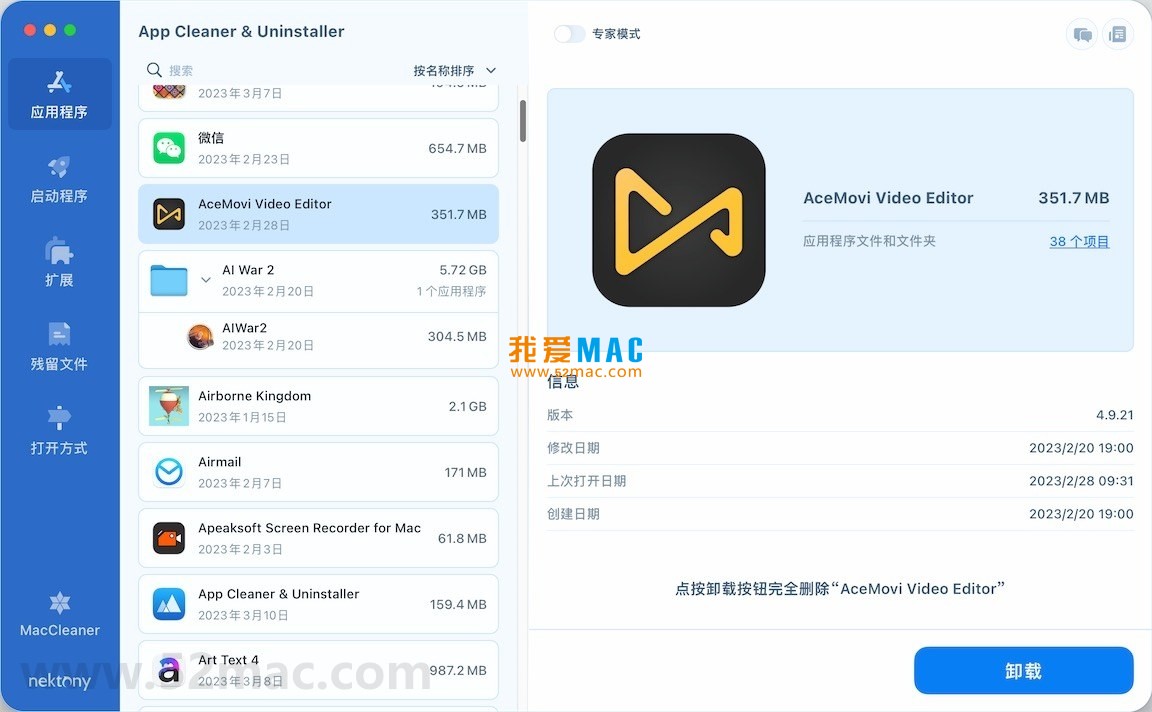
The following are screenshots of the main functional interfaces of App Cleaner & Uninstaller Pro:
Many users don’t know how to handle dmg image files after downloading Mac software. Below is a step-by-step installation guide to ensure you can successfully use App Cleaner & Uninstaller Pro.
Please make sure your Mac system version is macOS 10.13 (High Sierra) or later, otherwise compatibility issues may occur.
Click the download link on this page to obtain the DMG image file for App Cleaner & Uninstaller Pro v8.4. After downloading, double-click the file, and the system will automatically mount it and pop up a new Finder window.
In the popped-up Finder window, you will see a “App Cleaner & Uninstaller Pro” file with the software icon on the left, and a shortcut to the “Applications” folder on the right. Simply drag the software icon from the left to the “Applications” folder on the right.
This step is equivalent to installing the software on your Mac. If the system prompts “Password required,” enter your Mac login password to authorize the installation.
Open “Launchpad,” find the “App Cleaner & Uninstaller Pro” icon, and click it. On first launch, the system may pop up a warning stating “App Cleaner & Uninstaller Pro is an application downloaded from the Internet.”
At this point, you need to go to “System Settings” -> “Privacy & Security” -> “Security” section and click the “Open Anyway” button. This is macOS’s standard security protection mechanism for applications downloaded outside the App Store.
In order for the software to monitor and manage the processes of other applications, App Cleaner & Uninstaller Pro requires you to grant “Accessibility” permissions. After the software starts, a request window will automatically pop up; click “Open System Settings.”
In “System Settings” -> “Privacy & Security” -> “Accessibility,” check the checkbox in front of “App Cleaner & Uninstaller Pro.” If it is not in the list, click the “+” button in the lower left corner and manually add the software from the “Applications” folder.
After completing all the above permission settings, restart App Cleaner & Uninstaller Pro. At this point, all features of the software are unlocked, and you can start uninstalling applications, managing startup items, or cleaning residual files.
It is recommended to run a “Residual Files” scan first when using it for the first time to see how much “junk” is hidden in your system.
No matter how good the tool is, you need to know how to use it. Below are several practical tips summarized by experienced Mac users to help you maximize the value of this software.
Many large software programs, such as Adobe Creative Cloud or Microsoft Office, are very troublesome to uninstall. With App Cleaner & Uninstaller Pro, you can select all Adobe components (such as Photoshop, Illustrator, Premiere Pro, etc.) at once in the “All Applications” list.
After clicking “Remove,” the software will automatically analyze and list all associated fonts, plugins, caches, and preference files. After confirming, you can completely uninstall the entire “suite” with one click, saving more than 10 times the time compared to manual deletion.
If your Mac is getting slower and slower to boot, it’s probably because there are too many startup items. Open the “Startup Items” module, and you will see all login items and background services. Focus on those software programs you haven’t opened manually for a long time, such as a certain netdisk or input method.
For services you are unsure about, you can right-click and select “Show in Finder” to check their source. After confirming it is a residual service of an uninstalled software, disable or delete it directly. After cleaning up 3-5 useless startup items, restart your Mac, and you will feel a noticeable improvement in boot speed.
A UI designer friend’s 256GB MacBook Pro kept showing “Disk Space Insufficient.” He used the “Residual Files” feature of App Cleaner & Uninstaller Pro to scan and found a large number of Sketch plugins and Adobe font caches from previous tests in the system.
These files were scattered across various Library folders, making manual search extremely difficult. With this tool, he cleaned up 18.6GB of redundant data at once, including complete residual folders of 3 uninstalled applications. After cleaning
This resource requires login to download
Log in
MacBooster 7 Pro for Mac 7.2.2 System Maintenance & App Uninstall Chinese Activated Version Download
Downloads:3275 | 2026-10-17

Tidy Up 5 for Mac v5.3.5 Duplicate Finder and Disk Organizer Activated Version Download
Downloads:3130 | 2026-10-17

Sensei for Mac v1.4.3 Software and Hardware Optimization Tool Chinese Activated Version Download
Downloads:3202 | 2026-10-17

Magic Disk Cleaner for Mac v2.8.1 System Cleaner Chinese Activated Version Download
Downloads:1608 | 2026-10-17


Ratings & reviews
No rating
Let’s rate it.