



App Cleaner & Uninstaller Pro for Mac v8.3 Software Uninstaller Chinese Activated Version Download
This page provides App Cleaner & Uninstaller Pro for Mac v8.3 Software Uninstaller Chinese Activated Version Download | Love Mac, tested and working. If you encounter issues such as invalid links or inability to install after download, please leave a comment to contact us.
App Cleaner & Uninstaller Pro is a professional-grade software uninstaller and system cleaner designed specifically for macOS. Its core value lies in its ability to thoroughly remove applications and all their associated files and folders, effectively freeing up disk space and ensuring long-term stable system operation. In addition, the software can intelligently scan and clean redundant files in the system (such as useless language packs, cache files, etc.), thereby comprehensively improving Mac operating efficiency and performance.
This software is a comprehensive uninstaller and system cleaning assistant on the Mac platform, mainly providing the following professional solutions:
The traditional “drag to Trash” method cannot completely remove leftover service files of applications. App Cleaner & Uninstaller Pro can perform deep scans to ensure that when uninstalling the main program, all related files, preferences, and system residual traces are removed together, preventing the accumulation of junk files.
Too many login items and startup agents are common causes of slow Mac startup and performance degradation. This tool allows you to:
Provides centralized management of macOS system extensions, covering:
For “leftover files” left by previous incomplete uninstalls, this tool can perform deep scans to accurately locate and safely delete all residual, orphaned, or corrupted service files, further freeing up valuable disk space.
Conveniently manage macOS file association settings. Users can easily specify the default application for opening specific file types, simplifying the process of forcibly changing associations between file types and programs.
The latest version 8.3 brings the following feature improvements and optimizations:
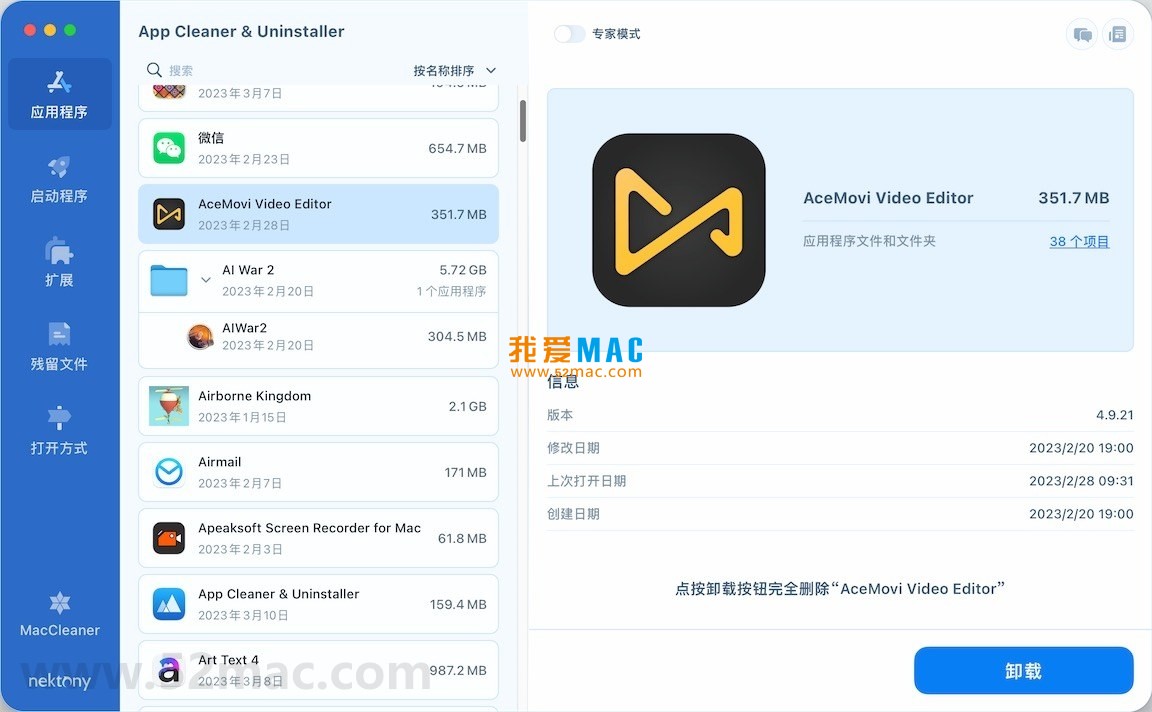
The following are screenshots of the main operation interfaces of App Cleaner & Uninstaller Pro:
Installing App Cleaner & Uninstaller Pro v8.3 is not complicated, but you need to follow the steps. Below we break down each step to ensure you can complete it smoothly.
First, download the software installation package from the link provided on this page. Please confirm the downloaded file format is .dmg. After downloading, double-click the .dmg file, and the system will mount a virtual disk.
After mounting, a new disk icon will appear on the desktop. Open it, and you will see the software icon and a shortcut pointing to the “Applications” folder. This is the standard macOS installation process.
Drag the App Cleaner & Uninstaller Pro icon with your mouse onto the “Applications” folder shortcut on the right. The system will automatically start copying files. This process usually takes only a few seconds.
After copying is complete, you can find the software in the “Applications” folder. When launching for the first time, macOS may prompt “App Cleaner & Uninstaller Pro is an app downloaded from the Internet. Are you sure you want to open it?” Click “Open” to proceed.
To thoroughly scan and clean the system, the software needs access to Accessibility permissions. After launching, the software will automatically pop up a request window. You need to go to “System Preferences” > “Security & Privacy” > “Privacy” > “Accessibility” and check App Cleaner & Uninstaller Pro.
Some advanced cleaning features may also require “Full Disk Access” permission. Also in the “Privacy” panel, find “Full Disk Access,” click the lock icon in the lower left corner to unlock, then add the software and check it. This step ensures the software can scan residual files throughout the system.
The version provided on this page is the Chinese activated version, which usually has built-in activation information. After opening the software, click “App Cleaner & Uninstaller Pro” > “Register” in the menu bar. If you see the registration information already filled in, simply click “Activate.”
If it is not automatically filled in, please check the instructions text or keygen in the downloaded file. After entering the correct license information, the software becomes the full version, and all features can be used without restrictions. It is recommended to restart the software once after activation.
During use, you may encounter some questions. We have compiled the 5 most common questions and provided detailed answers.
A: This is a common phenomenon in macOS. Dragging to the Trash only removes the main program itself, but the configuration, cache, and support files left by the software in folders such as “~/Library/Application Support” and “~/Library/Preferences” are not deleted. The value of App Cleaner & Uninstaller Pro lies in its ability to scan and delete these hidden “tails,” truly freeing up space.
A: Don’t worry. In the “Startup Items” management module of App Cleaner & Uninstaller Pro, the items you disabled are not physically deleted. You just need to reopen the module, find the item you disabled, re-check it, and “Enable” it. The software only modifies the loading status of its plist file.
A: This is not required. This permission is mainly used for certain advanced features that need to monitor other application windows. If you only perform regular software uninstallation and system cleaning, you can deny this permission. If you need to use specific features later, the software will prompt you to authorize again.
A: This is a macOS icon cache issue. You can first try restarting your Mac. If the icon is still there after restarting, you can open the “Terminal” app, enter the command sudo find /private/var/folders -name "*com.apple.dock*" -exec rm {} ; and press Enter, enter your password, and finally enter sudo killall Dock to restart the Dock program.
A: This sounds a bit ironic, but it is indeed a good question. The cleanest way is not to use other software to uninstall it. You can manually delete the following files: drag the program from the “Applications” folder to the Trash; delete the plist files starting with “com.nchsoftware” in “~/Library/Preferences”; delete the folder with the same name in “~/Library/Application Support.” If you are not confident, you can use App Cleaner to scan itself, and it will usually list all its own files.
Mastering shortcut keys can greatly improve Mac usage efficiency. The following table summarizes the most commonly used shortcut key combinations.
| Shortcut Key Combination | Function Description | Applicable Scenarios |
|---|---|---|
Command + C |
Copy | Text, files, images, etc. |
Command + V |
Paste | Paste clipboard content to current location |
Command + X |
Cut | Mainly used for text editing; moving files requires other operations |
Command + Z |
Undo | Undo the previous action, very useful |
Command + Shift + Z |
Redo | Restore an undone action |
Command + A |
Select All | Select all content in the current window or document |
Command + F |
Find | Search for specific keywords in a document or webpage |
Command + H |
Hide Window | Quickly hide all windows of the current application |
|


Ratings & reviews
No rating
Let’s rate it.