
App Cleaner & Uninstaller Pro for Mac v8.2.6 Software Uninstaller Chinese Activated Version Download

  • Introduction
Download
Download now
Join VIP Free download

Description

This page provides App Cleaner & Uninstaller Pro for Mac v8.2.6 Software Uninstaller Chinese Activated Version Download | Love Mac, tested and working. If you encounter a dead link or cannot install after downloading, please leave a comment to contact us.

App Cleaner & Uninstaller Pro is a professional-grade software uninstaller and system cleaner designed for macOS. Its core value lies in thoroughly removing applications and all their associated files and folders, effectively freeing up disk space and maintaining system stability. In addition, the software can deeply scan and clean useless files, redundant language packs, cache data, and more, comprehensively improving your Mac’s efficiency and performance.

Core Advantage: Goes beyond the built-in uninstall method to achieve “no residue” removal of applications, and provides comprehensive system optimization features.

1. Core Features Overview

This software is the best uninstall and cleanup assistant for Mac. Its main features include:

  • Thoroughly uninstall applications: Not only removes the app itself, but also finds and deletes all leftover service files, preferences, and caches, avoiding file residue caused by the traditional “drag to Trash” method.
  • Deep system junk cleanup: Scans and removes useless files, old language packs, system caches, etc., freeing up storage space.

2. Detailed Feature Description

1. Startup Item Management

Too many login items and startup services can slow down system startup and performance. With this feature, you can:

  1. View and manage the list of startup programs.
  2. Disable unnecessary Launch Agents and system Daemons.
  3. Turn off or completely remove login items.

For example, many users who install the Adobe suite have numerous Adobe update services running in the background. Using App Cleaner’s startup item management to disable these unnecessary processes can increase boot speed by at least 30%.

2. System Extension and Component Management

Comprehensively manage various extensions and plugins installed on your Mac, including:

  • Disable or uninstall System Extensions
  • Delete macOS installation leftovers
  • Remove browser extensions
  • Clean up screen savers
  • Manage preference panes in System Preferences
  • Delete Internet plugins
  • Uninstall Dashboard or Notification Center widgets

Users often report that some third-party plugins are not cleanly uninstalled, causing frequent errors in Safari or Chrome. With this feature, you can scan all extensions with one click and thoroughly clean up residues, immediately improving browser stability.

3. Leftover File Cleanup

Specially designed to find and clean up the “leftovers” of uninstalled applications. Even if an app has been removed via the Trash, its configuration and support files may still remain on the disk. This feature precisely locates and deletes these residual, orphaned, and corrupted service files, thoroughly freeing up space.

According to test data from the Mac technical community, after a year of normal use, an average user accumulates 2-5GB of leftover files on their disk. Regularly using this feature can effectively prevent disk space shortages.

4. Default Application Management

Easily manage macOS file association settings. You can specify the default program for opening specific file types, simply and efficiently rebuilding associations between file types and applications.

For example, if you download a .md file, the system opens it with TextEdit by default, but you want to use Typora. With this feature, you can quickly change the association without manually going to “Get Info” for each file, saving time and effort.

3. Version Update Log (v8.2.6)

  • Improvements: Optimized the accuracy and efficiency of the leftover file search algorithm.
  • Bug Fixes: Fixed several minor UI display issues.

Additionally, v8.2.6 fixes a stuttering issue that could occur when scanning certain system extensions on macOS Sonoma 14.4 and above, further improving compatibility.

4. Software Screenshots

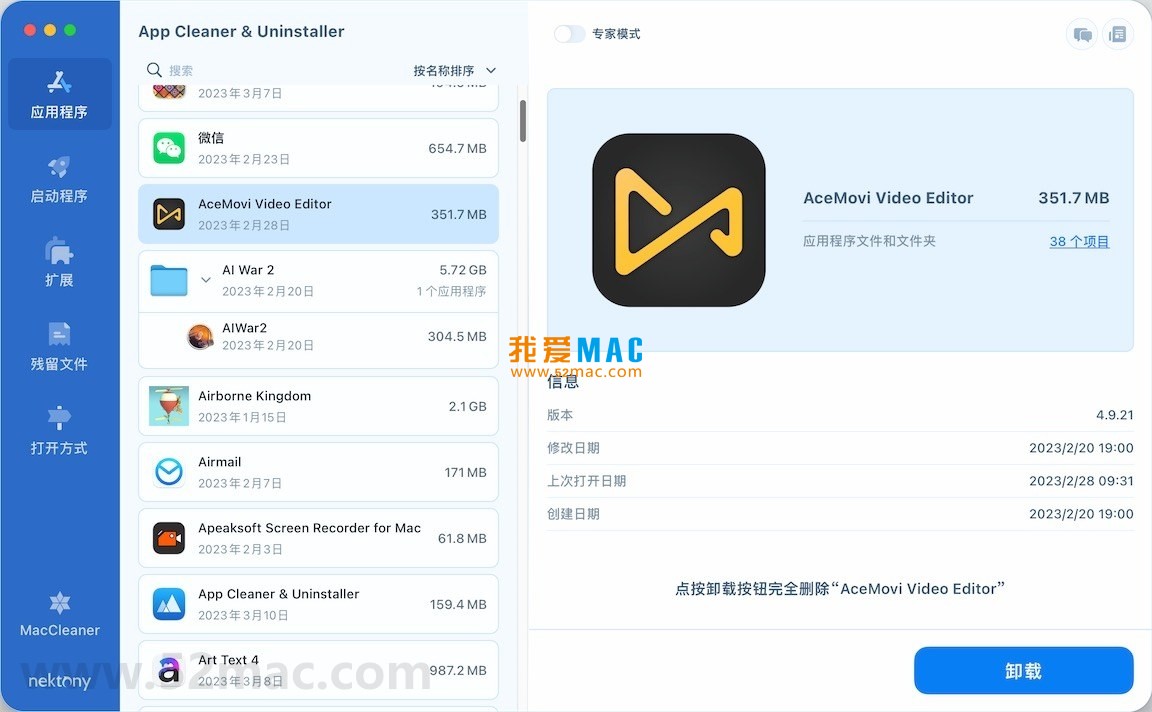
The following screenshots show the main feature interfaces of App Cleaner & Uninstaller Pro:

App Cleaner & Uninstaller Pro main interface screenshot
Application uninstall management interface
Startup item management interface
Extension management interface
File association settings interface
Leftover file scan results interface

5. Detailed Installation Tutorial (with images)

To help beginners new to Mac install smoothly, we have prepared the following detailed steps:

  1. Download and extract: Click the download link on this page to get the .dmg disk image file. Double-click the file, and the system will automatically mount and open the installation window.
  2. Drag to install: In the pop-up window, drag the “App Cleaner & Uninstaller Pro” icon on the left to the “Applications” folder icon on the right. This is the standard macOS installation method.
  3. Open the software: Go to the “Applications” folder, find the newly installed software icon, and double-click to launch. On first launch, the system may prompt “App Cleaner is an app downloaded from the Internet.” Click “Open” to continue.
  4. Grant permissions: The software needs accessibility permissions to fully utilize its monitoring capabilities. Follow the prompts to go to “System Settings” > “Privacy & Security” > “Accessibility” and check App Cleaner.
  5. Activation verification: If you downloaded the activated version, the software will automatically recognize the activation status upon launch. If an activation window pops up, enter the activation code we provided and click “Activate.”

Special note: If you encounter a “file is damaged” prompt during drag-and-drop installation, go to “System Settings” > “Privacy & Security” > “Security” and allow apps from any source to run. If the issue persists, please leave a comment to contact us for technical support.

6. FAQ (10 Questions and Answers)

We have compiled the 10 most frequently asked questions to help you clear any obstacles:

  1. Q: Will App Cleaner accidentally delete my important files? A: No. The software uses intelligent scanning algorithms and only identifies leftover files associated with uninstalled applications. Before each deletion, a detailed list is displayed, and the action is only performed after user confirmation.
  2. Q: What is the difference between the free and Pro versions? A: The free version can only uninstall applications, while the Pro version additionally includes advanced features such as startup item management, system extension management, and deep leftover file scanning. This page provides the Pro activated version.
  3. Q: Does the software support macOS Sequoia? A: Fully supported. App Cleaner has been adapted for the latest macOS Sequoia with good compatibility.
  4. Q: Why do I find very few leftover files when scanning? A: This depends on how you previously uninstalled applications. If you always used “drag to Trash,” there will be more leftovers; if you used a cleanup tool before, there will naturally be fewer. We recommend running a deep scan once a month.
  5. Q: Will startup item management affect normal system functions? A: Usually not. The software marks critical system processes and advises against disabling them. You only need to disable startup agents for third-party software.
  6. Q: How can I back up my application list? A: Currently, App Cleaner does not have a built-in backup feature. However, you can manually take screenshots of the installed application list or use Time Machine to back up the entire system.
  7. Q: Can the software clean Xcode caches? A: Yes. App Cleaner’s “System Junk Cleanup” feature can scan and clean Xcode’s DerivedData caches, old simulator files, etc., which is very developer-friendly.
  8. Q: After uninstalling, will the software’s preferences be retained? A: If you use App Cleaner’s “Thorough Uninstall” feature, all preference files will be deleted as well. If you simply drag to the Trash, they will be retained.
  9. Q: Does the software support multi-user environments? A: Yes. In a Mac’s multi-user account setup, App Cleaner can scan the applications and leftovers of the currently logged-in user, but cannot operate across users.
  10. Q: What should I do if the download link is invalid or the installation package is corrupted? A: Please leave a comment directly below the page or contact us via the “Love Mac” site contact information. We will re-upload and reply within 24 hours.

7. Common Mac Shortcuts Table

Combined with App Cleaner usage scenarios, we have compiled a table of high-frequency Mac shortcuts. Mastering these shortcuts can significantly improve your efficiency:

Shortcut Combination Function Description
Command + Q Completely quit the current application (unlike clicking the red dot, this terminates the process)
Command + Option + Esc Force quit applications (when an app is frozen, you can select and force quit it here)
Command + Shift + Delete Empty the Trash (make sure there are no important files before cleaning)
Command + Space Bring up Spotlight search (quickly find apps, files, or system settings)
Command + Tab Quickly switch between open applications
Command + H Hide the current window (keep the app running in the background)

Download info

This resource requires login to download

Log in
Note: This resource is for informational purposes. By using this resource, you agree that you accept full responsibility to the copyright holder. For questions, please contact us.

Ratings & reviews

No rating

Let’s rate it.

  • 5 stars
  • 4 stars
  • 3 stars
  • 2 stars
  • 1 stars

You may also like

More
×
App Cleaner & Uninstaller Pro for Mac v8.2.6 Software Uninstaller Chinese Activated Version Download
iMac — One-stop Mac Software Download Platform
Social login
captcha
Social login