

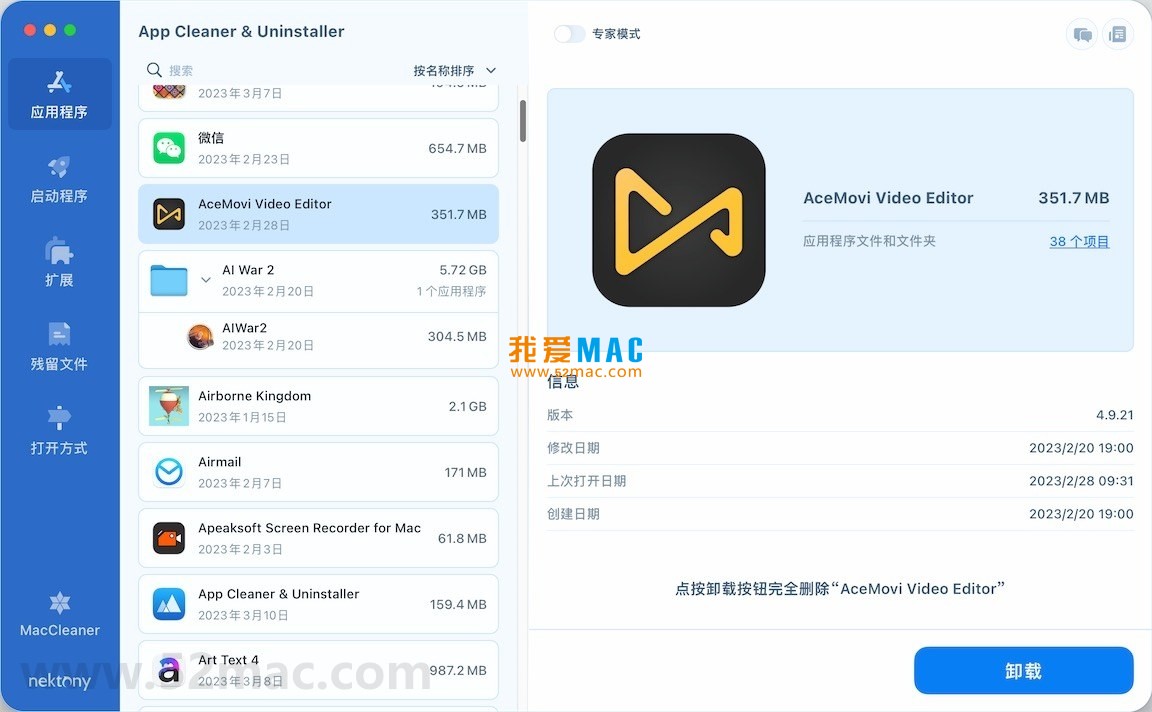


App Cleaner & Uninstaller Pro for Mac v8.2.4 Software Uninstaller Chinese Activated Version Download
This page provides App Cleaner & Uninstaller Pro for Mac v8.2.4 Software Uninstaller Chinese Activated Version Download | 爱上MAC. It has been tested and is working. If you encounter link failure or inability to install after download, please leave a message to contact us.
App Cleaner & Uninstaller Pro is an advanced software uninstaller and system optimization tool designed specifically for macOS. Its core value lies in completely removing applications and all their associated files, caches, and preferences, thereby effectively freeing up disk space, improving system performance, and maintaining long-term stability.
This tool is a comprehensive uninstallation and cleaning solution for Mac, designed to solve the many problems left by traditional uninstallation methods (such as dragging to Trash), such as residual service files, cache data, and redundant language packs, providing users with a one-stop system maintenance experience.
Completely remove applications without leaving any residue. Traditional uninstallation methods usually leave a large number of service files, preferences, and cache data in the system. This tool can:
Too many login items and startup services are common causes of slow Mac startup and performance degradation. With this feature, you can:
Centrally manage various types of extensions in macOS to keep the system clean and secure:
Specially designed to find and clean “junk” files left by previous incomplete uninstalls:
Easily change the default opening program for specific file types:
Below are screenshots of the main functional interfaces of App Cleaner & Uninstaller Pro:
To ensure stable software operation, please strictly follow the steps below. We have fully tested the installation package to ensure a safe and reliable download link.
Click the download link provided on the page to obtain the App Cleaner & Uninstaller Pro v8.2.4 archive. The file is usually provided in .zip or .dmg format.
Double-click the downloaded archive, and the system will automatically extract and mount a disk image file. If prompted with “Application from the Internet”, rest assured, this is a normal macOS security prompt.
Open the mounted .dmg window, and you will see the App Cleaner & Uninstaller Pro icon and an Applications folder shortcut.
Drag the software icon directly into the Applications folder. This is the most standard installation method on Mac, and the system will automatically complete the file copy.
Go to the “Applications” folder, find App Cleaner & Uninstaller Pro, and double-click to launch. On first run, the system will pop up a security prompt.
Go to “System Preferences” -> “Security & Privacy” -> “General”, and click the “Open Anyway” button. Enter your administrator password to complete authorization.
To fully scan residual files in the system, the software needs “Accessibility” permission. After launching the software, follow the prompts to authorize.
Go to “System Preferences” -> “Security & Privacy” -> “Privacy” -> “Accessibility”, and check the box next to App Cleaner & Uninstaller Pro.
The version provided on this page is the Chinese activated version, no additional serial number is required. After opening the software, you will directly enter the main interface.
Select “All Applications” in the left sidebar, and you will see a list of all software installed on your Mac. Select any application and click the “Complete Removal” button on the right.
We have compiled the 8 most common questions from users and provided professional answers to help you get started quickly.
This is determined by the characteristics of the macOS system. Traditional drag-and-drop deletion only removes the main application package, but preferences, caches, logs, and other files are scattered in various system folders.
App Cleaner & Uninstaller Pro deeply scans directories such as ~/Library to find these hidden “digital fragments”, ensuring thorough uninstallation.
No. This tool only lists user-level and system-level startup items and clearly indicates the purpose of each item.
It is recommended to only disable software that you clearly know does not need to start automatically, such as Adobe updaters or third-party download tools. Keep Apple native services.
You can try. In App Cleaner & Uninstaller Pro, deletion operations are moved to the Trash by default.
If you have not emptied the Trash, you can go to the Trash, right-click and select “Put Back” to restore the application and its associated files.
Scanning speed depends on the number of files on your disk and your Mac’s performance. Version 8.2.4 has optimized the scanning algorithm for Sonoma.
The first scan will be slower because it needs to build a file index. Subsequent uses will be much faster. It is recommended to perform scanning when your Mac is idle.
Yes. App Cleaner & Uninstaller Pro can uninstall most system pre-installed applications, such as “Podcasts”, “Stocks”, etc.
However, for core system components (such as Safari, Mail), the software will prompt a risk, and it is recommended not to force deletion to avoid affecting system stability.
The v8.2.4 version provided on this page has a built-in Chinese language pack. The software will automatically match your system language.
If the interface is displayed in English, go to the software menu bar “Preferences” -> “Language”, select “Simplified Chinese” and restart the software.
Although individual files are small, many a little makes a mickle. Over time, these residual files may accumulate several GB of space.
It is recommended to clean regularly (e.g., once a month). Before deleting, you can check the file path to confirm it is not an important configuration file.
This is caused by the macOS Gatekeeper security mechanism. This software is signed by the developer but may not be on Apple’s whitelist.
Please follow the method in “Installation Tutorial” Step 3 to manually allow it in “Security & Privacy”. This is a common operation for running third-party tools on Mac.
Mastering these shortcuts can help you get twice the result with half the effort when using App Cleaner and daily Mac operations. The following table summarizes the most practical key combinations.
| Shortcut Combination | Function Description | Applicable Scenario |
|---|---|---|
| Command + Q | Completely quit the current application | Close App Cleaner or any lagging software |
| Command + W | Close the current window | Close a function panel in the software |
| Command + Option + Esc | Force quit applications | Use when App Cleaner or other software is unresponsive |
| Command + Delete | Move selected files to Trash | Quickly delete files, combined with App Cleaner to clean residues |
| Command + Shift + Delete | Empty Trash (requires confirmation) | Completely delete residual files already in the Trash |
| Command + Space | Open Spotlight search | Quickly find App Cleaner or any file |
| Command + , | Open preferences of the current application | Adjust App Cleaner settings |
This resource requires login to download
Log in
Disk Diet for Mac v5.4.5 Free Up Disk Space Chinese Activated Version Download
Downloads:238 | 2026-10-17

Sensei for Mac v1.4.2 Software and Hardware Optimization Tool Chinese Activated Version Download
Downloads:1580 | 2026-10-17

MacBooster 8 for Mac v8.2.0 System Maintenance and Software Uninstall Chinese Activated Version Download
Downloads:1286 | 2026-10-17

Tidy Up 6 for Mac v6.0.4 Duplicate Finder and Disk Organizer Activated Version Download
Downloads:1568 | 2026-10-17


Ratings & reviews
No rating
Let’s rate it.