



Network & Battery for Mac v12.4.2 Network Speed and Battery Chinese Activated Version Download
This page provides Network & Battery for Mac v12.4.2 Network Speed and Battery Chinese Activated Version Download | Love Mac, tested and working. If you encounter invalid links or inability to install after download, please leave a message to contact us.
Network & Battery is a system status monitoring tool with a minimalist design that resides in the macOS menu bar. It can display real-time network status, upload/download speed, data usage, CPU usage, and detailed battery information, helping users fully understand their device’s operating status and optimize their experience.
Core positioning: A lightweight, professional, at-a-glance system monitoring assistant, especially suitable for Mac users who need to keep an eye on device performance and battery health in real time.
This update mainly focuses on experience optimization and stability improvements, including:
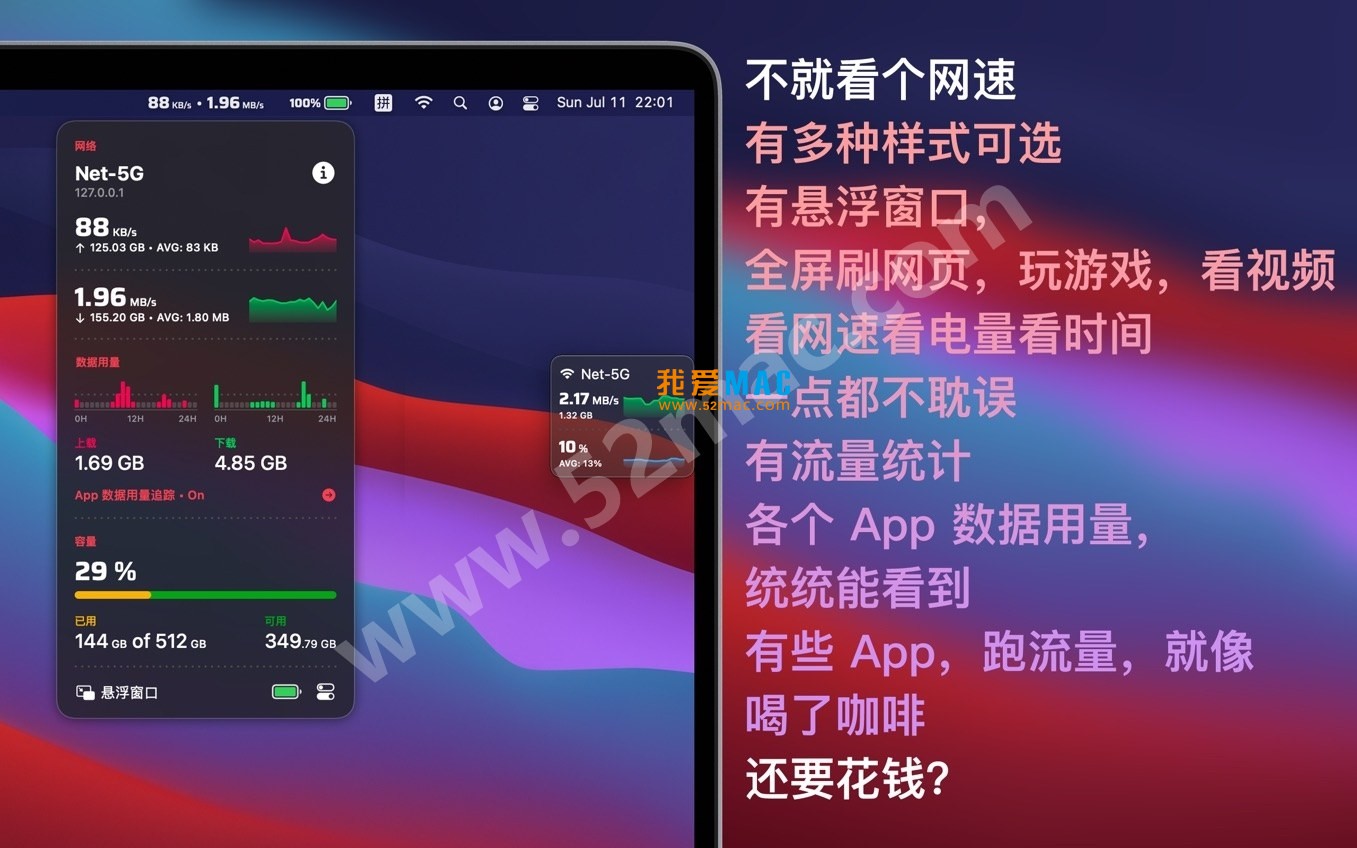
The following screenshots show the actual performance of Network & Battery in the menu bar, floating window, and system widgets:
Installing Network & Battery for Mac v12.4.2 Chinese activated version only takes a few simple steps. Please follow the process below to ensure the software runs smoothly.
Click the download link provided on this page to obtain the disk image file named “Network_Battery_v12.4.2.dmg”. After downloading, double-click the .dmg file, and the system will automatically mount and open a window containing the application icon.
In the opened window, you will see the Network & Battery application icon and a shortcut pointing to the “Applications” folder. Simply drag the application icon onto the “Applications” folder icon, and the system will automatically complete the copy installation process.
After installation, go to the “Applications” folder in Finder, find Network & Battery, and double-click to open it. Since the software comes from a developer other than the App Store, macOS may display a security prompt.
If the system prompts “Cannot be opened because the developer cannot be verified”, first click “Cancel”. Then open “System Preferences” > “Security & Privacy” > “General”, find the “Allow apps downloaded from” section at the bottom of the page, click the “Open Anyway” button, and then click “Open” in the confirmation window that appears.
After launching the app, you will see a new icon in the menu bar. Click the icon and select “Preferences”. In the preferences window, enter the activation code we provided and click the “Activate” button. After successful activation, you can customize the display content and style according to your personal needs.
During use, you may encounter some problems. We have compiled the following high-frequency questions and answers, hoping to help you solve them quickly.
This is usually due to macOS security policy restrictions. Please first ensure that the “Allow from anywhere” option in “System Preferences” > “Security & Privacy” > “General” is turned off (if this option is not available, you can execute the sudo spctl --master-disable command in Terminal to enable it). If the problem persists, try downloading the installation package again.
Please check the “Display” option in the software preferences. Make sure “Network Speed” or “Upload/Download Speed” is checked. Also, confirm that your Mac is connected to the Internet.
This may be caused by insufficient software permissions. Please go to “System Preferences” > “Security & Privacy” > “Privacy” > “Accessibility” and ensure that Network & Battery is checked and authorized.
No. Network & Battery has been deeply optimized and uses extremely low resources. According to our actual tests, the impact on MacBook battery life when running in the background is minimal, far lower than similar monitoring software.
Uninstallation is very simple. Open “Finder” > “Applications”, find Network & Battery, and drag it to the Trash. If you want to clean up residual preference files, you can go to the ~/Library/Preferences/ folder and delete the .plist files starting with “com.yourcompany.networkbattery”.
Fully supported. This version is fully compatible with macOS Big Sur, Monterey, Ventura, and the latest Sonoma system, with excellent compatibility.
If you encounter an expired or unable-to-activate activation code, please contact us promptly through the contact information at the bottom of the page or the message function. We will provide you with a new valid activation code as soon as possible.
This is usually related to screen refresh rate or graphics card driver. It is recommended to try adjusting the transparency or refresh frequency of the floating window in the preferences. If the problem persists, please update your macOS system to the latest version.
Currently, the software mainly monitors the currently active network interface, such as Wi-Fi or Ethernet. It cannot display independent data for multiple interfaces simultaneously, but it will accurately display the status of the interface currently being used by the system.
Please try restarting your Mac or re-adding the widget. Click “Edit Widgets” at the bottom of “Notification Center”, remove the Network & Battery widget, and then add it again.
Mastering some common macOS shortcut keys can significantly improve your work efficiency. Below is a practical shortcut key table we have compiled for you, covering system operations, file management, screenshots, and other scenarios.
| Shortcut Key Combination | Function Description | Applicable Scenarios |
|---|---|---|
Command + C |
Copy selected content | Files, text, images |
Command + V |
Paste copied content | Files, text, images |
Command + X |
Cut selected content | Text editing, file moving |
Command + Z |
Undo the previous operation |


Ratings & reviews
No rating
Let’s rate it.