



Network & Battery for Mac v12.2.7 Network Speed and Battery Chinese Activated Version Download
This page provides Network & Battery for Mac v12.2.7 Network Speed and Battery Chinese Activated Version Download | Love Mac, tested and working. If you encounter a dead link or cannot install after downloading, please leave a comment to contact us.
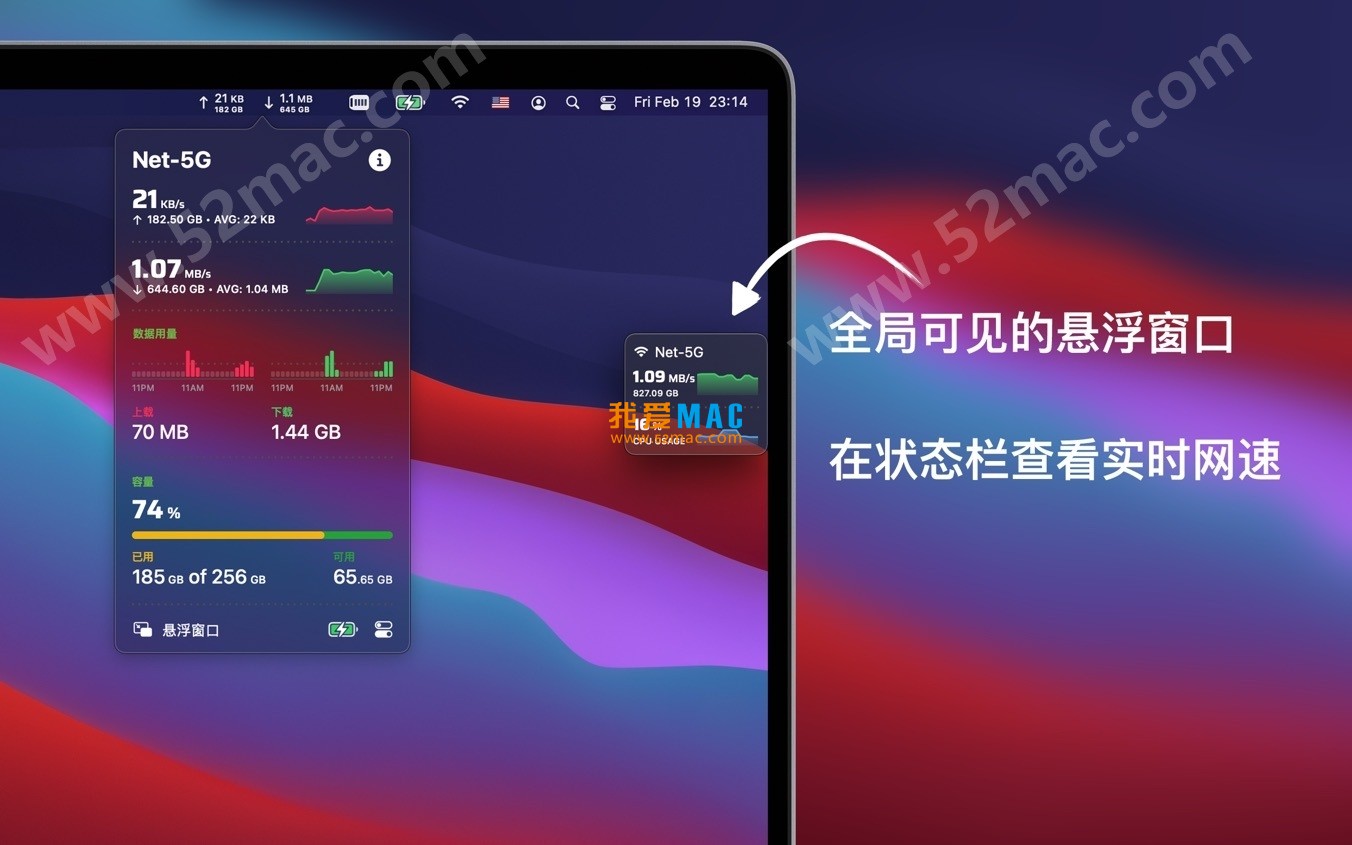
Network & Battery is a macOS status bar tool with a clean design and powerful features. It resides in the menu bar, monitoring key system metrics in real time and accurately, including network status, live upload/download speeds, data usage, CPU usage, and detailed battery health information.
Core Value: Through one-stop, low-energy system monitoring, it helps users optimize workflows, safeguard device health, and improve Mac efficiency.
This update mainly includes the following improvements and optimizations:
Installing Network & Battery is actually very simple. Follow these steps and you’ll be done in a few minutes.
Please ensure your Mac is running macOS Big Sur or later. Download the dmg image file from the link provided on this page.
After downloading, double-click the dmg file to mount it. You will see a window containing the app icon.
Drag the Network & Battery app icon directly onto the “Applications” folder icon next to it. The system will automatically complete the copy.
When opening for the first time, macOS may prompt “Cannot verify developer”. This is a common Gatekeeper protection mechanism.
Go to “System Preferences” -> “Security & Privacy” -> “General”. You will see “Network & Battery was blocked from use because it is not from an identified developer”.
Click the “Open Anyway” button and confirm in the pop-up window. The app will then run normally. This prompt will not appear on subsequent launches.
After opening the app, it will display an icon in the menu bar. On first run, you may need to grant accessibility permissions.
Go to “System Preferences” -> “Security & Privacy” -> “Privacy” -> “Accessibility” and check Network & Battery.
This way, the floating window and status bar real-time monitoring features will fully function. The whole process takes less than five minutes.
Here are the 10 most common questions encountered during installation and use, hoping to help you.
This is usually due to macOS security policies. Please check the settings in “Security & Privacy” and allow apps downloaded from any source.
If the problem persists, try entering in Terminal: sudo spctl --master-disable to temporarily disable Gatekeeper. It is recommended to re-enable it afterward.
Please check if the app is running in the background. Click the Network & Battery icon in the menu bar and go to “Preferences”.
In the “Menu Bar” options, ensure that “Show Network Speed” is enabled. You can also adjust the display style and width.
Simply hold and drag any edge or title area of the floating window to your desired position. It will stay fixed on the desktop.
You can also adjust the transparency, size, and displayed content of the floating window in Preferences to better suit your habits.
Network & Battery reads the underlying battery SMC data from the system, consistent with macOS’s built-in battery information.
It provides key metrics such as cycle count, maximum capacity, and current temperature. The data source is reliable and suitable for daily reference.
No need to worry at all. This software is known for being lightweight, with extremely low background usage and virtually no impact on Mac speed or battery life.
In actual testing under normal usage scenarios, its CPU usage is typically below 1%, and memory usage is only a few dozen MB.
Click the menu bar icon and select the “Data Usage” view. At the top of the window, you can switch between “Today”, “Past 24 Hours”, and other periods.
If you need longer historical statistics, you can enable the “Auto-save records” feature in Preferences, and data will be persistently stored.
Usually not. Network & Battery’s configuration files are stored independently, and overwriting or upgrading will retain existing settings.
However, to be safe, it is recommended to manually back up the preferences file before major version updates, just in case.
According to official documentation, Network & Battery v12.2.7 fully supports macOS Big Sur and all later versions.
Including Monterey, Ventura, and the latest Sonoma system, all have undergone strict compatibility testing and can be used with confidence.
The simplest way is to find Network & Battery in the “Applications” folder and drag it to the Trash.
If you want to thoroughly remove residual files, you can use tools like CleanMyMac to scan, or manually delete the relevant folders under ~/Library.
Network & Battery displays real-time network interface traffic, while speed test websites test maximum link throughput.
The former is the current actual bandwidth usage, and the latter is the theoretical peak. They are different concepts. As long as the values fluctuate reasonably, it is normal.
Use shortcuts well and double your efficiency. Here is a table of the most commonly used shortcuts on Mac, covering daily operations, screenshots, and text editing.
| Shortcut Combination | Function Description | Applicable Scenarios |
|---|---|---|
| Command + C | Copy selected content | Text, files, images, etc. |
| Command + V | Paste copied content | General paste operations |
| Command + X | Cut selected content | Text editing and file moving |
| Command + Z | Undo last action | Recovery after mistaken operations |
| Command + Shift + Z | Redo (restore undo) | Reverting an undo |
| Command + A | Select all content | Quickly select all items |
| Command + F | Find on current page | Searching in browsers, documents |
| Command + Space | Open Spotlight search | Quickly launch apps or files |
| Command + Tab | Switch applications | Fast multitasking switching |
| Command + Q | Quit current application | Completely close a program |
| Command + W | Close current window | Close tabs or documents |
| Command + M | Minimize current window | Minimize to Dock |
This resource requires login to download
Log in
iStatistica for Mac v4.6.1 Advanced System Monitoring Tool Activated Version Download
Downloads:3679 | 2026-10-17

iStat Menus for Mac v6.5 Menu Bar System Monitoring Software Chinese Activated Version Download
Downloads:654 | 2026-10-17
iStatistica for Mac v5.1 Advanced System Monitoring Software Activated Version Download
Downloads:259 | 2026-10-17
iStat Menus for Mac v6.70 Menu Bar System Monitoring Software Chinese Activated Version Download
Downloads:519 | 2026-10-17


Ratings & reviews
No rating
Let’s rate it.