

EazyDraw for Mac v12.4.6 Chinese Activation Edition Download
本页面提供 EazyDraw for Mac v12.4.6 绘图制图软件 中文激活版下载 | 爱上MAC,已测试可用,如遇到链接失效或下载后无法安装等情况,请留言联系我们。
EazyDraw 是一款专为 macOS 设计的专业矢量图形软件,适用于创建流程图、平面图、技术图纸、图表等多种图形。它提供丰富的绘图工具与符号库,支持导入和导出 PDF、SVG、DXF 等格式,并兼容 Apple Pencil,可实现精细自然的绘图体验。
EazyDraw 在功能深度与易用性之间取得了良好平衡,既适合初学者快速上手,也能满足专业用户在技术绘图、平面设计、出版印刷、标志设计及页面布局等方面的复杂需求。
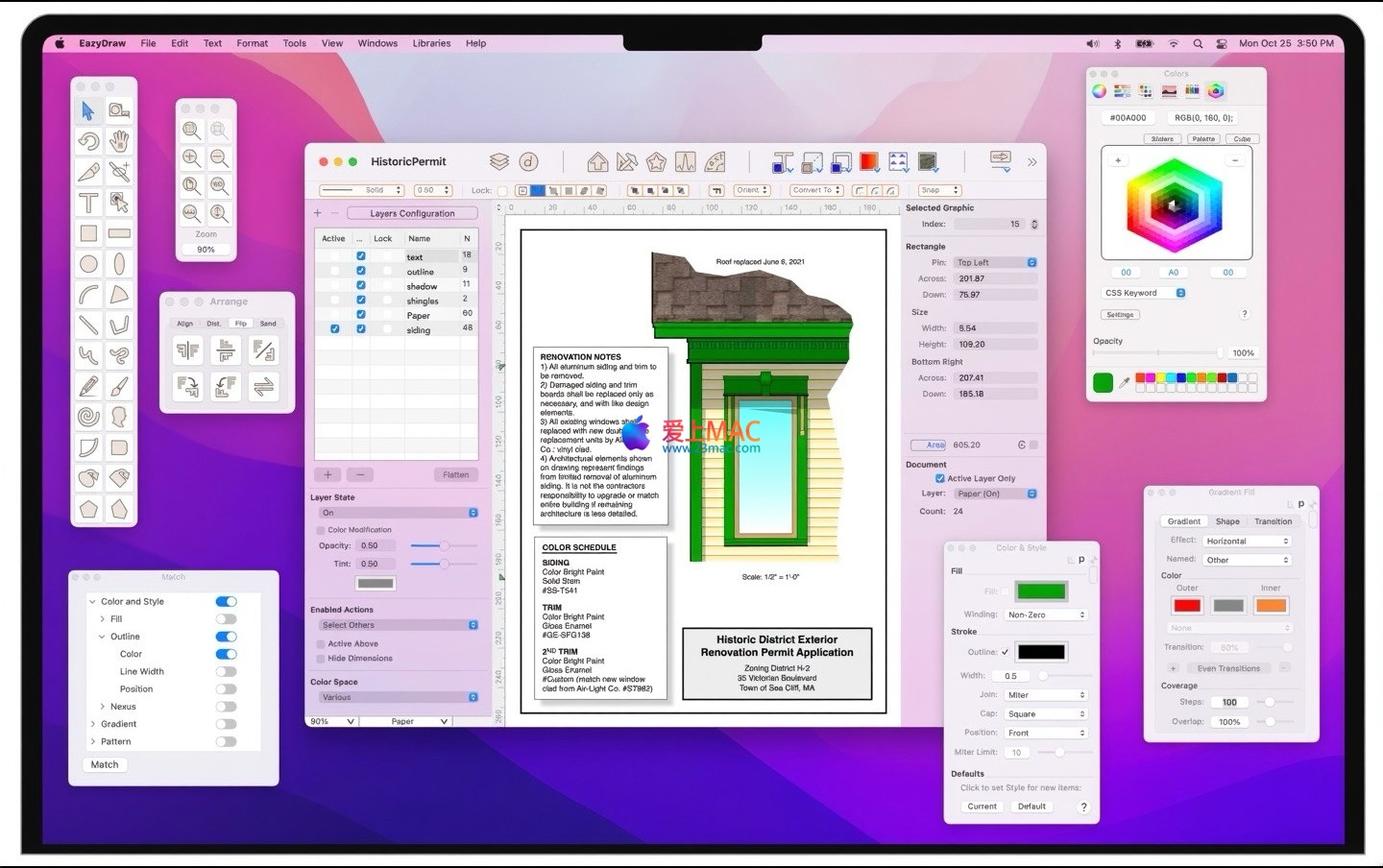
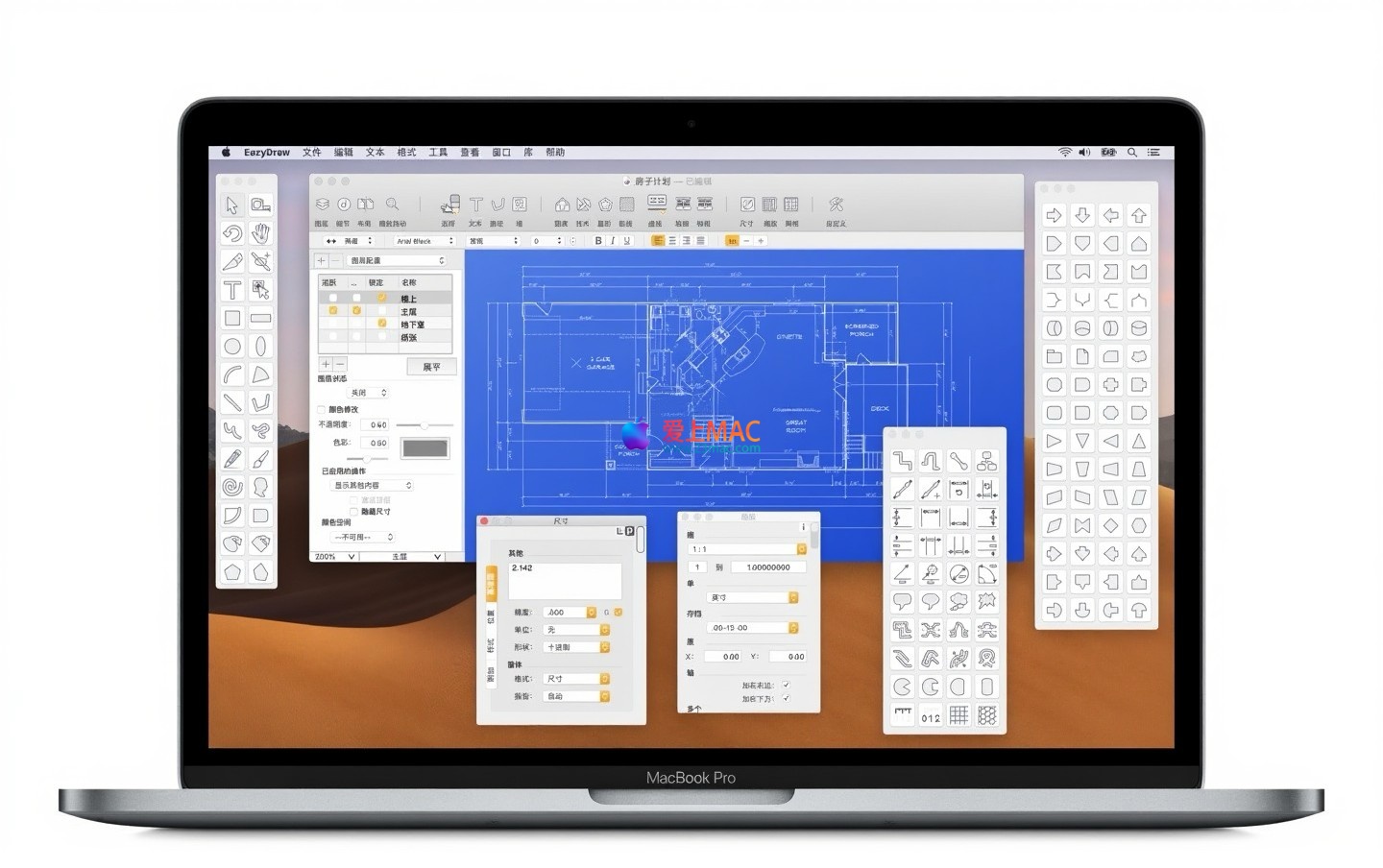
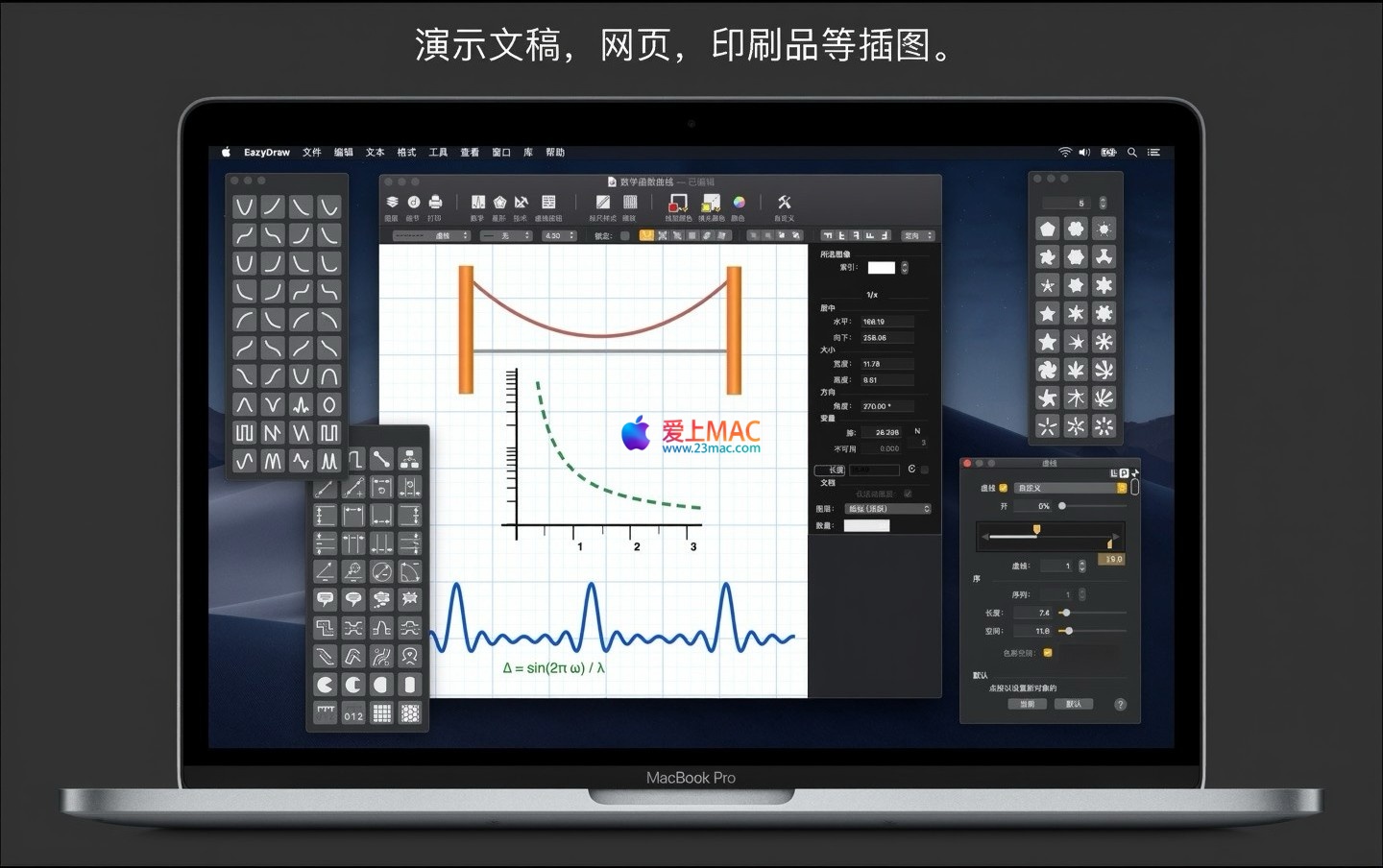
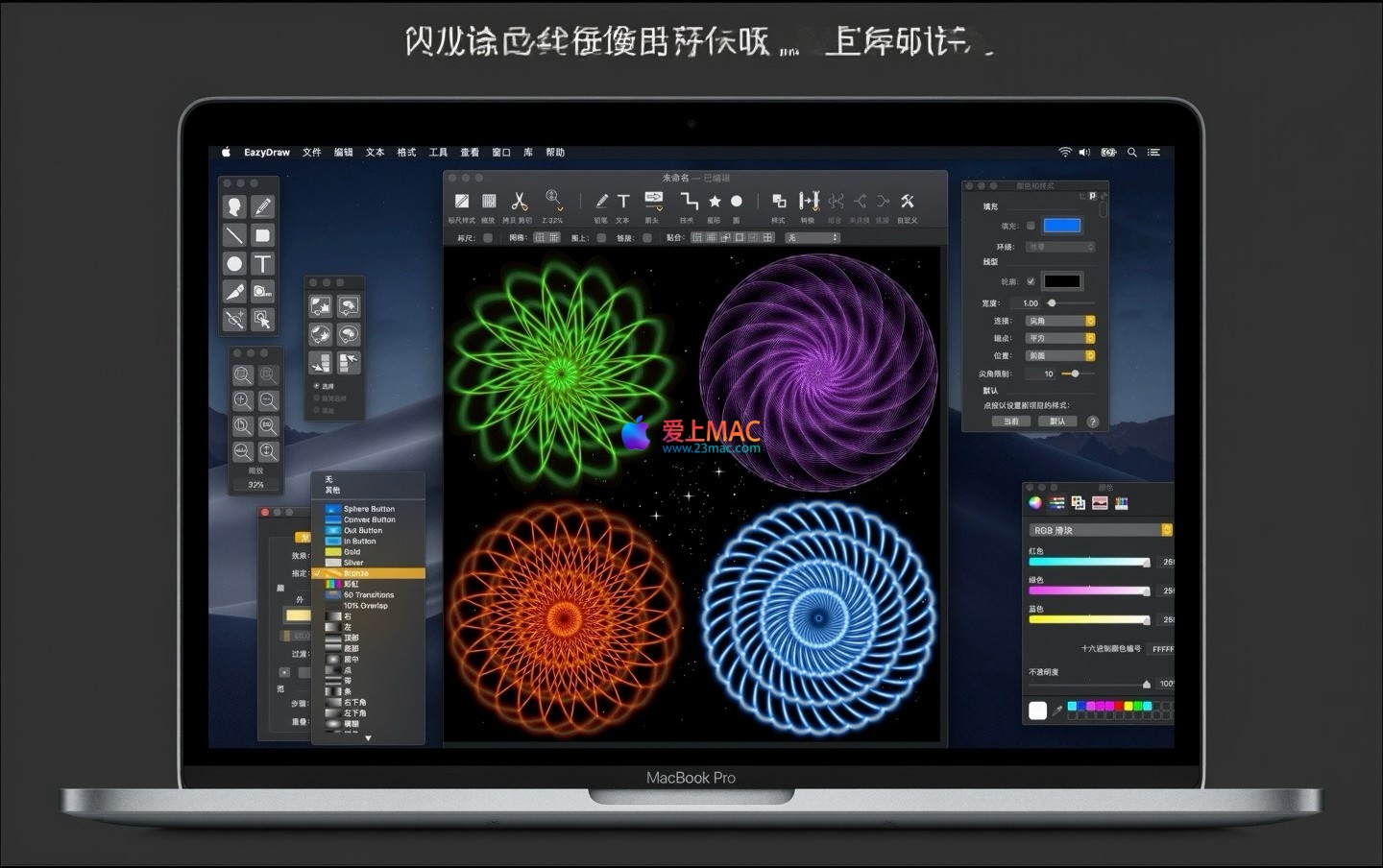
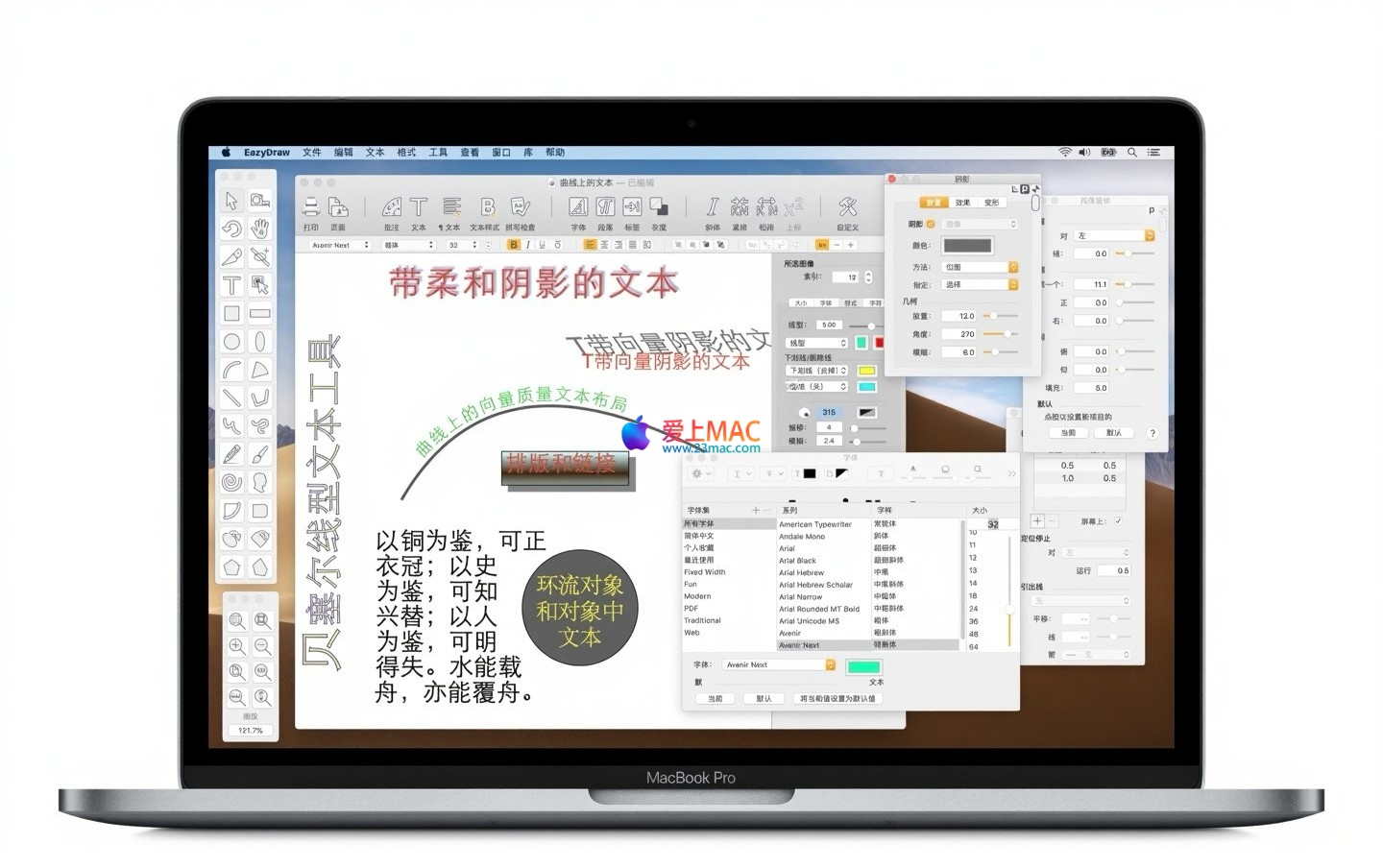
截图展示了 EazyDraw for Mac v12.4.6 的界面布局与功能模块。
从页面提供的链接下载 EazyDraw v12.4.6 安装包。建议在下载前关闭所有正在运行的应用程序,避免安装冲突。
下载完成后,双击 .dmg 文件挂载磁盘映像。你会看到安装器图标与应用程序文件夹快捷方式。
启动 EazyDraw 后,检查“关于 EazyDraw”菜单项,确认版本号为 12.4.6。随后可新建文档测试基本绘图功能是否正常。
如果遇到“损坏”提示,请检查系统是否开启了 Gatekeeper 限制。可尝试右键点击应用,选择“打开”来绕过单次限制。
| 操作类别 | 快捷键 | 功能说明 |
|---|---|---|
| 文件操作 | ⌘N | 新建文档 |
| 文件操作 | ⌘O | 打开现有文件 |
| 文件操作 | ⌘S | 保存当前文档 |
| 文件操作 | ⌘⇧S | 另存为新文件 |
| 编辑操作 | ⌘Z | 撤销上一步操作 |
| 编辑操作 | ⌘⇧Z | 重做上一步撤销 |
| 编辑操作 | ⌘C | 复制选中对象 |
| 编辑操作 | ⌘V | 粘贴对象到画布 |
| 视图操作 | ⌘+ | 放大视图 |
| 视图操作 | ⌘- | 缩小视图 |
| 视图操作 | ⌘0 | 缩放至实际大小 |
| 选择工具 | V | 切换到选择工具 |
| 绘图工具 | P | 钢笔工具 |
| 绘图工具 | R | 矩形工具 |
| 绘图工具 | O | 椭圆工具 |
| 对齐与分布 | ⌘⇧A | 水平居中对齐 |
| 对齐与分布 | ⌘⇧D | 垂直居中对齐 |
These keyboard shortcuts are based on the default settings of EazyDraw 12.4.6. You can customize them in “Preferences” > “Keyboard Shortcuts”. Mastering these shortcuts can significantly enhance your drawing efficiency.
In complex projects, using layers effectively can prevent chaos. It’s recommended to create separate layers for background, main content, and annotations. Double-click on a layer name to rename it, and use color tags to quickly identify layers.
Utilize the “Layer” panel’s locking feature to prevent accidental modifications. Temporarily hide other layers when editing details to reduce visual distractions. EazyDraw supports layer grouping, allowing you to categorize related elements.
Suppose you need to create a data flow diagram for a product manual. Start by creating a new document with an A4-sized canvas. Use the “Rectangle Tool” to draw flow nodes, and the “Pen Tool” to connect arrows.
Drag symbols from the “Symbol Library” to add diamond decision boxes quickly. Adjust node colors using the “Color Management” panel to select standard colors in the P3 color space, ensuring consistent print results.
After completion, export as a PDF format through “File” > “Export”. In the export settings, choose “Preserve Editing Capabilities” to allow colleagues to make further modifications. The entire process, from concept to output, takes only 15 minutes.
EazyDraw is suitable for creating iOS or macOS application icons. Start by creating a 1024×1024 pixel canvas with a DPI of 72. Use the “Ellipse Tool” to draw a circular base and fill it with a gradient color.
To add shadow effects, choose “Effects” > “Projection”, and adjust the blur radius and offset. Use the “Text Tool” to add the application name, and convert it to a path to be compatible with different systems.
When exporting, choose the PNG format and check “Generate All Sizes”. EazyDraw will automatically create a set of icons ranging from 16×16 to 1024×1024, saving you the trouble of manual scaling. This feature is highly favored by developers.
EazyDraw for Mac v12.4.6 is a vector drawing tool that balances professionalism and ease of use. From file format compatibility to color management, and seamless integration with Intaglio, the development team has considered these details meticulously.
Through the installation guide, keyboard shortcut table, and real-world examples provided in this tutorial, you should be able to quickly get started. Whether you need to create technical diagrams, design layouts, or application icons, EazyDraw can handle all these tasks.
It is recommended to start with a monthly subscription to experience all features before deciding to purchase the full license. If you encounter any issues during downloading or usage, please leave a message below. We will promptly assist you to ensure a smooth workflow.
This resource requires login to download
Log in
Screen Notes and Recorder for Mac v1.9.1 Activation Download
Downloads:1560 | 2026-10-21

Calendar 366 II for Mac v2.5.0 Chinese Activation Version Download
Downloads:2789 | 2026-10-20

Rosetta Stone Japanese Language Pack Level 1: Rosetta Stone Japanese Mac Download and Activation Version
Downloads:2470 | 2026-10-20

Unclutter for Mac v2.1.18 Chinese Activation Version Download
Downloads:1433 | 2026-10-19


Ratings & reviews
4.8
(Maximum 5 ratings, total 70 user reviews)
Let’s rate it.