Here is the page providing Topaz Gigapixel Pro for Mac v1.1.2 High-Resolution Image Scaling and Activation Download | LoveMAC, tested and available. If you encounter issues with the download link or the software fails to install after downloading, please leave a message and contact us.
Topaz Gigapixel Pro is a professional-grade artificial intelligence image scaling software developed by Topaz Labs. Its core positioning is “a solution for image enhancement in studio and commercial scenarios,” aiming to solve the problems of detail loss and distortion during the image scaling process through industry-leading AI technology. The software not only focuses on achieving “lossless scaling,” but also fully covers the needs of professional users in terms of file compatibility, workflow efficiency, and team collaboration, widely applied in fields such as game art, commercial printing, satellite image analysis, professional photography post-processing, and more.
Important Note: This article aims to introduce the software features. Unauthorized cracked software poses security risks, legal risks, and cannot obtain official technical support and updates. We strongly recommend that users purchase the正版software through the official channel.
One. Core Functionality Features
1.1 Super High-Rate Lossless Scaling
- Scaling Capability: Supports up to 6x lossless scaling, with a maximum output width of 32,000 pixels, capable of processing up to 10 billion pixels per image.
- Application Scenarios: Designed specifically for large-scale printing (such as 80×60-inch posters), high-definition banners, and satellite image analysis, among other high-standard requirements.
- Technical Advantages: Unlike traditional interpolation scaling which only “stretches pixels,” its AI engine can intelligently supplement and reconstruct texture details (such as hair, edges, materials), effectively repairing low-resolution photos, historical images, or screenshots.
1.2 Gigaprint Professional Printing Optimization
- Accurate Cropping Control: Offers manual cropping area adjustments, supports vertical/horizontal rotation of the cropping frame, ensuring perfect composition during printing.
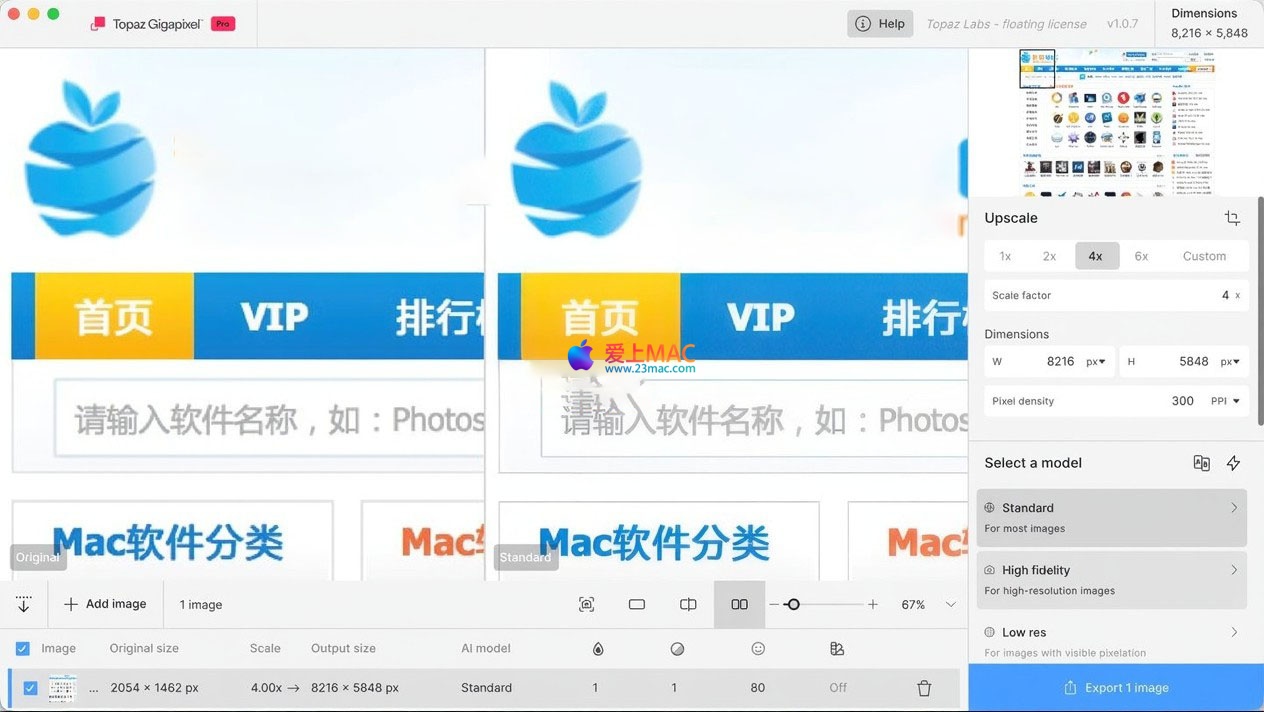
- Image Output Optimization: Includes a slider for adjusting image brightness and contrast, optimizing the image for printing to avoid issues like grayness and dullness, achieving “print-ready” results.
- Efficient Preview: Utilizes the Navigator panel for smooth local previewing, eliminating the need for repeated rendering and improving adjustment efficiency.
1.3 Comprehensive File Format Support
- RAW Format Direct Output: Directly supports popular camera RAW files such as Canon CR3, Nikon NEF, and Sony ARW, preserving the original dynamic range and details.
- Printing Standard Support: Native support for CMYK color mode, avoiding color deviations when converting from RGB, and directly outputting ready-for-print files.
- Common and Transparent Formats: Compatible with JPG, PNG, TIFF, and can handle PNG images with transparent channels.
1.4 Batch Processing and Automation Workflows
- Bulk Processing: Supports importing and processing dozens to hundreds of images at once, setting unified parameters for scenarios such as e-commerce image processing and batch photo restoration.
- Smart Automatic Mode: AI automatically identifies image content (such as portraits, landscapes, illustrations) and matches the optimal scaling model, reducing the learning curve for users.
1.5 Flexible Deployment and Integration
- Dual Mode Operation: Can be run as a standalone application or integrated into mainstream software like Adobe Photoshop and Lightroom as an add-on.
- Mixed Rendering Architecture: Offers unlimited local rendering (ensuring data privacy) and cloud rendering (accelerating large-scale tasks). The Pro version supports up to 4 images being processed concurrently in the cloud.
Two. Version v1.1.2 Update Log
This version focuses on interface optimization, feature adjustments, and stability improvements:
- Interface and Interaction Optimization:
- Removed preview control items for generative models, making the preview effects closer to the final output result.
- Removed inaccurate file size estimation in the right-side panel, replaced with a more reliable pixel size display.
- Updated application icons to SVG versions, enhancing the clarity of the interface.
- New Features and Adjustments:
- Added support for JPG and TIF export formats.
- Added license seat management feature, allowing administrators to recycle seats.
- Permitted the local running of the Recover 3 model on Mac devices.
- Moved the Recover 1 model to the “old model” category.
- Performance and Error Fixes:
- Optimized the log recorder’s memory usage.
- Fixed crashes in Intel-based Macs at specific zoom levels.
- Fixed the issue of cloud output not retaining the selected PPI settings.
- Fixed multiple small memory leaks and Windows installation program permissions issues in non-Latin language environments.
- Solved a series of known issues in settings, model validation, login/logout processes, and more.
Three. Software Interface Overview
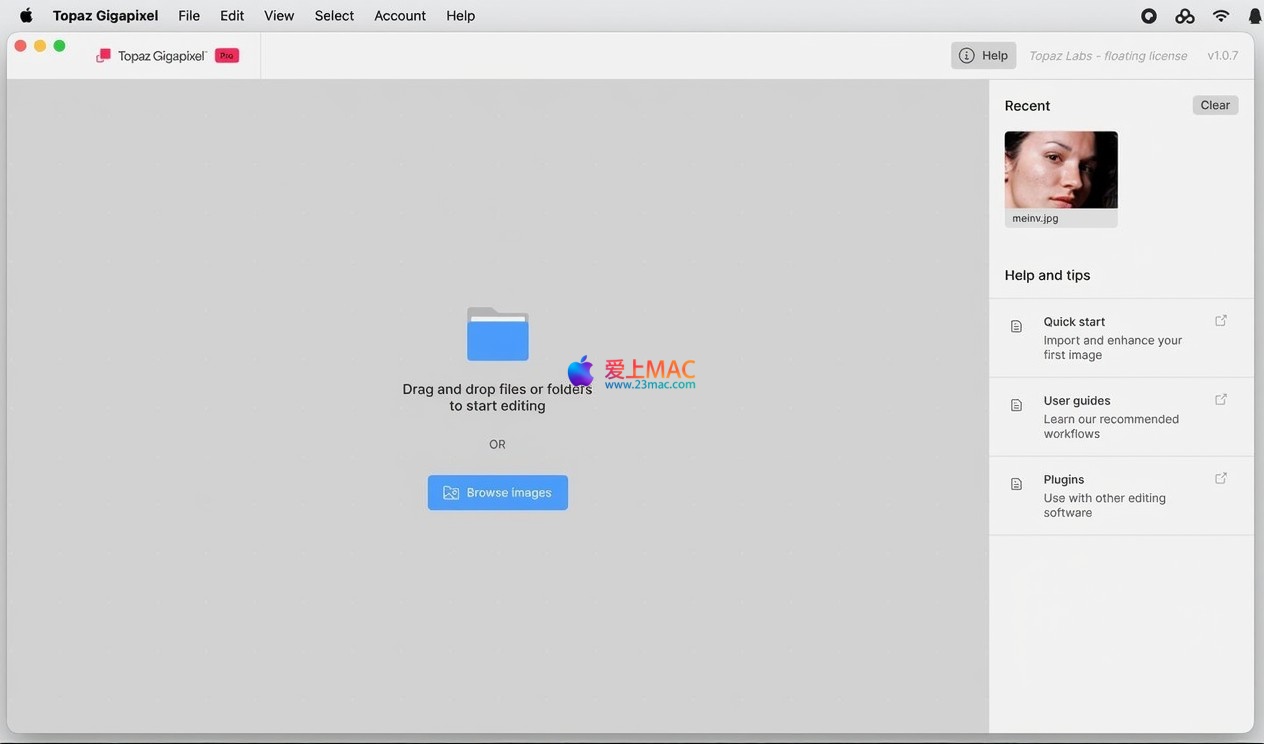
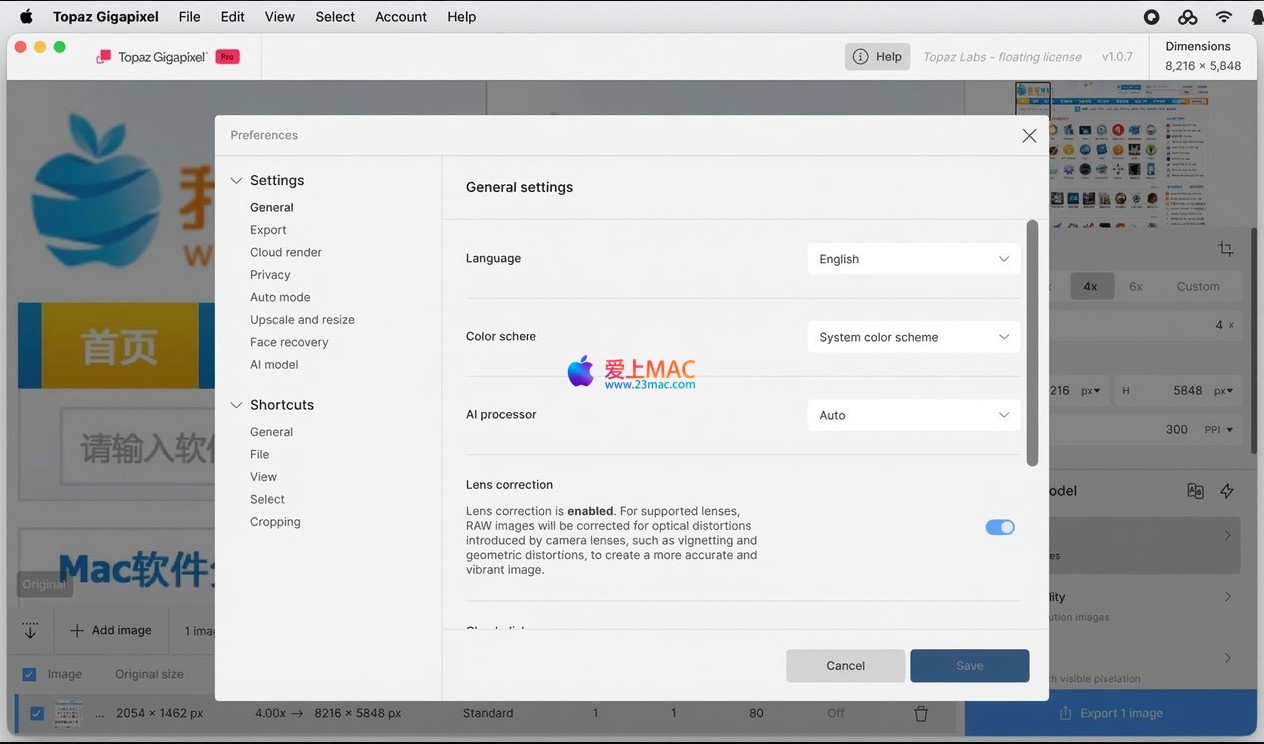
Here are screenshots of the main interface of Topaz Gigapixel Pro v1.1.2 for Mac, showcasing its clean layout and core functionality areas:
Four, Detailed Installation Tutorial (Mac Version)
Ensure your Mac meets the minimum system requirements: macOS 10.15 Catalina or a higher version, at least 8GB of RAM (recommended 16GB or more), and sufficient hard drive space.
Four, Detailed Installation Tutorial (Mac Version)
- Download the Topaz Gigapixel Pro v1.1.2 installation package from the link provided on this site.
- After the download is complete, double-click the .dmg file to mount it.
- If the system prompts “Cannot be verified by the developer,” go to “System Preferences” -> “Security & Privacy” -> “General,” and click “Open Anywhere.”
4.2 Installation Steps
- In the mounted .dmg window, find the “Topaz Gigapixel Pro” installation program.
- Double-click the installation program to start the installation wizard.
- Follow the on-screen instructions to drag the software icon to the “Applications” folder.
- After installation, launch Topaz Gigapixel Pro from the “Applications” folder.
- On first launch, the software may prompt for activation. Enter the provided activation code or use an activation tool (ensure the source is reliable).
4.3 Common Installation Issues
- Issue: Installation prompts “Damaged, Move to Trash.”
Solution: Open Terminal, enter command: sudo spctl --master-disable, then enter password (no display), press Enter to re-install.
- Issue: Software cannot verify over the network.
Solution: Check firewall settings to ensure Topaz Gigapixel Pro is allowed to access the network. Some activation versions require manual Hosts blocking for verification.
Five, Common FAQs
Organize the most common issues users encounter when using Topaz Gigapixel Pro and provide professional answers.
5.1 Does Topaz Gigapixel Pro support M1/M2/M3 chips?
Full support. Topaz Gigapixel Pro v1.1.2 is natively compatible with Apple Silicon chips, running more efficiently on M-series Macs with faster rendering speeds.
5.2 What’s the difference between 4x and 6x zoom?
4x zoom is suitable for most scenarios, balancing detail and file size. 6x zoom is for extreme needs, such as extracting usable details from very low-resolution source files, but it takes longer.
5.3 Why does my image look blurry after zooming in?
It may be due to the wrong AI model selected. Use the “Standard” or “Lines” model for line drawings, and the “Very Compressed” model for low-quality JPEGs. Ensure the original image isn’t overly compressed.
5.4 How do I process a batch of photos?
Click the “Batch” button in the main interface, or drag multiple images into the window. Set the parameters, then click “Start” to begin batch processing. The processed files will be saved in the designated output folder.
5.5 What should I do if the software crashes or freezes?
First, update the graphics card driver. Next, in the “Preferences,” reduce “GPU Usage” or switch to CPU processing. If the issue persists, try resetting the software preferences.
5.6 How can I use the software as a Photoshop plugin?
Select “Plug-in” mode during installation, or find Topaz Gigapixel Pro in Photoshop’s “Filters” menu after installation. Specify the plugin path in Photoshop for the first use.
5.7 How do I compress output files?
In the export settings, choose JPG format and adjust the quality slider (typically 80-90% is sufficient). Alternatively, export as TIFF and use other compression tools.
5.8 Which languages does the software support?
The v1.1.2 version primarily supports English interface, but some third-party patches can enable Chinese translation. It is recommended to use the English original version for stability.
5.9 What should I do if I lose my activation code?
If purchased from the official source, log into Topaz Labs account to retrieve it. If from other channels, contact the seller or re-download. We strongly recommend backing up activation information.
5.10 What are the limitations of the free trial version?
Official trial versions usually limit the number of processing times or add watermarks. Activation versions unlock all features, including unlimited processing, batch processing, and cloud rendering.
Six, Common Keyboard Shortcuts Table
Mastering shortcuts can significantly enhance your efficiency when using Topaz Gigapixel Pro. Here’s a summary of common shortcuts:
| Operation Type |
Shortcut |
Function Description |
| File Operations |
⌘ + O |
Open Image File |
|
⌘ + S |
Save Current Image |
|
⌘ + Shift + S |
Save As New File |
| View Control |
⌘ + 0 |
Adapt Window Size |
|
⌘ + + |
Zoom In |
|
⌘ + - |
Zoom Out |
|
Space + Drag |
Move Canvas |
| Edit Operations |
⌘ + Z |
Undo Previous Step |
|
⌘ + Shift + Z |
Redo Previous Step |
| Batch Processing |
⌘ + B |
Open Batch Processing Panel |
|
⌘ + R |
Start Rendering/Processing |
| Other |
⌘ + , |
Open Preferences |
|
⌘ + Q |
Exit Software |
Seven, Tips and Real-World Cases
Apply these tips to your work, and you can fully leverage the potential of Topaz Gigapixel Pro.
7.1 Tips
- Select the right AI model: Use the “Face Recovery” model for portraits to optimize facial details; use the “Standard” model for landscapes for a more balanced result.
- Utilize preview comparisons: Hold down the
Shift key to quickly compare the original image with the processed result, avoiding over-processing.
- Stage-based zooming: For images requiring high-resolution output, it’s recommended to first zoom in 2x, save the image, and then zoom in to 4x, resulting in better quality.
- Combine noise reduction tools: If the original image has a lot of noise, use Topaz Denoise AI to reduce noise first, followed by using Gigapixel to enlarge, for better results.
7.2 Case Study: Restoring Old Photos
Assume you have an old photo of a family reunion, 200×300 pixels in size, needing to be enlarged to a high-resolution print.
- Import the old photo into Topaz Gigapixel Pro by scanning or taking a photo.
- Select “Face Recovery” model in the model list and check the “Restore Color” option.
- Set the zoom level to 4x and the output size to 800×1200 pixels.
- Click “Start” to begin processing. The AI will automatically repair blurry facial details and smartly colorize the image.
- After processing, use the “Lighting” slider to fine-tune brightness and contrast, then export as TIFF format.
7.3 Case Study: Optimizing Product Images for E-commerce
Sellers often need to enlarge small product images to high-resolution main images to showcase product details.
- Batch import product images (e.g., 10 phone case photos).
- In the batch processing panel, set all images to the “Standard” model and zoom in 2x.
- Check the “Auto Light” option to automatically optimize overall brightness.
- Select JPG format, set quality to 90%, and keep file size moderate.
- Click “Start Batch” to let the software process all images and save them in the designated folder.
Eight, Conclusion
Topaz Gigapixel Pro for Mac v1.1.2 is a true image enhancement tool. Its AI engine not only achieves super-resolution enlargement but also intelligently repairs details and optimizes colors. Whether you are a professional photographer, designer, or a regular user, you can benefit from this software. With this tutorial’s installation guide, FAQ answers, and shortcut table, we hope you can quickly get started and convert low-resolution images into high-resolution works. Remember, a正版 software provides stable updates and technical support, making it the best choice for long-term use. If you encounter any issues during use, feel free to leave a message below, and we will respond promptly to help you.







Ratings & reviews
4.6
(Maximum 5 ratings, total 99 user reviews)
Let’s rate it.