

Cinemagraph Pro for Mac v2026.13.1 Dynamic Photo Creation Tool – Chinese Activation Version Download
Here is the page providing Cinemagraph Pro for Mac v2026.13.1 Dynamic Photo Creation Tool Chinese Activation Version_Cinemagraph Promac Download | LoveMAC, has been tested and available. If you encounter issues with the link or cannot install the downloaded file, please leave a message to contact us.
Cinemagraph Pro for Mac is a professional-grade image editing software dedicated to creating “cinemagraphs,” which are a blend of static photos and video elements, resulting in visually appealing and artistic works. It is not just a tool but a digital artist that helps transform ordinary video clips into unforgettable artworks.
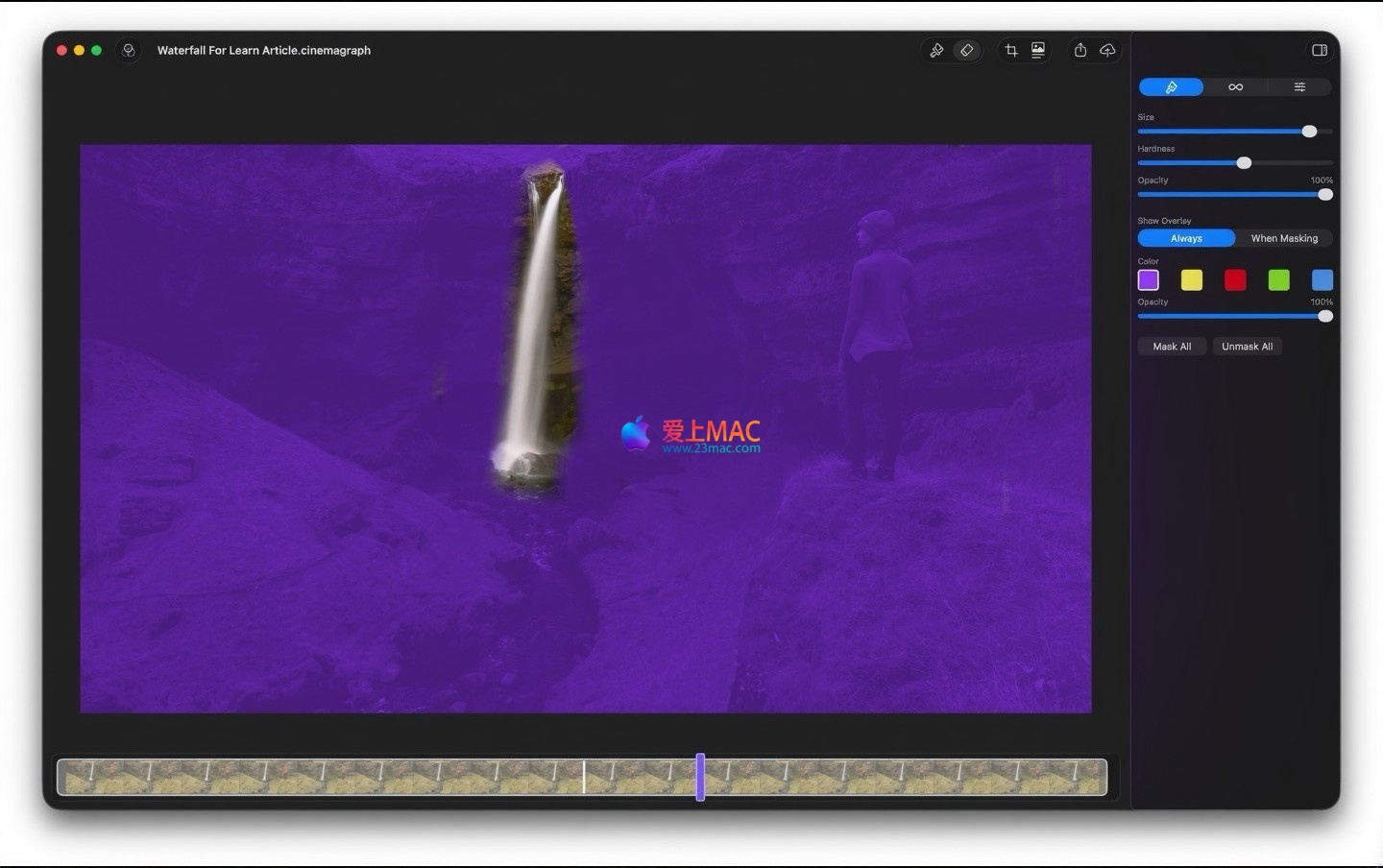
The software provides a complete and intuitive workflow guiding users through the entire process from raw material to finished product:
Add more creativity and professional details to the work:
Includes a wealth of learning resources to help users progress from beginner to expert:
Designed for serious creation and cross-platform collaboration:
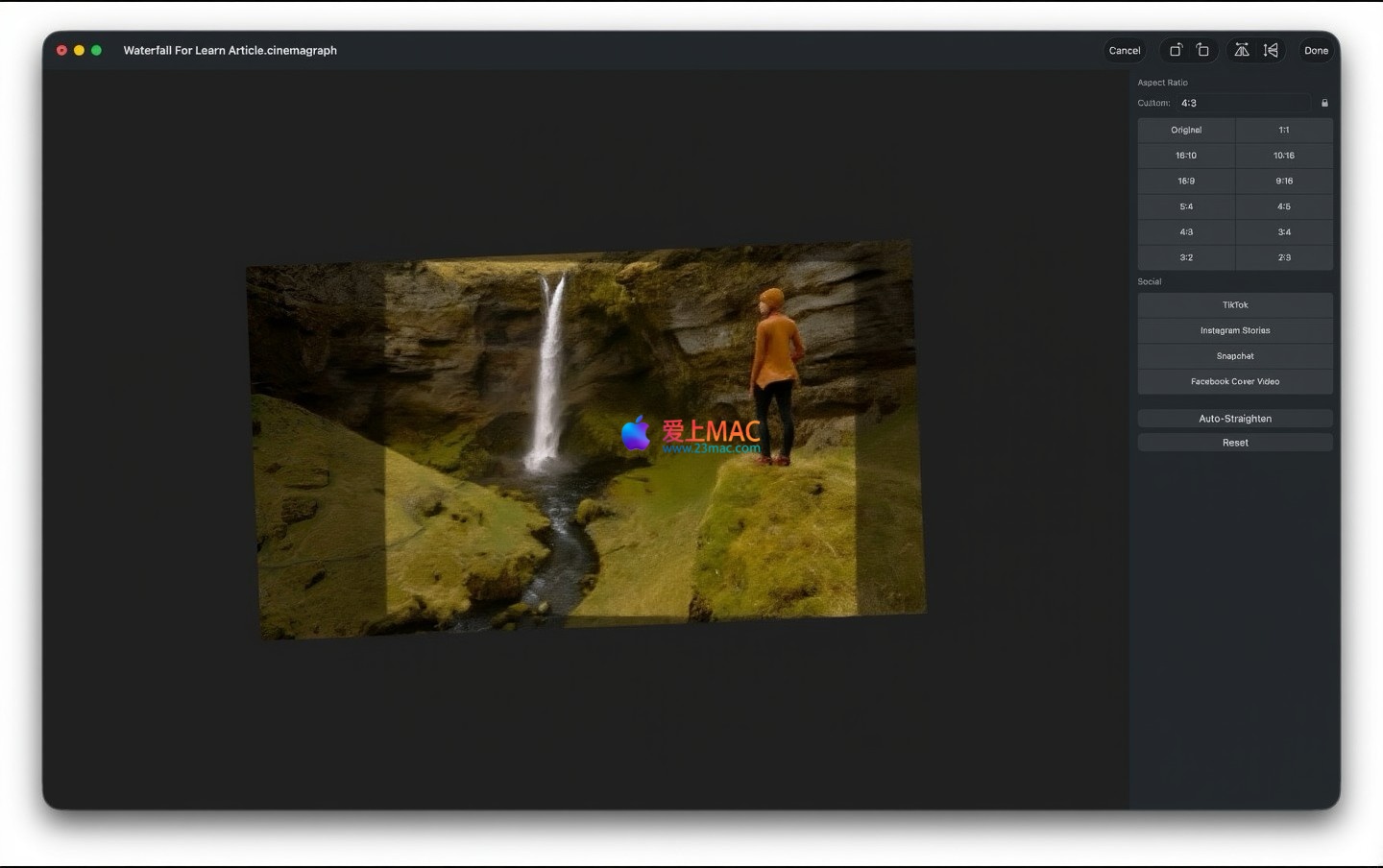
Offers diverse export options to suit different platform needs:
Ensure your Mac runs macOS 10.15 Catalina or a higher version. Download the Cinemagraph Pro for Mac v2026.13.1 installation package from this page. After downloading, double-click the .dmg file to mount the disk image.
Drag the Cinemagraph Pro icon to the “Applications” folder. This process usually takes 1-2 minutes. If the system prompts “Cannot verify developer identity,” go to “System Preferences” -> “Security & Privacy” -> “General,” and click “Open Anyway.”
When you first open the software, a window for activation will pop up. Enter the activation code provided with the installation package (usually found in .txt or .rtf files). Click the “Activate” button, and wait for the server to verify. Activation is successful, and the software will automatically restart.
After opening the software, click the “About Cinemagraph Pro” option in the menu bar to confirm that the version number is 2026.13.1. It is recommended to import a test video to check if the mask and export functions are working properly.
If you encounter the “Damaged and cannot be opened” prompt, open the Terminal and enter the command: sudo spctl --master-disable. Then try opening the software again. If the software crashes after installation, check if SIP (System Integrity Protection) is disabled.
The software natively supports MOV, MP4, and M4V formats. For other formats, it is recommended to use tools like HandBrake to convert them to H.264-encoded MOV files. High-resolution footage requires sufficient memory on your Mac (16GB or more recommended).
Cinemagraph Pro supports exporting ProRes 4444 format with an Alpha channel. In the export settings, choose “ProRes 4444” and check the “Include Transparency” option. This is suitable for scenarios where the animated image needs to be overlaid onto other videos.
First, check the Mac’s cooling system; high temperatures can cause performance issues. Next, reduce the preview resolution in the “Preferences” settings (e.g., set to 1080p). If using a Mac with an M1 or M2 chip, ensure the software is updated to the native Apple Silicon version.
If the activation code is not working, check for extra spaces in the copy. If confirmed, contact the customer service page for a new activation code. Typically, this process takes 24 hours.
Select the start and end points for the loop on the timeline. Use the “Fade In/Fade Out” tool, setting the fade-out duration to 0.5 seconds and the fade-in duration to 0.5 seconds. If previewing shows visible frame jumps, adjust the starting frame position.
Cinemagraph Pro itself does not support batch processing. However, you can create workflows using AppleScript or Automator to automate the export of multiple projects. Scripts can be found in the official community.
The animated images created with this software are copyrighted to the creator. However, be sure to review the licensing agreements for any built-in presets or elements in the library. It is recommended to use only original content in commercial projects.
Yes, Cinemagraph Pro project files (.cinemagraph) are backward-compatible. However, it is recommended to back up the project files before updating. If you encounter compatibility issues, you can export the project as ProRes video in the old version and import it into the new version.
| Operation Category | Shortcut | Function Description |
|---|---|---|
| File Operations | Cmd + N | Create a new project |
| File Operations | Cmd + O | Open a project |
| File Operations | Cmd + S | Save the project |
| Edit Operations | Cmd + Z | Undo the previous action |
| Edit Operations | Cmd + Shift + Z | Redo the previous action |
| Mask Tool | B | Switch to the brush tool |
| Mask Tool | E | Switch to the eraser tool |
| Mask Tool | [ or ] | Adjust brush size |
| Preview Control | Space | Play/Pause preview |
| Preview Control | Cmd + R | Render and export |
| Timeline Operations | Cmd + Left | Jump to the previous frame |
| Timeline Operations | Cmd + Right | Jump to the next frame |
Below are the shortcuts that have been validated in Cinemagraph Pro for Mac v2026.13.1. Mastering these shortcuts can increase your editing efficiency by over 30%. It is recommended to print out the commonly used shortcuts and place them near your monitor.
On the timeline, find a frame where all dynamic elements are in a state of “static” or “start.” For example, when photographing a coffee cup, choose the moment when the steam just begins to rise. This ensures a natural transition between the start and end points of the loop.
In portrait-style dynamic static images, make the background leaves slightly sway while keeping the subject completely still. Use a “softened” mask edge to avoid harsh borders. This “dynamic depth” effect guides the viewer’s gaze.
Before exporting, use the “color grading” tool to add a unified tone to your work. For example, adding a warm orange/red tone to food dynamic static images can enhance appetite. It is recommended to apply presets first, then fine-tune the curves.
Step 1: Shoot a 5-second video clip of a person smiling with their hair gently swaying in the wind. Step 2: Import Cinemagraph Pro, choose a frame where the person’s face is completely still as the base. Step 3: Use the brush tool to remove the hair area, keeping it dynamic. Step 4: Export as a 1:1 square GIF, with dimensions set to 400×400 pixels. Step 5: Upload to social media platforms. In this case, the dynamic hair contrasted with the static face significantly enhances account recognizability.
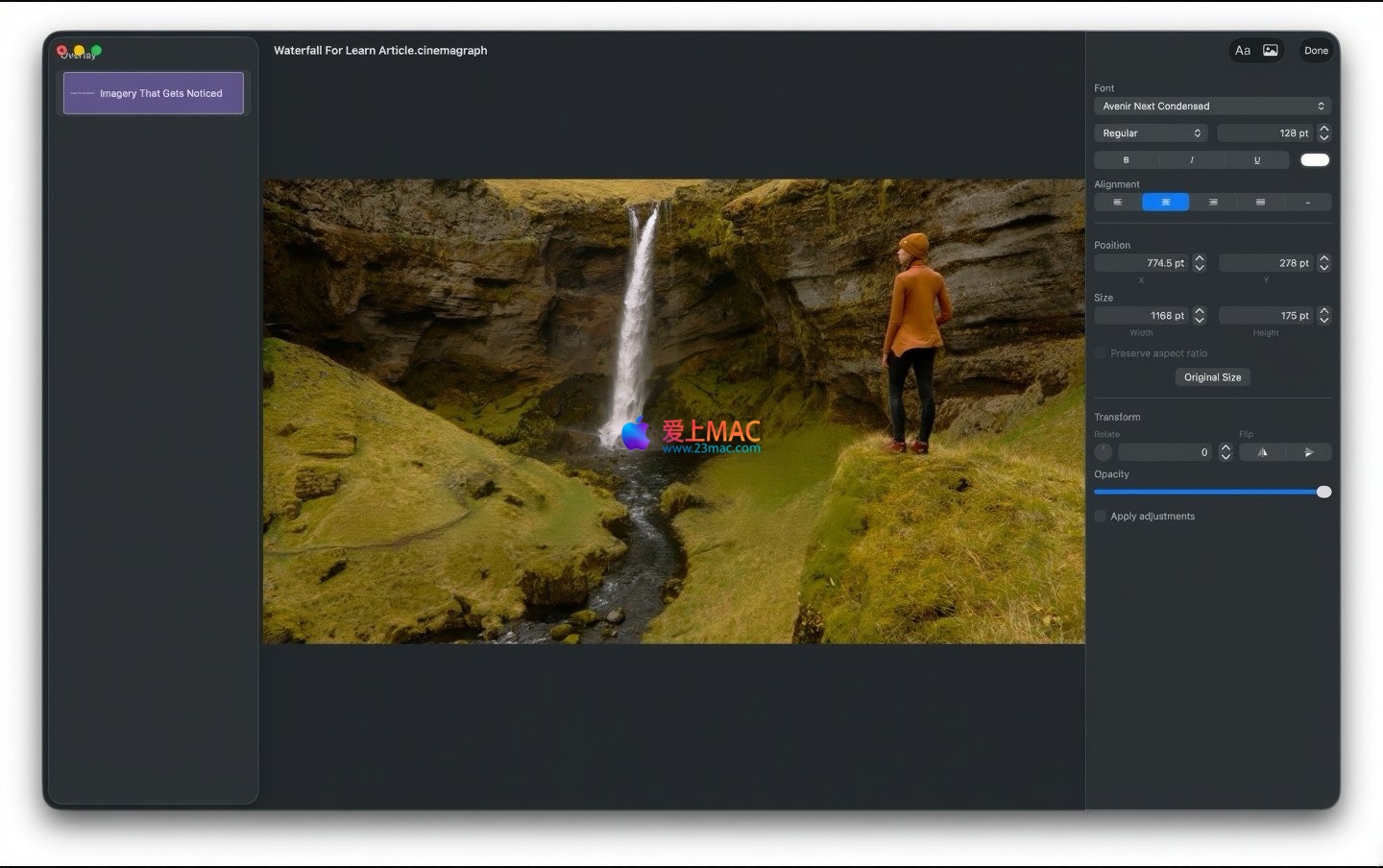
Step 1: Use a tripod to shoot a video of a watch product, ensuring the image is stable. Step 2: In the software, keep the watch dial pointers still while allowing the light halo around the watch strap to slowly move. Step 3: Add text overlay layers to label the product model. Step 4: Export as ProRes 4444 format, suitable for e-commerce pages. This display method attracts users to stay longer and typically boosts conversion rates by 15-20%.
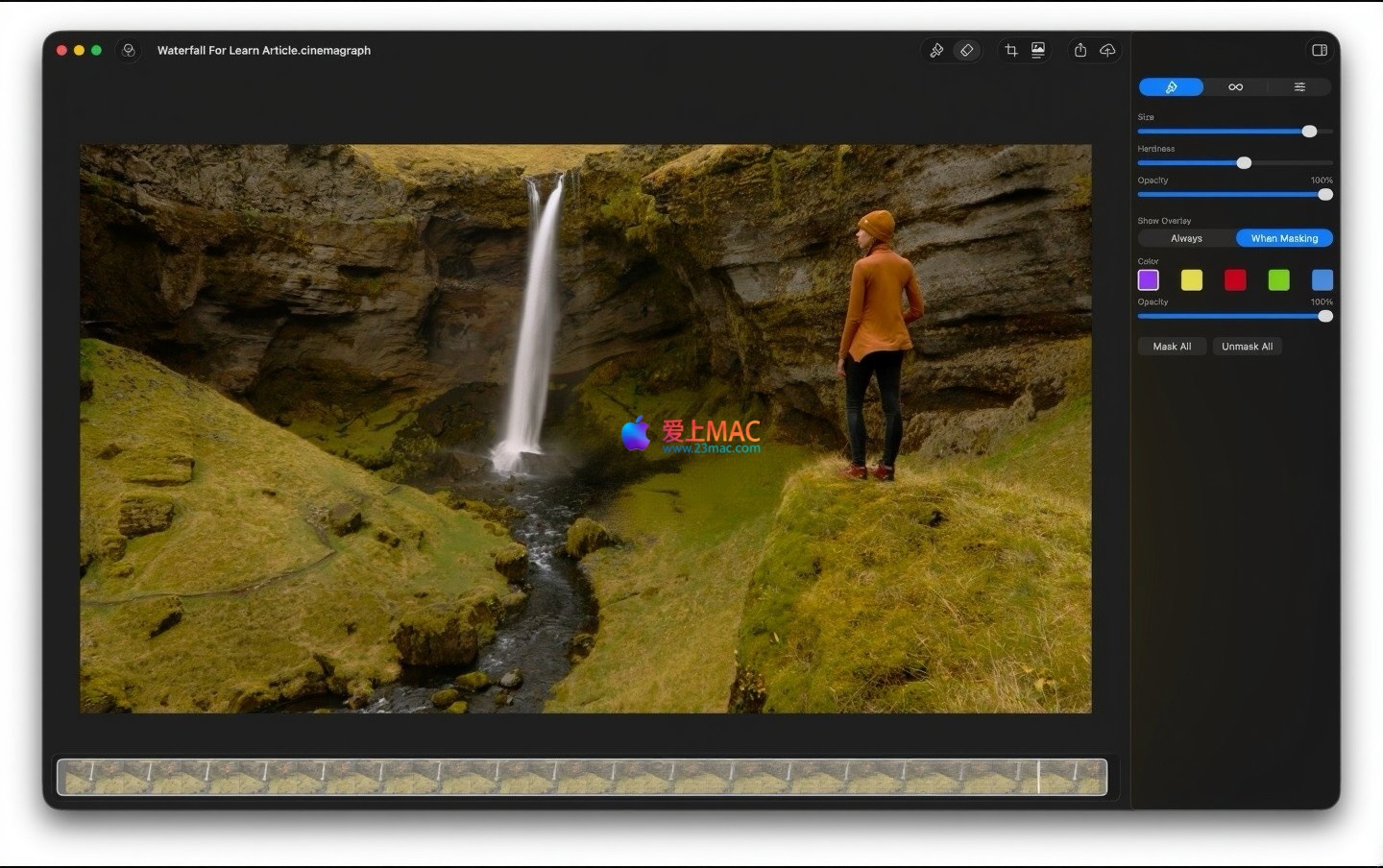
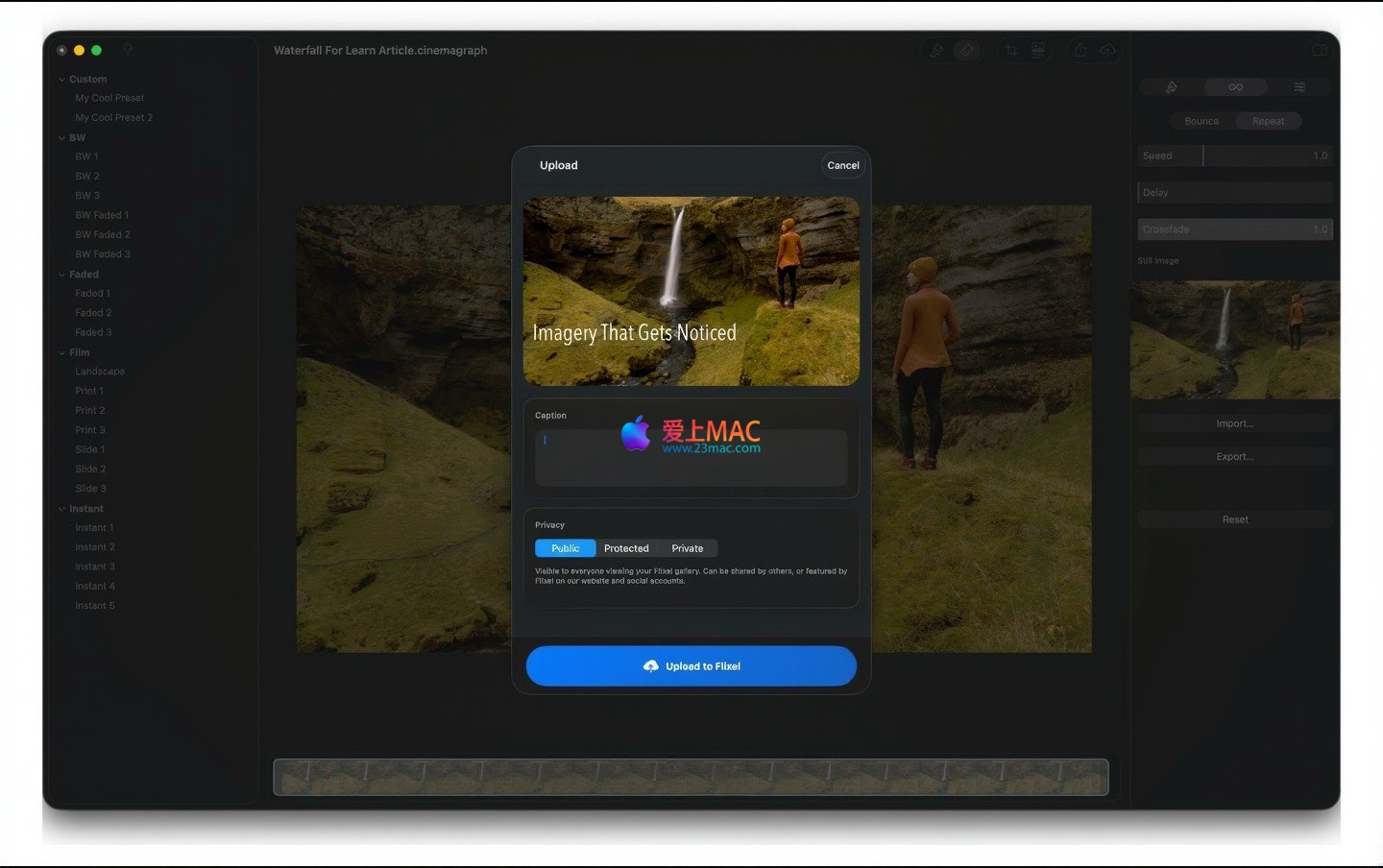
Here are the screenshots of the Cinemagraph Pro for Mac v2026.13.1 Chinese version interface:
Cinemagraph Pro for Mac v2026.13.1 is not only a powerful tool for creating dynamic static images, but also a must-have tool for enhancing the professionalism of visual content. It leverages AI technology, real-time masks, and a variety of export options to make it easy for anyone to create cinematic-grade dynamic imagery. From social media profile pictures to commercial advertisements, this software can handle it all. If you are looking for a tool that can make your work stand out, this is your top choice.
This resource requires login to download
Log in
Final Cut Pro X for Mac v10.5.2 Chinese Activation Version Download
Downloads:532 | 2026-10-24

Cosmicast for Mac v2.0.4 Serial Key Download
Downloads:3227 | 2026-10-24

Adobe Lightroom Classic 2025 for Mac v14. 0 Chinese Activation Version Download
Downloads:3382 | 2026-10-21

PhotosRevive for Mac v2.1.8 Chinese Activation Edition Download
Downloads:879 | 2026-10-21


Ratings & reviews
4.7
(Maximum 5 ratings, total 53 user reviews)
Let’s rate it.