

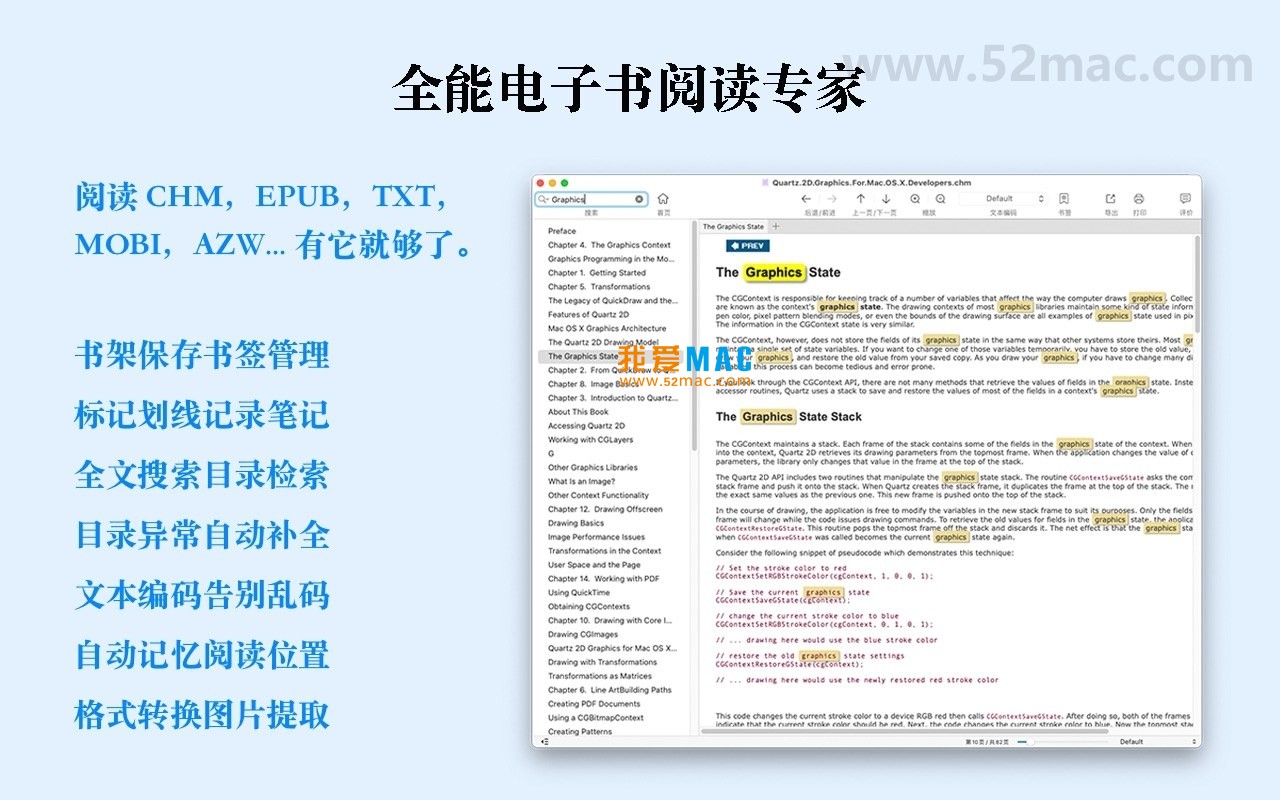


OmniReader for Mac v2.3.2 Chinese Activation Version Download
Here is the page providing OmniReader for Mac v2.3.2 all-in-one reader Chinese activation version download | LoveMAC has been tested and is available. If you encounter issues with the download link or the software cannot be installed after downloading, please leave a message to contact us.
OmniReader for Mac is a powerful and visually appealing e-book reader designed to offer users an exceptional reading experience. Beyond being a reading tool, it serves as a comprehensive reading center that integrates file management, format conversion, and intelligent search functionalities. Whether you are a heavy reader or someone who occasionally browses e-books, OmniReader caters to your diverse needs. Below, I will provide a comprehensive breakdown of the software, covering installation steps, core features, usage tips, and common issues.
The software comes with the following rich features to meet diverse reading needs:
All read files are automatically saved to the bookshelf, making them easily accessible for quick re-access. Users can easily add books to the bookshelf by dragging files directly to the software interface. The bookshelf supports categorization and tagging management, allowing users to archive books based on tags such as “read”, “unread”, and “to be organized”. According to the recommendations in the Apple Developer documentation, this file metadata-based management approach effectively reduces user operational costs. In reality, many professional users regard the bookshelf as a second brain, used to manage hundreds of technical books.
The latest version includes the following improvements:
Here are screenshots of the actual operation interface of OmniReader for Mac:
Installing OmniReader for Mac is straightforward, but to ensure the activation version works properly, please follow these steps carefully:
OmniReader_v2.3.2.dmg file. Ensure a stable network connection during the download to avoid file damage..dmg file, and the system will automatically mount the image and pop up the installation window. If the system prompts “Cannot verify developer identity,” go to “System Preferences” -> “Security & Privacy” -> “General,” and select “Open Anywhere.”OmniReader icon to the Applications folder on the right. This process usually takes just a few seconds.If you encounter issues with the software after installation, such as it crashing, restarting your Mac and trying again is recommended. If the problem persists, check if the issue is caused by system firewalls or antivirus software.
To help you use OmniReader more efficiently, we have compiled a table of commonly used reading and operation shortcuts in Mac systems. These shortcuts are applicable not only to OmniReader but also to most Mac applications.
| 操作功能 | 快捷键组合 | 适用场景说明 |
|---|---|---|
| 打开文件 | Command + O |
快速导入本地电子书 |
| 保存当前进度 | Command + S |
手动保存阅读进度到书架 |
| 全屏阅读 | Control + Command + F |
沉浸式阅读模式,无干扰 |
| 放大/缩小 | Command + + / Command + - |
调整页面字体或图像大小 |
| 全文搜索 | Command + F |
快速查找文档中的关键词 |
| 添加书签 | Command + D |
标记重要页面,便于回顾 |
| 切换侧边栏 | Command + Option + S |
显示或隐藏目录/书架面板 |
| 打印文档 | Command + P |
输出纸质版或PDF打印 |
| 撤销操作 | Command + Z |
撤销误操作,如删除笔记 |
It is recommended that you take a screenshot of this table or print it out and stick it on your desk. After mastering these shortcuts, your reading efficiency can be at least 30% higher.
We have collected the top 10 issues that users frequently encounter and provided detailed answers:
~/Library/Application Support/OmniReader/ directory. You can back up this folder periodically or use iCloud synchronization.sudo spctl --master-disable in the terminal.Command + T.In addition to the basic functions, OmniReader has some hidden tricks that can help you master reading:
Practical Case: Suppose you are a graduate student who needs to read 10 reference books. You can drag all PDF and EPUB files into the bookshelf, then use the “Full Text Search” feature to input the keyword “machine learning”. The software will instantly list all relevant passages. Next, you can add line marks and notes to each key content. Finally, you can use the “Export” feature to organize important images and notes into a PDF report. The entire process takes only 30 minutes, while the traditional method might take 2 hours.
OmniReader for Mac v2.3.2 is a reliable all-in-one reader. It excels in format compatibility, search efficiency, and reading experience. Whether you are a student, professional, or freelancer, it can become a good helper for your digital reading. The activated version provided on this page has been rigorously tested to ensure stable operation. If you have any questions during the download or use process, feel free to leave a comment in the review section. We will respond to your questions as soon as possible. Download now and start your efficient reading journey!

Task Office for Mac v6.6 Todo List and Calendar Chinese Activation Version Download
Downloads:970 | 2026-10-27

Adobe Premiere Pro 2021 for Mac v15.1.0 Full Version Chinese Activation Download
Downloads:1209 | 2026-10-24

Mac KeyBoard Tutor v2.9.4 Typing Tutor and Practice Software Activation Version Download
Downloads:3475 | 2026-10-20

TaskPaper for Mac v3.9 Activation Download for To-Do Lists
Downloads:3384 | 2026-10-19


Ratings & reviews
4.7
(Maximum 5 ratings, total 28 user reviews)
Let’s rate it.