

AutoCAD 2027 for Mac CAD Design Software Chinese Activation Version Download
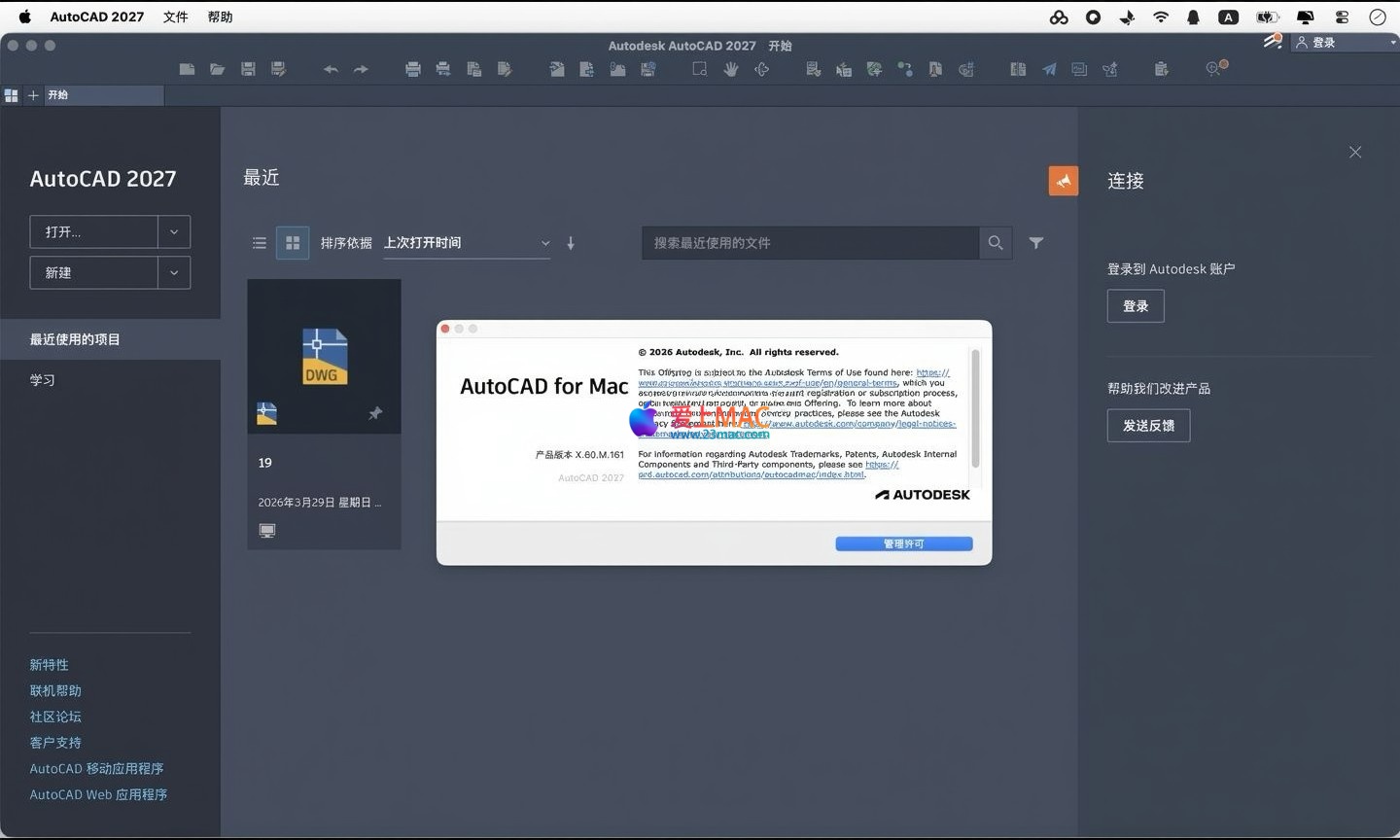
Here is the page providing AutoCAD 2027 for Mac CAD design software Chinese activation version download | LoveMAC has tested and is available. If you encounter issues with the download link or the software fails to install after downloading, please leave a message to contact us.
AutoCAD 2027 for Mac is Autodesk’s professional Computer Aided Design (CAD) software for the macOS platform. It integrates core 2D precise drawing and powerful 3D visualization features, and introduces AI smart assistants, significantly enhancing collaborative management, geometric cleaning, and 3D display performance. This version is deeply adapted to Mac native interaction logic, fully compatible with industry-standard DWG formats, and supports high-level customization and expansion, aiming to provide efficient and professional solutions for the entire engineering design workflow.
AutoCAD 2027 for Mac is a global benchmark tool in the CAD industry, optimized for the macOS system architecture and serving professionals in fields such as architecture, civil engineering, mechanical, electrical, and industrial design. The core upgrades in the 2027 version focus on AI intelligence, workflow optimization, and collaborative capabilities.
The following is a general guide for software installation, applicable to scenarios where you install the software from the official installation package. Please back up important data before installation.
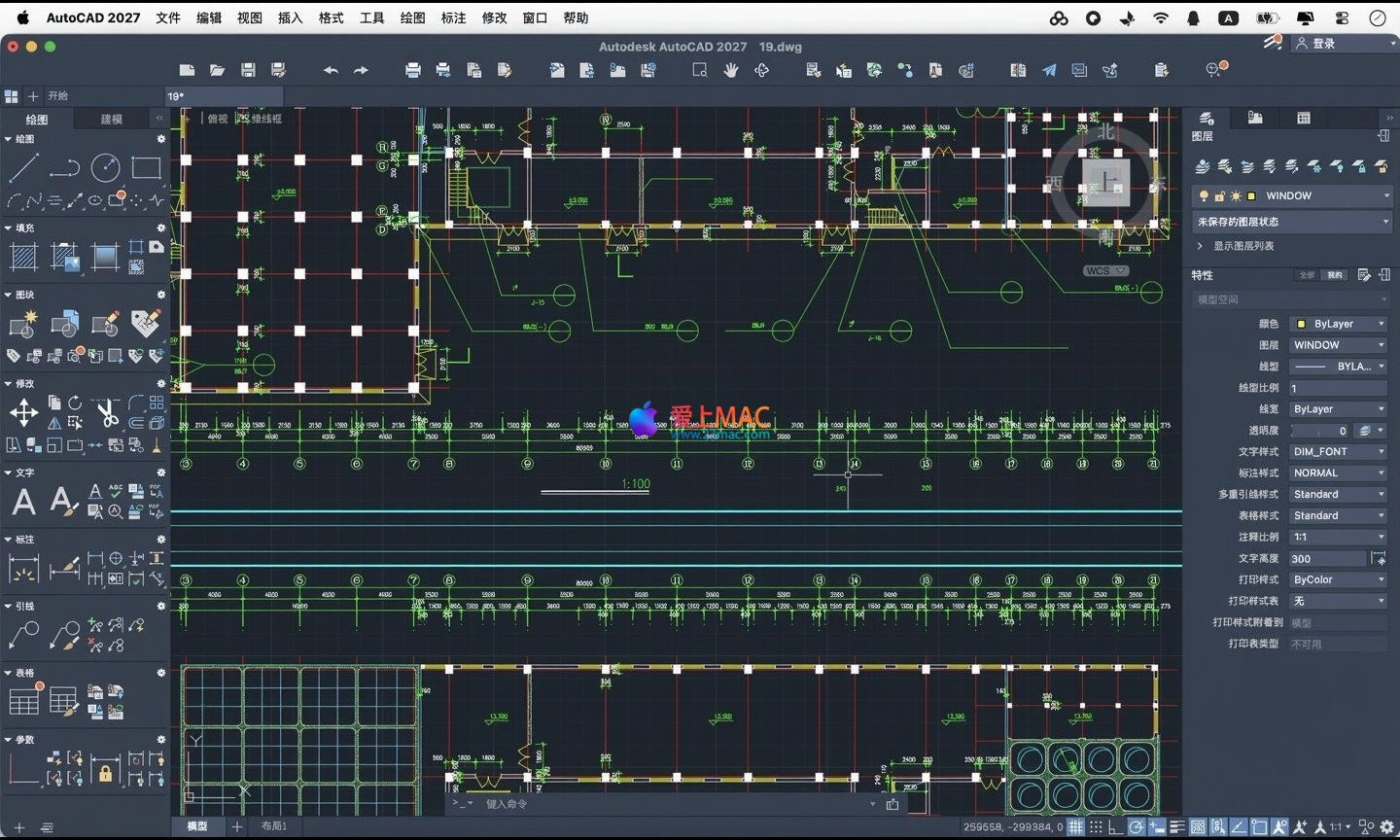
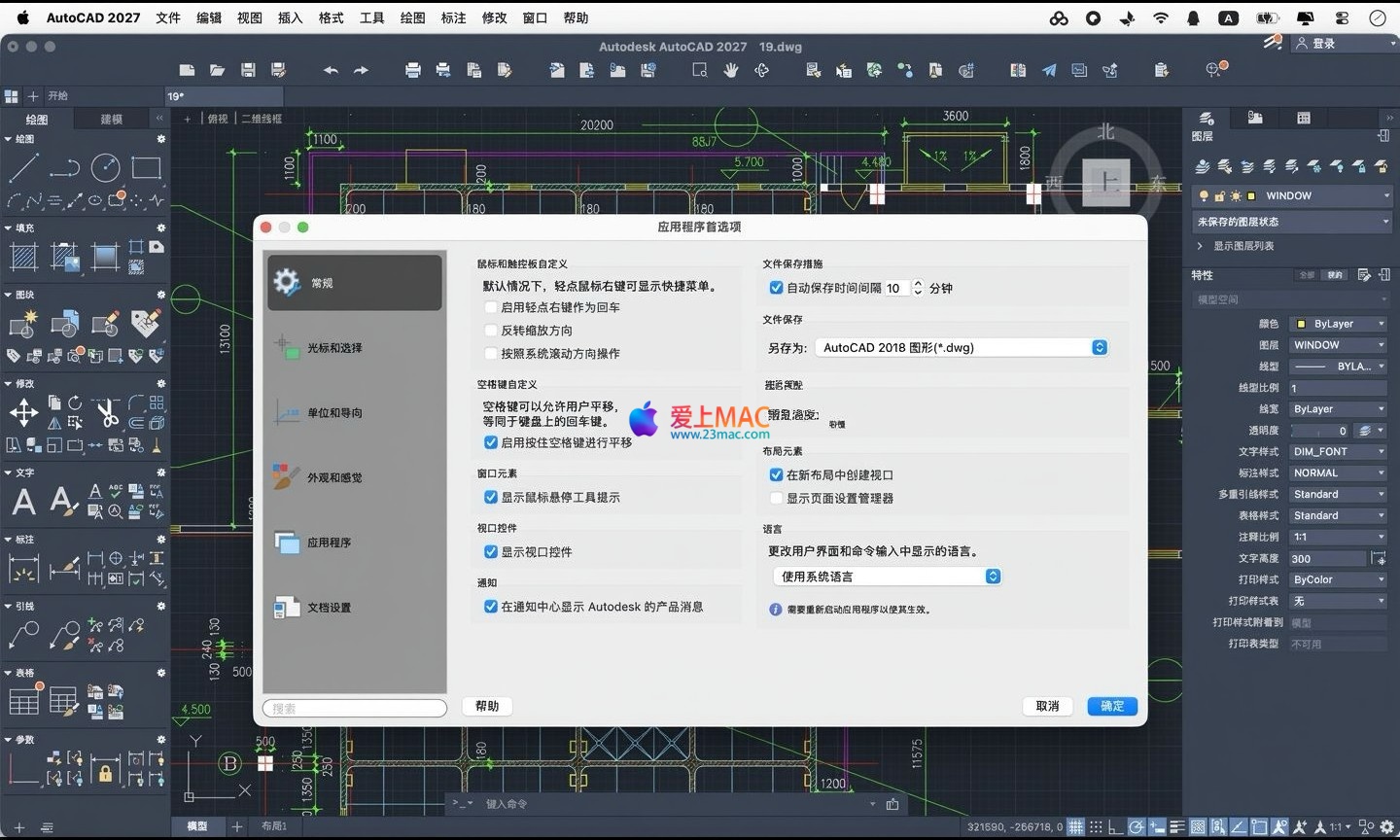
The following image shows the typical work interface of AutoCAD 2027 for Mac in the macOS environment:
Mastering the shortcuts is key to improving drawing efficiency. Below is a list of the most commonly used shortcuts in AutoCAD 2027 for Mac, which is recommended to be saved for future reference:
| Shortcut | Function Description | Applicable Scenarios |
|---|---|---|
| Command + Z | Undo the previous operation | Quickly revert an error |
| Command + Y | Redo the undo operation | Revert after undoing |
| Command + C | Copy the selected object | Copy across layers or files |
| Command + V | Paste the copied content | Paste to a specified coordinate |
| Command + X | 剪切 the selected object | Move the figure element |
| Command + A | Select all objects in the current drawing | Batch modify attributes |
| Command + S | Save the current drawing | Get into the habit of saving at any time |
| Command + Shift + S | Save as (save a copy) | Backup or export different versions |
| Command + P | Open the print/page settings dialog box | Preview and set up before printing |
| Command + F | Find and replace text | Batch modify annotations or text |
| Command + 1 | Open/Close the properties panel | View or modify the figure element attributes |
| Command + 2 | Open/Close the Design Center | Manage blocks and external references |
| Spacebar | Repeat the previous command | Execute the same operation consecutively |
| Esc | Cancel the current command | Cancel input or want to exit |
| Delete | Delete the selected object | Clear useless figures |
Small tip: You can modify or add custom shortcuts in “Tools” > “Customize” > “Interface” according to your personal preference to create your own efficient workflow.
For typical issues encountered by users when using AutoCAD 2027 for Mac, we have compiled the following FAQ:
A: According to Autodesk’s official release information, AutoCAD 2027 requires macOS Ventura (13.0) or a higher version. It is recommended to upgrade to the latest macOS Sonoma (14.x) for optimal compatibility and performance. Older versions such as macOS Monterey will no longer be supported.
A: This is due to the macOS’s Gatekeeper security mechanism. Go to “System Settings” > “Privacy & Security”, and in the “Security” section, you will see a prompt “AutoCAD 2027 is blocked for use…”. Click “Open Anyway” to proceed. This action is only required for the first installation.
A: The core features are completely identical, supporting complete 2D/3D design, DWG format, and LISP programming. However, there are some minor differences in interface layout, shortcut keys (using Command key instead of Ctrl key on Mac), and some advanced rendering features. The Mac version is deeply optimized for Retina displays and touchpad gestures, providing a smoother experience.
A: In addition to moving the application to the trash, you should also manually clean the following locations of files: ~/Library/Preferences/, ~/Library/Application Support/Autodesk/, ~/Library/Caches/Autodesk/. You can also use professional uninstallation tools like App Cleaner & Uninstaller to scan and delete all associated files with a single click.
A: This situation is usually caused by one of the following reasons: 1) The user profile is damaged, which can be fixed by resetting the profile (run a command in the terminal); 2) There is a conflict with third-party plugins, which can be resolved by starting in Safe Mode; 3) The graphics card driver is problematic, ensure that your Mac is updated to the latest system. The most direct solution is to start AutoCAD with the Shift key, which will skip all custom configurations and run with default settings.
A: This is usually due to the use of a font that is not installed in the current system. The solution is to open the Text Style Manager in AutoCAD and replace the “Font Name” with a system-provided font (such as “SimHei” or “FangSong”). If the drawings come from a foreign team, consider installing the corresponding SHX font files.
A: This is due to the natural scrolling direction of macOS. You can solve this by either: 1) Turning off “Natural Scrolling” in “System Settings” > “Mouse” (which will affect the global experience); or 2) Setting the value of the ZOOMFACTOR command in AutoCAD’s command line to 60 or higher, adjusting the zoom speed to accommodate the reversed scrolling.
A: You can manually migrate them. In the Windows version, use the EXPORT command to export the .arg configuration file; then, in the Mac version of AutoCAD, use the IMPORT command to import the file. Note that some commands involving paths may need to be manually adjusted (Windows uses backslashes, Mac uses forward slashes /).
Knowing how to use some advanced techniques is not enough; mastering them can make your work more efficient. Below are some practical cases that I have summarized.
In design projects, project names, drawing numbers, and other information in frames need to be frequently updated. Manually modifying them is time-consuming, error-prone, and inefficient. The correct approach is to define the frame as a “block with attributes”. When you need to modify, simply double-click the block, open the “Enhanced Attribute Editor”, and batch modify the information. All drawings referencing this block will automatically update.
Dynamic blocks is a powerful but often underutilized feature in AutoCAD. For example, when designing a standard door block, you can add a “stretch” action, allowing you to drag the handle to change the door’s width without redrawing it. This greatly improves the efficiency of using a standard component library.
Assuming you need to draw a small building’s floor plan. First, use the MLINE (multi-line) command to draw walls, set the wall thickness, and draw both inner and outer walls in one go. Second, use the BOUNDARY (boundary) command to quickly create room areas for subsequent area statistics. Third, use the ADCENTER (design center) to drag and drop the existing window and door blocks to the drawing. The entire process saves at least 40% of the time compared to the traditional method of drawing each line individually.
When opening a drawing file that is hundreds of megabytes in size, your computer may become very sluggish. In this case, use the WBLOCK (write block) command to export a specific area or layer of the drawing as a new DWG file. This allows you to only edit the part you are responsible for, and then attach the edited file back to the main drawing using the XREF (external reference) command. This is the standard approach for collaborative projects.
If you have dozens of drawings to manage, don’t use individual files to open them. In AutoCAD 2027, use the SHEETSET command to open the “Sheet Set Manager”. You can organize all the drawings of the project in a logical tree, enabling batch printing, numbering, and generating a drawing directory. This is a killer feature for improving project management efficiency.
AutoCAD 2027 for Mac is not just a drawing tool; it is a comprehensive design platform that integrates AI intelligence, cloud collaboration, and powerful data management capabilities. For Mac users, it finally breaks the “second-class citizen” status, achieving parity in performance and experience with the Windows version.
For beginners, it is recommended to start by mastering the shortcuts and basic commands mentioned in this article; for experienced users, the AI assistant and geometric cleanup features in the 2027 version are definitely worth trying. Finally, please be reminded once again: please obtain authorization through the official Autodesk channel. This is not only a respect for copyright, but also the best guarantee for the security of your design results and data.
This resource requires login to download
Log in
Pro Edition of LiveHome 3D for Mac V4.1.3 Chinese Activation Download
Downloads:2323 | 2026-10-29

Advanced Graphics Manager for Mac v4.2.2 Chinese Activation Version Download
Downloads:1 | 2026-10-27

DJay Pro AI for Mac v4.0.5 Download Activation Version
Downloads:984 | 2026-10-24

Baldo: The Guardian Owls for Mac v1.2.1 – Activation Version
Downloads:2727 | 2026-10-23


Ratings & reviews
4.8
(Maximum 5 ratings, total 28 user reviews)
Let’s rate it.