

Boxy SVG for Mac v4.98.1 Chinese Activation Version Download
Here is the page providing Boxy SVG for Mac v4.98.1 SVG vector graphics editor Chinese activation version download | LoveMAC has been tested and available. If you encounter issues with the download link or the software fails to install after downloading, please leave a message for us to contact.
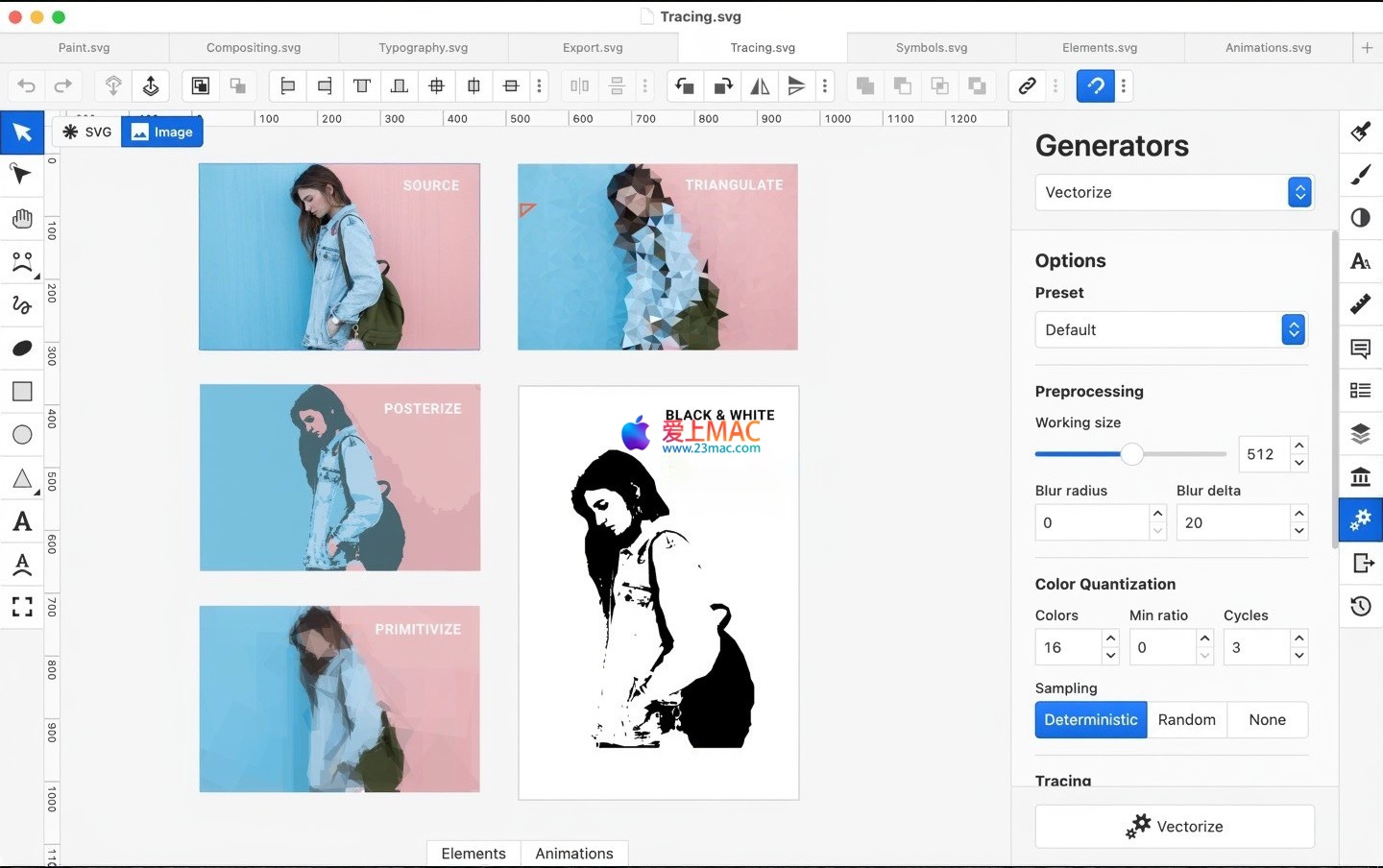
Boxy SVG is a lightweight vector graphics editor designed for the macOS platform. Its core focuses on the creation and editing of SVG (scalable vector graphics) files, offering an intuitive user interface, a rich set of drawing tools, and real-time preview features. The software supports exporting works into multiple mainstream formats and integrates a Google Fonts font library and a vast collection of free vector assets, aiming to provide efficient vector graphics processing solutions for designers and developers.
New Features:
Function Improvements:
Problem Fixes:
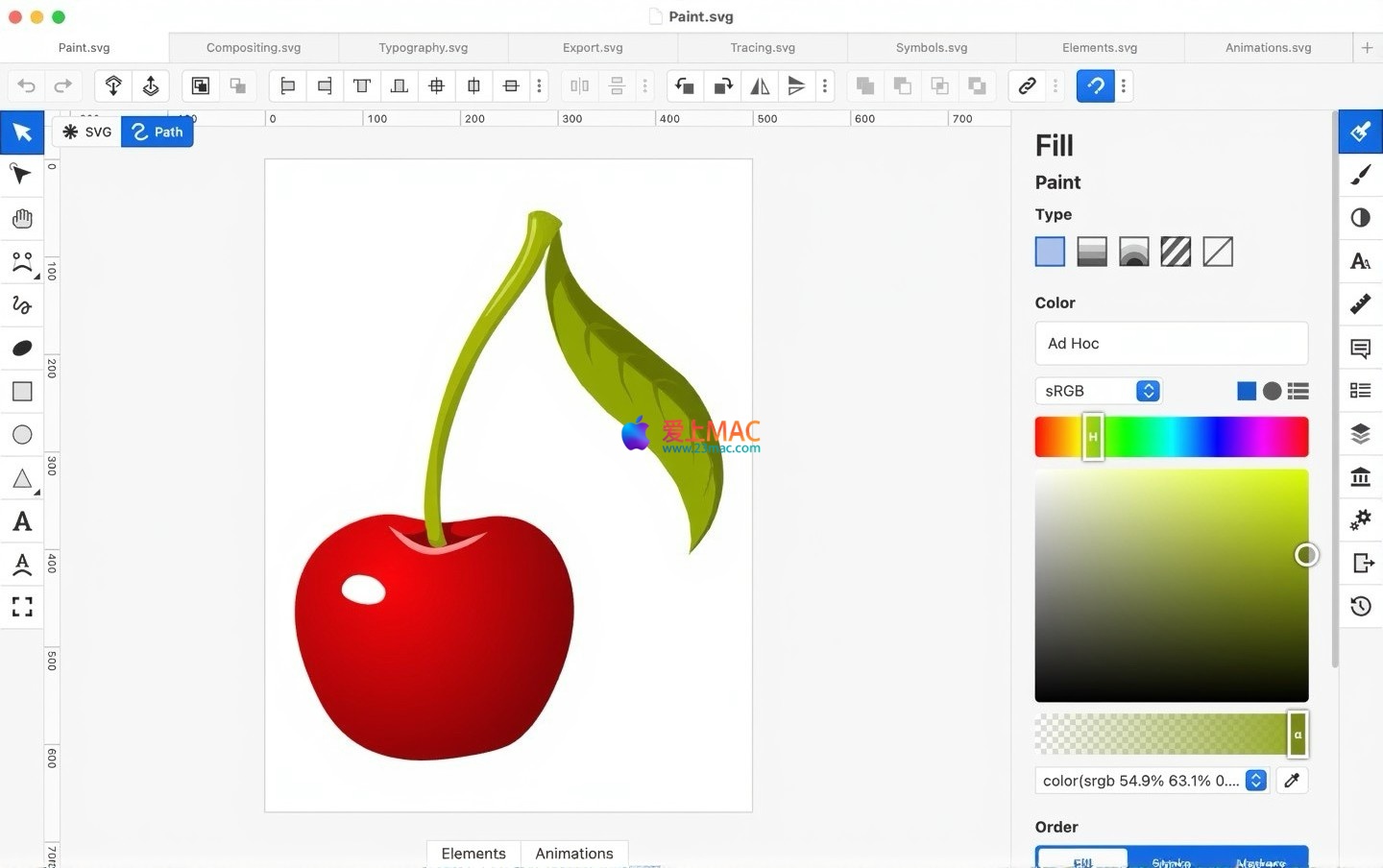
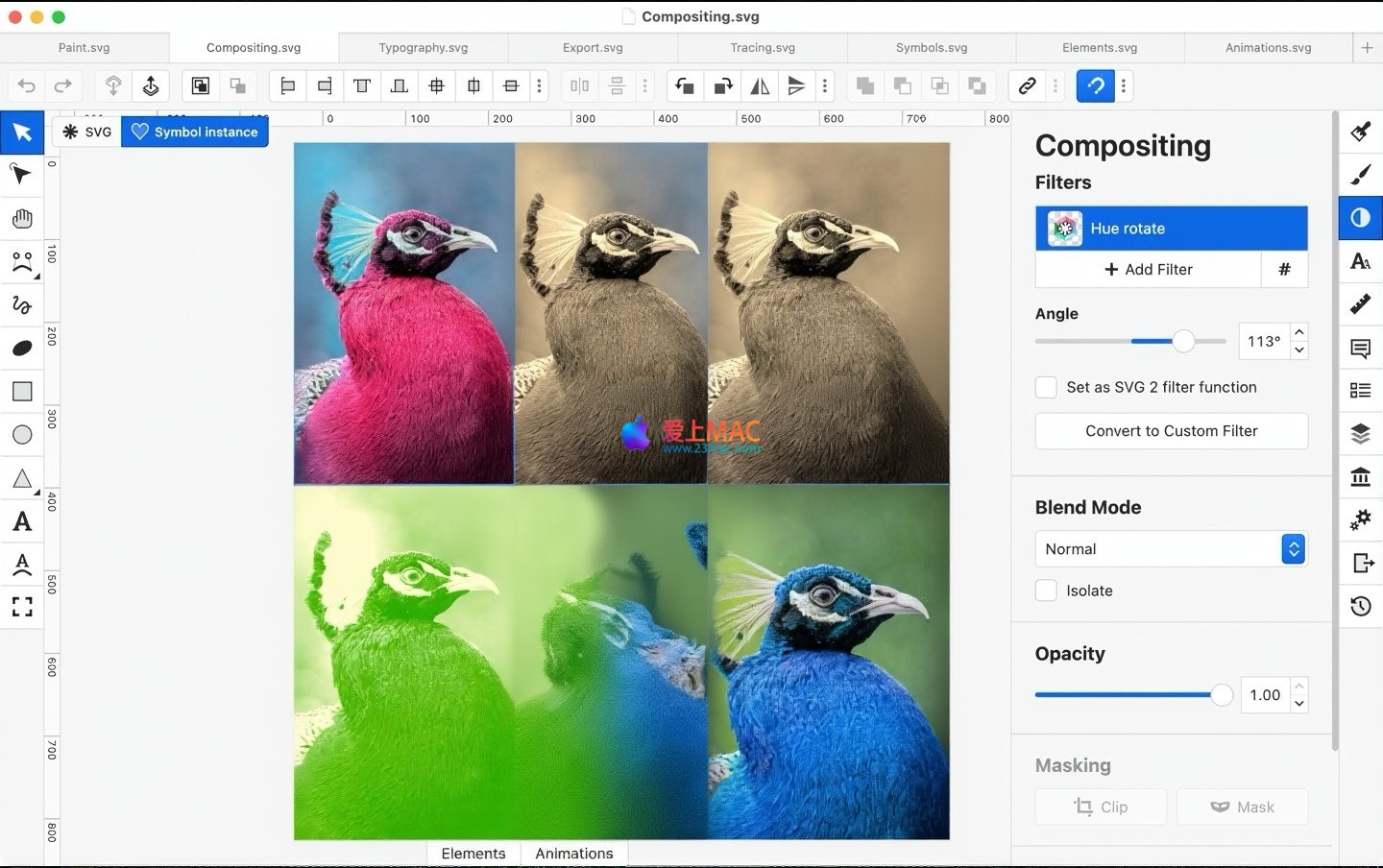
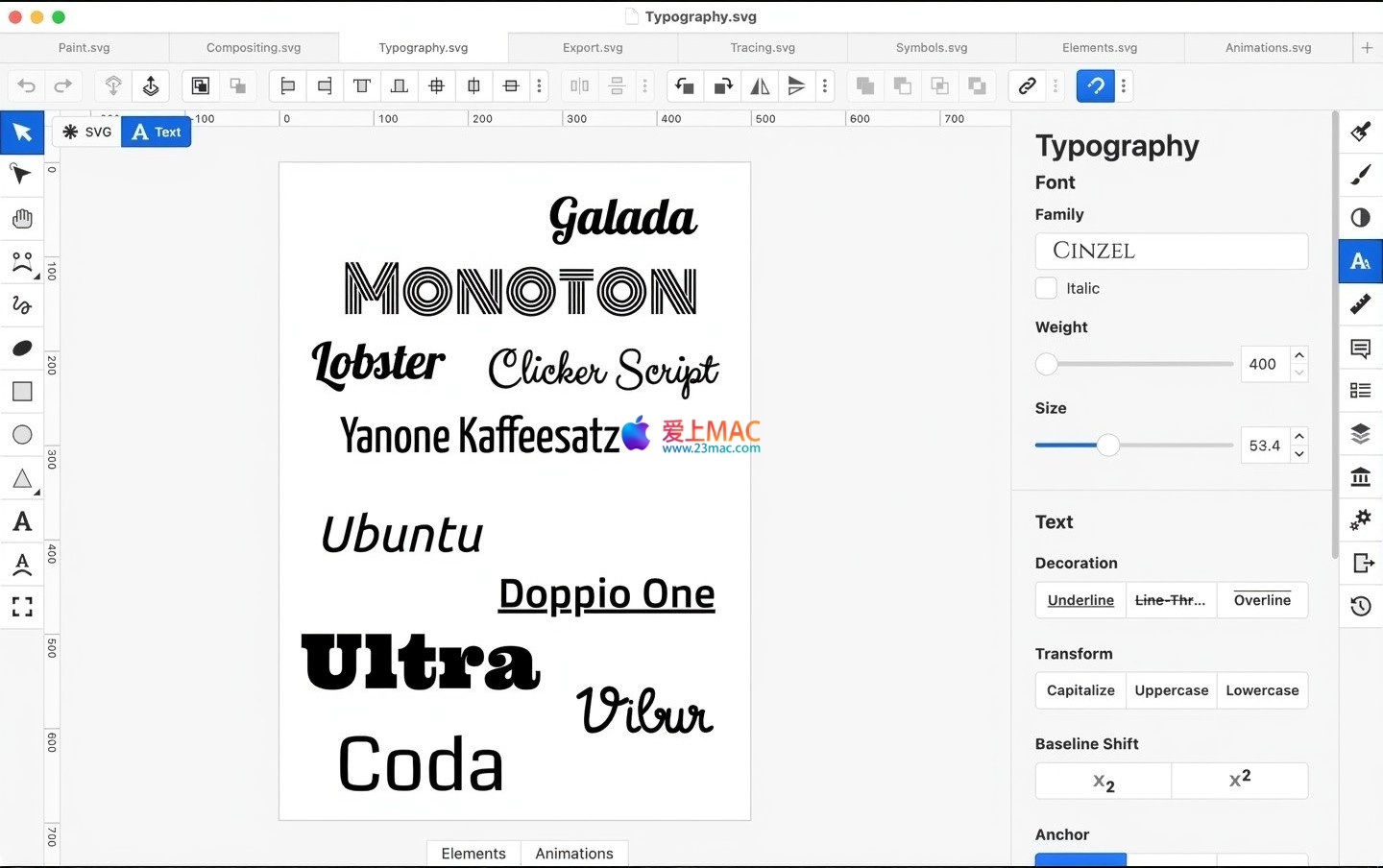
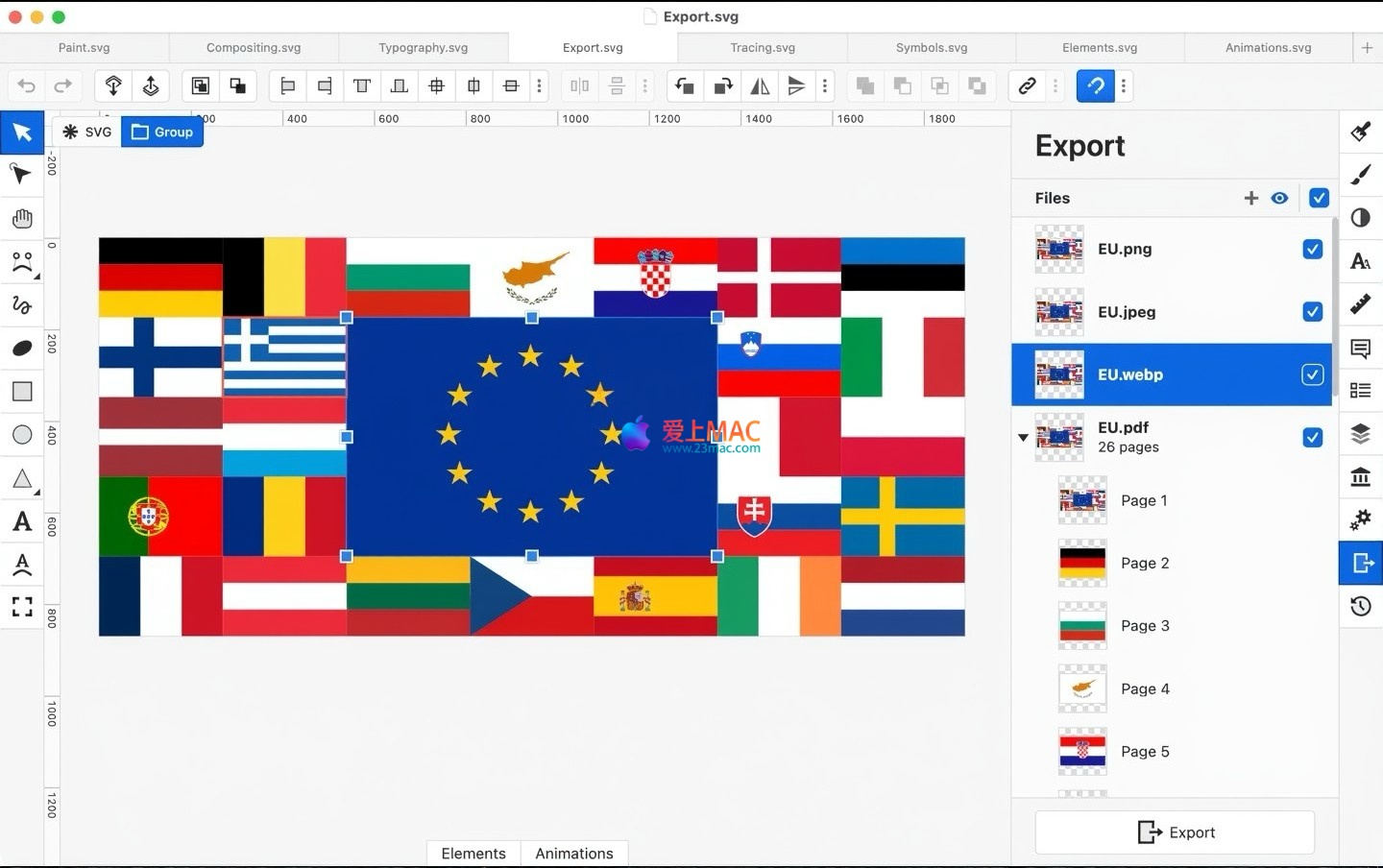
The screenshots above showcase the main work interfaces and features of Boxy SVG for Mac v4.98.1.
Installing Boxy SVG is not difficult, but following the steps can avoid many troubles. We have prepared this detailed installation guide to help you smoothly deploy the software on your Mac.
Click on the download link provided on the page to obtain the Boxy SVG for Mac v4.98.1 installation package. The file is usually in .dmg format, with a size of around 80MB. Please ensure a stable network connection and do not rush to double-click the file immediately after downloading.
Open the “Downloads” folder, find the “Boxy SVG.dmg” file, and right-click on it to choose the “Open” option. The system may prompt you with a security warning, as the software comes from an unverified developer. At this point, go to “System Preferences” -> “Security & Privacy”, and click the “Open Anywhere” button.
Double-click the .dmg file to open an installation window. The window typically contains a Boxy SVG icon and a shortcut to the “Applications” folder. Drag the Boxy SVG icon directly to the right-hand “Applications” folder. This process is similar to copying files and should take about 10 seconds.
After installation, find the Boxy SVG icon in either the “Launchpad” or “Applications” folder and click to start. During the initial start, the software may request access to your “Documents” folder or “Photos” library. Choose “Allow” or “Deny” based on your needs; this does not affect the core functionality.
If you downloaded an activated version, the software usually completes the activation process automatically. If prompted to enter a serial number, refer to the “Activation Instructions.txt” file within the download package. Copy the serial number and activate the software. After activation, all premium features are unlocked.
During the use of Boxy SVG, you may encounter some questions. We have compiled the following 8 high-frequency questions and their answers to help you overcome any obstacles.
It fully supports. Boxy SVG comes with a Chinese language pack, and you can select “Simplified Chinese” in the “Preferences” -> “General” -> “Languages” menu. After switching, the changes take effect after restarting the software.
In the export dialog, find the “Background Color” option. Click the color selector to choose the desired background color. If no color is set, the default export will be transparent.
This is usually due to system permissions or cache issues. Restart your Mac and then start Boxy SVG by holding down the Option key to reset its preferences. If the issue persists, uninstall and reinstall the software.
Boxy SVG does not directly support the .ai file format. You need to save the file as an SVG format in Adobe Illustrator, then import the SVG file into Boxy SVG through the “File” -> “Open” menu.
In the right-hand “Resources” panel, click the “Library” tab. This contains a vast collection of free vector icons and images. Drag them onto the canvas directly for use, without any additional cost.
Check the “Fill” and “Stroke” settings at the bottom of the left-hand tool bar. Ensure the “Fill” color block is not set to “None”. Click the color block to choose any color.
Yes. Boxy SVG automatically switches to the dark or light theme based on system settings. You can also manually set the theme mode in the “Preferences” settings.
Boxy SVG has an automatic recovery feature. After restarting the software, it will automatically detect the last unsaved session and prompt you to restore. It’s recommended to get into the habit of saving work frequently by pressing Command + S.
Mastering keyboard shortcuts can significantly boost your design efficiency. Here is a set of commonly used keyboard shortcuts in Boxy SVG, which you are advised to screenshot and save.
| Function Category | Shortcut Combination | Function Description |
|---|---|---|
| File Operations | Command + N | Create a new document |
| Command + S | Save the current file | |
| Command + Shift + S | Save the current file as a new file | |
| Edit Operations | Command + Z | Undo the last operation |
| Command + Shift + Z | Redo the last undone operation | |
| Command + D | Copy and paste the selected object | |
| View Control | Command + 0 | Zoom the canvas to fit the window |
| Command + + | Zoom in the canvas view | |
| Command + – | Zoom out the canvas view | |
| Object Operations | Command + G | Group the selected objects |
| Command + Shift + G | Un-group the selected objects | |
| Delete / Backspace | Delete the selected object |
Practice makes perfect. Below are a few practical tips to help you truly master Boxy SVG and improve your workflow efficiency.
In the “View” menu, enable “Smart Guides.” As you move objects, the software will automatically display alignment lines with other objects. This is particularly useful when creating icon sets, ensuring all icons are visually aligned and spaced uniformly.
Select and apply the “Unite,” “Subtract Top Object,” or “Intersect” functions in the “Path” menu to two overlapping shapes. For example, you can subtract a rectangle from a circle to quickly create a half-circle shape without manually adjusting the anchor points.
Open Boxy SVG, create a 200×200 canvas. Use the “Rectangle Tool” to draw a blue rectangle, and the “Ellipse Tool” to draw a white circle at the center of the rectangle. Select and apply the “Path” -> “Subtract Top Object” function to get a hollow rounded rectangle effect. Then, use the “Text Tool” to input your brand name below, adjust the font and size. Finally, export as SVG format. Since SVG is a vector graphic, this logo will remain clear on any screen.
If you design multiple icons within a single SVG file, you can use the “Layers” panel to name each icon uniquely. Then, use the “File” -> “Export” -> “Export Multiple Files” function in Boxy SVG to generate independent SVG or PNG files based on layer names. This greatly enhances the efficiency of cutting images in front-end development.
In the “Preferences” -> “Keyboard Shortcuts,” you can set personalized shortcuts for over 100 commands. For example, set “Flip Horizontally” to Ctrl + H, and “Flip Vertically” to Ctrl + V. This way, adjusting the graphic orientation can be done with a single click.
Boxy SVG for Mac v4.98.1 is a lightweight yet powerful vector graphics tool. Whether you need to clean up SVG code as a web developer or need to quickly draw icons as a designer, it can handle it. With the installation guide, FAQ, shortcut table, and real-world examples in this article, you should have mastered its core usage. If you encounter any issues during the download or use process, feel free to leave a comment in the review section. We will assist you in solving the problems as soon as possible.
This resource requires login to download
Log in
Audio Hijack for Mac v3.8.3 Activation Download
Downloads:498 | 2026-10-24

Translatium for Mac v9.2.0: Multilingual Translation Software with Chinese Activation Download
Downloads:3637 | 2026-10-20

Advanced PDF Editor Software: PDFpenPro 11 for Mac v11.0.2 Activation Download
Downloads:620 | 2026-10-20

Navicat Premium for Mac v15.0.3 Database Software Chinese Localized Activated Version_Navicat Premium Mac Download
Downloads:660 | 2026-10-17


Ratings & reviews
4.8
(Maximum 5 ratings, total 36 user reviews)
Let’s rate it.