

Acorn for Mac v8.4 Image Editor Activation Download
Here is the page providing Acorn for Mac v8.4 image editor activation download | LoveMac is tested and available, please leave a message if you encounter links invalid or cannot install after downloading.
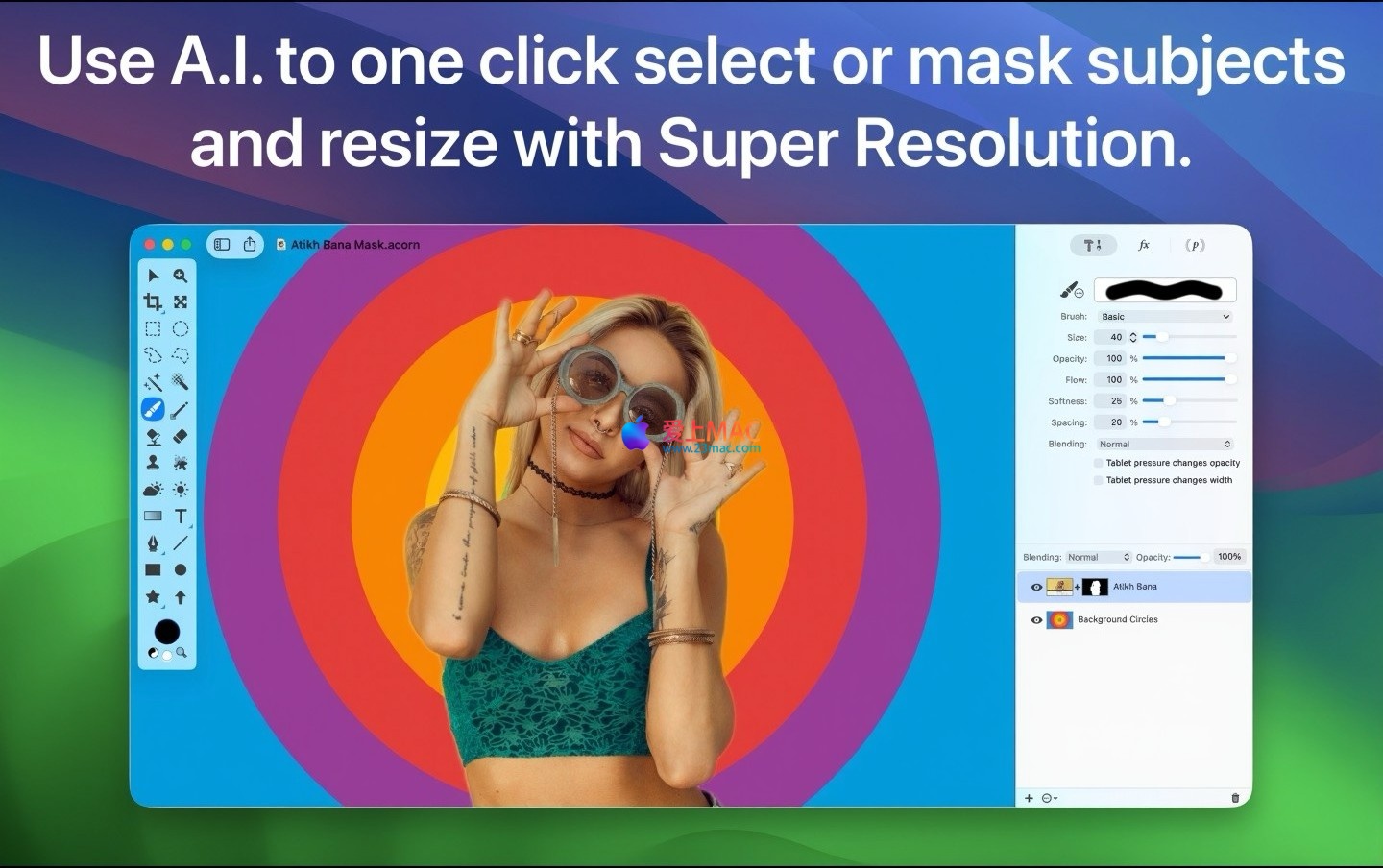
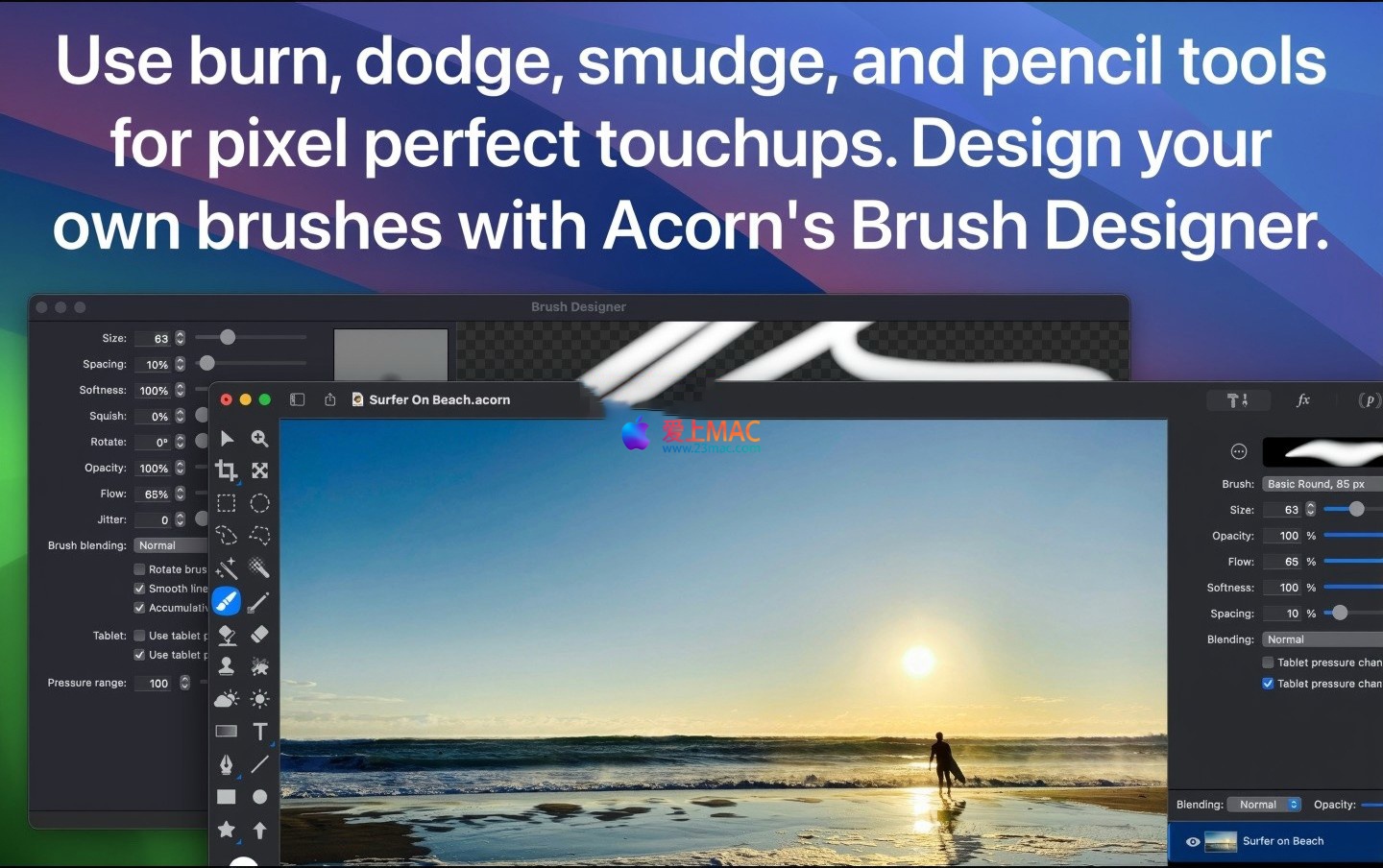
Acorn for Mac is a highly acclaimed and popular image editor software. Whether you are editing photos, creating intricate designs, or trying out artistic editing, Acorn offers a comprehensive set of tools and features to help you achieve your creative vision easily.
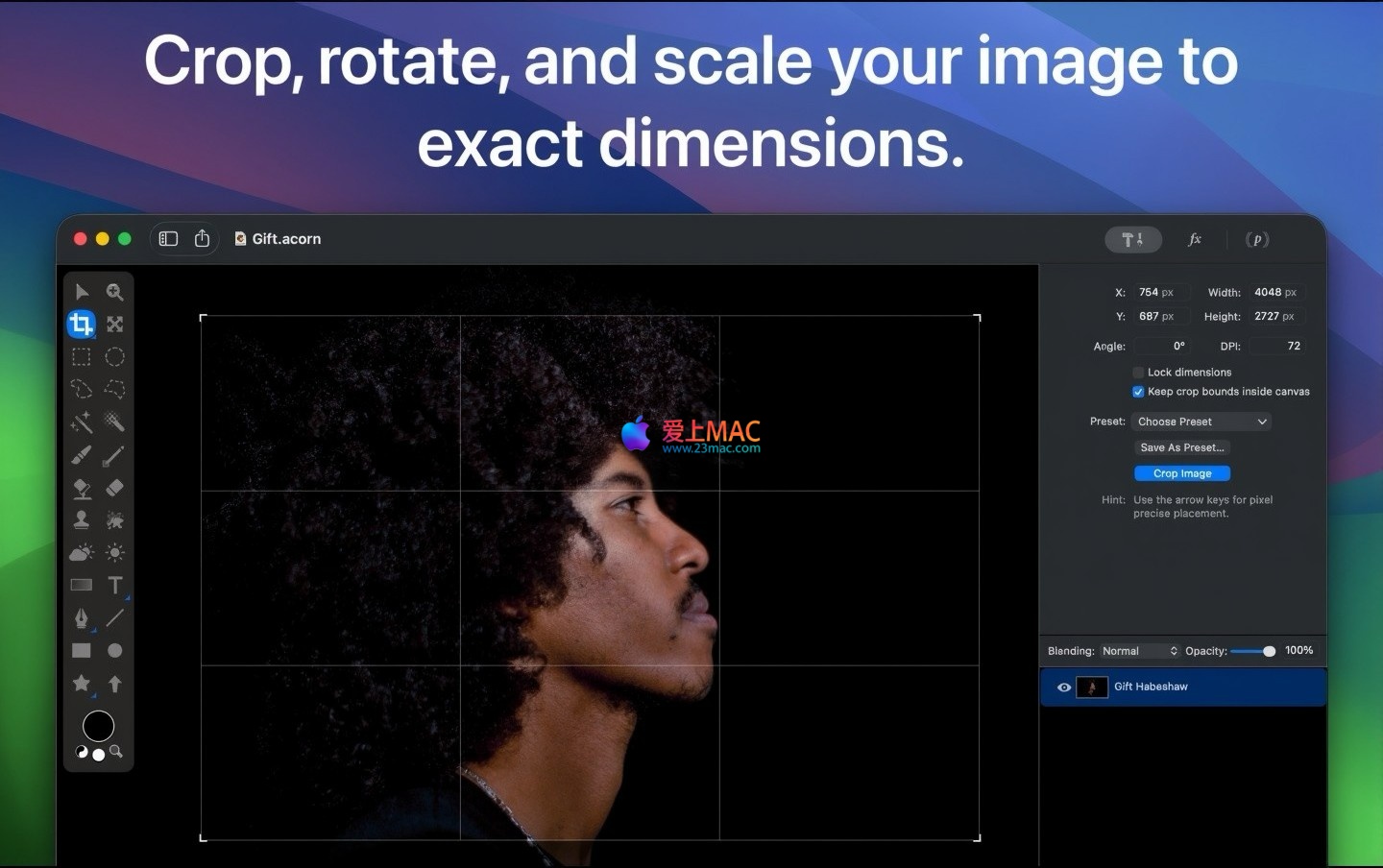
As a multifunctional image editor, Acorn seamlessly combines ease of use with professional-grade features. From adding text shapes and creating beautiful collages to photo retouching and new creations, all tasks can be completed smoothly.
Acorn opens up endless possibilities for creation:
Before starting the installation, ensure your Mac runs on macOS 10.15 or a higher version. Acorn v8.4 is optimized for both Apple Silicon and Intel chips.
Download the Acorn for Mac v8.4 activation DMG file from our site. Double-click the DMG file to open the installation window. Drag the Acorn icon to the “Applications” folder.
Open the “Applications” folder and double-click the Acorn icon. If the system prompts “Acorn was downloaded from the internet,” click “Open” to confirm. The first launch may take a few seconds.
This version is an activation edition. After launching, it will automatically activate. You can check the authorization status in the “Acorn” menu bar → “About Acorn.” If prompted for an activation code, check the instructions in the downloaded package.
If you need to use AVIF export functionality and your macOS version is below 26, manually install the AVIF encoder. Download it from GitHub or a trusted source and place it in the corresponding system directory.
It is recommended to verify the SHA256 hash value of the DMG file to ensure the downloaded file has not been tampered with. The hash values provided on our site can be found on the download page.
A: Acorn is lighter and starts faster, suitable for daily image editing and design. Photoshop has more comprehensive features, but Acorn runs smoothly on Mac and supports PSD file import/export.
A: Check your macOS security settings. Open “System Preferences” → “Security & Privacy” → “General,” and allow applications from any source. If still not working, try entering the terminal command: sudo spctl –master-disable.
A: Acorn supports batch processing through the “File” → “Automation” menu. You can set adjustments, format conversions, and other operations to process an entire folder at once.
A: Yes, Acorn supports importing mainstream camera RAW formats. You can directly select RAW files through the “File” → “Open” menu, and the system will automatically parse them.
A: In “System Preferences” → “Keyboard” → “Shortcuts” → “App Shortcuts,” add Acorn and set the keyboard combination you like.
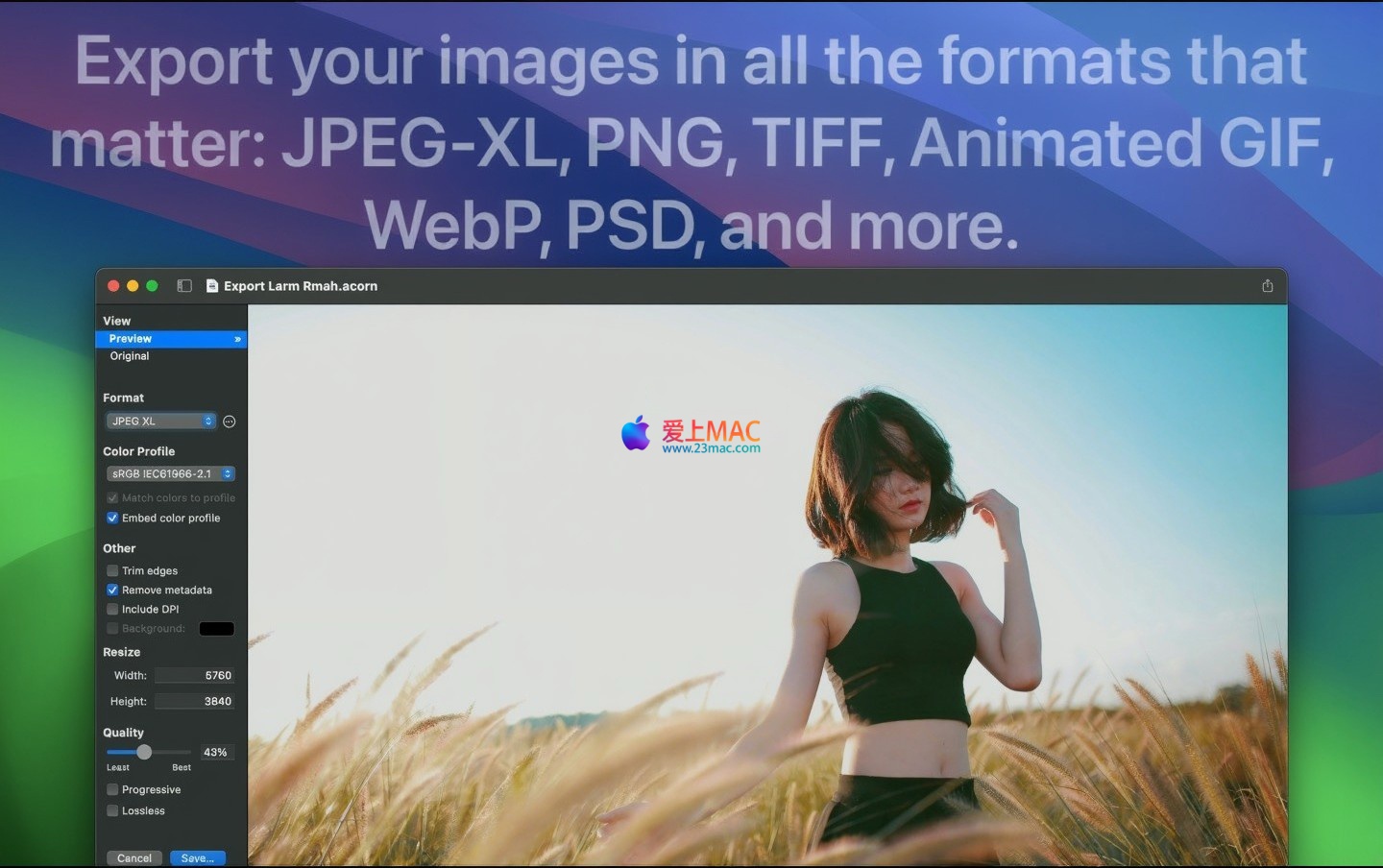
A: In the export dialog box, you can choose high-quality options and customize JPEG compression rates, PNG bit depth, and other parameters. It is recommended to export as TIFF or PNG to maintain the original quality.
A: Acorn supports unlimited layers, but too many layers may affect performance. It is recommended to group layers and use layer merging functions to optimize.
A: In the “Window” → “Layout” → “Restore Default Layout” menu, you can do so. You can also customize panel positions and save them as layouts.
A: Currently, Acorn mainly supports English interface, but Chinese text input and display are normal. Some menu items can be adjusted through localized files.
A: Before updating, it is recommended to back up the preference settings file. If lost, you can restore it from the file “~/Library/Preferences/com.flyingmeat.Acorn.plist.”
| Action | Shortcut |
|---|---|
| Create a new document | Cmd + N |
| Open a file | Cmd + O |
| Save | Cmd + S |
| Undo | Cmd + Z |
| Redo | Shift + Cmd + Z |
| Select all | Cmd + A |
| Copy | Cmd + C |
| Paste | Cmd + V |
| 剪切 | Cmd + X |
| Zoom in | Cmd + + |
| Zoom out | Cmd + – |
| Fit to screen | Cmd + 0 |
| Show/hide layers | Cmd + L |
| Merge visible layers | Shift + Cmd + E |
| Free transform | Cmd + T |
| Fill foreground color | Option + Delete |
| Fill background color | Cmd + Delete |
These shortcuts are highly consistent with Adobe series software, making them easy to pick up. You can also customize them according to your preferences.
Mastering these tips can double your efficiency with Acorn.
Use the “Instant Alpha” tool to remove similar-colored areas by clicking and dragging on the background. For complex backgrounds, use the Magic Wand tool to select multiple times.
All filters are added as “smart filters,” which do not alter the original image. You can adjust parameters by double-clicking the filter, or change the effect stacking order by dragging the filter.
Create a watermark layer and save it as a template. Use the “Automation” batch processing feature to apply the watermark layer to all images in a folder.
Assume you need to create a cover photo at 1920×1080 resolution. Create a new document, import a background image, and use the “Curves” tool to adjust the tone. Add a text layer, choose the appropriate font and color. Finally, export as JPEG with a quality setting of 90% to quickly publish.
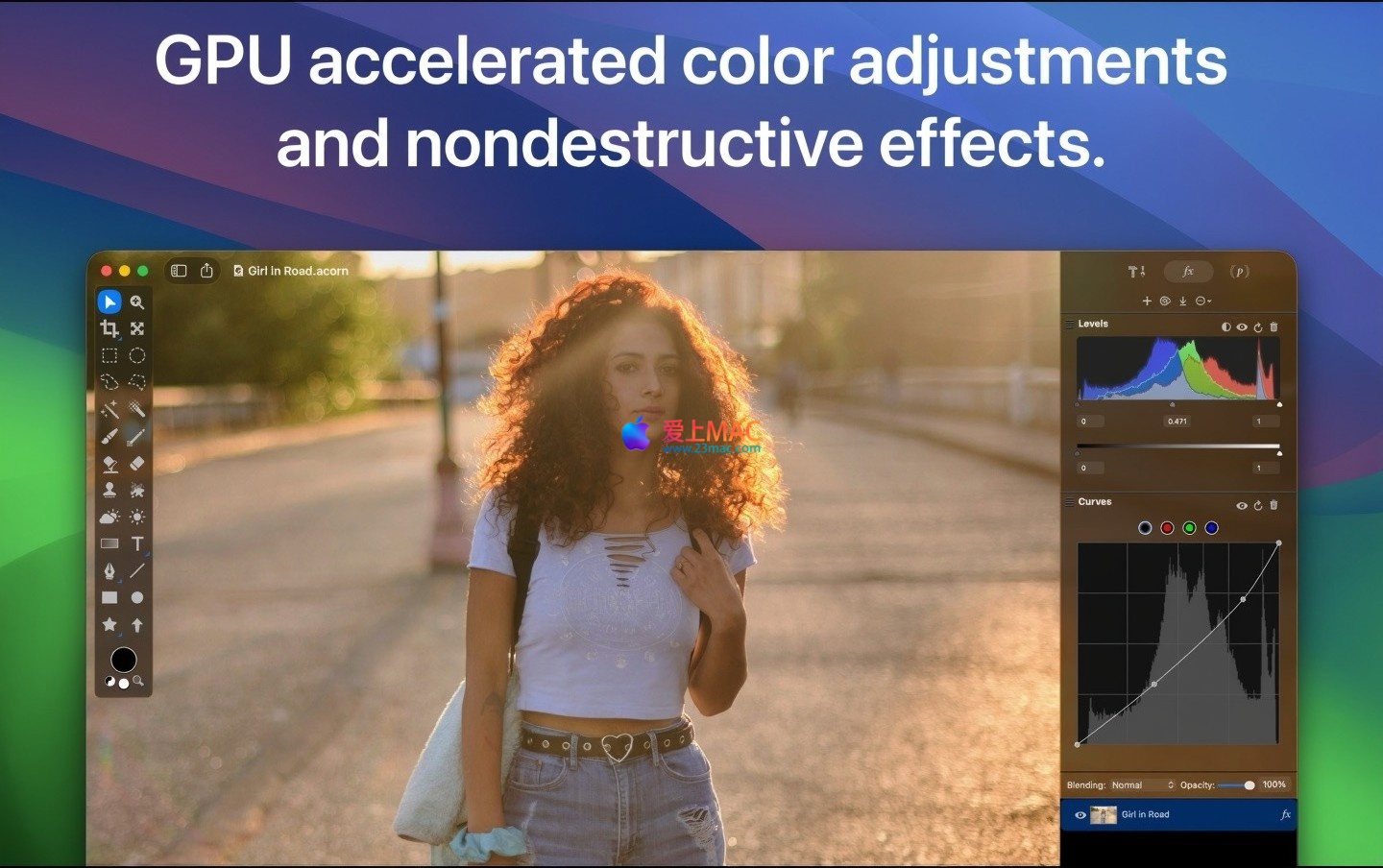
Use the “Clone” tool to repair scratches and stains. Adjust contrast in the “Levels” panel, and use the “Add” tool to brighten dark areas. For color discrepancies, adjust the RGB channels separately using the “Curves” tool.
The WebP format maintains high quality while reducing file size. Choose WebP in the export dialog, adjust the compression ratio, and it’s suitable for web use.
Add a layer mask, then use a brush tool to paint black on the mask to hide the adjustment effect, allowing for local processing. Paint white on the mask to restore the adjustment.
These real-case study tips have been tested and verified by our site. You can use them with confidence. The Acorn community is active, and you can refer to the official documentation or forums if you encounter any issues.
This resource requires login to download
Log in
NetWorker Pro for Mac v11.1.1 Chinese Activation Version Download
Downloads:0 | 2026-10-27

SideNotes for Mac v1.2.5: Sticky Notes Software Activation Download
Downloads:2921 | 2026-10-27

Fantastical 2 for Mac v2.5.16 Chinese Translation and Activation Download
Downloads:2755 | 2026-10-20

PeakHour 4 for Mac v4.1.8 Network Bandwidth Visualization Tool Activated Version Download
Downloads:1947 | 2026-10-17


Ratings & reviews
4.9
(Maximum 5 ratings, total 10 user reviews)
Let’s rate it.