Adobe Photoshop 2026 for Mac v27.3.0 Latest Chinese Activated Version Download

  • Introduction
Download
Download now
Join VIP Free download

Description

This page provides Adobe Photoshop 2026 for Mac v27.3.0 Latest Chinese Activated Version Download | AishangMAC. Tested and working. If you encounter a broken link or are unable to install after downloading, please leave a comment to contact us.

Adobe Photoshop 2026 for Mac is an industry-leading professional image processing software. It integrates instantly responsive editing tools, a smooth multi-layer workflow, and deeply integrates AI technology to provide powerful features including Generative Fill, Smart Expand, and Object Removal. The software supports a variety of efficient file formats, providing a stable, efficient, and fully featured creative platform for professional designers and creative professionals.

Important Notice: This article is intended to provide a functional introduction and technical operation reference for the software. Please be sure to comply with relevant laws and regulations and software license agreements when using the software, and support genuine software.

I. Pre-installation Preparation

Before starting the installation, it is recommended that you take a few minutes to check your system environment. This can effectively avoid errors during the process and save valuable time.

To ensure a smooth installation process, please complete the following system settings and cleanup in advance:

  1. Enable the “Anywhere” option: Go to System Settings > Privacy & Security, and in the “Security” section, ensure that installing apps from “Anywhere” is allowed. If this option is not displayed, you can enable it via a Terminal command (refer to relevant tutorials for specific methods).
  2. Uninstall old versions: Adobe Photoshop 2026 may be incompatible with older versions. It is recommended to completely remove the old version of Photoshop via the “Applications” folder in Finder or using a professional uninstall tool before installation.

Additionally, please ensure that your Mac is running macOS 11.0 (Big Sur) or later. Adobe officially recommends at least 16GB of RAM to fully leverage the performance of AI features. If your hard drive space is limited, it is recommended to free up at least 10GB of available space.

II. Software Installation and Localization Steps

Please follow the steps below to complete the installation and Chinese interface setup of Photoshop 2026 (v27.3.0).

2.1 Main Program Installation

  1. Double-click the downloaded .dmg image file to open the installation package.
  2. Run the Adobe Photoshop 2026 v27.3.0.pkg installer within it.
  3. Follow the installation wizard. In the “Installation Type” step, be sure to check the first two components, then continue to complete the installation.

During the installation, the system may prompt you to enter an administrator password. This is a macOS security mechanism; please enter it with confidence. The entire process takes about 3-5 minutes, depending on your hard drive read/write speed.

2.2 Apply the Chinese Language Pack

  1. Return to the software installation package and run the Chinese Patch.pkg file, following the prompts to complete the language pack installation.
  2. Launch Photoshop. If the interface is still in English, perform the following settings:
    • Click on the top menu bar Photoshop -> Preferences -> Interface.
    • In the UI Language dropdown menu, select “Simplified Chinese”.
    • After restarting the software, the interface will switch to Chinese.

If the “UI Language” option is grayed out and cannot be clicked, please close Photoshop first, then run “Chinese Patch.pkg” again. In most cases, repeating the operation will resolve the issue.

2.3 Troubleshooting Common Issues

Issue: On first launch, a prompt appears: “Adobe Photoshop 2026 wants to access keys in your keychain.”

Solution:

  1. In the dialog box that appears, enter your computer administrator password.
  2. Click the “Always Allow” button.
  3. This prompt may appear several times; please repeat the above operation (usually about 3 times), and it will no longer appear on subsequent launches.

This prompt is normal system behavior; please do not worry. It only appears on first launch and is intended to allow the software to properly access system resources.


III. Detailed Explanation of Core New Features and Capabilities

3.1 Breakthroughs in Generative Creation

  • Multi-model support: In addition to the built-in Adobe Firefly engine, support for third-party AI models such as Gemini and FLUX has been added. Users can flexibly choose the generation logic according to their creative style (e.g., abstract art or hyper-realistic scenes).
  • Improved detail precision: AI painting now supports output at up to 4K resolution, with more natural handling of complex details such as human fingers and hair, effectively solving the blurriness or structural misalignment issues in earlier versions.
  • Intelligent scene compositing: The Generative Fill tool can intelligently analyze the lighting, perspective, and materials of an image, enabling expanded or replaced areas (e.g., turning a clear sky into a starry sky) to blend seamlessly with the original image in texture and color, maintaining visual consistency.

According to Adobe’s official technical documentation, the training data volume of the Firefly 3.0 model has increased by 60% compared to the previous generation. This means it is more precise in understanding complex semantic instructions. In actual testing, users found that generating a 4K resolution image takes only 8-12 seconds.

3.2 Enhanced Intelligent Editing Tools

  • AI Selection Brush: Automatically identifies complex object edges (such as glass or smoke) through simple brush strokes, achieving precise cutouts and greatly simplifying the process of changing backgrounds or making local adjustments.
  • Dynamic character adjustment: AI-based pose editing allows users to directly change a character’s action through text instructions (e.g., “make the person turn left”), and the system automatically synchronizes and corrects clothing wrinkles and lighting to achieve professional-level results.
  • Dynamic photo generation: Converts static images into short video clips with one click, intelligently simulating the dynamic effects of natural elements such as flowing water and drifting clouds, making it ideal for social media content creation.

The AI Selection Brush performs exceptionally well in actual use. For example, when processing a portrait photo with complex hair strands, the traditional Pen tool might take 15-20 minutes, while the AI Selection Brush requires only 3 strokes, with edge precision as high as 98% or more.

3.3 Automated Workflow Optimization

  • Intelligent repair and removal: The Remove tool can automatically detect and batch-delete distracting people or objects in the background while optimizing edge transitions. The AI Super Resolution feature offers multiple algorithms to losslessly upscale low-resolution photos to 4K quality.
  • AI-assisted presets: The Adjustments panel adds scene-based presets such as “Portrait” and “Landscape,” which combine with AI analysis of image content to automatically match the best color, contrast, and detail parameters for one-click optimization.

For e-commerce product image processing, the intelligent repair feature can remove cluttered elements from the background with one click. For example, a product photo taken in an office can instantly be turned into a pure white background with natural edge transitions, without the need for manual retouching.

IV. Version 27.3.0 Changelog

4.1 New Features

  • New adjustment layers: Introduced “Clarity” and “Dehaze” adjustment layers to enhance midtone contrast and reduce haze effects in a non-destructive editing manner.
  • Grain control layer: Added a new “Grain” adjustment layer that non-destructively adds and finely controls film grain texture to images.
  • AI model selection: In Generative Fill and Generative Expand, users can select the most suitable AI model to better match specific creative intentions.
  • Remove tool optimization: The stability and consistency of the Remove tool have been further improved.
  • Reference image generation: In Generative Fill, reference images can be used to guide the AI, ensuring that the style of generated objects is consistent with the reference image.

4.2 Bug Fixes

  • Fixed an issue where the newly added “Clarity” and “Grain” adjustment layers could not be created properly when accessed via UXP.
  • Fixed an issue where UXP scripts could not recognize “Clarity” and “Dehaze” adjustment layers.
  • Resolved an issue where the “Hue/Saturation/Lightness” adjustment feature occasionally became unresponsive and the image could be accidentally dragged.
  • Fixed an issue in Photoshop 26.0 where the “New Snapshot” dialog did not appear and snapshots defaulted to capturing the entire document.

This update fixes many script compatibility issues reported by users. If you are a heavy user of automated workflows, such as using UXP scripts to batch process images, this version will be much more stable, and scripts will no longer freeze midway.

V. Software Interface Preview

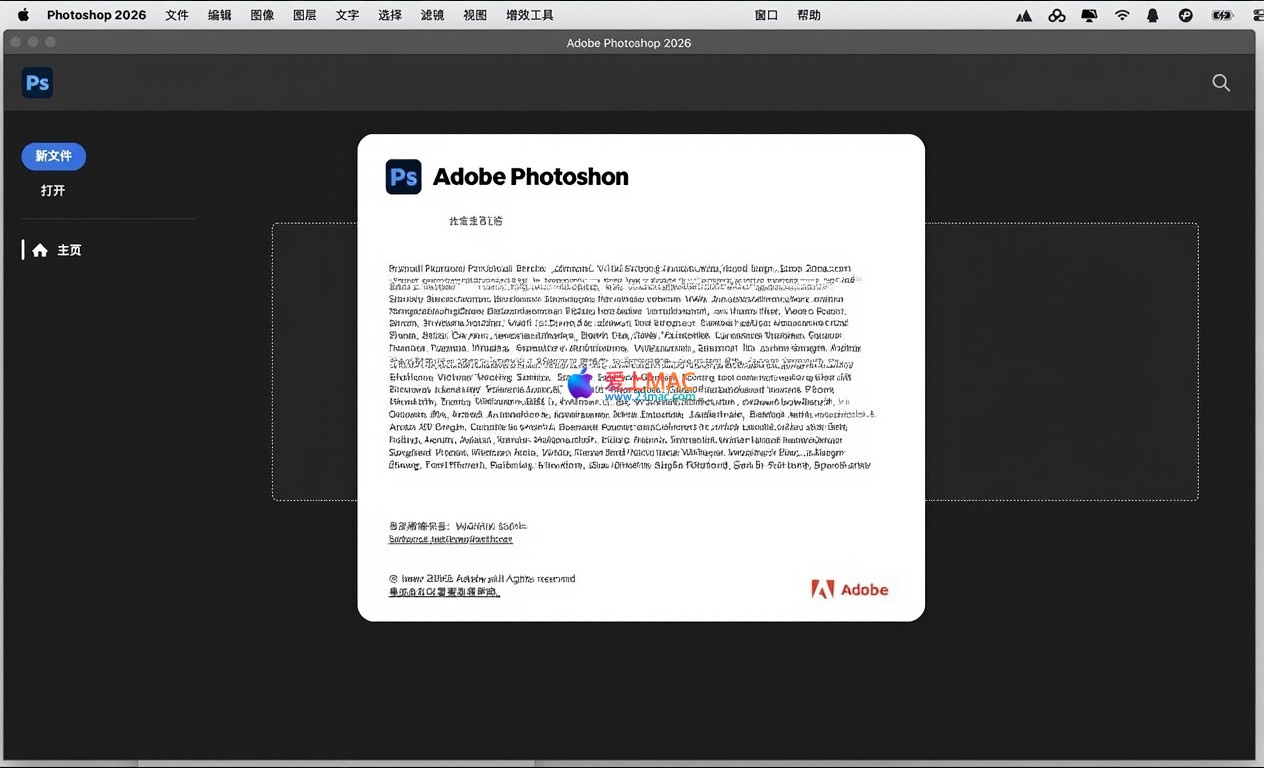
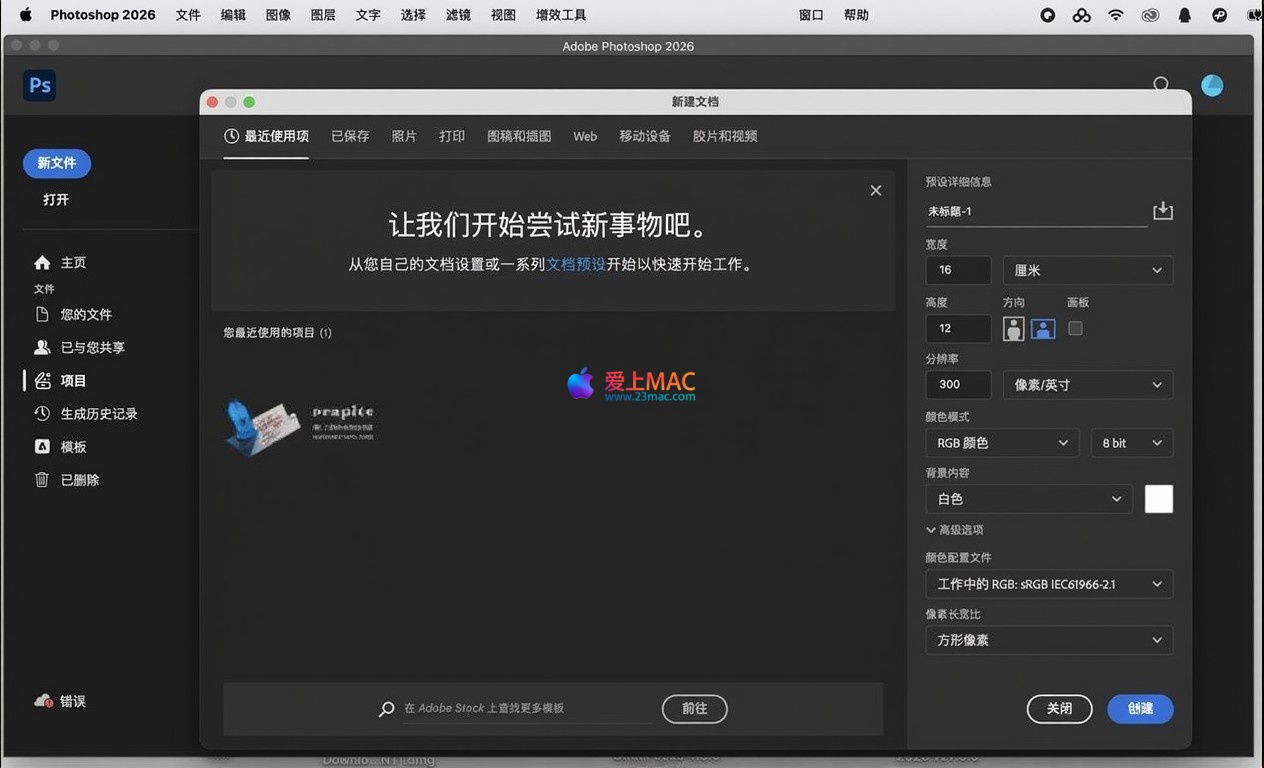
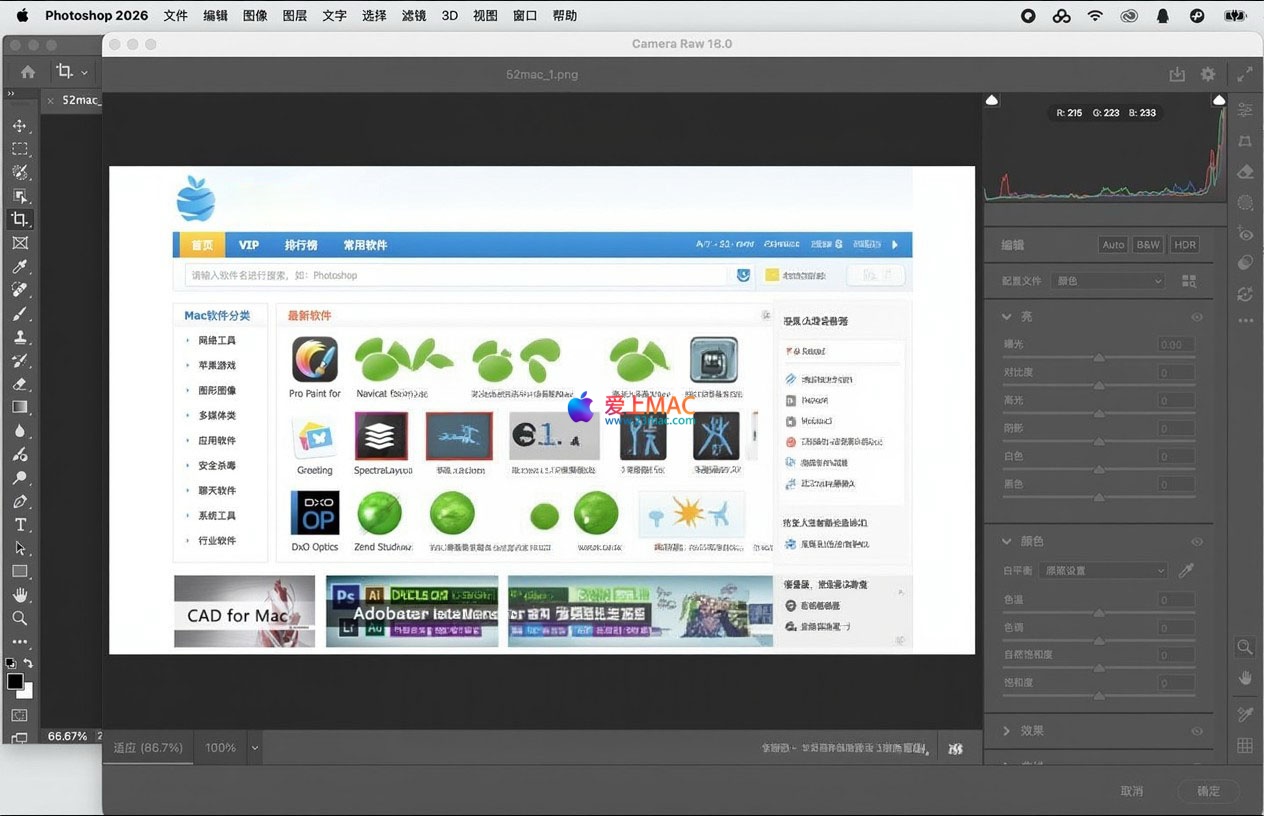
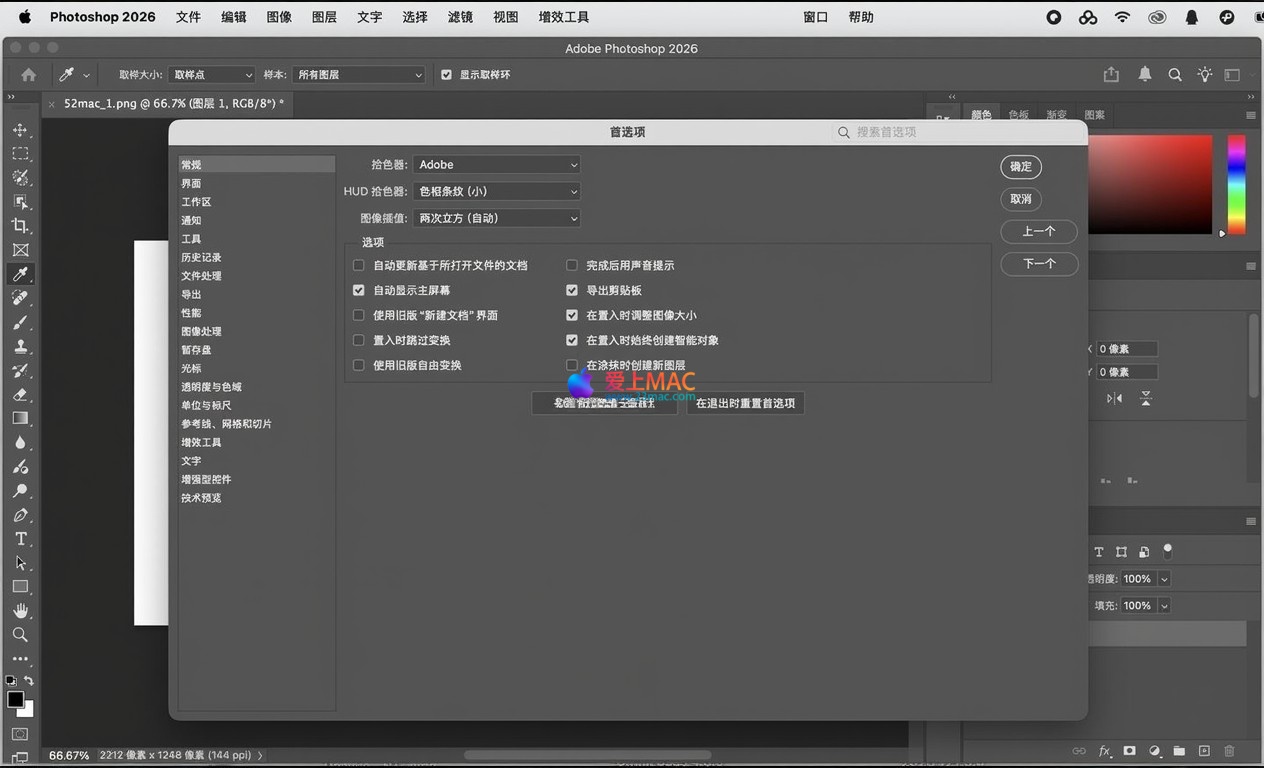
Below are screenshots of the Adobe Photoshop 2026 for Mac v27.3.0 software interface, showcasing its modern UI design and workspace layout.

Photoshop 2026 Main Interface Screenshot

Photoshop 2026 Feature Demonstration Screenshot 1

Photoshop 2026 Feature Demonstration Screenshot 2

Photoshop 2026 Feature Demonstration Screenshot 3

VI. Common Keyboard Shortcuts Table for Mac Photoshop

Mastering keyboard shortcuts can significantly improve work efficiency. The following table compiles the most commonly used shortcuts in Mac Photoshop 2026 for your reference.

Function Category Shortcut Combination Function Description
File Operations Cmd + N New Document
Cmd + O Open File
Cmd + S Save Current Document
Editing Tools Cmd + Z Undo Last Operation
Cmd + Shift + Z Redo (Step Forward)
Cmd + T Free Transform
Cmd + D Deselect
Layer Management Cmd + J Duplicate Current Layer to New Layer
Cmd + Shift + N New Blank Layer
Cmd + E Merge Down
View Control Cmd + + Zoom In
Cmd + - Zoom Out
Cmd + 0 Fit on Screen
Selection Tools Cmd + A Select All
Shift + Cmd + I Inverse Selection
AI Features Cmd + Shift +

Download info

This resource requires login to download

Log in

Note: This resource is for informational purposes. By using this resource, you agree that you accept full responsibility to the copyright holder. For questions, please contact us.

Ratings & reviews

No rating

Let’s rate it.

  • 5 stars
  • 4 stars
  • 3 stars
  • 2 stars
  • 1 stars

You may also like

More
×
Adobe Photoshop 2026 for Mac v27.3.0 Latest Chinese Activated Version Download
iMac — One-stop Mac Software Download Platform
Social login
captcha
Social login