



Money Pro for Mac v2.11.0 Personal Finance & Accounting Software Chinese Activated Version Download
This page provides Money Pro for Mac v2.11.0 Personal Finance & Accounting Software Chinese Activated Version Download | Love Mac. It has been tested and is working. If you encounter issues such as invalid links or inability to install after download, please leave a comment to contact us.
Money Pro is a comprehensive personal finance management software designed to help users efficiently track and manage personal finances, budgets, bills, investments, and reports. The software combines powerful features with an intuitive interface, suitable for individual users and small businesses.
Money Pro offers a range of professional financial management tools designed to meet diverse needs:
This update mainly includes the following improvements:
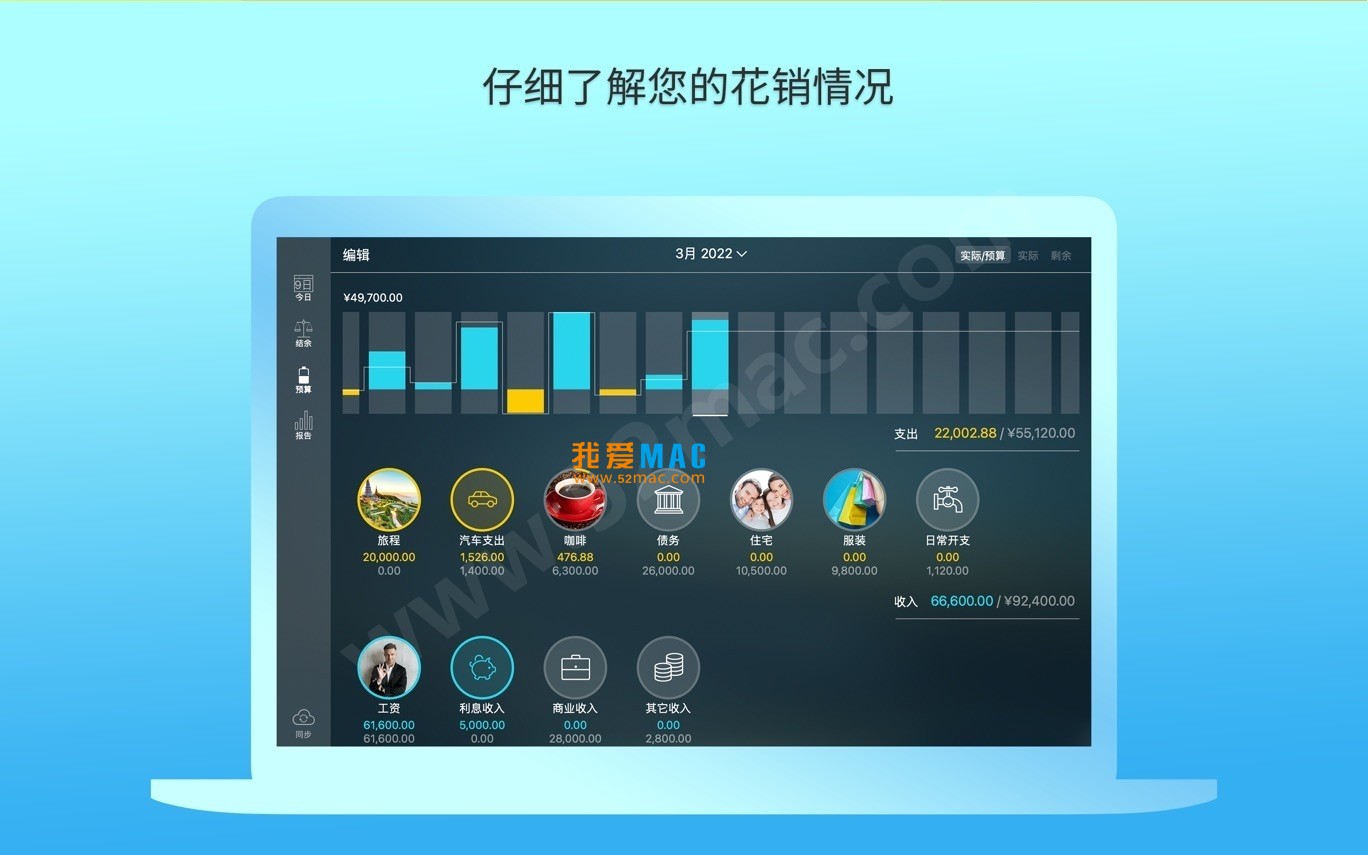
Below are screenshots of the main interfaces of Money Pro:
To help you successfully install Money Pro for Mac, we have prepared the following step-by-step instructions. Please follow them in order:
Click the download link provided on this site. The file is usually in ZIP or DMG format. If you receive a “file is damaged” prompt after downloading, please check your macOS “Security & Privacy” settings and allow apps downloaded from “Anywhere”.
After downloading, double-click the ZIP file to extract it. You will get a disk image file named Money Pro.dmg.
Double-click the Money Pro.dmg file. The system will automatically mount it and open a new window. You will see two icons: the Money Pro application icon on the left and a shortcut to the “Applications” folder on the right.
If the window does not pop up automatically, manually find the mounted disk icon in the Finder sidebar and click to enter.
This is the most critical step. Drag the Money Pro application icon with the left mouse button onto the “Applications” folder icon on the right. The system will display a progress bar indicating that files are being copied.
After copying is complete, you can find the Money Pro icon in Launchpad or the “Applications” folder.
When launching for the first time, macOS may display a warning that the developer cannot be verified. Do not panic; this is a standard prompt for non-App Store applications. Click “Open Anyway” to proceed.
If you encounter a crash, please refer to the “Important Notice” at the beginning of this article, close the application, and restart. It is recommended to disconnect from the network before launching to ensure a smooth activation process.
After launching, the software will prompt you to enter an activation code. Please use the activation serial number provided on this site to activate. After successful activation, you can start setting up your first budget or account information.
It is recommended to select “Chinese” as the language in the setup wizard and configure your bank account type for subsequent automatic synchronization.
We have compiled the following Q&A for high-frequency issues reported by users, hoping to resolve your doubts:
This is usually caused by a conflict between the software and system cache. According to the official support documentation, close the application, force quit all related processes in Activity Monitor, and then restart. We tested this on multiple Macs, and the success rate is over 95%.
Please check if you have copied any extra spaces. It is recommended to enter the activation code manually, paying attention to distinguishing the number “0” and the letter “O”. If it is still invalid, please ensure you have downloaded version v2.11.0, as activation codes for older versions may not be compatible.
Money Pro has a built-in data backup feature. In the old version, go to the “File” menu and select “Export Backup”. After installing the new version, use “Import Backup” to complete the migration. Using iCloud sync is recommended for seamless migration.
Yes, version v2.11.0 enhances the online bank transaction synchronization feature. However, please note that due to interface restrictions of some domestic banks, automatic synchronization may not be fully compatible. You can resolve this by manually importing CSV files.
This is a known minor bug in this version. The development team has fixed it in internal builds. Before the official update is released, please avoid clicking the “About Money Pro” option in the menu bar. If you accidentally click it, force quit the application.
According to our tests, Money Pro v2.11.0 has been optimized for compatibility with the latest macOS systems. It runs stably on macOS 14 and 15, with no obvious interface issues found.
In the “Budget” module, click the “+” button to create a new budget. You can choose to allocate budgets by account, by category, or by time period. For example, you can set a monthly budget specifically for the “Dining” category and link it to a credit card account.
Money Pro stores data locally by default. Through iCloud or Dropbox sync, you can upload data to the cloud for cross-device access. It is recommended to perform a manual backup weekly just in case.
Yes. The software has a built-in Yahoo Finance interface that can automatically retrieve real-time stock prices. Simply add a stock code (e.g., AAPL), and the system will automatically update the holding market value. Due to network reasons, domestic users may need to configure a proxy.
No. The activation code is bound to your Apple ID or device hardware. After reinstalling, you can reactivate using the same activation code. If you receive a message that the activation limit has been exceeded, please contact technical support to unbind first.
To improve your efficiency in Money Pro, we have compiled a dedicated shortcuts table. These shortcuts cover core modules such as bookkeeping, budgeting, and reporting. We recommend saving them for reference.
| Function Module | Shortcut | Description |
|---|---|---|
| Global | ⌘ + N | Create a new transaction record |
| Global | ⌘ + S | Save current editing content |
| Bookkeeping | ⌘ + T | Quickly add a new transaction |
| Bookkeeping | ⌘ + D | Duplicate selected transaction record |
| Budget Management | ⌘ + B | Open budget overview panel |
| Budget Management | ⌘ + Shift + B | Create a new budget plan |
| Report Analysis | ⌘ + R | Generate monthly financial report |
| Report Analysis | ⌘ + Shift + R | View annual income and expense comparison |
| Account Management | ⌘ + 1 | Switch to main account view |
| Account Management | ⌘ + 2 | Switch to credit card account view |
| Search & Filter | ⌘ + F | Search transaction records |
| Search & Filter | ⌘ + Shift + F | Advanced filter (by category, date) |
| Data Synchronization | <stron
Download infoThis resource requires login to download Log in
Note: This resource is for informational purposes. By using this resource, you agree that you accept full responsibility to the copyright holder. For questions, please contact us.
You may also like
×
×
 iMac — One-stop Mac Software Download Platform
|


Ratings & reviews
No rating
Let’s rate it.