



Money Pro for Mac v2.10.12 Personal Finance App Chinese Activated Version Download
This page provides Money Pro for Mac v2.10.12 Personal Finance App Chinese Activated Version Download | Love Mac. It has been tested and is available. If you encounter issues such as invalid links or inability to install after download, please leave a message to contact us.
Money Pro is a full-featured personal finance management software designed to help users efficiently track and manage personal finances, budgets, bills, investments, and reports. The software combines powerful features with an intuitive user interface, making it suitable not only for individual users but also for meeting the basic financial management needs of small businesses.
Money Pro offers a range of professional features to support comprehensive financial management:
This update mainly focuses on performance and stability optimizations:
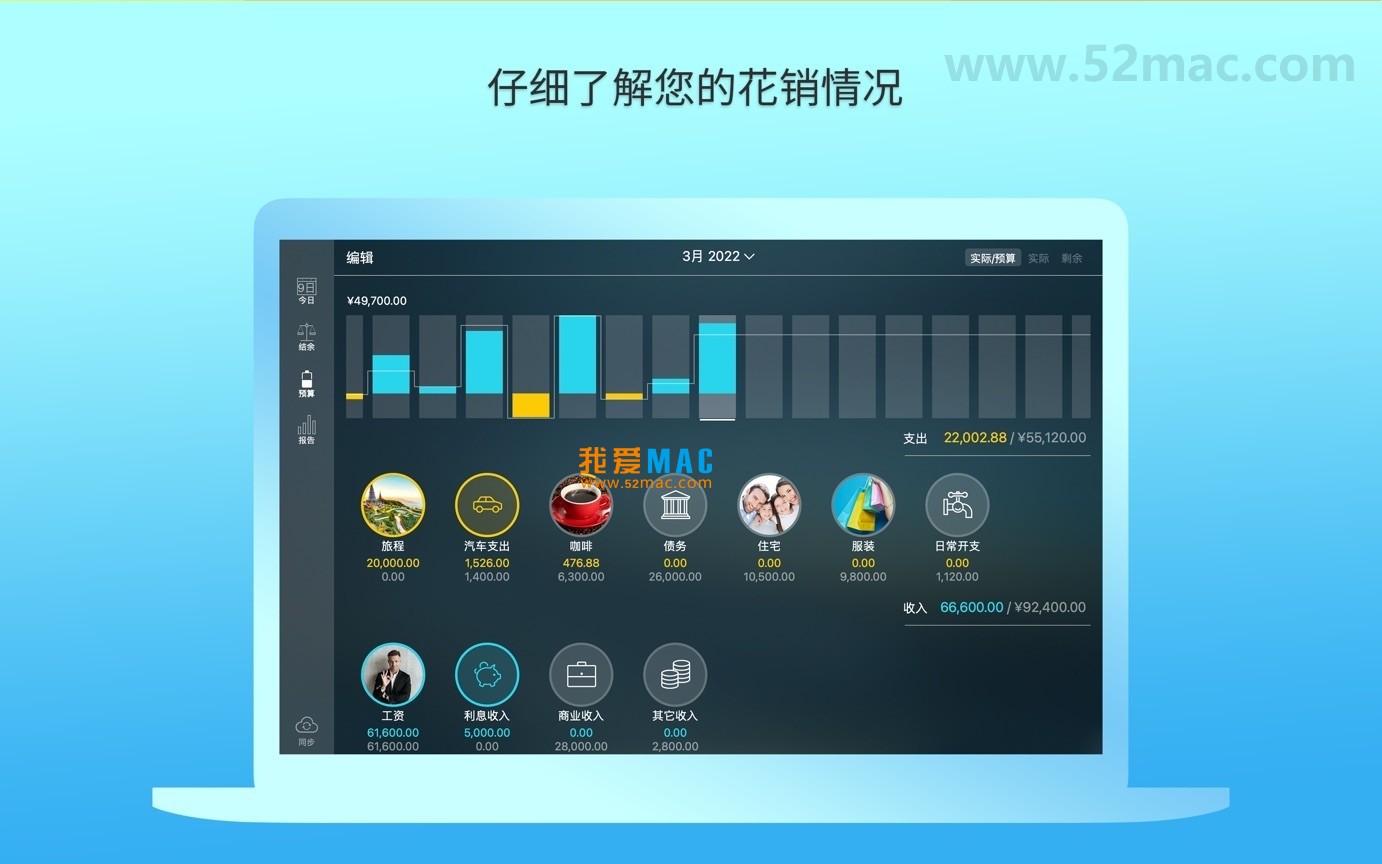
Below are screenshots of the main interfaces of Money Pro, showcasing its intuitive layout and functional modules:
To ensure you can install Money Pro smoothly, we have prepared the following step-by-step guide. Please follow the steps strictly to avoid permission or compatibility issues.
Click the download link provided on the page to obtain the DMG image file for Money Pro v2.10.12. After downloading, it is recommended to use an MD5 verification tool to check file integrity, ensuring the installer has not been damaged or tampered with. Once verified, double-click the DMG file to mount it.
In the mounted DMG window, you will see the “Money Pro” icon and a shortcut pointing to the “Applications” folder. Simply drag the icon to the “Applications” folder. The system will automatically complete the copy, which usually takes 1-2 minutes.
When opening for the first time, macOS may display a warning that the developer cannot be verified. This is because the software is not signed by the App Store. Please go to “System Settings” -> “Privacy & Security” and click the “Open Anyway” button at the bottom of the page. Enter your administrator password to confirm.
After launching Money Pro, you will enter the activation interface. Enter the activation code provided with the installer and click the “Activate” button. After successful activation, the software will display the full-featured interface. It is recommended to create a data backup immediately to prevent unexpected situations.
After activation, the software will guide you to create your first account. It is recommended to first add your primary bank account or credit card account. Enter the account name, current balance, and currency type. Money Pro supports simultaneous management of multiple currencies such as RMB, USD, and EUR, which is very convenient.
We have compiled the 10 most common questions users encounter along with their answers to help you quickly resolve any doubts during use.
This is usually due to macOS Gatekeeper security policies. Please open the “Terminal” app and enter the following command: sudo spctl –master-disable. Then try opening it again. If the problem persists, please check whether SIP (System Integrity Protection) has been disabled.
Please confirm whether the activation code contains spaces or special characters. It is recommended to copy and paste directly to avoid manual entry errors. If it is still invalid, please contact our customer service to verify whether the activation code matches the current version. Note that each activation code is limited to one device.
Money Pro supports data backup and recovery. In the old version, go to “File” -> “Export Backup” to generate a .moneyprobackup file. In the new version, select “File” -> “Import Backup” and choose the file to complete the migration. It is recommended to perform a double backup before migration.
Go to “Preferences” -> “Cloud Sync” and log in with your iCloud account or Money Pro account. After enabling sync, data on all devices will automatically remain consistent. Note that the first sync may take a long time, so please ensure a stable network connection.
Money Pro supports automatic bill synchronization with over 1,000 banks worldwide. In China, it is compatible with major banks such as ICBC, CCB, and CMB. During synchronization, you need to enter the security credentials provided by the bank. The software uses 256-bit encrypted transmission to ensure data security.
When creating an account, select the “Multi-currency Account” type. You can add multiple sub-accounts to the same account, each corresponding to one currency. For example, you can manage both RMB and USD under one account. The system will automatically calculate exchange rate conversions and display total assets.
Yes. On the budget settings page, you can set reminder thresholds for each category. When expenses exceed 80% or 100% of the set value, the software will send a notification through the Notification Center. You can also set daily or weekly budget summary reports.
Go to the “Reports” module and select the “Annual Report” option. You can customize the report’s time range, accounts, and categories. Reports can be exported as PDF or CSV files for printing or importing into other financial software for analysis.
Money Pro supports family sharing. You can enable “Family Account” in “Preferences” and add up to 5 family members. Each member can have independent accounts and budgets, but the family administrator can view all data for unified management.
Please try restarting the software first. If the problem persists, please clear the cache: go to “~/Library/Caches/com.moneypro” and delete all files in that folder. If there is still no improvement, please uninstall and reinstall the latest version. We recommend clearing the cache quarterly to maintain performance.
Mastering the following shortcuts can significantly improve your efficiency in Money Pro. We have compiled the most commonly used shortcuts and displayed them by function category.
| Shortcut Combination | Function Description | Use Case |
|---|---|---|
| ⌘ + N | New transaction record | Quickly enter income or expenses |
| ⌘ + B | Open budget view | View current budget execution status |
| ⌘ + R | Generate report | One-click generation of financial analysis reports |
| ⌘ + S | Save current operation | Manually save data to prevent loss |
| ⌘ + F | Search transaction records | Quickly find specific bills or transactions |
| ⌘ + Z | Undo last operation | Quickly revert mistaken operations |
| ⌘ + Shift + E | Export data backup | Regularly back up financial data |
| ⌘ + Shift + I | Import data | Restore data from backup files |
| ⌘ + 1-9 | Switch to different account views | Quickly browse multi-account information |
| ⌘ + Option + T | Toggle transaction list sorting | Sort by date, amount, or category |
Tip: You can customize these key combinations in “Preferences” -> “Shortcuts” to suit your operating habits. It is recommended to bind the most frequently used functions to easy-to-remember keys.
We share several proven tips to help you maximize the functionality of Money Pro. These tips come from the practical experience of veteran users and can significantly improve financial management efficiency.
In addition to default categories (such as dining and transportation), it is recommended to create custom tags. For example, add a “Business” tag to “business trip” related expenses. This way, when generating reports, you can filter by tag to precisely analyze spending patterns in specific scenarios. Tags can also be linked with budgets for more granular control.
For fixed monthly expenses such as rent, utilities, and subscription services, use the “Recurring Transactions” feature. Go to “Transactions” -> “New Recurring Transaction” and set the cycle and amount. The software will automatically generate records on the due date without manual entry. This helps avoid forgetting payments and automatically calculates annual total expenses.
In the investment module, Money Pro displays the proportion of various assets. When the proportion of a certain asset class deviates from the target value (for example, the stock proportion rises from 60% to 70%), the software will send a reminder. You can
This resource requires login to download
Log in
Money Pro for Mac v2.1 Financial Management App Chinese Activated Version Download
Downloads:1152 | 2026-10-17

Chronicle for Mac v9.1.1 Bill Management Software Activated Version Download
Downloads:2995 | 2026-10-17
Money Pro for Mac v2.5.9 Financial Management Software Chinese Activated Version Download
Downloads:3116 | 2026-10-17
Money Pro for Mac v2.11.14 Personal Finance App Chinese Activated Version Download
Downloads:512 | 2026-10-17


Ratings & reviews
No rating
Let’s rate it.