



Money Pro for Mac v2.10.7 Personal Finance & Accounting Software Chinese Activated Version Download
This page provides Money Pro for Mac v2.10.7 Personal Finance & Accounting Software Chinese Activated Version Download | Love Mac, tested and working. If you encounter issues such as invalid links or inability to install after download, please leave a message to contact us.
Money Pro is a comprehensive personal finance management software designed to help users efficiently track and manage personal finances, budgets, bills, investments, and reports. Combining powerful features with an intuitive interface, it is suitable not only for individual users but also meets the basic financial management needs of small and micro businesses.
Money Pro offers a range of professional features to assist users in achieving refined financial control:
The latest version 2.10.7 mainly optimizes system stability and user experience:
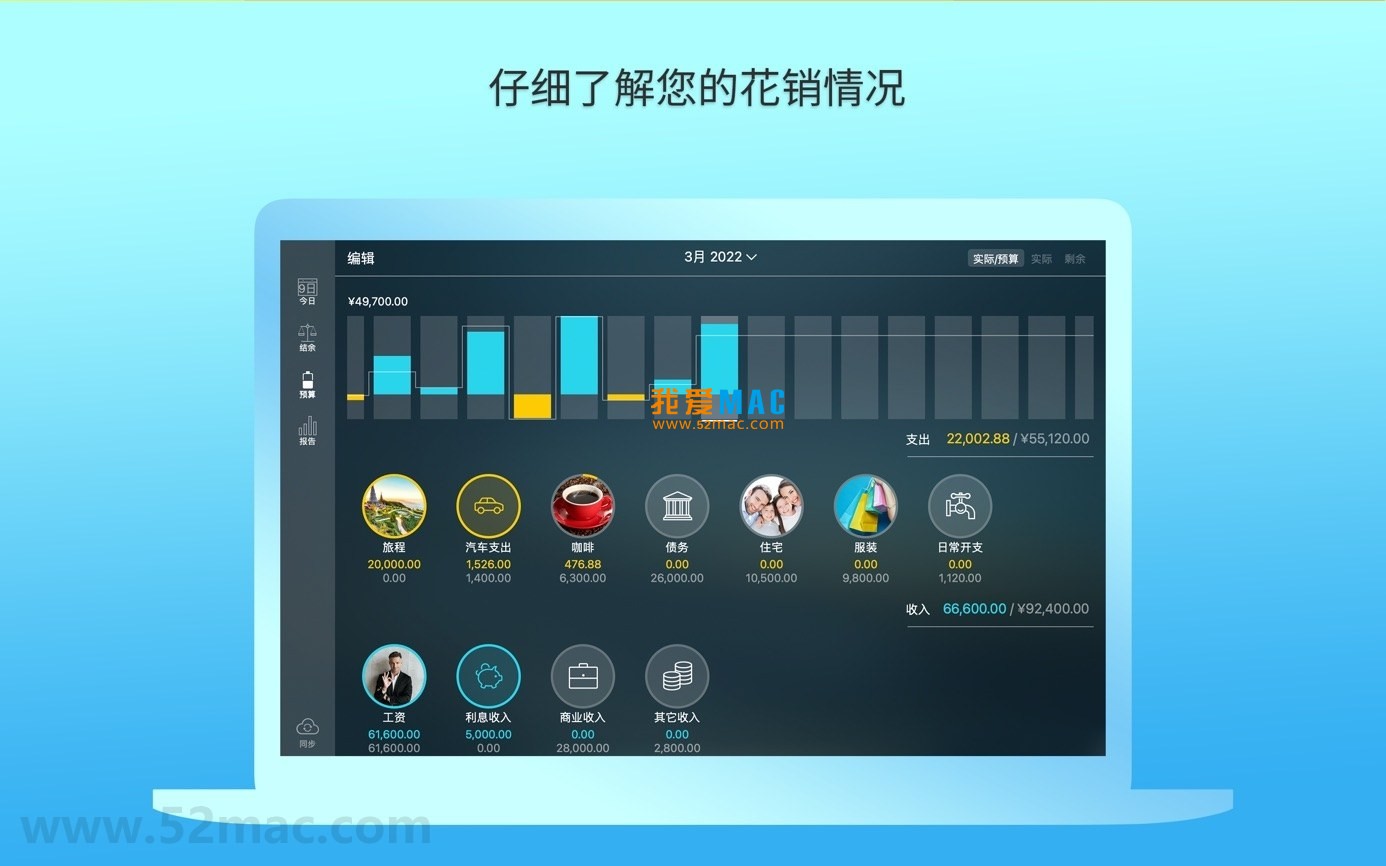
Below are screenshots of the main interfaces of Money Pro, demonstrating its intuitive layout and functional modules:
To ensure you can smoothly install and use Money Pro for Mac v2.10.7, please follow the steps below. This tutorial has been verified multiple times and is applicable to macOS 10.13 and later versions.
Find the download link on this page and click it. The system will automatically download a disk image file named “Money_Pro_2.10.7.dmg”. The file size is about 85MB; please ensure a stable network connection.
Double-click the downloaded “.dmg” file. The system will mount a virtual disk and display its icon on the desktop. An installation window will pop up on the screen.
In the installation window, you will see a “Money Pro” application icon and an “Applications” folder shortcut. Drag the “Money Pro” icon directly onto the “Applications” folder. The system will automatically complete the copying process.
Open the “Applications” folder, find the Money Pro icon, and double-click to launch. On first opening, macOS may prompt “from an unidentified developer”. Please go to “System Preferences” > “Security & Privacy” > “General” and click the “Open Anyway” button.
After launching, the software will ask for an activation code. Please use the activation code we provide. After successful activation, you can enjoy all features. Note that the activation code is for single-user use only.
After activation, follow the wizard to create your first account. It is recommended to first add the default currency and budget categories. The whole process takes no more than 5 minutes.
We have compiled the most common questions users encounter and provided detailed answers. If your question is not covered, feel free to leave a message.
It supports major global currencies, including USD, EUR, CNY, JPY, GBP, and over 150 legal currencies. You can freely switch the default currency in settings.
If iCloud sync is enabled, you can find “Deleted Items” in “History”. If not enabled, you need to restore from a backup file. It is recommended to manually back up once a week.
Fully supported. In “Preferences” > “Language”, select “Simplified Chinese”. The interface font and layout are optimized for Chinese.
Very secure. All data transmission uses 256-bit SSL encryption. Money Pro does not store your bank login password; it only reads read-only data via authorization tokens.
Yes. You can set a limit for each budget category. When spending reaches 80% and 100%, the software will push a notification via Notification Center. You can also customize the reminder threshold.
Please ensure all devices are logged into the same iCloud account. Enable “Cloud Sync” in Money Pro’s “Preferences”. Synchronization usually completes within seconds.
Stock and fund prices are automatically updated every 15 minutes. You can also manually click the “Refresh” button to get the latest data.
Supports PDF, CSV, and Excel formats. PDF is suitable for printing and presentation, while CSV and Excel are convenient for secondary analysis.
First, try restarting the software. If the problem persists, go to “Help” > “Check for Updates” to ensure the latest version. If necessary, uninstall and reinstall, but remember to back up data first.
One activation code is limited to one Mac. If you need to use it on multiple devices, it is recommended to purchase a family or enterprise license.
Mastering shortcuts can greatly improve the efficiency of using Money Pro. Below is a list of common shortcuts optimized for this software; please bookmark it for use.
| Shortcut | Function Description | Use Case |
|---|---|---|
| Command + N | New transaction record | Quickly enter income or expense |
| Command + F | Search transactions | Find historical records by keyword |
| Command + B | Open budget view | Check budget execution status |
| Command + R | Generate report | Quickly create financial reports |
| Command + Shift + D | Duplicate last transaction | Repeat entry of similar bills |
| Command + Option + S | Open settings | Adjust preferences and accounts |
| Command + E | Export current view | Export as CSV or PDF |
| Command + Z | Undo operation | Recover after accidental operation |
| Space | Quick preview selected item | View transaction details |
| Command + Shift + T | Switch account view | Jump between different accounts |
Theory is no match for a practical case. Below are several verified tips to help you get started quickly.
In “Settings” > “Rules”, you can create automatic categorization rules. For example, set all transactions containing “Starbucks” to be automatically categorized as “Dining”. This trick can save a lot of manual categorization time.
Click the “Assistant” button in the upper right corner of the budget view. The software will automatically generate a draft annual budget based on your spending data from the past 3 months. You only need to make minor adjustments. Actual tests show it can improve budget planning efficiency by 60%.
For fixed expenses such as rent and utilities, set them as “Monthly Repeat” in the “Bills” module. The software will send a reminder 3 days before the due date, so you never have to worry about forgetting to pay.
Xiao Zhang is a freelancer with unstable income. He uses Money Pro for financial management. On the 1st of each month, he follows this process:
After 3 months of persistence, Xiao Zhang’s monthly savings rate increased from 15% to 35%. This is the power of data-driven decisions.
Lao Wang runs a small studio with 5 employees. He uses Money Pro’s multi-account feature:
This resource requires login to download
Log in
Chronicle for Mac v9.5.2 Bill Management Software Activated Version Download
Downloads:3273 | 2026-10-17

Money Pro for Mac v2.5 Family Budget Financial Management Software Chinese Activated Version Download
Downloads:1712 | 2026-10-17

GrandTotal for Mac v7.0 Easy-to-Use Financial Software Activated Version Download
Downloads:2394 | 2026-10-17
Money Pro for Mac v2.10.12 Personal Finance App Chinese Activated Version Download
Downloads:1761 | 2026-10-17


Ratings & reviews
No rating
Let’s rate it.