

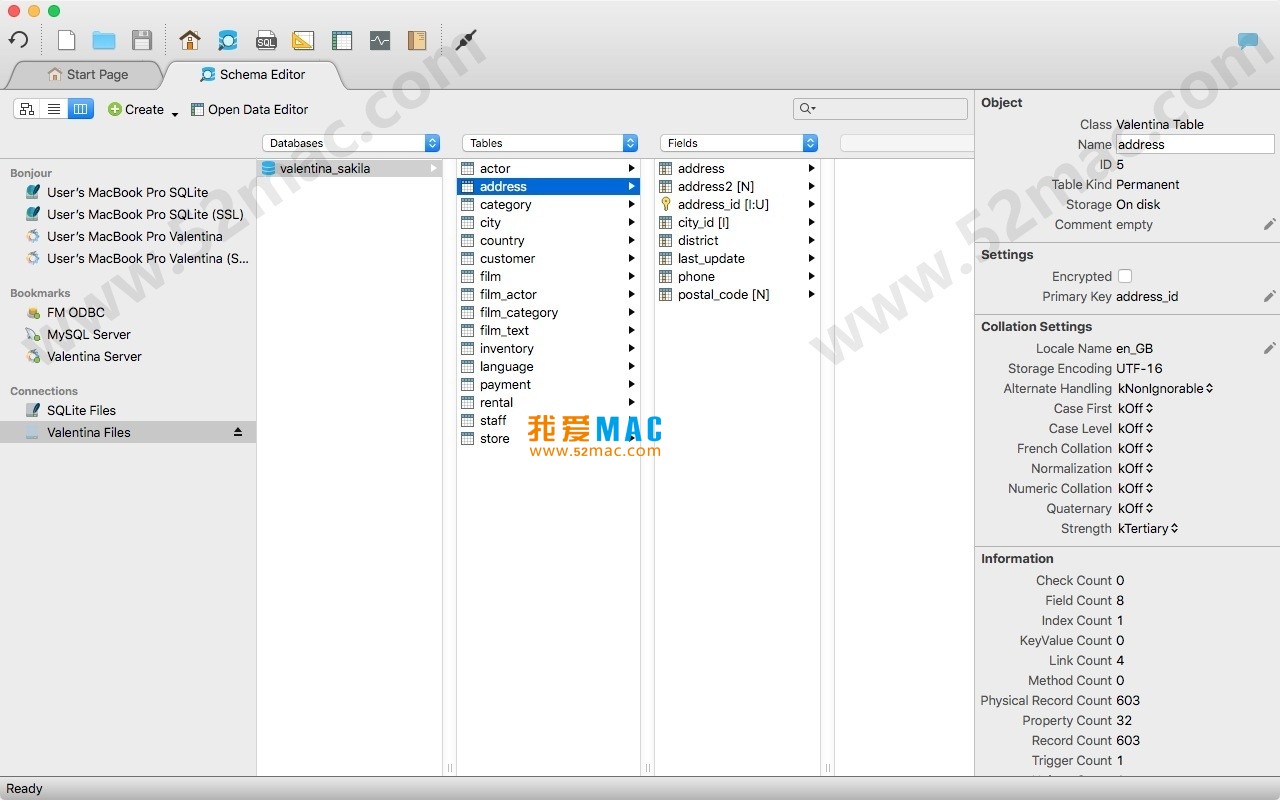


Valentina Studio for Mac v11.4.1 Database Management Tool Activated Version Download
This page provides Valentina Studio for Mac v11.4.1 Database Management Tool Activated Version Download | Love Mac, tested and working. If you encounter invalid links or installation issues after download, please leave a comment to contact us.
Valentina Studio for Mac is a cross-platform database management tool designed for database architects, developers, database administrators (DBAs), and even end users. It is fully compatible with mainstream relational database management systems (RDBMS), including MySQL, PostgreSQL, SQLite, Microsoft SQL Server, and ValentinaDB. The tool integrates core functions such as data modeling, database schema management, SQL development, and server management, providing users with an efficient, visual database operation experience.
Valentina Studio provides a powerful visual data editing and management environment. Its main functional modules include:
Users can open any number of editor windows for multiple databases or servers simultaneously in the tabbed panel. In addition, the tool integrates several database utilities, such as data import/export, dump, diagnostics, cloning, reindexing, etc.
For professional users, Valentina Studio offers the following advanced features:
Before starting the installation, please ensure your Mac is running macOS 10.13 or later. It is recommended to reserve at least 500MB of disk space for program installation and subsequent data caching.
Click the download link on this page to obtain the Valentina Studio for Mac v11.4.1 installation package. The file is usually in .dmg format. Double-click the .dmg file, and the system will automatically mount and pop up the installation window.
In the opened window, you will see the “Valentina Studio” icon and a shortcut pointing to the “Applications” folder. Simply drag the “Valentina Studio” icon to the “Applications” folder on the right. This process completes the program copy installation.
Go to the “Applications” folder, find and double-click the “Valentina Studio” icon to launch. Since the software comes from a non-App Store developer, macOS may display a security prompt. At this point, go to “System Preferences” > “Security & Privacy” > “General” and click the “Open Anyway” button.
After launching, the software will enter trial mode. If you have obtained an activation code, click “Valentina Studio” > “Register” in the menu bar, and enter your activation information in the dialog box that appears. After confirmation, click “Activate” to unlock all professional features.
After successful activation, restart the software. Check the version information in the “About” window to confirm the version number is v11.4.1. At this point, you can try connecting to a local or remote database to test whether all functions are working properly.
We have compiled several of the most common questions users encounter during use and provided corresponding solutions.
A: It natively supports MySQL, PostgreSQL, SQLite, Microsoft SQL Server, and Valentina DB. In addition, through ODBC drivers, it can also connect to other types of databases.
A: The free version provides basic schema browsing, data editing, and SQL query functions. The professional version unlocks advanced features such as report designer, form designer, data transfer tool, SQL diff, and version control integration.
A: We do not recommend or support resetting the trial period through unofficial means. After the trial period ends, you can choose to purchase a formal license or continue using the free version with limited features.
A: First, please ensure your macOS version meets the requirements. Then, try deleting the preferences file. In Finder, press Command+Shift+G, enter ~/Library/Preferences, find com.paradigma-software.ValentinaStudio.plist and delete it, then restart the software.
A: Go to “Valentina Studio” > “Preferences” in the menu bar. In the “Editor” tab, you can find the “Font” setting. After adjusting the font size, click “Apply” to take effect.
A: Under the “Tools” menu in the menu bar, you can find the “Data Transfer” option. This feature supports copying table structures and data between different database instances.
A: Yes. In the Data Editor, double-click a BLOB field, and a dedicated editor will pop up. For image-type BLOBs, you can preview directly; for other binary data, hex editing is supported.
A: Connection information is stored in the application’s support files. In Finder, press Command+Shift+G, enter ~/Library/Application Support/Valentina Studio, and you can copy the entire folder for backup.
Mastering shortcuts can significantly improve your work efficiency. Below is a list of some very useful shortcuts in Valentina Studio.
| Function Category | Shortcut | Description |
|---|---|---|
| File Operations | Command + N |
New query window |
| File Operations | Command + S |
Save current query or project |
| Edit Operations | Command + Z |
Undo last action |
| Edit Operations | Command + Shift + Z |
Redo last undone action |
| SQL Editing | Command + R |
Run current SQL query |
| SQL Editing | Command + Shift + R |
Run currently selected SQL statement |
| SQL Editing | <code
Download infoThis resource requires login to download Log in
Note: This resource is for informational purposes. By using this resource, you agree that you accept full responsibility to the copyright holder. For questions, please contact us.
You may also like
×
×
 iMac — One-stop Mac Software Download Platform
|


Ratings & reviews
No rating
Let’s rate it.