



WonderPen for Mac v2.3.2 Writing Software Chinese Activated Version Download
This page provides WonderPen for Mac v2.3.2 Writing Software Chinese Activated Version Download | Love Mac, tested and working. If you encounter link failure or inability to install after download, please leave a message to contact us.
WonderPen is a modern writing software designed specifically for the macOS platform, dedicated to providing writers, students, content creators, and writing enthusiasts with an efficient, focused, and powerful creative environment. Whether you are conceiving a short story, writing an academic paper, or creating a long-form work, it can help you systematically organize your thoughts and smoothly complete your work.
This software integrates multiple professional features designed to enhance writing efficiency and experience:
This update mainly focuses on performance optimization and detail experience improvements, including:
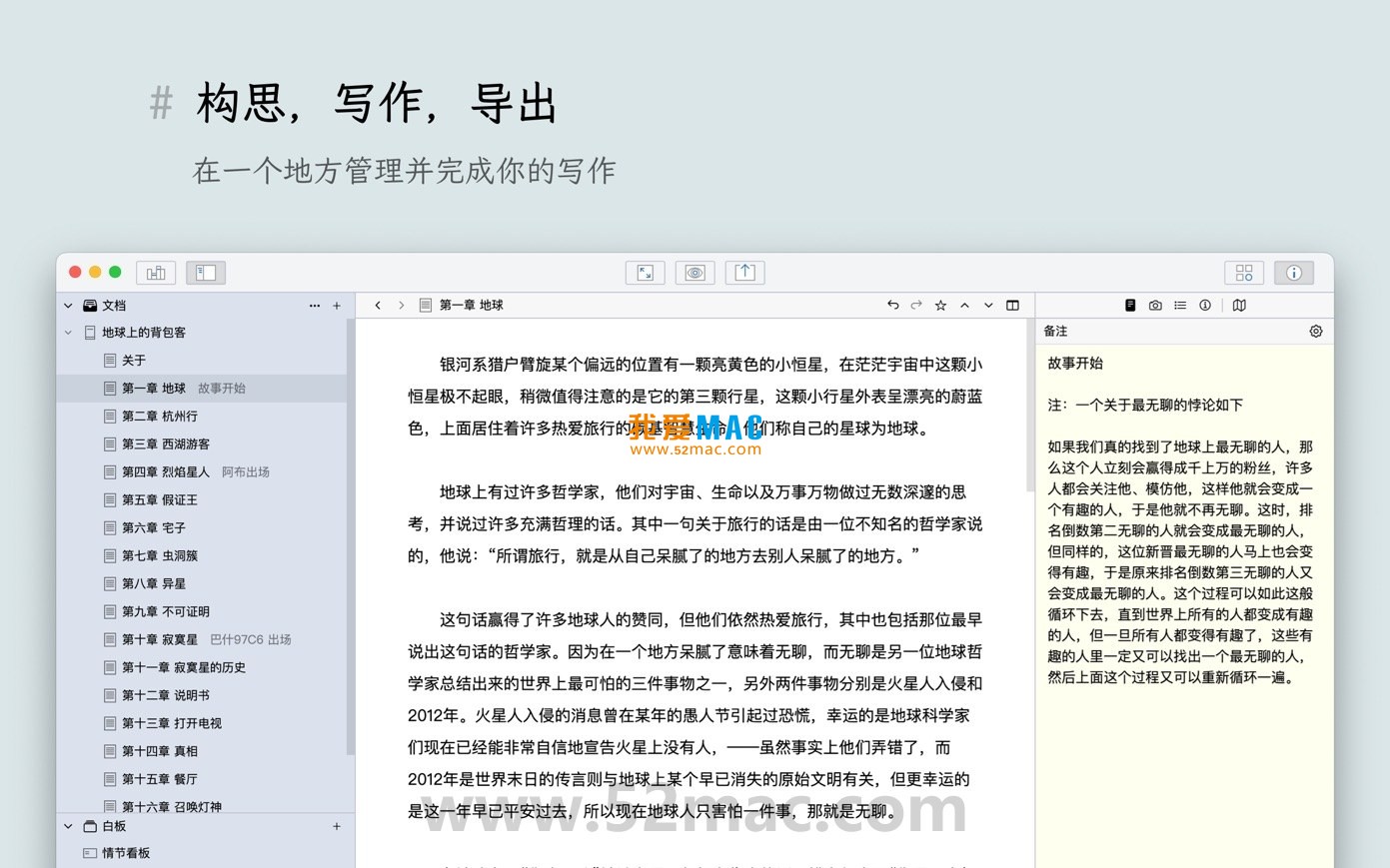
The following are screenshots of the main functional interfaces of WonderPen for Mac:
Before starting to use WonderPen, please ensure your Mac is running macOS 10.13 or later. We recommend 8GB or more RAM for the best experience.
Click the download link provided on this page to obtain the WonderPen v2.3.2 compressed package. After downloading, double-click the .zip or .dmg file to extract. If the system prompts “cannot verify developer”, go to “System Preferences” > “Security & Privacy” to allow running.
Drag the extracted “WonderPen.app” icon directly to the “Applications” folder. This process does not require an administrator password, but it is recommended to close other applications to speed up installation.
Open “Launchpad” or the “Applications” folder, find the WonderPen icon and double-click to launch. When opening for the first time, the software will pop up an activation window. Enter the activation code we provide (usually included in a .txt or .rtf file in the download folder), and click the “Activate” button to complete authorization. After activation, it is recommended to restart the software to confirm the status.
After successful activation, enter the WonderPen main interface. You can adjust the language (Simplified Chinese supported), enable iCloud sync, and customize fonts and themes in “Preferences”. It is recommended to enable auto-save first to avoid accidental content loss.
We have compiled several questions most commonly encountered by users and provide detailed answers:
A: Please first confirm that the activation code you entered has no extra spaces or characters. If the problem persists, it may be that the activation code has been occupied or there is a network issue. Please try disconnecting from the network and reactivating, or contact our customer service team to obtain a new activation code.
A: This is a common phenomenon caused by macOS security mechanisms. Please open the “Terminal” application, enter the following command and press Enter: sudo spctl --master-disable. Then go to “System Preferences” > “Security & Privacy” and check “Anywhere”. Finally, reopen WonderPen.
A: In the WonderPen editor, click “File” > “Export” in the menu bar, and select “Word Document (.docx)”. If you need to customize the export style, please set the Markdown syntax and template before exporting.
A: Currently, the spell check feature mainly targets English. For Chinese content, it is recommended to use the built-in input method correction feature of macOS, or install a third-party Chinese proofreading plugin. We are developing more comprehensive multilingual support.
A: WonderPen has automatic backup enabled by default. Please go to “Preferences” > “Backup” to view the backup file list. Find the version you need and click “Restore”. If the backup folder is empty, please check whether automatic backup has been disabled.
A: It is recommended to regularly clear the cache: click “Clear Cache” in “Preferences”. Also, close unnecessary background applications and ensure your macOS version is up to date. If lag persists, try keeping the number of nodes in the document tree under 50.
A: Yes. WonderPen supports iCloud sync. Please ensure all devices are logged in with the same Apple ID and enable “iCloud Sync” in “Preferences”. The sync process is automatic and requires no manual operation.
Mastering WonderPen’s shortcut keys can significantly improve your writing efficiency. The following table lists the most commonly used shortcut key combinations:
| Function Description | Shortcut Key Combination | Applicable Scenario |
|---|---|---|
| New Document | Command + N |
Quickly start a new chapter or note |
| Save Document | Command + S |
Manually save current content |
| Toggle Focus Mode | Command + Shift + F |
Enter full-screen immersive writing |
| Open Whiteboard Mode | Command + Shift + B |
Conduct brainstorming or plot planning |
| Jump to Document Tree | Command + 1 |
Quickly locate the directory structure |
| Full-text Search | Command + Shift + F |
Find keywords within the project |
| Insert Link | Command + K |
Quickly add Markdown links |
| Undo Last Action | Command + Z |
Revert mistaken operations |
| Toggle Night Mode | Command + Shift + N |
Protect eyesight, adapt to low-light environments |
| Export Document | Command + Shift + E |
Quickly export to PDF and other formats |
It is recommended to print this table or stick it next to your monitor, and practice frequently in daily writing to develop muscle memory within a week.
The power of WonderPen lies not only in its basic functions but also in how they can be combined. Here are several tips that experienced users love to use:
When writing novels or papers, we often get stuck due to chaotic structure. In practice, you can first create a root node (e.g., “Chapter 1”) in WonderPen, then create multiple child nodes under it (e.g., “Scene 1”, “Scene 2”). Adjust the order by dragging, and use the “Node Focus” feature to focus only on the current chapter. This way, the entire project context is clear, and modifications are easy.
When inspiration runs dry, switch to whiteboard mode. You can treat sticky notes as “idea cards” and place or connect them freely. For example, when planning a detective novel plot, use different colored sticky notes to represent “clues”, “suspects”, “timeline”, and then connect them with arrows. This visual approach can help you find logical loopholes and inspire new ideas.
The worst thing in writing is being interrupted. It is recommended to develop a habit: use Command + Shift + F to enter focus mode, use Command + 1 to quickly view the directory, and use Command + K to insert reference links. This way, your hands basically don’t need to leave the keyboard, and the writing rhythm is naturally smooth. Many professional writers report that this method can help them write over 2,000 more words per day.
This resource requires login to download
Log in
iA Writer for Mac v5.6.6 Professional Writing App Chinese Activated Version Download
Downloads:108 | 2026-10-17

Storyist 4 for Mac v4.2.4 Novel Story Screenwriting Writing Tool Activated Version Download
Downloads:3377 | 2026-10-17
iA Writer for Mac v7.0.1 Professional Writing App Chinese Activated Version Download
Downloads:1199 | 2026-10-17
iA Writer for Mac v7.3 Professional Writing App Chinese Activated Version Download
Downloads:527 | 2026-10-17


Ratings & reviews
No rating
Let’s rate it.