



WonderPen for Mac v2.2.2 – Professional Writing Software (Chinese Activated Version) Download
This page provides WonderPen for Mac v2.2.2 – Professional Writing Software (Chinese Activated Version) Download | 爱上MAC. It has been tested and is working. If you encounter issues such as invalid links or inability to install after download, please leave a comment to contact us.
WonderPen is a professional writing software designed exclusively for macOS, dedicated to providing an efficient, focused, and feature-rich creative environment for writers, students, editors, scholars, and all wordsmiths. Whether you are brainstorming a short story, writing an academic paper, or creating a long-form manuscript, its intuitive design and powerful features can effectively enhance your writing experience and productivity.
The software integrates a variety of tools needed by modern writers, designed to manage complex projects and maintain creative focus.
The latest version enhances features and optimizes the experience based on the previous version. Specific updates include:
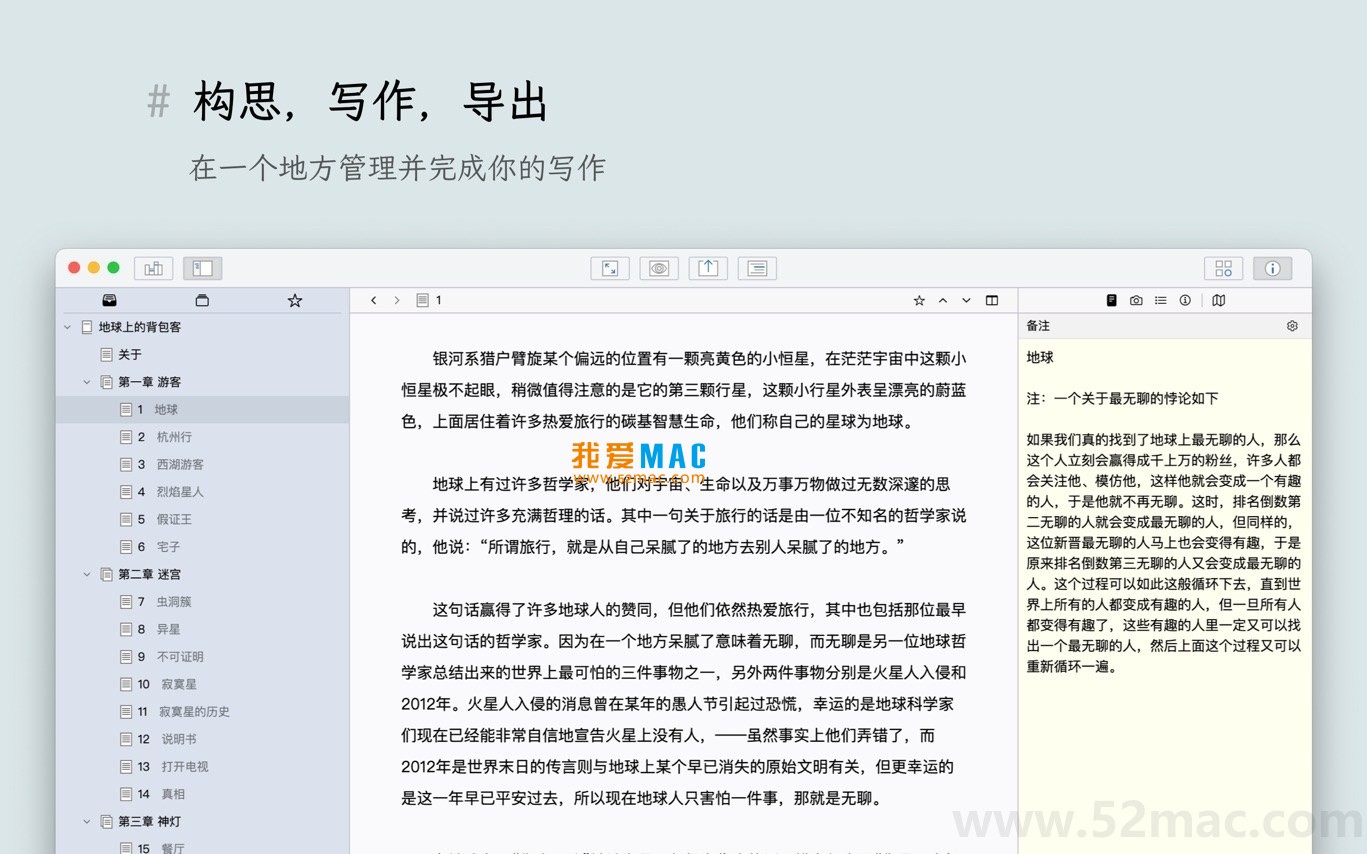
The following screenshots show the main workspace and features of WonderPen:
To ensure you can use WonderPen smoothly, we have prepared detailed installation steps. Please follow the process strictly:
Click the download link on the page to obtain the WonderPen v2.2.2 archive. After downloading, double-click the .zip file to extract it. It is recommended to move the extracted folder to the “Applications” directory for easier management.
Open the extracted folder and double-click the “WonderPen.app” icon. The system may prompt “Cannot verify developer,” which is a macOS security mechanism. Please go to “System Settings” > “Privacy & Security” and click “Open Anyway.” Enter your system password to confirm authorization.
Upon first launch, the software will display an activation window. Please use the activation code we provide. Copy the activation code, paste it into the input field, and click the “Activate” button. After successful activation, you will see an “Activated” message and can start using the software.
After activation, you can perform initial setup according to your personal preferences. For example, choose the default editing mode, set font size, or enable automatic saving. Click “Preferences” for personalized adjustments.
We have compiled some common user questions to help you quickly resolve doubts:
A: This is usually because macOS security policies block unsigned applications. Please follow Step 2 in the installation tutorial to manually allow opening in “System Settings.” If the problem persists, check whether your macOS version meets the minimum requirement (macOS 10.12 or later).
A: First, check whether you have copied extra spaces. If confirmed correct, please contact our customer service or leave a comment on this page, and we will promptly provide a new activation code. We promise that all activation codes have been tested and are guaranteed to work.
A: Yes, WonderPen fully supports a Chinese interface. You can select “Simplified Chinese” in “Preferences” > “Language” and restart the software for it to take effect. Its menu bar and help documentation are localized.
A: WonderPen supports storing project files in cloud services such as iCloud or Dropbox. Simply place the project folder in the cloud directory, and open the same cloud directory on other Mac devices to achieve synchronization.
A: WonderPen’s export engine is optimized and can preserve Markdown formatting and basic layout well when exporting to .docx format. For more precise control, it is recommended to export to PDF first, which offers the highest layout consistency.
A: Yes, WonderPen enables automatic saving by default at one-minute intervals. You can adjust the auto-save frequency in “Preferences” > “Backup.” Additionally, the software provides a version history feature to revert to previous editing states.
A: Currently, whiteboard mode is mainly used for internal brainstorming and project management, and its content cannot be directly exported as a standalone document. However, you can copy and paste key nodes or sticky note content from the whiteboard into the main editing area and then export.
A: You can enable it via the menu bar “View” > “Night Mode,” or use the shortcut Command + Shift + N to toggle quickly. Night mode reduces screen brightness to lessen visual fatigue during long writing sessions.
Mastering these shortcuts can significantly improve your efficiency in WonderPen. The following table lists the most commonly used key combinations:
| Function Category | Shortcut Combination | Specific Action |
|---|---|---|
| File Operations | Command + S |
Save current document |
Command + Shift + S |
Save as new file | |
| Editing Operations | Command + Z |
Undo last action |
Command + Shift + Z |
Redo undone action | |
Command + C / V |
Copy / Paste | |
| Navigation & View | Command + 1 / 2 / 3 |
Switch editor/preview/outline view |
Command + Shift + N |
Toggle night mode | |
Command + Shift + F |
Enter full-screen focus mode | |
| Formatting | Command + B |
Bold selected text |
Command + I |
Italicize selected text | |
Command + Shift + K |
Insert hyperlink |
Tip: You can view each function in the menu bar.
This resource requires login to download
Log in
AICopy for Mac v2.9 Tanhu Copywriting Writing Notes Rewriting Activated Version Download
Downloads:2055 | 2026-10-17

Bike for Mac v1.18.4 Creative Writing Software Activated Version Download
Downloads:582 | 2026-10-17

Final Draft 13 for Mac v13.2.4 Screenwriting Software Activated Version Download
Downloads:2621 | 2026-10-17

Ulysses for Mac v39.3 All-in-One Writing Software Chinese Activated Version Download
Downloads:1006 | 2026-10-17


Ratings & reviews
No rating
Let’s rate it.