



WonderPen for Mac v2.2.0 – Professional Writing Software (Chinese Activated Version) Download
This page provides WonderPen for Mac v2.2.0 – Professional Writing Software (Chinese Activated Version) Download | 爱上MAC. Tested and working. If you encounter broken links or installation issues after downloading, please leave a comment to contact us.
WonderPen is a professional writing tool designed exclusively for macOS, dedicated to providing writers, students, content creators, and writing enthusiasts with a smooth and efficient writing experience. Its intuitive interface and powerful features help users easily complete the entire creative workflow—from brainstorming and drafting to organizing and output.
1. Start Writing
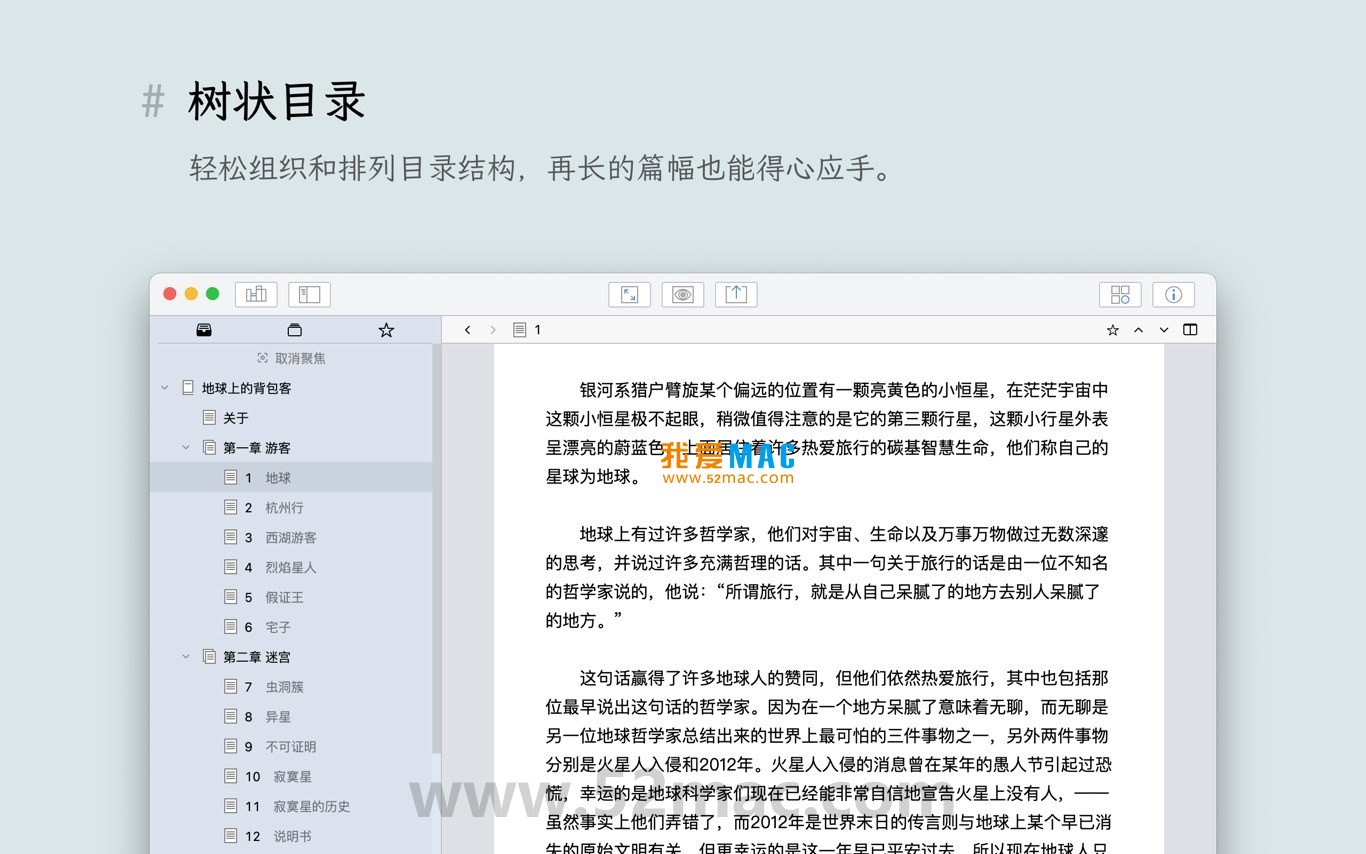
After creating a new document, you can manage chapters through the tree-structured directory on the left, write using Markdown in the central editor, and add notes or switch to outline view on the right.
2. Use the Whiteboard to Plan Content
Switch to whiteboard mode to freely add sticky notes and tables to organize ideas, and manually sort them by dragging.
3. Export and Share
After finishing your writing, use the “Export” function to select the desired format (such as PDF or Word) and generate a shareable file with one click.
Below are screenshots of the main interface of WonderPen for Mac, showcasing its editor, directory tree, whiteboard, and export options.
Obtain the WonderPen for Mac v2.2.0 Chinese activated version installer from this site. After downloading, double-click the .dmg file to mount the disk image.
In the Finder window, drag the “WonderPen” icon to the “Applications” folder. Wait for the progress bar to complete, and the installation is done.
Open “Launchpad” and click the “WonderPen” icon. The system may prompt “Cannot verify developer.” Please go to “System Preferences” > “Security & Privacy” > “General” and click “Open Anyway.”
On first launch, the software will guide you to set up a working directory. It is recommended to choose a folder with sufficient space to store all writing projects.
The software comes with a built-in activation file; no additional action is required. Open it and enjoy all features. Go to “Preferences” to adjust interface language, theme, font size, etc.
It is recommended to enable “Auto-save” and “Cloud Sync” (such as iCloud or Dropbox) to ensure data safety. After completing the setup, you can start creating.
A: It supports exporting to images, PDF, Word, HTML, Epub, and other formats. You can adjust layout parameters as needed during export.
A: In WonderPen, deleted documents go to the “Trash.” Open the “Trash” folder, find the target document, right-click, and select “Restore.”
A: Yes. In the whiteboard, click the “Image” button in the toolbar, or drag and drop image files directly onto the canvas to insert and adjust their position.
A: Set the working directory in a cloud storage service such as iCloud Drive or Dropbox. WonderPen will automatically detect file changes and sync in real time.
A: Fully supported. WonderPen natively supports Chinese, including Pinyin input, punctuation, and paragraph typesetting. The Chinese input experience in the Markdown editor is smooth.
A: Click “View” > “Theme” in the menu bar and select “Night Mode.” You can also use the shortcut Command + Shift + N to switch quickly.
A: WonderPen automatically saves every 30 seconds by default. If it exits unexpectedly, unsaved content will be automatically restored after restarting. You can also adjust the auto-save interval in “Preferences.”
A: Select multiple documents in the directory tree, right-click, and choose “Export.” Batch export to PDF or Word format is supported for easy organization.
The following table lists common keyboard shortcuts in WonderPen to help you improve operational efficiency.
| Category | Shortcut | Function |
|---|---|---|
| File Operations | Command + N |
New Document |
| File Operations | Command + S |
Save Current Document |
| File Operations | Command + Shift + S |
Save As |
| Edit Operations | Command + Z |
Undo |
| Edit Operations | Command + Shift + Z |
Redo |
| Edit Operations | Command + F |
Full-text Search |
| Edit Operations | Command + H |
Replace Text |
| View Switching | Command + 1 |
Switch to Editor View |
| View Switching | Command + 2 |
Switch to Outline View |
| View Switching | Command + 3 |
Switch to Whiteboard Mode |
| View Switching | Command + Shift + N |
Toggle Night Mode |
| Navigation | Control + Tab |
Switch to Next Document |
| Navigation | Control + Shift + Tab |
Switch to Previous Document |
| Directory Management | Command + ] |
Indent Current Chapter |
| Directory Management | Command + [ |
Decrease Indent |
Before writing a long-form work, enter whiteboard mode first. Add multiple sticky notes to record core plot
This resource requires login to download
Log in
Ulysses for Mac 2.8.2 Text Editor: All-in-One Writing Tool Activated Version Download
Downloads:2786 | 2026-10-17

WonderPen for Mac v2.2.3 – Professional Writing Software (Chinese Activated Version) Download
Downloads:237 | 2026-10-17

Scrivener for Mac v3.3.2 Writing Management and Word Processing Tool Chinese Activated Version Download
Downloads:3078 | 2026-10-17

iA Writer for Mac v7.3.3 Professional Writing App Chinese Activated Version Download
Downloads:1258 | 2026-10-17


Ratings & reviews
No rating
Let’s rate it.