



WonderPen for Mac v2.1.12 – Professional Writing Software (Chinese Activated Version) Download
This page provides WonderPen for Mac v2.1.12 – Professional Writing Software (Chinese Activated Version) Download | 爱上MAC. Tested and working. If you encounter a broken link or cannot install after downloading, please leave a comment to contact us.
WonderPen is a professional writing software designed exclusively for macOS, dedicated to providing an efficient, focused, and feature-rich creative environment for writers, students, editors, scholars, and all wordsmiths. Whether you’re crafting short stories, academic papers, novels, or daily notes, its intuitive interface and powerful features help you smoothly transform ideas into structured works.
The software is designed with improving writing efficiency and experience at its core. Main features include:
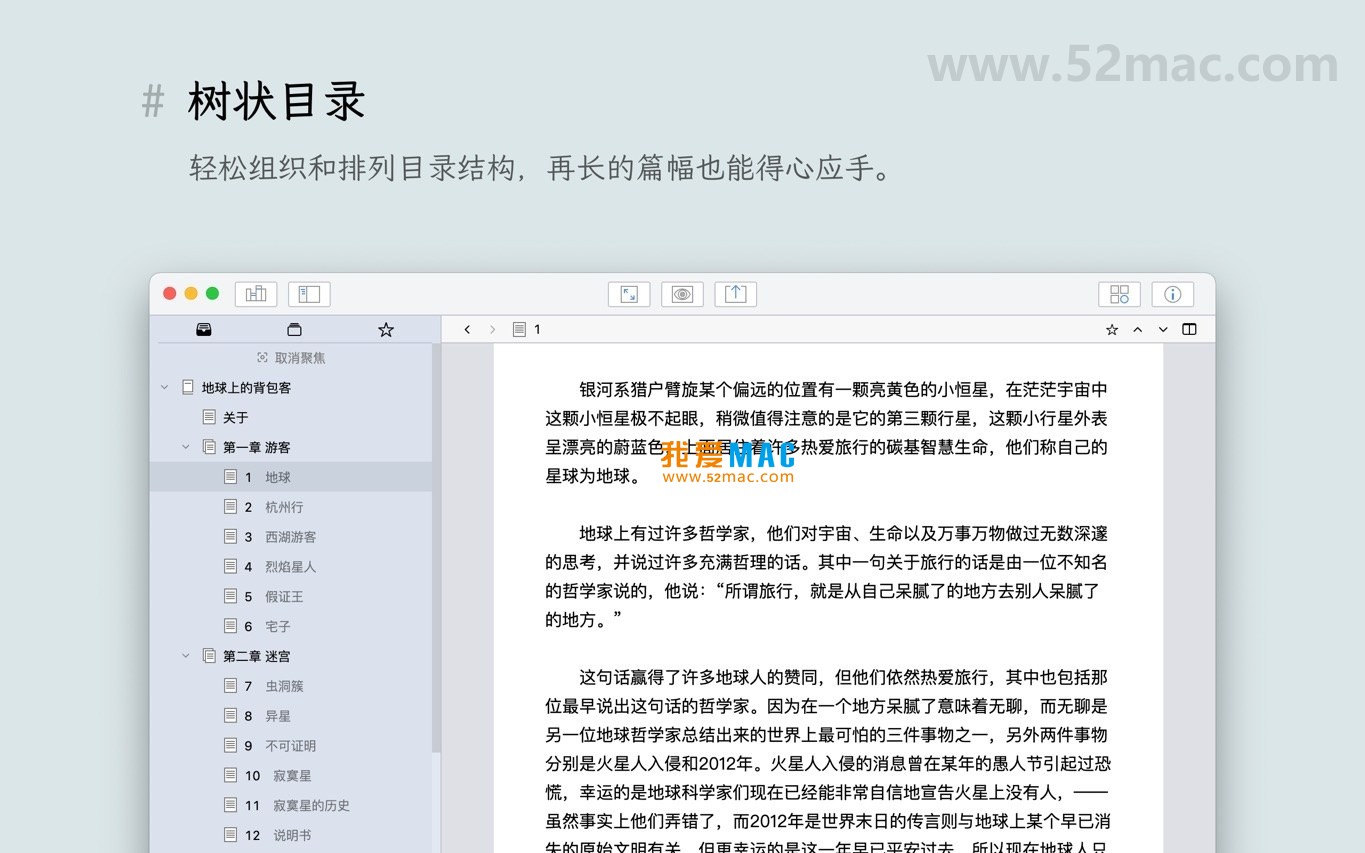
The screenshots below show the main working interface and functional layout of WonderPen:
Installing WonderPen for Mac is not complicated, but following the correct steps can avoid many common beginner issues. Please follow this process:
Click the download link on this page to obtain the .dmg disk image file for WonderPen v2.1.12. The file size is typically a few dozen megabytes; please ensure a stable network connection.
After downloading, double-click the .dmg file. The system will automatically mount and open a window containing the application icon and an Applications folder shortcut. This is the standard macOS software distribution method.
Drag the “WonderPen” application icon on the left to the “Applications” folder icon on the right using your mouse. This action copies the software to your Mac’s application directory.
Open “Launchpad” or the “Applications” folder, find the WonderPen icon, and double-click to open. Since the software comes from a third-party developer, macOS may display a security prompt saying “Cannot be opened because the developer cannot be verified.”
If you encounter the above prompt, go to System Preferences > Security & Privacy > General. At the bottom of the page, you will see a message saying “WonderPen was blocked from opening because it is from an unidentified developer.” Click the “Open Anyway” button next to it, then click “Open” again in the confirmation window that appears.
After successfully opening the software, enter the activation code as prompted (the version provided on this page has integrated activation information and is usually activated upon launch). Then, you can adjust editor themes, font sizes, auto-save intervals, and other parameters in “Preferences” according to your personal habits.
Here are several questions users often encounter when using WonderPen, along with answers to help you get started quickly.
Currently, WonderPen focuses primarily on the macOS platform; the official team does not provide Windows or Linux versions. If you need to synchronize writing across multiple platforms, consider exporting to common formats (such as .docx or .md) as a workaround.
WonderPen natively supports importing Markdown (.md) and plain text (.txt) files. You can first export your content from the original software to these formats, then use the “File > Import” function in WonderPen, or simply drag and drop the files into the document tree to complete the import.
By default, WonderPen’s automatic backup files are stored in the `~/Library/Application Support/WonderPen/backup/` folder in your user directory. You can also customize the backup location and frequency in “Preferences > Backup.”
When exporting to .docx format, WonderPen attempts to preserve Markdown styles. If formatting issues occur, it is recommended to check whether the Markdown syntax is correct before exporting, or try exporting to PDF format first, which usually has higher layout fidelity.
Whiteboard mode is ideal for brainstorming and plot planning. You can use it like a physical whiteboard, freely placing sticky notes to record character settings and key events, and connecting them with lines to visually organize complex storylines.
“Typewriter Mode” keeps the current editing line fixed in the center of the screen, preventing your eyes from moving up and down. You can find and enable it in the “View” menu in the menu bar, or use the shortcut `Ctrl + Shift + T` to toggle it quickly.
Rest assured, WonderPen’s update mechanism is very mature. Updating the software will not affect any files stored in your default document library. However, as a good practice, it is recommended to manually back up the entire document library folder before major version updates.
WonderPen itself does not provide a one-click publish-to-blog-platform feature. However, you can use its powerful export function to export articles as HTML or Markdown format, then copy and paste them into your blog’s backend editor.
Mastering these shortcuts can significantly improve your efficiency in WonderPen. The following table summarizes the most commonly used shortcuts in WonderPen and macOS system-level shortcuts.
| Category | Shortcut | Function |
|---|---|---|
| Basic Editing | Cmd + Z |
Undo last action |
Cmd + Shift + Z |
Redo undone action | |
Cmd + C/V/X |
Copy/Paste/Cut | |
| Document Navigation | Cmd + F |
Find content in current document |
Cmd + Option + F |
Find and replace | |


Ratings & reviews
No rating
Let’s rate it.