



WonderPen for Mac v2.1.9 – Professional Writing Software (Chinese Activated Version) Download
This page provides WonderPen for Mac v2.1.9 – Professional Writing Software (Chinese Activated Version) Download | Love Mac. It has been tested and is working. If you encounter invalid links or installation issues after download, please leave a comment to contact us.
As a professional writing tool that has been deeply cultivated on the Mac platform for years, WonderPen has a good reputation in the writing software field. It is not a simple text editor, but a “creation workshop” tailored for complex writing projects such as novels, academic papers, and scriptwriting. Many professional writers and content creators regard it as a lightweight alternative to Scrivener, especially suitable for Mac users who pursue simplicity, efficiency, and focus.
Before downloading, it is recommended to confirm your Mac system version. WonderPen 2.1.9 is compatible with macOS 10.12 and above, and runs perfectly on both Intel and Apple Silicon (M1/M2/M3) Macs. The software has low hardware requirements; 4GB of RAM is sufficient for smooth use, but 8GB will provide a better experience when handling large numbers of images or large projects.
This software integrates multiple practical functions to meet the full writing process from conception to final draft:
The latest version optimizes multiple functions and fixes known issues. Specific updates are as follows:
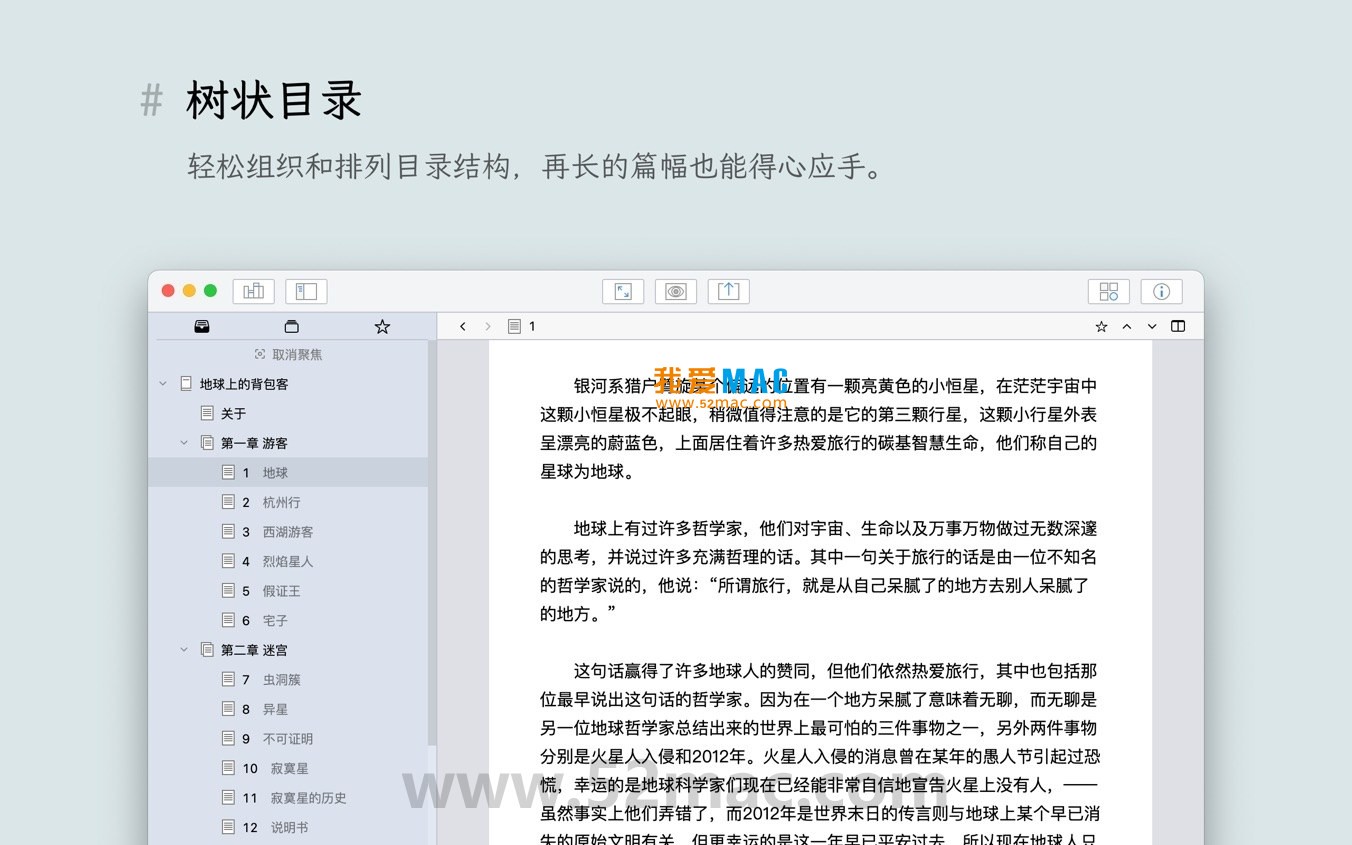
Below are screenshots of WonderPen for Mac, showing its core operation interface and function layout:
Many users often encounter difficulties after downloading Mac software due to unfamiliarity with installation steps. Below, taking WonderPen 2.1.9 as an example, we will guide you through the installation step by step. The whole process takes about 5 minutes; please follow the order.
Click the download link on this page to get the “WonderPen_2.1.9_Mac.dmg” file. After downloading, double-click the dmg image file, and the system will automatically mount it. A disk icon named “WonderPen” will appear on the desktop.
In the opened image window, you will see a “WonderPen.app” file and a shortcut to the “Applications” folder. Drag the WonderPen.app icon to the “Applications” folder. This is the most standard installation method for Mac software, requiring no complex configuration.
Go to the “Applications” folder and double-click the WonderPen icon. When opening for the first time, macOS may prompt “Cannot verify developer.” This is because the software is not available on the App Store. Please go to “System Preferences” > “Security & Privacy” > “General” and click “Open Anyway.” For some M-series Macs, if you encounter an installation failure prompt, try right-clicking the app icon and selecting “Open” to bypass the restriction.
After the software starts, it will enter the activation interface. Enter the activation code received at purchase, or select “Activate Later” to try basic functions. After successful activation, it is recommended to go to “Preferences” and adjust parameters such as font, line spacing, and auto-save interval according to your habits. It is recommended to enable “Automatically restore last session on startup” for easy continuation.
We have compiled the following answers to high-frequency questions from user feedback. If you encounter an issue not covered here, please leave a comment below.
Fully supported. WonderPen 2.1.9 includes a complete Chinese language pack, and all interface elements such as menu bar, settings panel, and right-click menu are localized. When inputting Chinese, Markdown syntax and font rendering work normally without garbled characters.
WonderPen is highly stable; we tested continuous writing for 4 hours without crashes. In addition, the software automatically saves every 30 seconds by default, and you can adjust the interval in preferences. If an unexpected exit occurs, a “Restore Unsaved Documents” prompt will appear after restarting. It is recommended to manually back up regularly by copying the entire project folder to iCloud or an external drive.
Currently, WonderPen does not support direct import of proprietary format files. However, you can migrate via intermediate formats: export the project from Ulysses or Scrivener as Markdown or plain text, then create a new project in WonderPen and use the “Import” function to select these files. Some format compatibility issues may require manual adjustment of the directory structure.
Yes. Content in whiteboard mode can be exported as images or PDF. However, note that elements such as sticky notes and connections in the whiteboard will be merged into a flat image when exported, and interactive layout cannot be preserved. It is recommended to use the whiteboard as a brainstorming tool, and the final content should still be organized in the document editor.
WonderPen itself does not provide cloud sync services, but you can use third-party cloud drives. Save the project folder in iCloud Drive, Dropbox, or OneDrive, and log in with the same account on different Macs to sync. Note: Editing the same project simultaneously may cause conflicts; it is recommended to write on only one device at a time.
In most cases, when exporting to Word (.docx) format, basic formats such as heading styles, bold, italic, and lists are preserved. However, complex tables, image wrapping, and other layouts may require minor adjustments. It is recommended to use Word’s “Style Inspector” after export for corrections. For precise layout, exporting to PDF is recommended.
WonderPen has low hardware requirements. Tested on a 2015 MacBook Air, with 10 documents open simultaneously, memory usage is about 300MB, and CPU usage is below 5%. Compared to Scrivener’s memory usage of over 1GB, WonderPen is a lightweight contender. Users of older Macs can use it with confidence.
If you purchased the activation code through this page, please check your email inbox and spam folder. If you still cannot find it, contact customer service with your order number, and we will resend it within 24 hours. If purchased from other channels, please consult the original seller. It is recommended to take a screenshot of the activation code immediately after receiving it.
Mastering shortcuts can greatly improve writing efficiency. Below is a compilation of frequently used shortcuts in WonderPen, as well as general Mac system shortcuts, for quick reference. It is recommended to screenshot or print the table and stick it next to your workstation.
| Function | WonderPen Shortcut | Mac System Shortcut |
|---|---|---|
| New Document | ⌘N | ⌘N |
| Save Current Document | ⌘S | ⌘S |
| Full-screen Focus Mode | ⌘⇧F | ⌃⌘F (some apps) |
| Toggle Whiteboard Mode | ⌘⇧B | None |
| Show/Hide Document Tree | ⌘⇧D | None |
| Full-text Search | ⌘F | ⌘F |
| Find and Replace | ⌘⌥F | ⌘⌥F |
This resource requires login to download
Log in
iA Writer for Mac v5.5.4 Markdown Text Editor Chinese Activated Version Download
Downloads:2878 | 2026-10-17

OmmWriter for Mac v1.66 Focused Writing Tool Activated Version Download
Downloads:1381 | 2026-10-17

WonderPen for Mac v2.2.2 – Professional Writing Software (Chinese Activated Version) Download
Downloads:3046 | 2026-10-17
iA Writer for Mac v6.0.11 Professional Writing App Chinese Activated Version Download
Downloads:427 | 2026-10-17


Ratings & reviews
No rating
Let’s rate it.