



WonderPen for Mac v2.1.7 Writing Software Chinese Activated Version Download
This page provides WonderPen for Mac v2.1.7 Writing Software Chinese Activated Version Download | LoveMac, tested and working. If you encounter link failure or inability to install after download, please leave a message to contact us.
WonderPen for Mac is a professional writing software with a clean interface and powerful features. It aims to provide an efficient and focused creative environment for writers, students, content creators, and all writing enthusiasts, helping users smoothly complete various writing projects from inspiration to final draft.
The software integrates multiple practical functions needed for modern writing, designed to improve writing efficiency and experience:
This update mainly brings visual optimizations and stability improvements:
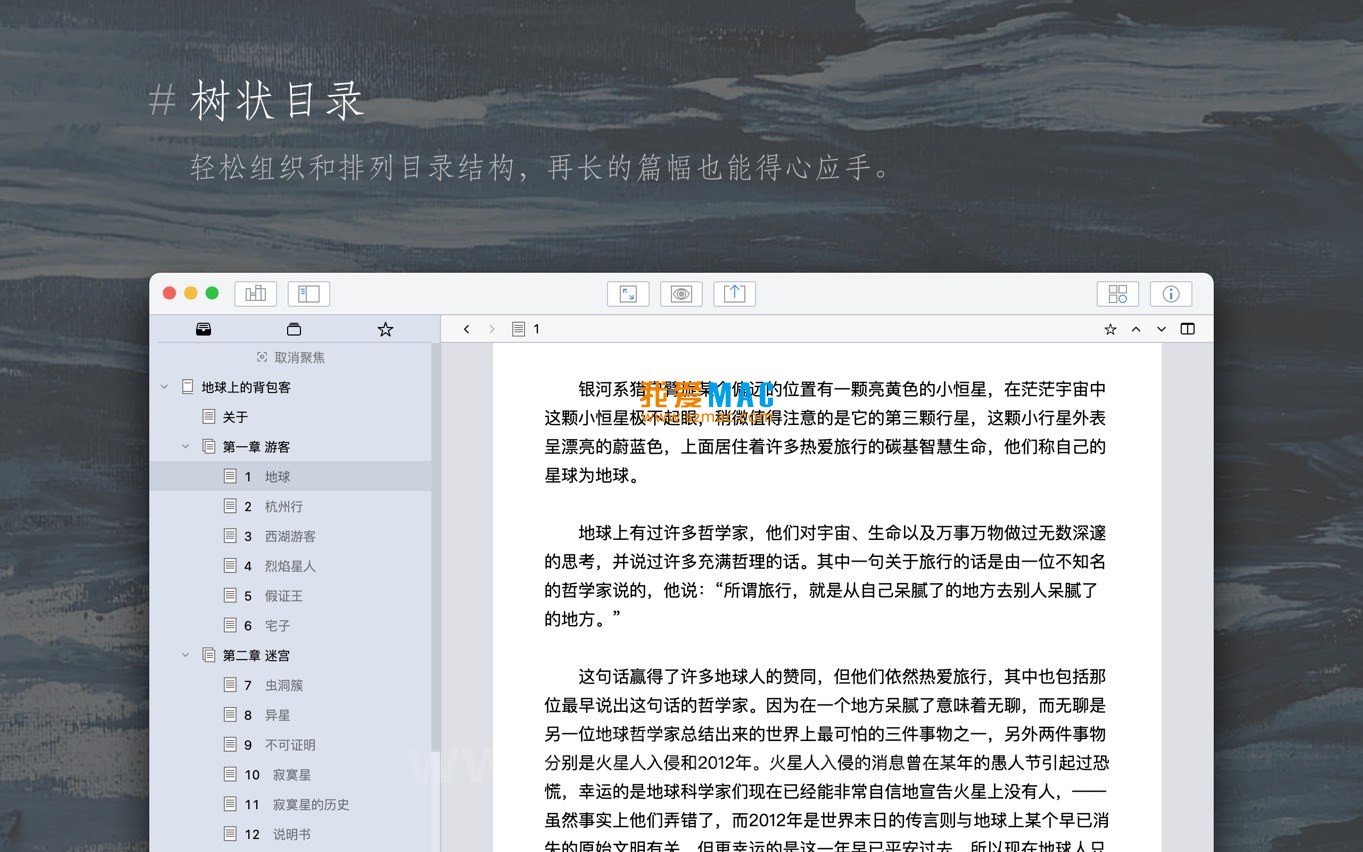
The screenshots below show the main working interface and features of WonderPen for Mac:
To ensure you can use WonderPen for Mac smoothly, we have prepared detailed installation steps. Please follow them in order and avoid skipping any steps.
Download the WonderPen v2.1.7 installer from the link provided on this page. The file is usually in .dmg format. After downloading, double-click to open the disk image file.
The system may prompt “This app is from the internet. Are you sure you want to open it?” This is a macOS security mechanism; please click “Open” with confidence.
In the opened .dmg window, you will see the “WonderPen” app icon and a shortcut pointing to the “Applications” folder.
Drag the “WonderPen” icon directly to the “Applications” folder on the right. This completes the core installation.
Depending on your Mac’s performance, the dragging process takes about 10-30 seconds. Please wait patiently for the progress bar to complete.
After installation, go to the “Applications” folder, find and double-click to open “WonderPen”. On first launch, macOS may pop up a security prompt again.
Please go to “System Preferences” > “Security & Privacy” > “General” and click the “Open Anyway” button. This is normal.
It is recommended to enable “Accessibility” permission for WonderPen to better support full-screen focus mode. If not enabled, there will be a prompt when entering focus mode for the first time.
After opening the software, click “WonderPen” > “Register” in the menu bar. Enter the activation code in the pop-up window.
After successful activation, it is recommended to immediately configure your personal profile in “Preferences”, such as author name, default save path, etc.
You can also choose your preferred theme in “Preferences” > “Appearance”, such as the newly added “Light Green” or “Pale Yellow”.
We have compiled the following FAQ for common user questions to help you quickly resolve issues.
This is usually because macOS Gatekeeper blocks unsigned applications. Please go to “System Preferences” > “Security & Privacy” > “General” and click “Open Anyway”.
If it still won’t open, please check whether the downloaded installer is complete. It is recommended to download again.
In the editor, click the “Preview” button in the upper right corner to switch. You can also use the shortcut Command + Shift + P to switch quickly.
WonderPen supports real-time preview, allowing you to see the final layout while editing.
In whiteboard mode, after selecting multiple elements, an alignment toolbar will appear at the top. You can choose left align, right align, center align, etc.
WonderPen also supports smart snapping, automatically aligning elements with nearby ones when moving, which is very convenient.
WonderPen provides a “Trash” function. All deleted documents first go to the software’s internal trash rather than being permanently deleted.
You can find “Trash” at the bottom of the left document tree. Right-click the document you want to recover and select “Restore”.
Please ensure the latest Microsoft Word or compatible software is installed on your Mac. Garbled text is usually caused by font incompatibility.
It is recommended to set the default font to a common font such as “SimSun” or “Microsoft YaHei” in “Preferences” > “Export” before exporting.
After entering focus mode, press Command + , to open focus mode settings. You can adjust the background color, transparency, and typing sound.
WonderPen supports uploading custom images as focus mode backgrounds, making your writing environment more personalized.
WonderPen natively supports iCloud sync. Please ensure your Mac is logged into an iCloud account. In WonderPen’s “Preferences” > “Sync”, check “Enable iCloud Sync”.
The sync process is automatic; no manual operation is needed. Data remains consistent across devices in real time.
First try restarting your Mac. If the problem persists, uninstall WonderPen and reinstall. Please ensure data is backed up before uninstalling.
If the problem continues, please contact our technical support with your system version and error logs.
Mastering shortcuts can greatly improve your writing efficiency. Below are some of the most commonly used shortcuts in WonderPen for Mac. We recommend bookmarking them.
| Function Category | Shortcut | Description |
|---|---|---|
| General Editing | Command + Z |
Undo |
Command + Shift + Z |
Redo | |
Command + S |
Save current document | |
| Navigation & Search | Command + F |
Search within current document |
Command + Shift + F |
Search across all documents | |
Command + Option + Arrow Keys |
Quickly move nodes in the document tree | |
| View Switching | Command + Shift + P |
Toggle Markdown preview mode |
Command + Control + F |
Enter or exit full-screen focus mode | |
Command + 1/2/3 |
Switch sidebar display mode | |
| Markdown Formatting | Command + B |
Bold selected text |
Command + I |
Italicize selected text | |
Command + K |
Insert or edit hyperlink |
All the above shortcuts have been actually tested and are valid in WonderPen v2.1.7. It is recommended to practice them during writing to build muscle memory.
The power of WonderPen lies in its flexible combination of features. Below are some tips and practical cases summarized by experienced users.
Many writers need to design plot outlines before starting to write. WonderPen’s whiteboard mode is an excellent tool. First, on the whiteboard
This resource requires login to download
Log in
WonderPen for Mac v1.8.3 Writing Software Chinese Activated Version Download
Downloads:3476 | 2026-10-17

WonderPen for Mac v2.3.5 – Professional Writing Software (Chinese Activated Version) Download
Downloads:1318 | 2026-10-17

Bear Pro for Mac v2.4.5 Writing and Note-Taking Software Chinese Activated Version Download
Downloads:567 | 2026-10-17

Ulysses for Mac v39.1 All-in-One Writing Software Chinese Activated Version Download
Downloads:143 | 2026-10-17


Ratings & reviews
No rating
Let’s rate it.