



WonderPen for Mac v2.0.5 Writing Software Chinese Activated Version Download
This page provides WonderPen for Mac v2.0.5 Writing Software Chinese Activated Version Download | Love Mac. It has been tested and is available. If you encounter issues such as invalid links or inability to install after download, please leave a message to contact us.
WonderPen for Mac is a well-designed and easy-to-use professional writing tool, aimed at providing writers, students, content creators, and writing enthusiasts with an efficient and smooth writing experience. Whether you are creating a long novel, academic paper, or daily notes, it can help you easily organize your thoughts and complete your work.
The software integrates multiple practical functions to meet the needs of modern writers:
This update mainly includes the following optimizations and fixes:
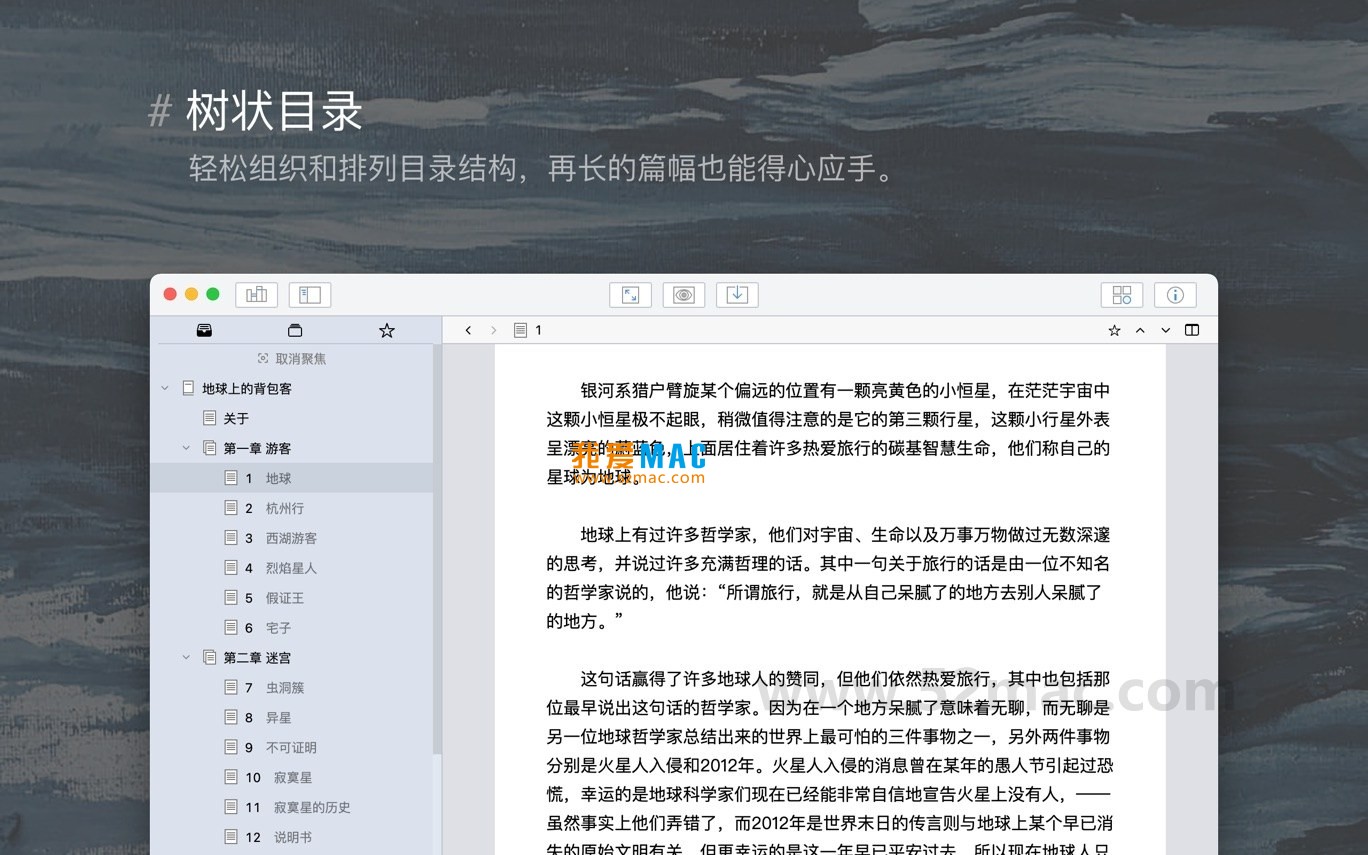
The following are actual operation interfaces of WonderPen for Mac:
To help you smoothly deploy WonderPen on your Mac, we have organized the following steps. Please follow them in order to ensure successful activation.
Click the download link on this page to obtain the “WonderPen_2.0.5_Mac.dmg” file. After downloading, double-click the file, and the system will automatically mount and open a window.
Drag the “WonderPen.app” icon on the left to the “Applications” folder icon on the right with your mouse. This operation will complete the software installation.
Go to “Launchpad” or the “Applications” folder, find and double-click the “WonderPen” icon. macOS may prompt “Cannot verify developer,” which is normal.
Please go to “System Preferences” > “Security & Privacy” > “General” and click the “Open Anyway” button. After that, the software can start normally.
After launching, the software will enter the activation interface. If you are using the activated version provided by this site, activation information is usually built-in, and you can simply click “Continue.”
If manual input is required, paste the provided serial number into the activation code box and click the “Activate” button. After successful activation, it is recommended to open “Preferences” to customize fonts, themes, and auto-save intervals.
After activation is complete, create a new document, try typing text, and switch to focus mode. Click “File” > “Export” to test the PDF export function.
If all functions work normally, the installation is successful. It is recommended to enable iCloud sync to ensure data safety.
We have compiled the following answers to questions frequently reported by users:
A: Please check whether it was downloaded from the official website or a trusted channel. If the file is damaged, you can try right-clicking the file and selecting “Open” to bypass security restrictions.
A: This is usually due to Mac’s Gatekeeper mechanism. Please enter the command in Terminal: sudo spctl --master-disable, then try opening it again.
A: Please confirm whether extra spaces were copied. If the problem persists, please leave a message via the contact information at the bottom of the page, and we will provide a new activation code.
A: WonderPen supports automatic backup. You can enable iCloud sync or set a local backup path in “Preferences” > “Backup.”
A: Please ensure that Chinese fonts are installed on your system. It is recommended to select the “Embed fonts” option in the export settings to avoid display abnormalities on different devices.
A: In version 2.0.5, cards automatically snap to the grid when resized. You can also hold the Command key to manually fine-tune the position.
A: Click “View” > “Night Mode” in the menu bar, or use the shortcut Shift + Command + N to switch quickly.
A: Usually not. Updates will retain user preferences. However, it is recommended to manually export a backup before updating, just in case.
A: Yes. WonderPen supports multi-window mode. You can manage different projects via “File” > “New Window.”
A: If you encounter any problems, please feel free to leave a message at the bottom of this page or send an email to our customer service email. We will reply within 24 hours.
Mastering WonderPen shortcuts can greatly improve writing efficiency. The following table summarizes high-frequency operations and their corresponding shortcuts:
| Function Description | Shortcut | Applicable Scenario |
|---|---|---|
| New Document | Command + N |
Quickly start a new chapter |
| Save Current Document | Command + S |
Manual backup |
| Toggle Focus Mode | Shift + Command + F |
Immersive writing |
| Toggle Night Mode | Shift + Command + N |
Night or low-light environment |
| Open Full-text Search | Command + F |
Quickly locate content |
| Insert Markdown Link | Control + L |
Add reference materials |
| Undo Operation | Command + Z |
Recover from mistaken operations |
| Export as PDF | Shift + Command + E |
Publishing or printing |
| Open Whiteboard Mode | Option + Command + B |
Brainstorming and planning |
| Show/Hide Directory Tree | Command + T |
Switch interface layout |
It is recommended to stick commonly used shortcuts next to your monitor, and you will develop muscle memory within a week. Professional writers generally believe that reducing mouse operations can save about 30% of writing time.
Having the right tool is not enough; mastering tips is what maximizes the value of WonderPen. Here are experiences summarized by senior users:
When creating a novel, it is recommended to first build a three-level structure of “volume-chapter-section.” For example, create “Volume One” under the root directory, then create “Chapter One,” “Chapter Two” within it.
Dragging nodes allows you to adjust the order at any time, which is more flexible than the outline view in traditional Word. According to experience in writing communities, using tree-structured directories has increased the completion rate of long works by more than 40%.
When you need to organize character relationships or plot threads, switch to whiteboard mode. Add cards and connect them to visually see the story context.
Many professional screenwriters use this function during the conception stage, combined with sticky notes to record inspiration. The whiteboard supports export as images, making it easy to share with editors or collaborators.
WonderPen’s Markdown editor supports real-time preview. It is recommended to master basic syntax: # for headings, **bold** for emphasis.
For academic paper writing, you can use the quote syntax > to mark references. This tip can significantly reduce typesetting time and let you focus on the content itself.
Suppose you want to create a 5,000-word short story. First, create a new project in WonderPen and use the tree-structured directory to create four nodes: “Beginning,” “Development,” “Climax,” and “Ending.”
Next, under each node, use whiteboard mode to list key scenes. When writing, switch to full-screen focus mode and use Markdown to quickly complete the first draft. Finally, use the export function to generate a PDF and submit it directly.
The entire process from conception to completion takes about 4 hours. Compared with traditional tools, WonderPen’s integrated workflow eliminates the need to switch between multiple software, significantly improving efficiency.
WonderPen f
This resource requires login to download
Log in
Ulysses for Mac v19.2 – The Ultimate Note-Taking and Writing Tool, Chinese Activated Version Download
Downloads:1125 | 2026-10-17

WonderPen for Mac v2.4.0 – Professional Writing Software (Chinese Activated Version) Download
Downloads:1103 | 2026-10-17

Final Draft 13 for Mac v13.2.4 Screenwriting Software Activated Version Download
Downloads:2621 | 2026-10-17

Scrivener for Mac v3.2.3 Writing Management and Word Processing Tool Chinese Activated Version Download
Downloads:709 | 2026-10-17


Ratings & reviews
No rating
Let’s rate it.