This page provides djay Pro for Mac v5.6.3 DJ mixing software download in Chinese activation version | EnjoyMAC, it has been tested and available. If you encounter issues with the download link or the software cannot be installed after downloading, please leave a message to contact us.
djay Pro is a professional DJ mixing software designed specifically for the macOS platform. It integrates advanced artificial intelligence technology, offering real-time track separation and intelligent mixing functions, and widely supports mainstream streaming services such as Spotify and Apple Music. The software is compatible with over a hundred MIDI controllers, featuring high-definition waveform display, video mixing, and multi-jukebox operation interfaces, ensuring professional creative flexibility while providing intuitive and smooth user experience.
Important Note: The current version requires disabling the SIP (System Integrity Protection) feature on macOS to run normally. Please refer to the relevant technical documentation for the specific method to disable SIP.
One. Core Functionality Features
1.1 NEURAL MIX™ Track Separation
- Real-time separation of vocals, drums, and instrumental parts from tracks (Note: This feature is not supported by TIDAL).
1.2 Music Production and Creative Tools
- Arranger: Supports real-time rhythm creation and arrangement.
- Loop Editor: Supports up to 48 loop fragments per track for complex music assembly and mixing.
- Rhythm Match Sequence: Provides drum sets and sample sequences synchronized with the track’s rhythm.
- Rich Content Library: Includes over 1,000 professional loops and samples.
1.3 Streaming Service Integration
- TIDAL: Access millions of songs and music videos, supports high-fidelity audio quality (requires TIDAL Premium or HiFi subscription).
- SoundCloud: Accesses a vast library of independent music and high-quality tracks (requires SoundCloud Go+ subscription).
- Beatport: Designed for electronic music, offers a vast library of tracks (requires Beatport LINK subscription).
- Beatsource: Focuses on open format music, with a rich library of tracks (requires Beatport LINK subscription).
1.4 Professional Interface and Workflow
- Flexible views: Supports 2-jukebox, 4-jukebox, and single-jukebox preparation views.
- Video mixing: Provides dedicated video and automatic mixing views.
- Smart library management: Supports the creation of custom and smart playlists, with powerful track selection features and deep integration with Finder.
1.5 Automatic Mixing and Media Support
- Automatic Mixing: Generates rhythm-matched automated mixes, supports playlist and queue automation.
- Media Mixing: Supports mixing of videos, visual effects, and photos, allows streaming music videos from TIDAL, and creates rhythm-matched photo slideshows.
Two. Technical and Hardware Support
2.1 Powerful Audio Engine
- Advanced audio processing core, supports real-time music source separation.
- High-quality mixer, filters, equalizers, isolators, and limiters.
- High-precision time stretching and pitch shifting algorithms.
- Includes over 40 audio effects, supports adding main output effects via Audio Unit plugins.
- Supports real-time recording and integrates Ableton Link for multi-device synchronization.
2.2 Advanced Audio Analysis
- Automatic BPM and beat detection.
- Automatic pitch detection.
- Color-coded BPM visualization.
- Automatic gain control.
2.3 Extensive Hardware Integration
- Native support for over 100 MIDI controllers.
- Deep integration with professional devices such as Pioneer DJ CDJ, digital vinyl systems (DVS), RANE Twelve, and others.
- Supports advanced MIDI learning features, external mixer modes, and multi-channel USB audio interfaces.
- Supports external audio input and microphone.
Three. Update Log for Version 5.6.3
New Features
- Spotify Playlist Editing: Now allows direct editing of Spotify playlists within the djay application, including adding, removing, and adjusting track order, without switching applications.
- Hardware Support Expansion: Adds support for the Reloop PTB-2 portable DJ mixer.
- MIDI Function Enhancements:
- Supports transferring tracks from 1/2 jukebox to 3/4 jukebox via MIDI.
- Supports stopping recording and automatically loading to a jukebox via MIDI.
Fixes and Improvements
- Fixed the issue where Neural Mix status was not correctly copied when using the Instant Sync feature.
- Fixed the issue where the EchoVerb Out effect tail did not follow the “Punch After” mode.
- Fixed the issue where Cue points could not be saved when using the built-in scratch tool.
- Corrected the slight offset in sync points when using controllers at the start of a track.
- Fixed the issue of audio crackling when adjusting effect dry/wet ratios while using DVS.
- Fixed issues with the wave zoom, video visualization effect selection, and other interface problems, such as the wave zoom not displaying and the media library missing the minimize button on iPad.
- Optimized the stability of functions like wave zoom and video visualization effect selection.
- Various routine bug fixes and system performance optimizations.
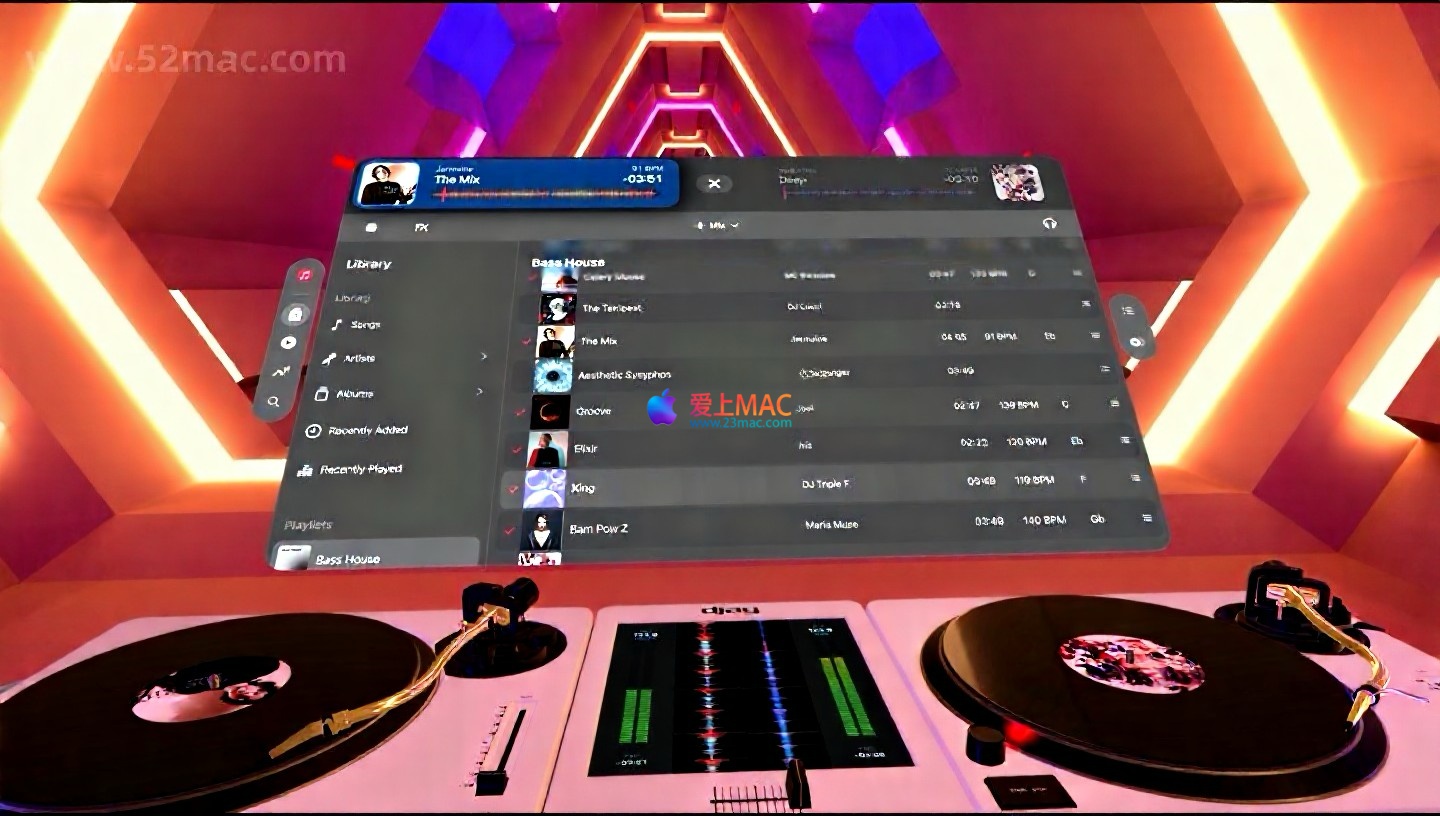
Four. Software Interface Screenshots
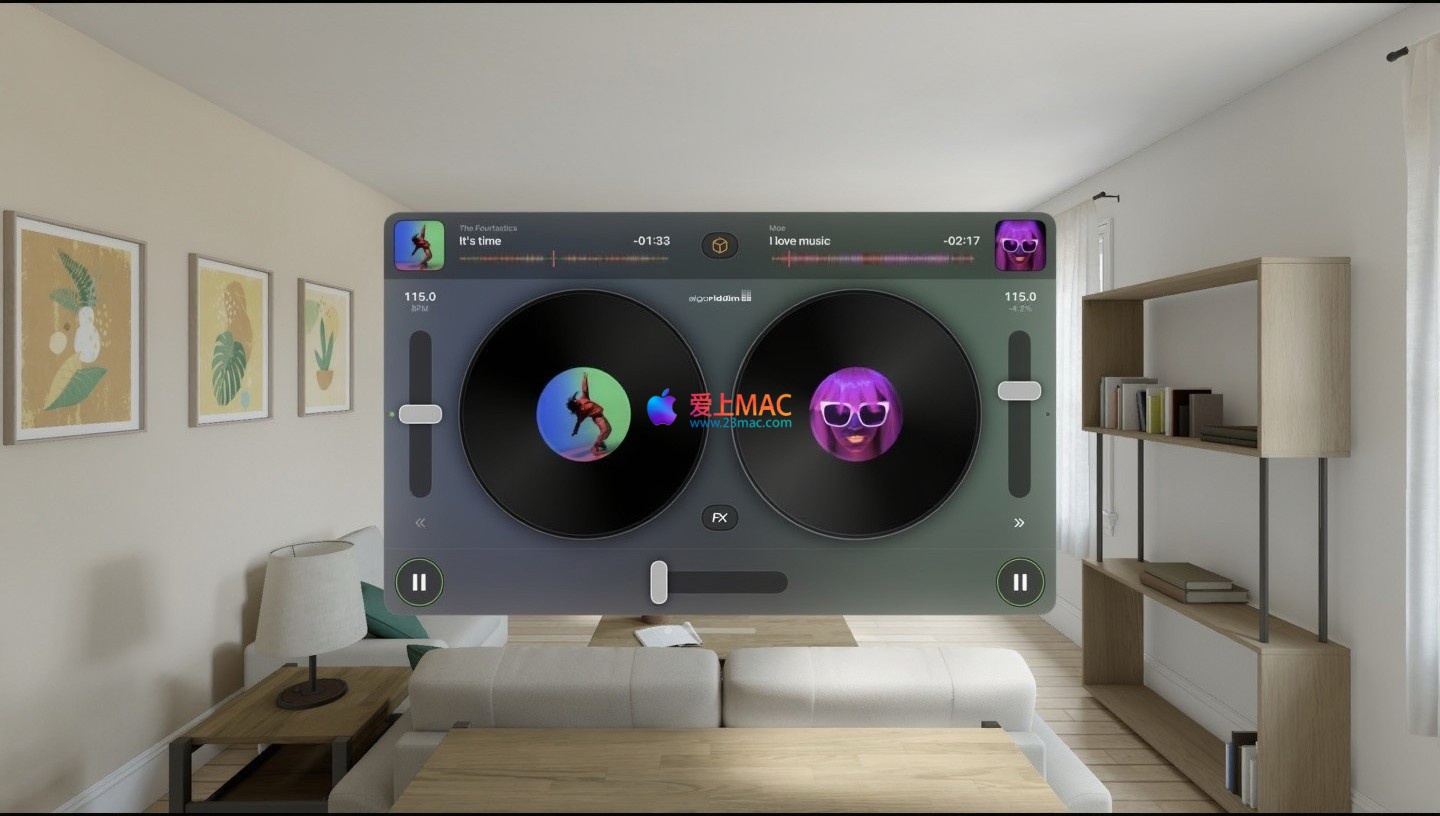
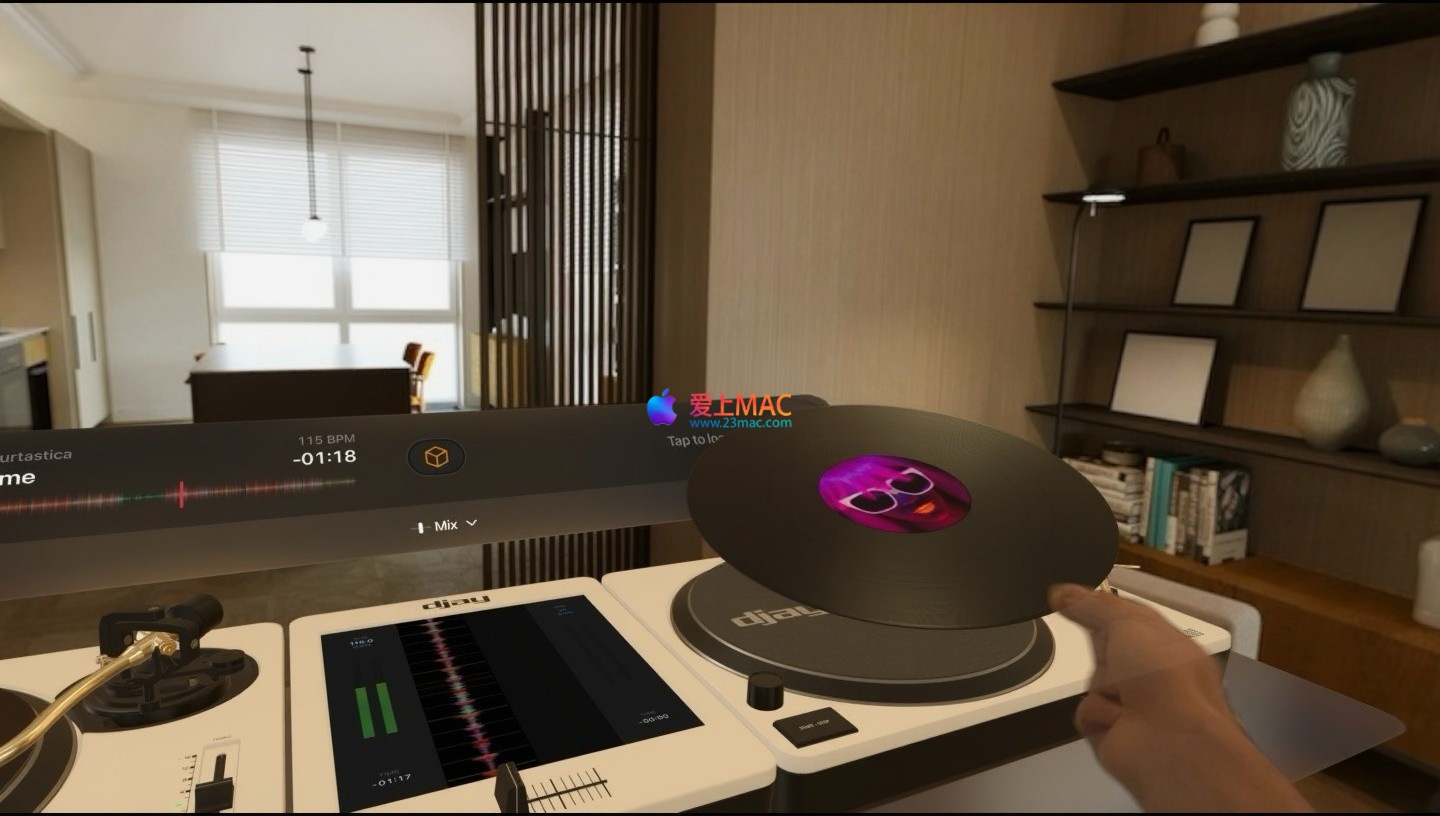
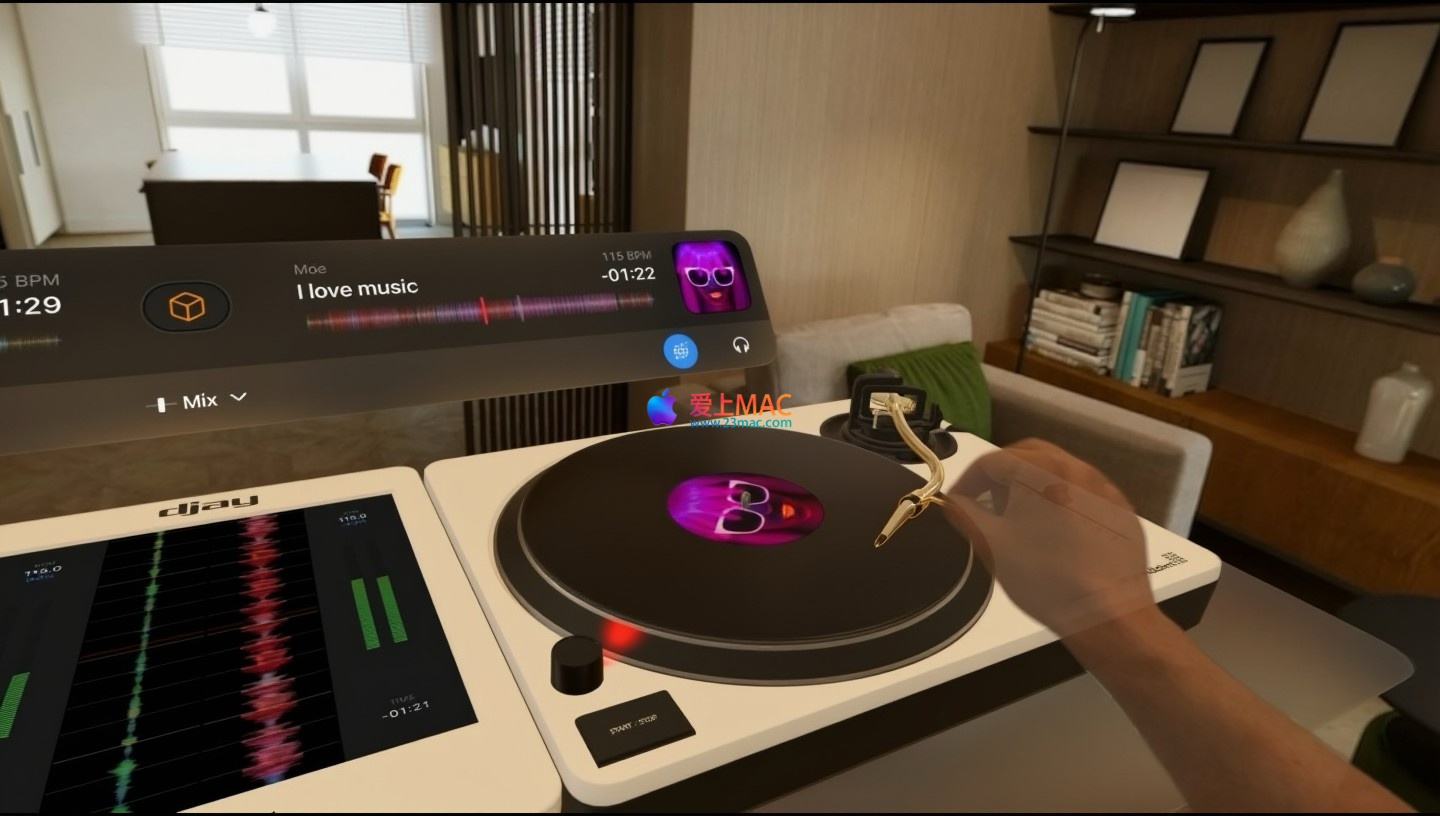
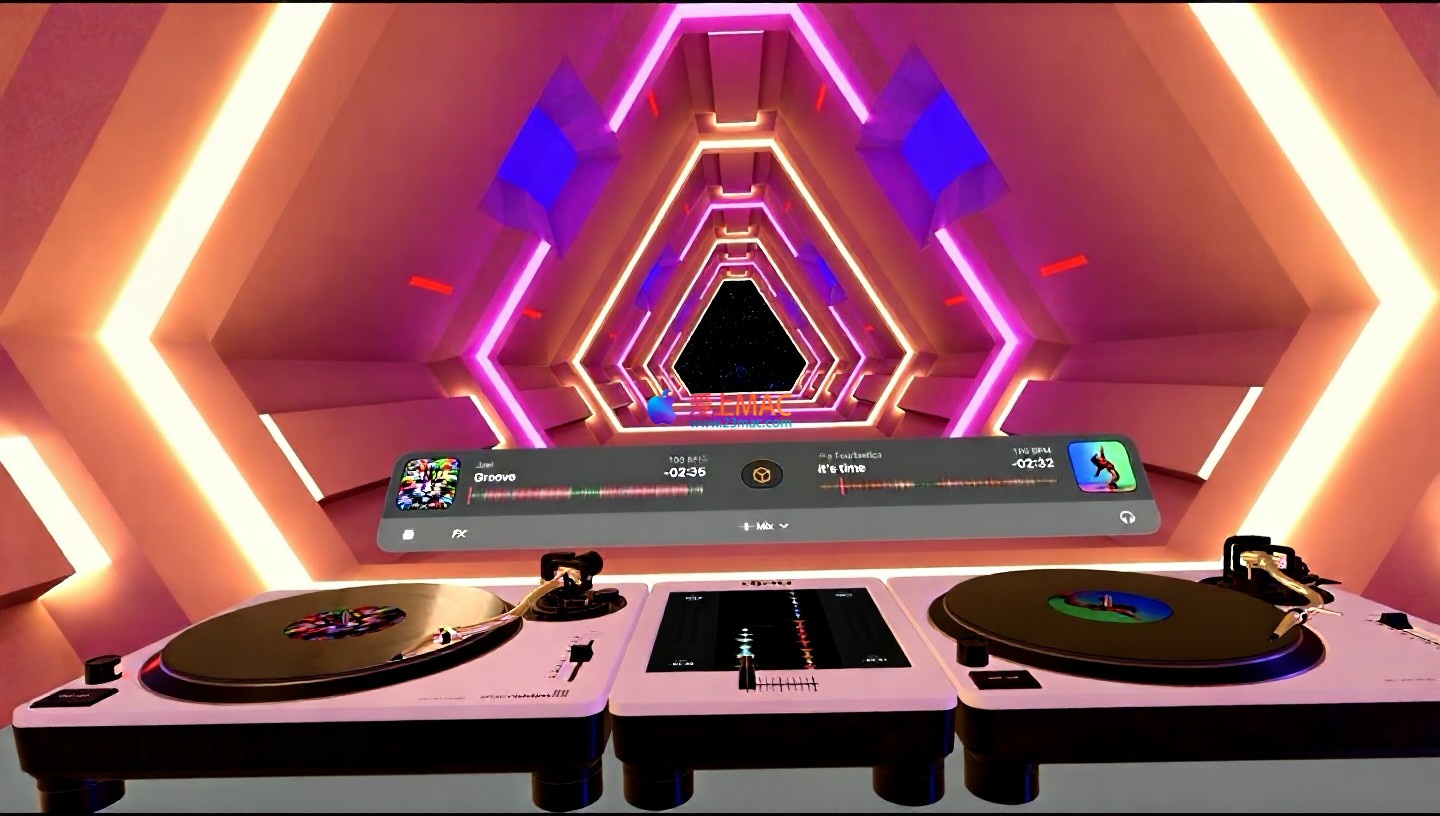
Five, Detailed Installation Tutorial
To install djay Pro for Mac v5.6.3, you need to follow a strict set of steps. Please follow the steps below carefully to avoid compatibility issues.
5.1 Download and Preparation
- Step 1: Click the download link on this page to get the djay Pro v5.6.3 installation package. The file is usually in .dmg format.
- Step 2: Double-click the .dmg file to mount it on your desktop. You will see an installation window.
- Step 3: Drag the “djay Pro” icon from the left to the “Applications” folder icon on the right. This process will copy the software to your program directory.
5.2 System Settings Adjustment
Important! This version requires disabling macOS’s System Integrity Protection (SIP). If you do not perform this step, the software will not be able to start.
- Step 4: Shut down and then press Command + R to restart your Mac and enter macOS Recovery Mode.
- Step 5: In the menu bar at the top of the screen, click “Utilities” and then select “Terminal.”
- Step 6: In the Terminal window, enter the following command:
csrutil disable, then press the Enter key.
- Step 7: Enter your Mac password (the password will not be visible as you type it). After completing the password entry, restart your Mac. SIP has been successfully disabled.
5.3 First Launch and Activation
- Step 8: Open “Launchpad,” find, and click the “djay Pro” icon.
- Step 9: If the system prompts “Cannot verify developer identity,” go to “System Preferences” > “Security & Privacy” > “General,” and click “Open Anywhere.”
- Step 10: After the software launches, follow the prompts to enter the activation code or use the provided activation tool to activate it. This completes the installation.
Six, Commonly Asked Questions (FAQ)
We have compiled the most frequently asked 8 questions and their solutions to help you quickly resolve issues.
Question 1: After installation, it prompts “damaged and cannot open”? How to solve?
Solution: This is a security mechanism of macOS. Open the Terminal, enter the command: sudo spctl --master-disable, and then enter your Mac password (the password will not be visible as you type it). This allows the installation of any source application. After that, restart the software to resolve the issue.
Question 2: How to disable SIP? What are the specific steps?
Solution: Refer to the installation tutorial in section 5.2. The core steps are: restart into Recovery Mode (Cmd+R), open Terminal, and enter the command: csrutil disable. Note: Disabling SIP reduces system security. Do not disable SIP for extended periods unless necessary.
Question 3: djay Pro cannot connect to Spotify? How to solve?
Solution: First, ensure your Spotify account is a Premium member. Next, check in “Settings” > “Streaming Services” in djay Pro to confirm that Spotify is correctly authorized and logged in. Try logging out and logging back in or restarting the application.
Question 4: Why are the Neural Mix track separation functions grayed out?
Solution: The Neural Mix feature currently does not support TIDAL streaming. Confirm that the music you are playing is a local file or from a supported streaming service (such as Spotify). Additionally, ensure that the software is updated to the latest version.
Question 5: What should I do if my MIDI controller is not responding?
Solution: First, check if the MIDI controller is correctly connected via USB. Then, in “Settings” > “MIDI” in djay Pro, verify that your device is recognized. If not, try unplugging and replugging the device or using the “MIDI Learn” feature to manually map it.
Question 6: Why is there stuttering or crackling in the audio output?
Solution: This is typically related to the audio buffer settings. In “Settings” > “Audio,” try increasing the “Buffer Size.” If your Mac’s performance is limited, consider closing other programs that use resources.
Question 7: How to restore the default interface layout?
Solution: If you have messed up the interface, you can reset all panels to their initial positions by clicking “Windows” > “Restore Default Layout” in the top menu bar.
Question 8: How to solve software crashes or freezes?
Solution: First, try restarting your Mac. Next, check if other audio software (such as GarageBand) is occupying the audio interface. If the problem persists, consider uninstalling and reinstalling the software, and ensure that your system is updated to the latest version.
Seven, Mac Commonly Used Shortcuts Table
Mastering these shortcuts can double your hand speed and make your operations fluid during mixing. Below is a list of the most practical shortcuts in djay Pro.
| Function |
Shortcut |
Description |
| Play/Pause |
Space |
Control the playback state of the currently selected deck |
| Switch to Previous Track |
← |
Load the previous track in the playlist |
| Switch to Next Track |
→ |
Load the next track in the playlist |
| Switch Decks |
1 or 2 |
Quickly switch the focus between Decks 1 and 2 |
| Enable/Disable Sync |
S |
Automatically sync the BPM and beat of the two decks |
| Set Cue Points |
C |
Set a cue point at the current playback position |
| Return to Cue Point |
Shift + C |
Immediately jump to the cue point position |
| Enable/Disable Loop |
L |
Enable or disable the loop function |
| Halve Loop Length |
Shift + ← |
Halve the current loop length |
| Doubling Loop Length |
Shift + → |
Doubling the current loop length |
| Enable/Disable Recording |
R |
Start or stop recording your mixing process |
| Undo Operation |
Cmd + Z |
Undo the previous operation, very useful |
Note: The above shortcuts are the default settings for djay Pro, and you can customize and modify them in “Settings” > “Shortcuts”.
Eight, Tips and Real-Case Examples
Having the tools is not enough; mastering the techniques will make your remixes stand out. Here are a few practical experiences we share.
8.1 Using Neural Mix to Create Remixes
This is one of the most attractive features of djay Pro. Suppose you have a favorite pop song, but you think the drumming could be more intense.
- Steps: Load the song onto Deck A. Click to activate the Neural Mix function. You will see three independent volume faders for vocals, drums, and instruments.
- Tips: Lower the volume faders for vocals and instruments on Deck A to the bottom, keeping only the drumming. On Deck B, load another electronic song with strong drumming, and activate Neural Mix, keeping only its instrument part.
- Effect: Now, you are essentially mixing the drumming from Deck A with the instruments from Deck B. By smoothly transitioning through the crossfader, you can create a unique Remix version.
8.2 Using the Loopers to Create Tension
In the dance floor, creating suspense by using the loopers is a DJ’s specialty.
- Steps: When the climax of a song is about to end, press the L key to activate the loop.
- Tips: Press Shift + ← twice to shorten the loop to 1/4 beat. This will make the music loop in a very short segment, creating a strong sense of tension.
- Effect: At the right moment, press Shift + → to restore the loop length or simply close the loop to let the music “release” again, which will instantly ignite the atmosphere on the dance floor.
8.3 Using the Auto Mix Function to Record Mix Sets
When you want to record a continuous mix set, the Auto Mix function is your reliable helper.
- Steps: Create a playlist in the “Smart Library” containing 10-15 songs of similar style. Click the “Auto Mix” button.
- Tips: Before starting the Auto Mix, manually adjust the entry and exit points for each song. You can set a fade-in/fade-out time of 16 beats.
- Effect: djay Pro will automatically handle the rhythm matching and volume transitions. You just need to press the recording key R to get a professional, seamless, and professional-sounding mix set, which is perfect for sharing on SoundCloud.
8.4 Hardware Integration: Connecting Pioneer DJ Devices
For users who are accustomed to using professional hardware, djay Pro’s compatibility is excellent.
- Steps: Connect your Pioneer DJ controller (such as DDJ-400) to your Mac using a USB cable.
- Tips: The software will automatically recognize and map all the knobs and faders. You don’t need any settings to operate as if you were using a traditional DJ device.
- Effect: This means you can practice with djay Pro at home, familiarizing yourself with the hardware layout, and then seamlessly switch to the same device at a club. This deep integration between software and hardware is one of the professional features of djay Pro.
Nine, Summary
djay Pro for Mac v5.6.3 stands out in a sea of DJ software due to its powerful AI track separation technology, extensive streaming support, and professional hardware compatibility. Whether you are a beginner or an experienced professional DJ, it provides a stable, flexible, and creative mixing experience. From simple family parties to complex live performances, this software can handle it all. We hope this detailed guide will help you smoothly install and quickly get started, creating your own music works.




Ratings & reviews
4.5
(Maximum 5 ratings, total 77 user reviews)
Let’s rate it.