

Airmail 5 for Mac v5.0.1 Email Client Chinese Activated Version Download
This page provides Airmail 5 for Mac v5.0.1 Email Client Chinese Activated Version Download | Love Mac, tested and working. If you encounter invalid links or inability to install after download, please leave a comment to contact us.
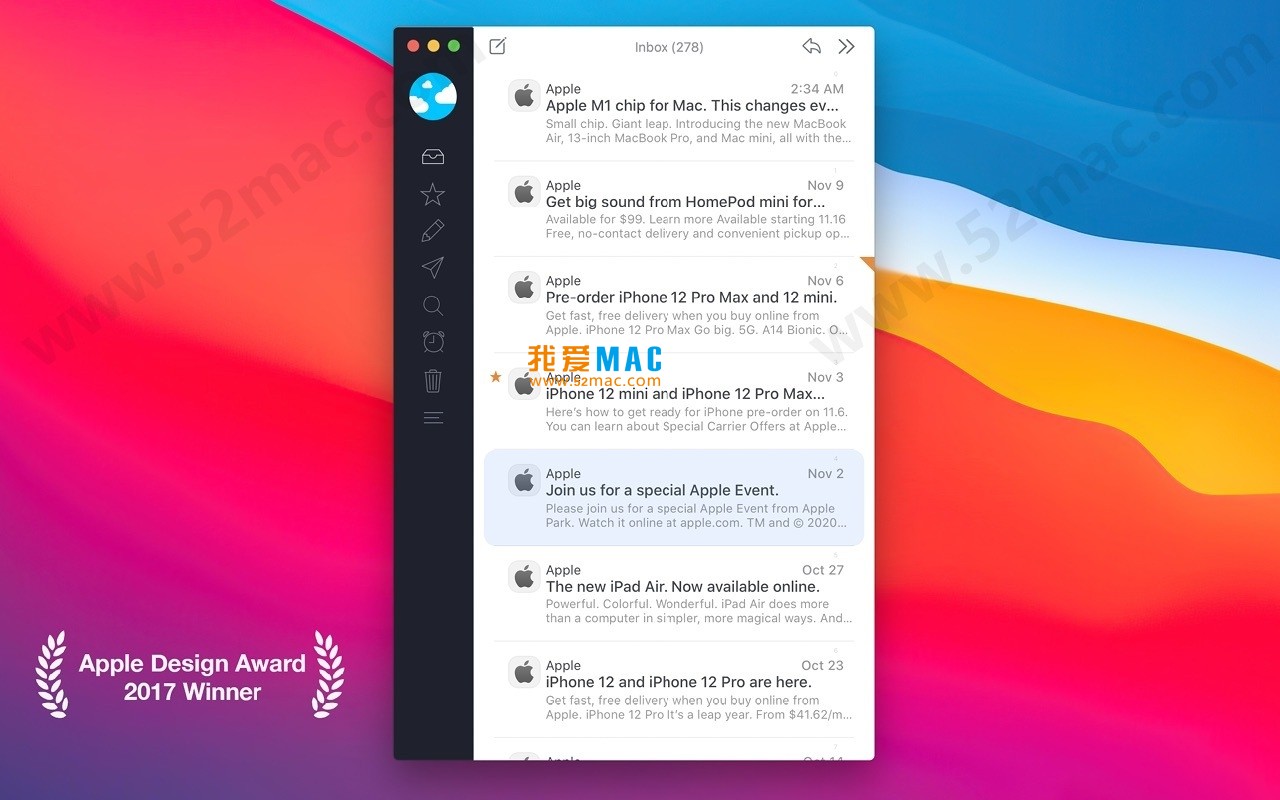
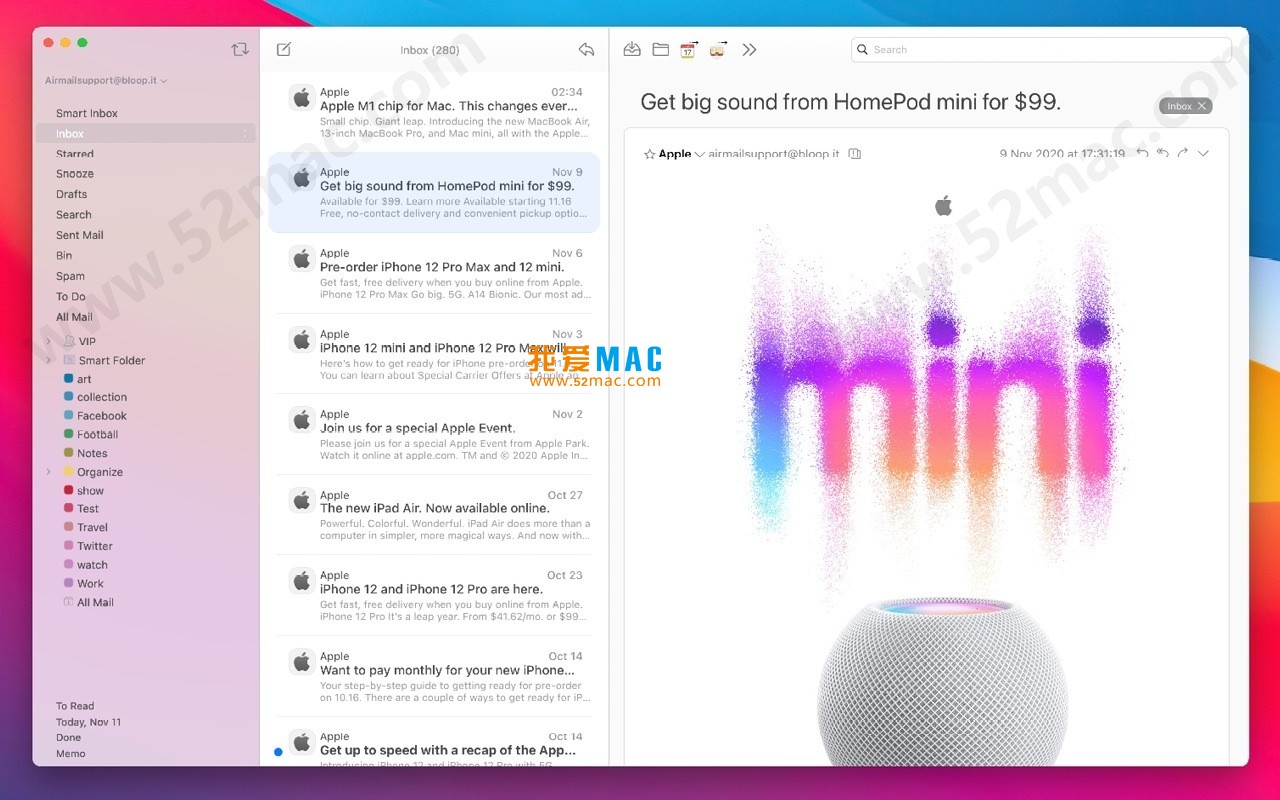
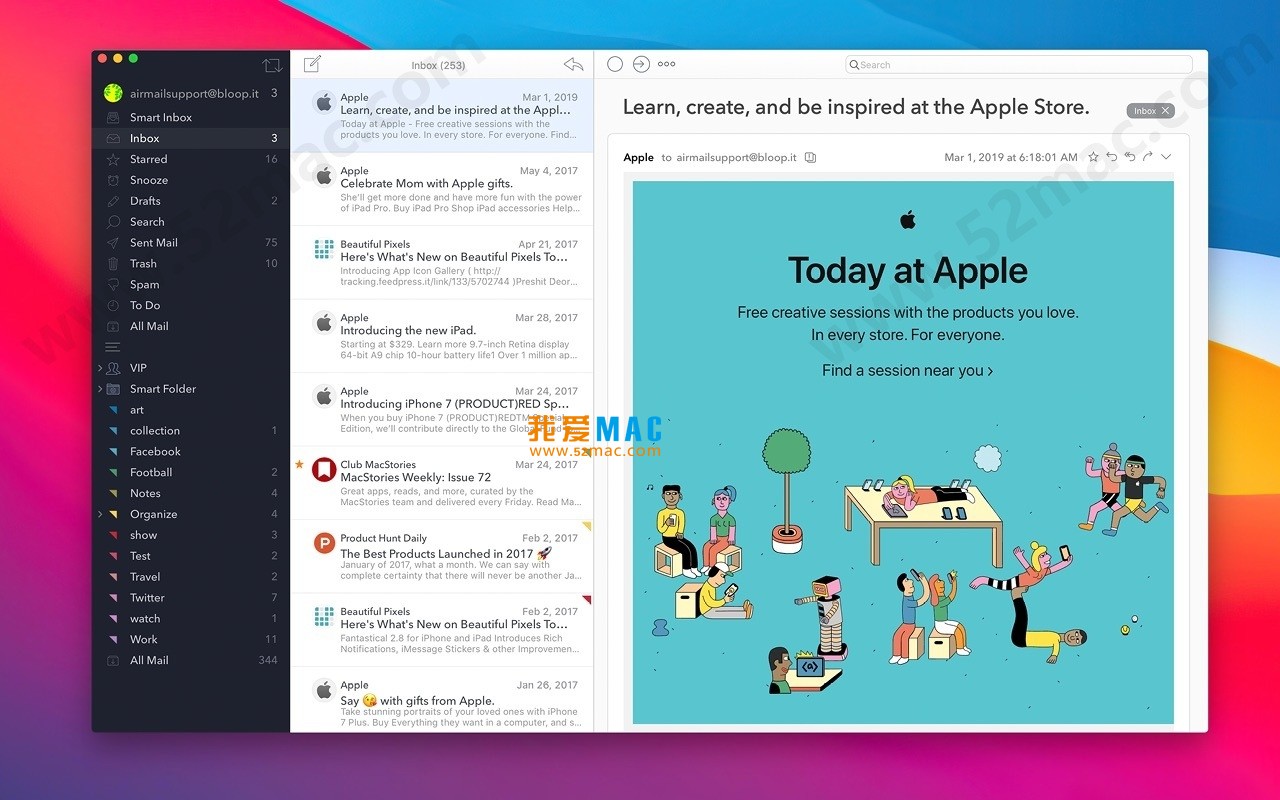
Airmail for Mac is a professional email client deeply optimized for macOS and iOS platforms. It is renowned for its excellent performance, intuitive interactive response, smooth user experience, and modern clean interface. Carefully designed, whether managing single or multiple email accounts, Airmail provides a unified and efficient operation experience, helping users focus on email processing without distraction, making it an ideal email management tool for modern users.
Airmail offers powerful cross-platform and system integration capabilities to ensure workflow continuity:
Quickly send emails to the following apps or services:
This update brings multiple feature enhancements and bug fixes:
For users new to Airmail, the installation process may be unfamiliar. The following steps are based on macOS Ventura and later, and also apply to Big Sur and Monterey. Please follow the order strictly.
First, download the Airmail 5.0.1 installer from the link on this site. The file is usually in .dmg or .zip format. Double-click the downloaded .zip file, and the system will automatically extract a .dmg disk image file.
Double-click the extracted .dmg file, and the system will mount a virtual disk. A disk icon named “Airmail” will appear on the desktop or Finder sidebar. A window containing the app icon and Applications folder will also pop up.
This is the standard way to install macOS software. In the pop-up window, drag the “Airmail” app icon on the left to the “Applications” folder icon on the right. The system will prompt for an administrator password to complete the copy.
After installation, go to the Applications folder and double-click the Airmail icon to launch. If macOS prompts “Cannot open because the developer cannot be verified”, go to “System Settings” > “Privacy & Security” and click “Open Anyway”. This is Apple’s security protection mechanism for non-App Store apps.
After first launch, Airmail will guide you to add an email account. You can choose mainstream services like Gmail, iCloud, Exchange, Outlook, etc. For Gmail accounts, clicking will automatically redirect to the browser to complete OAuth authorization, which is very secure.
For enterprise or self-hosted email, select “Other Mail Account”. You need to manually fill in the incoming mail server (IMAP) and outgoing mail server (SMTP) addresses. It is recommended to obtain these parameters from your email service provider in advance. For example, Tencent Enterprise Email’s IMAP server is imap.exmail.qq.com.
After account verification, Airmail will start syncing emails. You can customize account name, signature, etc. It is recommended to check “Set account as default” for convenience. The whole process usually takes only 2-3 minutes.
Based on user feedback, we have compiled the following high-frequency questions and solutions to help you troubleshoot quickly.
Fully supported. Airmail maps Gmail labels to local folders, and you can manage labels like regular folders. All label operations are synced back to Gmail servers via IMAP protocol.
Please check two places: First, in macOS “System Settings” > “Notifications”, ensure Airmail’s notification permissions are enabled; Second, in Airmail’s own “Preferences” > “Notifications”, confirm “Enable Notifications” is checked and the correct account is selected.
Airmail has a built-in import tool. In the menu bar, select “File” > “Import”, then choose “Import from Apple Mail”. The software will automatically scan and import all your emails, mailboxes, and rules. Large mailboxes may take a few minutes.
When composing an email, click the dropdown arrow next to the send button and select “Send Later”. You can choose a preset time or customize a specific date and time. The email will be temporarily stored in the outbox and sent automatically at the scheduled time.
Go to “Preferences” > “Shortcuts”. You can see the default shortcuts for all operations. Double-click any item, then press the new key combination you want to bind. Airmail supports Gmail-style shortcut schemes.
Yes. Airmail natively supports Exchange Web Services (EWS) and ActiveSync protocols. When adding an account, select “Exchange” and enter your email address and password for automatic configuration. For Office 365 accounts, OAuth authentication is recommended.
This is usually related to encoding settings. In “Preferences” > “Display”, try changing the “Encoding” option to “Automatic” or “UTF-8”. If the problem persists, the original email may use non-standard encoding; contact the sender to confirm.
Airmail data is stored in the ~/Library/Mail/ directory. You can directly copy this folder for backup. A more recommended method is to use Time Machine for system-level backup. Additionally, Airmail supports export to MBOX format.
This resource requires login to download
Log in
Adobe Media Encoder 2021 for Mac v15.2.0 M1 Chip Edition Chinese Activation Version Download
Downloads:2960 | 2026-10-24

Art Text 4 for Mac v4.5.3 Chinese Language Pack and Activation Download
Downloads:3623 | 2026-10-21

Advanced File Search Tool ProFind for Mac v1.8.6 Activation Download
Downloads:600 | 2026-10-21

System Management Optimization Tool for Mac v1.2 Activation Download
Downloads:2338 | 2026-10-19


Ratings & reviews
No rating
Let’s rate it.