

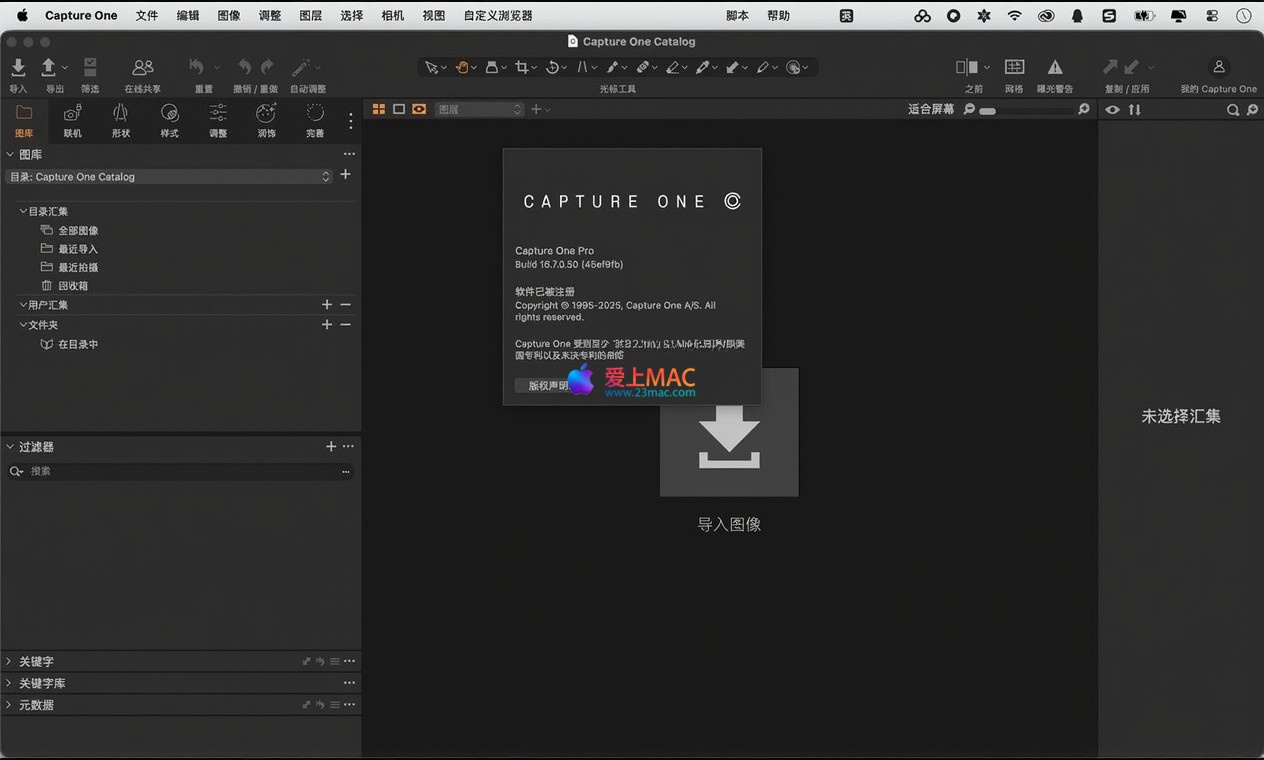
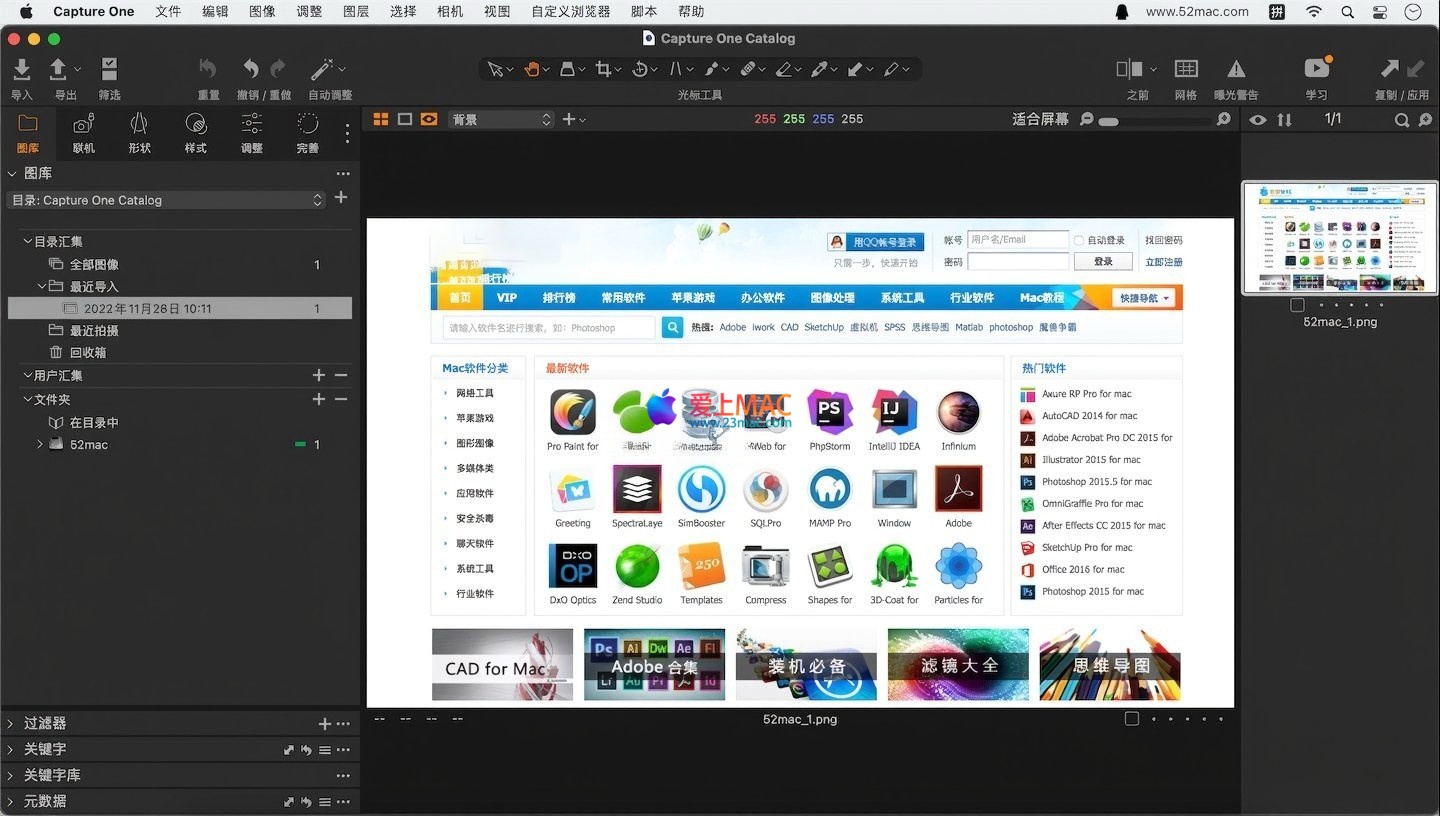
Capture One Pro for Mac v16.7.4.24 Chinese Activation Version Download
本页面提供 Capture One Pro for Mac v16.7.4.24 飞思软件 中文激活版下载 | 爱上MAC,已测试可用,如遇到链接失效或下载后无法安装等情况,请留言联系我们。
Capture One Pro 是一款专为 macOS 系统深度优化的专业级 RAW 图像处理软件。它以卓越的色彩科学、对 Apple Silicon 芯片的原生优化,以及强大的联机拍摄与团队协作为核心,为职业摄影师构建了从拍摄导入、精细调整到最终输出的全流程高效工作流。
重新定义图像后期处理的速度标准。其快速编辑工具允许用户无需频繁操作界面滑块,仅通过指定的快捷键配合滚轮、拖拽或方向键即可实现参数的快速调整,实现编辑流程的无缝衔接。同时,软件支持对多张图像进行同步批量编辑,显著提升大批量作品的处理效率。
支持处理拥有极致细节与动态范围的 RAW 文件,确保输出最高画质。软件提供可定制的镜头配置文件,能有效校正镜头畸变、暗角及色差等光学缺陷。针对部分尼康相机型号,还内置了与相机色彩科学匹配的专属配置文件,为用户提供更丰富的色彩起点。
提供强大且精准的全局调整工具,使用户能够对曝光、对比度、饱和度等基础参数进行精细微调,全面掌控图像的影调与氛围。
支持创建多达 16 个调整图层,并配合精准的蒙版工具,实现对图像特定区域的局部优化,而不会影响其他部分,为复杂编辑提供了极高的灵活性。
具备强大的图库管理功能,无论项目包含几张还是数千张图像,都能帮助用户高效地组织、筛选和检索。同时,提供高级导出设置,可快速生成适用于不同用途的文件格式。
允许用户根据个人习惯自定义工作区与界面布局,结合软件优异的性能表现,打造流畅、个性化的照片编辑体验。
本次更新的重点是引入了一套完整的负片胶片转换功能,专为胶片扫描数字化流程设计,大幅简化了从负片反转至正片影调校正的复杂操作。
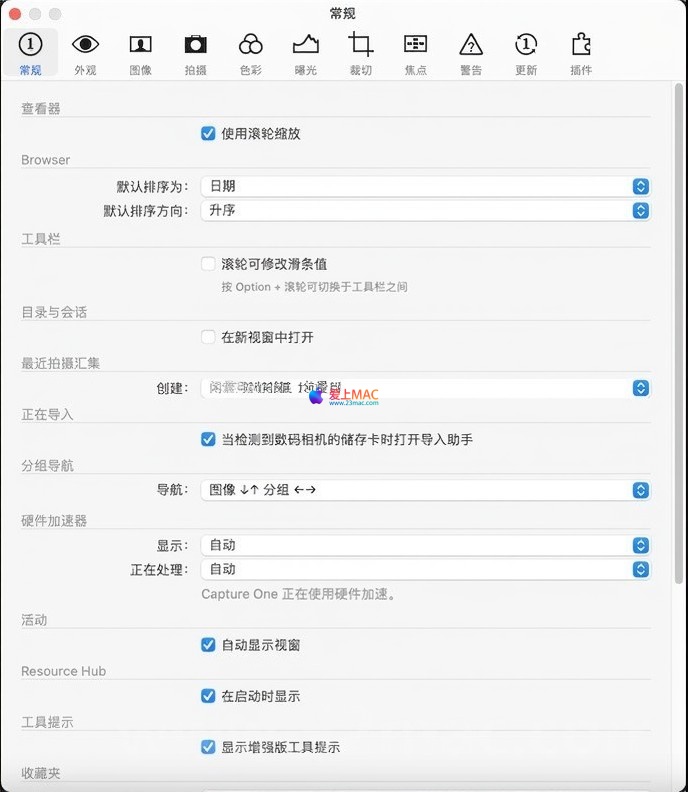
在“设置 > 曝光”选项卡中,新增了负片模式的独立配置选项:
在负片胶片处理模式下,部分工具可能被禁用或效果受限:
Before installation, ensure your Mac system version is macOS Big Sur or later, and reserve at least 4GB of disk space. This activation version comes with a crack patch, so no extra operations are required.
Click the download link provided on this page to obtain the Capture One Pro v16.7.4.24 DMG image file. After the download is complete, double-click the DMG file to see the main program icon within the installation package.
In the pop-up window, drag the “Capture One Pro” icon from the left to the “Applications” folder icon on the right. The system will automatically copy the files to the application directory, which usually takes 1-3 minutes.
After the copy is complete, go to the “Launchpad” or “Applications” folder, find and click the “Capture One Pro” icon to start the software. When it first opens, the system will prompt “From an unidentified developer.” Click the “Still Open” button in the “System Preferences > Security & Privacy > General” section.
After the software starts, you will enter the activation interface. Since this version comes with activation information, you will see a prompt of “Authorized” or “Activation Successful.” If a login window pops up, simply close it without entering any registration codes.
After activation, the software will guide you through initial settings. You can choose the workspace layout (such as “Photography,” “Film,” or “Custom”) and set the default image storage path according to your preferences. This completes the installation, and you can start using the software.
To help users quickly resolve issues they may encounter during installation and use, we have compiled the following Q&A.
This is due to macOS’s security mechanism. Open the Terminal application and enter the command: sudo xattr -rd com.apple.quarantine /Applications/Capture One Pro.app. Press Enter and enter your computer’s password (no display on the screen) to remove the quarantine.
This version defaults to supporting Simplified Chinese. If the software starts in English, click the “Preferences” (or “偏好设置”) in the “Capture One” menu, then change the “Language” (or “语言”) to “Simplified Chinese” in the “General” (or “通用”) tab. Restart the software to apply the change.
First, ensure the camera is powered on and connected via the data cable. Then check the camera menu to ensure the “USB Connection” mode is set to “PC Connect” or “Computer Control.” If still unrecognized, try replacing a high-quality data cable or restarting the camera and software.
This is usually due to mismatched color profiles. In the export dialog, set the “ICC Profile” to “sRGB IEC61966-2.1.” This is the standard color space for most monitors and web browsing, ensuring consistent colors.
First, close other unnecessary applications to free up memory. In the “Preferences > Performance,” increase the “Cache Size” and ensure the “Hardware Acceleration” option is checked. Regularly cleaning the “Session” or “Directory” cache also helps improve performance.
Select all the RAW photos in the browser, adjust the exposure, white balance, etc., of one image. Then, click the “Synchronize” button (or use the shortcut Cmd+Shift+S) to apply the adjustments to all selected images.
You can manually adjust the “Settings > Exposure” threshold for “Auto Tone Crop Threshold.” A smaller value makes the software stretch the histogram more actively, resulting in higher contrast; a larger value retains more details but may make the image appear gray. Adjust this value based on the exposure level of the negative film.
Mastering these shortcuts can significantly enhance your efficiency in Capture One Pro, making your post-processing workflow smoother and more fluid.
| Function Category | Shortcut | Function Description |
|---|---|---|
| File Operations | Cmd + O |
Open an image or directory |
| File Operations | Cmd + S |
Save the current adjustment results |
| File Operations | Cmd + E |
Export the selected image |
| Edit Tools | Cmd + Z |
Undo the previous operation |
| Edit Tools | Cmd + Shift + Z |
Redo the previously undone operation |
| Edit Tools | Cmd + D |
Reset the current tool parameters to their default values |
| Viewing and Selection | Spacebar |
Fullscreen preview of the selected image in the browser |
| Viewing and Selection | Cmd + A |
Select all images in the browser |
| Viewing and Selection | Cmd + Shift + P |
Toggle the “Selected” and “Unselected” states of the images |
| Edit Parameters | Ctrl + Scroll Wheel |
Adjust parameter values when scrolling on the slider |
| Edit Parameters | Cmd + Scroll Wheel |
Adjust parameter values when scrolling on the slider |
| Viewing Operations | F |
Switch to full-screen mode |
| Viewing Operations | Tab |
Hide or show all tool panels |
| Viewing Operations | Cmd + 0 |
Zoom the image to fit the window |
| Special Features | Ctrl + Shift + N |
In negative film mode, perform the “Convert Negative Film” operation with a single click |
Combining theory with practice is the best way to master the software. Below, I share a real-world case of commercial portrait post-production to help you convert features into works.
Scenario Description: During an indoor studio shoot, the lighting was set to a warmer tone, resulting in a slightly yellowish skin tone on the model and a lack of depth in the background.
Step One: Color Correction. In the “Color Editor,” use the “Skin” tool to automatically identify and lock the skin area, then fine-tune the hue to a redder tone while lowering the saturation to make the skin look more natural. Next, use the “Advanced Color Editor” to select the yellow in the background and lower its brightness to highlight the subject.
Step Two: Tone Reshaping. Use the “Exposure” tool to slightly increase the overall exposure. Then enter the “Curves” tool and draw a classic S-shaped curve to enhance the contrast. The key is to slightly lift the curve node in the shadow area to enrich the details in the dark parts and avoid them being completely black.
Step Three: Local Refinement. Create a new adjustment layer and use the “Brush Mask” to paint on the model’s face. On this layer, appropriately reduce the “Clarity” parameter to make the skin look softer and smoother. Then create another layer and use the “Gradient Mask” to darken the corners of the background to create a more立体lighting atmosphere.
Step Four: Output and Delivery. After completing all adjustments, click the “Export” button. In the export settings, choose the TIFF format with Adobe RGB color space to retain as much color information as possible for later layout or printing. If used for web display, choose the JPEG format with sRGB color space.
When shooting a series of photos in the same scene, you may be very satisfied with the tone of one of them. In this case, simply select that photo and then choose the other photos that need to be unified in tone. Click the “Match Appearance” tool (located in the “Exposure” tool group), and the software will automatically analyze the tone and color parameters of the source photo and apply them to the target photo, quickly achieving style consistency and saving the tedious manual adjustments for each photo.
Capture One Pro v16.7.4.24, with its powerful color engine, efficient editing tools, and deep optimization for Apple Silicon, is undoubtedly a reliable assistant for professional photographers on the Mac platform. Especially the newly added negative film digital workflow, it provides great convenience for film enthusiasts. Whether handling a large number of commercial projects or carefully crafting personal artistic creations, it can provide stable and outstanding performance. I hope that the tutorials and techniques in this article can help you better master this software and create more awe-inspiring visual works.
This resource requires login to download
Log in
MovieMator Video Editor Pro for Mac v3.1.1 Activation Download
Downloads:1257 | 2026-10-24

Movavi Video Editor 15 for Mac v15. 0. 0 Chinese Activation Download
Downloads:2246 | 2026-10-24

Mac Audio Editor v3.8.0 Music Processor and Converter Activation Download
Downloads:1932 | 2026-10-24

OmniReader Pro for Mac v2.9.0 Chinese Activation Download
Downloads:257 | 2026-10-20


Ratings & reviews
4.6
(Maximum 5 ratings, total 13 user reviews)
Let’s rate it.