


Radio Silence for Mac v3.4 Network Monitoring and Firewall Software Activated Version Download
| Radio Silence is a lightweight firewall tool focused on outbound network control, featuring minimalist operation and a silent, unobtrusive experience. It can precisely block applications from connecting to the internet without permission, safeguarding user privacy while reducing unnecessary network resource consumption.
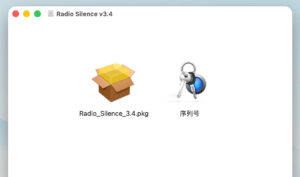
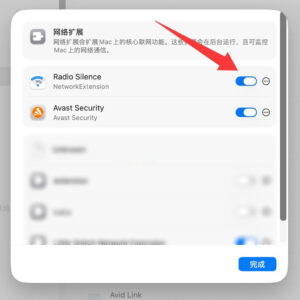
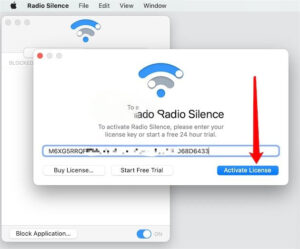
Installation and Activation Method: 1. After downloading the software, open the downloaded package as shown above, and double-click Radio_Silence_3.4.pkg to install the software. The default installation is fine. 2. Once complete, open Radio Silence and set the permissions first, as shown. 3. Then a registration prompt will appear. Enter the serial number from the software package and click the Activate License button, as shown below:
4. A message will indicate activation is complete, as shown below, and you can start using it.
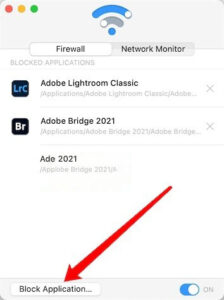
A brief introduction to usage (scroll down for the method to block Photoshop): Open Radio Silence, as shown below, and click the Block Applications button to select the software you want to block from connecting to the internet.
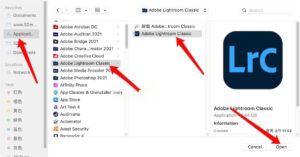
As shown below, let’s take Lightroom as an example. Simply select Lightroom from Applications, and Lightroom will be blocked from connecting to the internet.
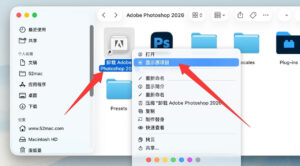
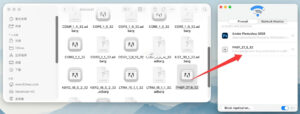
In the Photoshop directory, find the Photoshop uninstaller tool. You don’t need to uninstall it; instead, right-click the uninstaller and select Show Package Contents. It will automatically jump to the original item, which has a gray icon and a name starting with PHSP_. Drag it into the Radio Silence firewall, as shown below. As shown above, you need to block both the Photoshop application and the software starting with PHSP_ to prevent Photoshop from connecting to the internet and being detected. |
This resource requires login to download
Log in


Ratings & reviews
No rating
Let’s rate it.