



PDF Reader for Mac v2.3.0 Chinese Activation Version Download
Here is the page providing PDF Reader for Mac v2.3.0 PDF reading software Chinese activation version download | LoveMAC has been tested and is available. If you encounter issues with the download link or the software cannot be installed after downloading, please leave a message to contact us.
PDF Reader for Mac is a PDF reader designed specifically for macOS, featuring a clean and intuitive interface and a comprehensive set of features to provide users with an efficient and convenient experience for reading and managing PDF documents. It not only meets basic reading needs but also integrates advanced functions such as file management, annotations, and search, making it an ideal assistant for handling PDF documents.
The software aims to enhance your efficiency in handling PDFs, with the following main features:
The latest version 2.3.0 brings the following important improvements and new features:
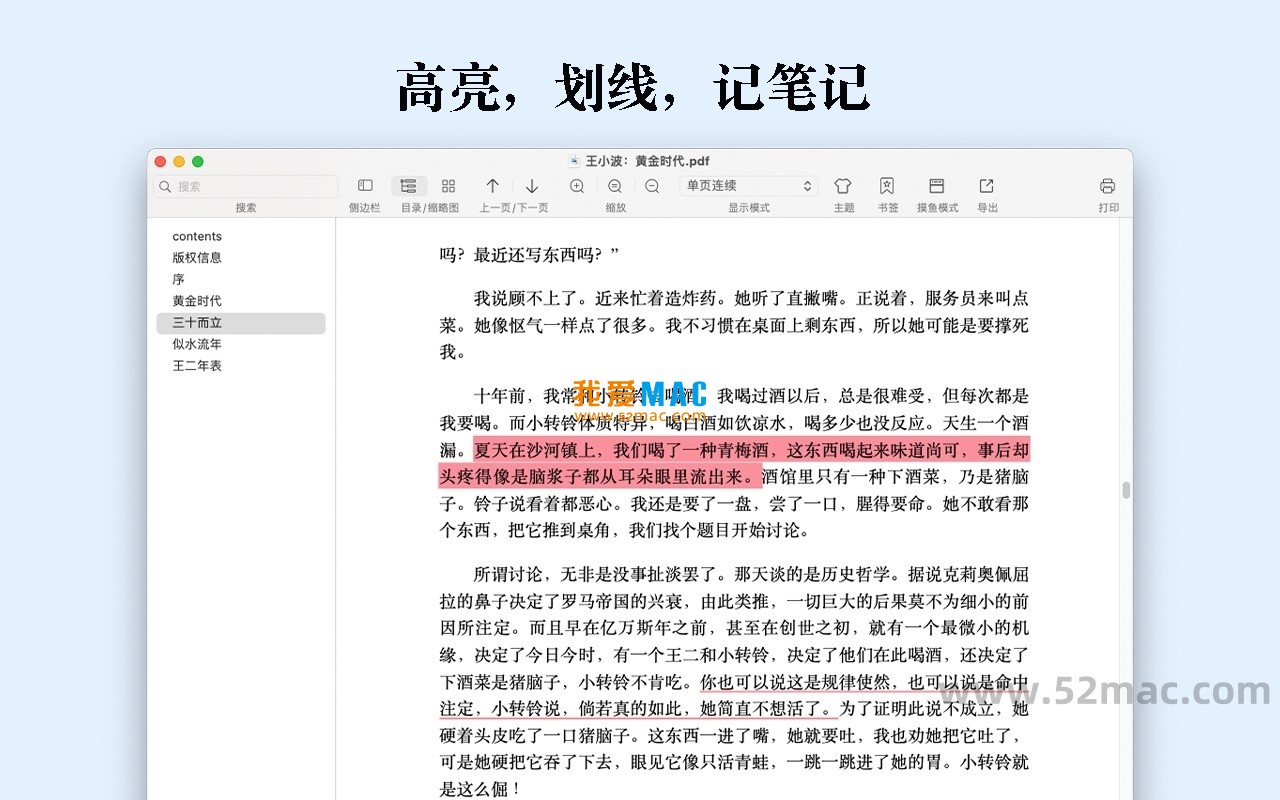
The following screenshots showcase the main interface and features of PDF Reader for Mac:
The installation process is very simple, following these steps to quickly get started:
Click on the download link to obtain the compressed package. After downloading, double-click on the .dmg or .zip file to unzip. If the system prompts “Cannot verify developer,” please allow opening from the “System Preferences” > “Security & Privacy” > “General” settings.
Drag the “PDF Reader” icon from the unzipped folder to the right-side “Applications” folder icon. This process will copy the program files to your Applications directory, typically taking a few seconds.
After opening Launchpad or the “Applications” folder, find the “PDF Reader” icon and double-click it. During the initial launch, the system may prompt you to “Allow access to the ‘Documents’ folder.” Click “Allow.” This is to enable you to open and save PDF files normally.
After launching the software, you can find “PDF Reader” in the menu bar and click “Activate.” In the pop-up window, enter the provided activation code (usually contained in the .txt or .rtf file accompanying the download package). It is recommended to adjust the default reading mode and keyboard shortcuts in the “Preferences” for the first use.
We have compiled the most common user questions to help you:
A1: This is often due to macOS’s Gatekeeper security mechanism. Please go to “System Preferences” > “Security & Privacy” > “General” and click “Allow Anyway.” If the button is unavailable, check if the application has been moved from the quarantine zone.
A2: There are three ways: 1. Drag the PDF file directly to the software window. 2. Click “File” > “Open.” 3. Add files or folders to the “Smart Shelf” by clicking the “+” icon. The “Smart Shelf” feature is recommended for easy future retrieval.
A3: No, all highlighted, underlined, and note data are stored in an independent .plist or sidebar file, keeping the original PDF file intact. You can delete annotations at any time to restore the document to its original state.
A4: In the software’s “Preferences” > “General,” check the box for “Show icon in menu bar.” Afterward, clicking the menu bar icon allows you to quickly switch between documents, adjust the volume, or control the reading.
A5: Open any PDF document and click the “Read” icon (usually a small speaker shape) in the top toolbar, or use the shortcut (default is Cmd + Shift + R). The software will start reading from the current page, allowing you to pause or adjust the speed at any time.
A6:Currently, it supports highlighting, underlining, strikethrough, rectangular boxes, text boxes, freehand drawing, and sticky notes. All annotations can be adjusted in color and transparency to meet different marking habits.
A7:Click “File” > “Export” > “Export as PDF (with annotations)”. You can also choose “Flatten Annotations” to permanently merge annotations into the PDF, so they are visible in other readers.
A8:Optimized for v2.3.0, the memory consumption is very ideal. For documents with 100 pages or less, the memory usage typically ranges from 80MB to 150MB. For large technical documents with thousands of pages, the memory usage won’t exceed 500MB.
Here are some very useful keyboard shortcuts that can significantly enhance your productivity when using PDF Reader. It’s recommended to save this table:
| Description of Function | Shortcut | Applicable Scenarios |
|---|---|---|
| Open a file | Cmd + O | Quickly open a new document |
| Save | Cmd + S | Save annotations or changes |
| Cmd + P | Print the current document | |
| Zoom in/out | Cmd + +/- | Adjust the page zoom ratio |
| Adapt to window | Cmd + 0 | Adapt the page to the window size |
| Full-text search | Cmd + F | Search for keywords in the document |
| Toggle fullscreen | Cmd + Shift + F | Enter/Exit immersive mode |
| Add highlighting | Cmd + H | Mark the selected text |
| Add notes | Cmd + N | Add sticky notes at the selected position |
| Start/Stop reading aloud | Cmd + Shift + R | Switch the TTS reading status |
Mastering these tips will make you more proficient in using this software.
For graduate students or researchers, it’s recommended to use the “Smart Shelf” feature. Create a “2024 Year Papers” shelf, then create folders for each sub-topic. When dragging PDFs, the software will automatically recognize metadata, making it convenient for subsequent citations.
When reading electronic books, mark the interesting passages with highlighting. Then, right-click on the highlighted area and choose “Export Annotations”. You can export the annotations in Markdown or plain text format, which is convenient for organizing into reading notes or mind maps.
Before a meeting, import the meeting materials into the software. During the meeting, use the “Text Box” tool to record key points next to the PPT or document. After the meeting, use “Full-text search” to quickly locate a decision point, which is much faster than flipping through paper notes.
User Xiao Wang needs to read a 500-page “Swift Programming Guide” in one week. He does this: listens to two chapters during his daily commute using the “TTS reading” feature; after returning home, opens the software to highlight key code examples and add his own understanding notes. On the weekend, he exports all the annotations and organizes them into a 30-page summary note. Successfully completing the learning task.
PDF Reader for Mac v2.3.0 is not just a reader but also a personal knowledge management tool. It covers the entire learning process from input to output through features such as Smart Shelf, rich annotations, and TTS reading. If you frequently handle a large number of PDF documents in your daily life, whether for learning, work, or research, this software can become an indispensable assistant on your Mac. It is recommended that new users spend 15 minutes configuring the preferences once, and you will discover a new, efficient workflow.
This resource requires login to download
Log in
DaVinci Resolve Studio for Mac v16.2.5 Chinese Activation Download
Downloads:1585 | 2026-10-24

HyperBrawl Tournament for Mac v1.1.14907: Download and Activation Bundle
Downloads:751 | 2026-10-23

Menu Bar Clock Activation Version for Mac v4.3.0 Download
Downloads:2565 | 2026-10-20

Winclone Pro for Mac v9.0 Clone, Migrate and Restore Boot Camp Partitions_Winclone Pro Mac Download Activated Version
Downloads:2723 | 2026-10-17


Ratings & reviews
4.7
(Maximum 5 ratings, total 90 user reviews)
Let’s rate it.