



PowerPoint Theme Template Suite Activation Version Download
Here is the page providing Fuel for PowerPoint 1.0.4 PowerPoint theme template suite activation download | LoveMAC has been tested and is available. If you encounter issues with the link, please leave a message and contact us.
Fuel for PowerPoint is a carefully designed PowerPoint theme template suite aimed at providing high-quality, customizable presentation design solutions for users. Its handcrafted themes and layouts can help you efficiently create professional and visually appealing slides. Whether for business reports, academic speeches, or creative proposals, this suite can make your presentation stand out, saving you a lot of time on layout creation.
The suite contains a rich set of template resources, as follows:
Please note that this template suite requires the Microsoft PowerPoint application to be installed on your device to use and edit. The suite itself is a set of theme files (thmx format) and template files (potx format), without an independent player. It is recommended to use Office 2016 or a higher version for the best compatibility and rendering effects.
Below are some examples of template applications for reference:
For users unfamiliar with the Mac system, the installation process may seem unfamiliar. Below, I will break down the specific installation steps to ensure you can smoothly enable these templates.
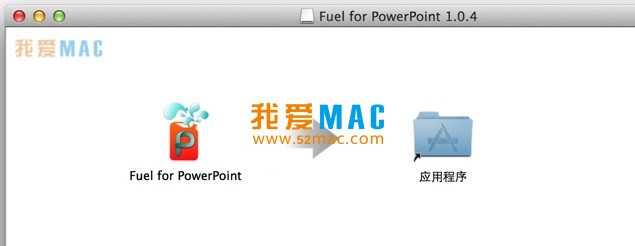
After downloading, you will receive a compressed package (usually .zip or .dmg format). Double-click the file to automatically unzip. If you encounter security prompts, enter “System Preferences” > “Security & Privacy”, and allow from the App Store and trusted developers.
Open Finder, click the top menu bar’s “Go” > “Go to Folder”. In the pop-up window, input the following path: ~/Library/Group Containers/UBF8T346G9.Office/User Content/Templates. Press Enter to enter the PowerPoint template storage directory.
Drag the extracted .thmx or .potx files directly to the above directory. It is recommended to create a folder named “Fuel for PowerPoint” for easy management. After copying, close the Finder window.
Open Microsoft PowerPoint, click “New Presentation”. In the right-side template selection area, you should see “Personal” or “Custom” tags. Click into it, and you will see the newly imported Fuel for PowerPoint themes. Choose any one to start editing.
If the templates do not display, try restarting the PowerPoint application. Some older versions of Office may require a restart to scan for new templates. Ensure all file permissions are set to “Read and Write” to avoid loading failures due to insufficient permissions.
Based on user feedback, we have compiled the following 8 high-frequency questions and their answers to help you quickly resolve issues.
Check if the file was accidentally deleted. Some compressed packages contain multiple-level folders; please open them layer by layer. If the file extension is hidden, you can display hidden files in Finder by pressing Command + Shift + ..
Confirm that the files have been copied to the correct path. The part “UBF8T346G9.Office” in the path may differ based on the Office version. If ineffective, try placing the files in ~/Library/Application Support/Microsoft/Office/User Templates/My Templates directory.
They are fully compatible. .thmx and .potx are Microsoft’s open formats, compatible across platforms. However, please note that some special fonts may be missing on Mac, and it is recommended to embed fonts before using them on Windows.
WPS Office supports importing .potx template files, but some advanced animation effects may not render consistently. It is recommended to use Microsoft PowerPoint for the best experience.
On the PowerPoint “Design” tab, click the “Themes” dropdown menu to see all installed themes. Click any theme to switch quickly without needing to recreate the presentation.
Yes. All placeholder images and icons are editable. Right-click an image to choose “Change Picture” to replace with your own assets. Icons are typically in vector format, allowing for free adjustment of color and size.
On the PowerPoint “Design” tab, select “Slide Size” to choose between “Widescreen (16:9)” or “Standard (4:3)”. The template will adapt automatically, but may require minor adjustments to some elements’ positioning.
They fully support it. The template’s font scheme defaults to system fonts, which are well-compatible with Chinese characters. It is recommended to use “Microsoft YaHei” or “FangSong” fonts for optimal display.
掌握快捷键能在使用 PowerPoint 时大幅提升效率。下面是一份专为 Mac 用户整理的实用快捷键表格,涵盖编辑、导航和格式操作。
| 功能类别 | 操作描述 | 快捷键组合 |
|---|---|---|
| 编辑基础 | 复制选中对象 | Command + C |
| 剪切选中对象 | Command + X |
|
| 粘贴对象 | Command + V |
|
| 幻灯片导航 | 切换到下一张幻灯片 | Page Down or ↓ |
| 切换到上一张幻灯片 | Page Up or ↑ |
|
| 格式调整 | 将文本加粗 | Command + B |
| 将文本倾斜 | Command + I |
|
| 对象操作 | 组合多个对象 | Command + Shift + G |
| 取消对象组合 | Command + Shift + H |
|
| 放映控制 | 从头开始放映 | Command + Shift + Enter |
| 从当前幻灯片放映 | Command + Enter |
建议将本表格收藏或打印出来,贴在工作台旁边。熟练使用这些快捷键后,您的幻灯片制作速度至少能提升 40%。
掌握基本操作只是第一步。下面我分享几个进阶技巧和真实场景案例,助您将这套模板的价值发挥到极致。
Open PowerPoint and go to “View” > “Slide Master”. Here, you can modify the background, fonts, and color schemes for all slides at once. For example, add the company logo to the footer of the master slide, and all slides will be updated automatically. This is much more efficient than modifying each slide individually and avoids inconsistent styles.
In the Fuel for PowerPoint layout, there are various placeholders (such as charts, tables, and SmartArt). You can directly paste Excel data into chart placeholders, and PowerPoint will automatically generate visual charts. If the data changes later, you can right-click the chart and select “Edit Data” to synchronize the update without having to remake everything.
Assume you need to create a quarterly report for an AI startup. Choose the “Tech Blue” style theme (theme number 12). This theme uses a deep blue background with gradient lines, which is very fitting for a tech company. Use the “Data Dashboard” layout, placing revenue data, user growth curves, and market share pie charts in the corresponding placeholders. Finally, add the company logo and “Confidential” watermark to the master slide. The entire process takes only 20 minutes, and the result is far superior to starting from scratch.
For educational scenarios, it is recommended to use the “Fresh Education” style theme (theme number 25). This theme uses a soft yellow background with rounded rectangle layouts, making it more visually friendly. Use the “Outline Page” layout to quickly generate course outlines. In the content pages, use the “Mixed Layout” layout, with illustrations on the left and text explanations on the right. Finally, use the “Closing Page” layout to add a QR code linking to supplementary materials. Student feedback shows that this structured presentation is more effective in maintaining attention compared to traditional blackboards.
When you need to distribute a PowerPoint presentation to colleagues who do not have Office installed, it is recommended to export as PDF. Click “File” > “Export” > “Create PDF/XPS Document”. Check the “Optimize Image Quality” option to ensure clear images and fonts. If you are concerned about missing fonts, you can select “Embed Fonts” before exporting.
Fuel for PowerPoint 1.0.4 is a professional-validated template suite with 31 themes and over a thousand layouts, covering almost all business and creative scenarios. With the detailed installation guide, FAQ answers, shortcut table, and case studies provided in this article, you should be able to quickly get started and efficiently use it. Whether you need to quickly create internal reports or refine external presentation proposals, this set of tools can significantly enhance your professional image and efficiency.
Lastly, please note: The download links provided on this page have been tested and are confirmed to be available. If you encounter any issues during installation or use, please leave a message below, and we will assist you in resolving them as soon as possible. Wishing you a pleasant creation!
This resource requires login to download
Log in
Color Management Tool Litur for Mac v4.1.4 Activation Download
Downloads:1 | 2026-10-27

ON1 NoNoise AI 2021 for Mac Smart Image Noise Reduction Software Chinese Activation Version Download
Downloads:2485 | 2026-10-23

Manage MacBook Battery Health with Wattagio for Mac v1.9.1 Activation Download
Downloads:164 | 2026-10-18

PlistEdit Pro for Mac v1.9.1 – Plist Document Editing Tool, Chinese Localized Activated Version_PlistEdit Pro Mac Download
Downloads:2222 | 2026-10-17


Ratings & reviews
4.8
(Maximum 5 ratings, total 31 user reviews)
Let’s rate it.