



TPO1-30 Mock Exam Software for Mac 1-30: TPO1-30 Mac Download and Activation Version
本页面提供 TPO1-30模考软件for Mac 3.3 Mac版小站托福全真模考系统软件1-30_TPO1-30模考软件mac下载激活版 | 爱上MAC,已测试可用,如遇到链接失效或下载后无法安装等情况,请留言联系我们。
软件信息: TPO小站托福模考软件 for Mac 版本 3.3,版权归TPO小站所有。本版本为破解版,无需注册即可使用。重要提示: 此软件仅兼容macOS 10.10及以下系统,不支持macOS 10.12及以上版本。
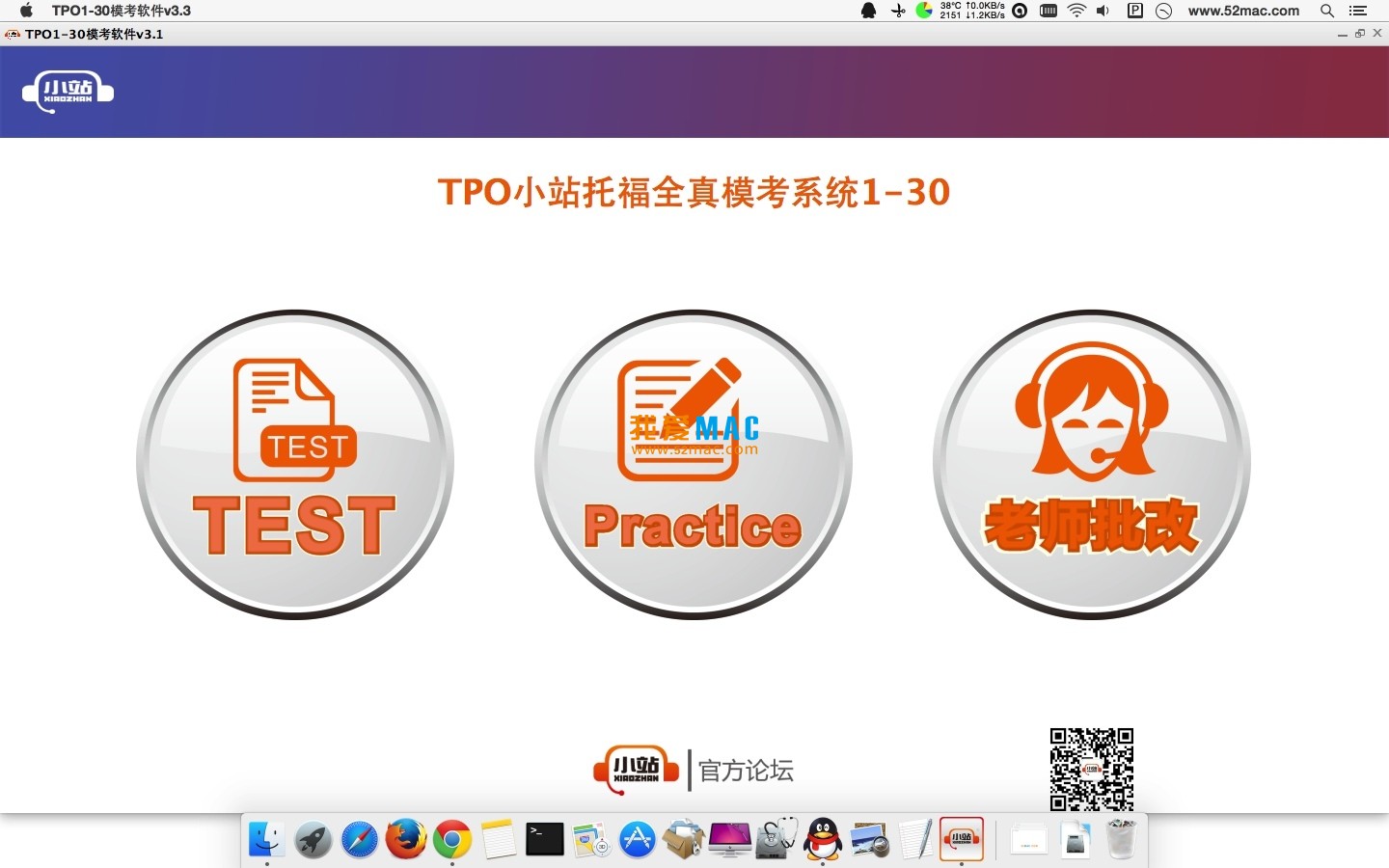
TPO小站托福模考软件是一款高度模拟真实托福考试环境的综合性备考工具。它集成了智能化的学习与评估功能,旨在帮助用户高效备考。软件主要具备以下核心特点:
此模式完全还原托福网考的真实体验。用户需按照阅读、听力、口语、写作的顺序完成整套试题。完成测试后,系统将生成详细的测试报告,内容包括:
用户可选择“继续做题”以完成未做完的套题,或“重新做题”进行刷题练习。
此模式提供灵活的分项练习与深度分析功能,用户可针对薄弱环节进行针对性训练:
为确保软件顺利运行,请严格按照以下步骤操作。本教程基于macOS 10.10 Yosemite系统环境编写。
点击屏幕左上角苹果图标,选择“关于本机”。在弹出窗口中查看“macOS版本号”。确认为10.10(Yosemite)或更早版本,方可继续。若系统版本高于10.10,建议另寻兼容方案。
从本页下载链接获取DMG安装包文件。双击DMG文件,系统会自动挂载并弹出安装窗口。将TPO小站托福模考软件图标拖拽到“应用程序”文件夹中,完成基础安装。
首次启动时,系统可能提示“无法验证开发者”。此时请前往“系统偏好设置” -> “安全性与隐私”,点击“仍要打开”按钮,允许软件运行。注意,该操作仅需执行一次。
本版本为破解版,无需再输入注册码。启动软件后,若界面无任何“激活”或“注册”弹窗,即表示破解成功。若遇到闪退,请检查系统版本是否满足条件。
软件首次启动会创建本地数据库。请确保Mac有至少500MB的可用磁盘空间。等待进度条加载完毕,即可进入主界面。建议关闭后台其他运行软件,以减少冲突。
进入主界面后,先尝试进入“练习模式”,选择一套TPO1的阅读部分进行测试。确认界面显示正常,计时器运行无误。若一切正常,即可开始正式备考学习。
针对用户在实际使用中遇到的典型问题,我们整理了以下FAQ,帮助您快速排忧解难。
A:此提示通常是因为系统安全策略拦截。请先确认系统版本为10.10或以下。然后打开“终端”应用,输入命令:sudo spctl –master-disable,回车后输入管理员密码,再重新打开软件。
A:本软件明确不支持10.12及以上系统。若您使用的是高版本系统,建议使用虚拟机软件(如Parallels Desktop)安装macOS 10.10虚拟机,或寻找其他兼容的备考软件。
A:不会。软件支持自动保存功能。当您再次启动软件时,系统会提示“检测到未完成的测试”,点击“继续做题”即可从断点处恢复,无需担心数据丢失。
A:请检查您的网络连接。部分解析内容需要从本地缓存读取。若第一次加载失败,尝试退出软件后重新进入。确保磁盘空间充足,避免因存储不足导致解析文件损坏。
A:请检查Mac的麦克风权限。前往“系统偏好设置” -> “安全性与隐私” -> “麦克风”,确保TPO小站模考软件已被勾选。同时检查外接麦克风或内置麦克风是否正常工作。
A:该软件主要面向中文用户,界面默认简体中文。若出现乱码,请检查系统语言设置。前往“系统偏好设置” -> “语言与地区”,将“首选语言”设置为“简体中文”,重启软件即可。
A:找到软件安装目录(通常在“应用程序”文件夹)。右键点击软件图标,选择“显示包内容”。进入Contents -> Resources目录,找到名为“Data”的文件夹,将其删除。重启软件后,数据将重置为初始状态。
A:It is recommended to clean up the cache periodically. After exiting the software, open Finder, click on the top menu bar “Go” -> “Go to Folder”, enter ~/Library/Caches, find and delete the cache folders related to TPO. Restarting the Mac will yield better results.
A:Please check if the network connection is stable. The sample files are stored locally, but the initial load requires indexing. If the issue persists, try reinstalling the software. Remember to back up your writing answers to prevent loss.
A:Yes, it does. The software is installed in the “Applications” directory, and all system users can access it. However, each user’s test data and progress are saved independently, not interfering with each other. When switching users, the software will automatically load the corresponding account’s learning records.
Mastering the following Mac system keyboard shortcuts can significantly enhance your efficiency when using the TPO mock exam software. The table is organized as follows:
| Keyboard Shortcut Combination | Function Description | Applicable Scenarios |
|---|---|---|
| Command + Q | Fully exit the current application | Quickly close the software after the mock exam |
| Command + W | Close the current window | Close answer analysis or settings pop-ups |
| Command + Tab | Quickly switch applications | Switch between the mock exam software and note-taking apps |
| Command + C / V | Copy / Paste | Copy key phrases from reading articles to notes |
| Command + Z | Undo the previous operation | Quickly recover writing content that was accidentally deleted |
| Command + Shift + 3 | Capture full screen | Save screenshot of the mock exam score report |
| Command + Shift + 4 | Capture selected area | Capture specific explanations of a particular question |
| Option + Command + Esc | Forcefully exit the application | Forcefully close the software when it is unresponsive |
| Command + Space | Open Spotlight search | Quickly find local writing sample files |
| Control + Command + F | Toggle full screen | Immersive mock exam experience, reducing distractions |
Aside from theoretical knowledge, mastering practical techniques can make your preparation more effective. Below are a few validated efficient methods.
Don’t just focus on scores. After each practice, screenshot the wrong questions and manually record the reasons for the mistakes. For example, listening mistakes might be due to “inadequate familiarity with specialized vocabulary” or “missing logical connectors.” After recording 10 sets of questions, you’ll clearly see your weak areas.
When using the oral recording feature in the practice mode, it’s recommended to not listen immediately after the first recording. Instead, wait for 30 minutes and then replay. This allows a more objective assessment. Focus on issues like pace, pauses, and grammatical errors. Compare your answers with the standard ones to adjust your answer templates.
Don’t just read the samples. Choose a high-scoring sample essay and first analyze its structure (introduction, main points, examples, conclusion). Then, in the software, create a new document and try to restate the same viewpoint using your own language. After completing, compare it with the original text to learn advanced vocabulary and sentence replacements.
A user had a stable score of around 80 before using this software for the TOEFL practice tests. He devised the following plan: In the first week, focus on reading and listening using the practice mode, doing two full readings each day and analyzing all the wrong questions. In the second week, shift to speaking and writing, recording five oral questions each day and replicating one integrated writing task. In the third week, enter the exam mode, completing three full practice tests each week. After one month, his practice test scores stabilized between 95 and 100. The key is: persist in reviewing, not just blindly practicing.
The following are screenshots of the TPO1-30 Mac version 3.3 software in a macOS 10.10 system environment, showcasing the main interface and functions of the software:
Conclusion: This software is a comprehensive TOEFL preparation auxiliary tool, especially suitable for candidates who need to conduct self-practice and tests in the Mac environment. Reasonably utilizing its simulation and analysis functions can effectively enhance preparation efficiency and test-taking abilities. Best wishes for all candidates, achieving ideal scores.
“`
This resource requires login to download
Log in
High-Performance CAD Software CADintosh X for Mac v8.8.2 Activation Download
Downloads:3200 | 2026-10-22

Affinity Photo 2 for Mac v2.0.3 Chinese Activation Version Download
Downloads:1809 | 2026-10-22

Reeder 5 for Mac v5.0.6 News Reader Activation Download
Downloads:1749 | 2026-10-21

Money Pro for Mac 2.0 Bill Planning and Financial Management Software Chinese Activated Version Download
Downloads:482 | 2026-10-17


Ratings & reviews
4.7
(Maximum 5 ratings, total 27 user reviews)
Let’s rate it.