



macOS High Sierra 10.13.6 Official System Image Download for Activation
本页面提供 macOS High Sierra 10.13.6 苹果操作系统下载 官方系统镜像激活版 | 爱上MAC,已测试可用,如遇到链接失效或下载后无法安装等情况,请留言联系我们。
macOS High Sierra(版本 10.13)是苹果公司为 Mac 电脑开发的操作系统。它并非传统意义上的“软件”,而是整个计算机运行的基石。本文将从用户交互角度,详细解析其核心界面、从启动到完成任务的完整操作流程、进阶技巧及常见问题,帮助你高效驾驭这一系统。
macOS High Sierra 的界面延续了苹果简洁直观的设计哲学。这套设计语言经过多年打磨,在专业用户和普通用户间取得了良好平衡。下面我们从六个核心区域入手,逐一拆解其功能。
F4(或 ⌘F4)打开,以全屏网格方式显示所有已安装的应用程序。值得注意的是,这些区域并非孤立存在。例如,从启动台打开应用后,菜单栏会立即切换为该应用的菜单,程序坞也会高亮显示其图标。这种联动设计,让操作变得非常自然。
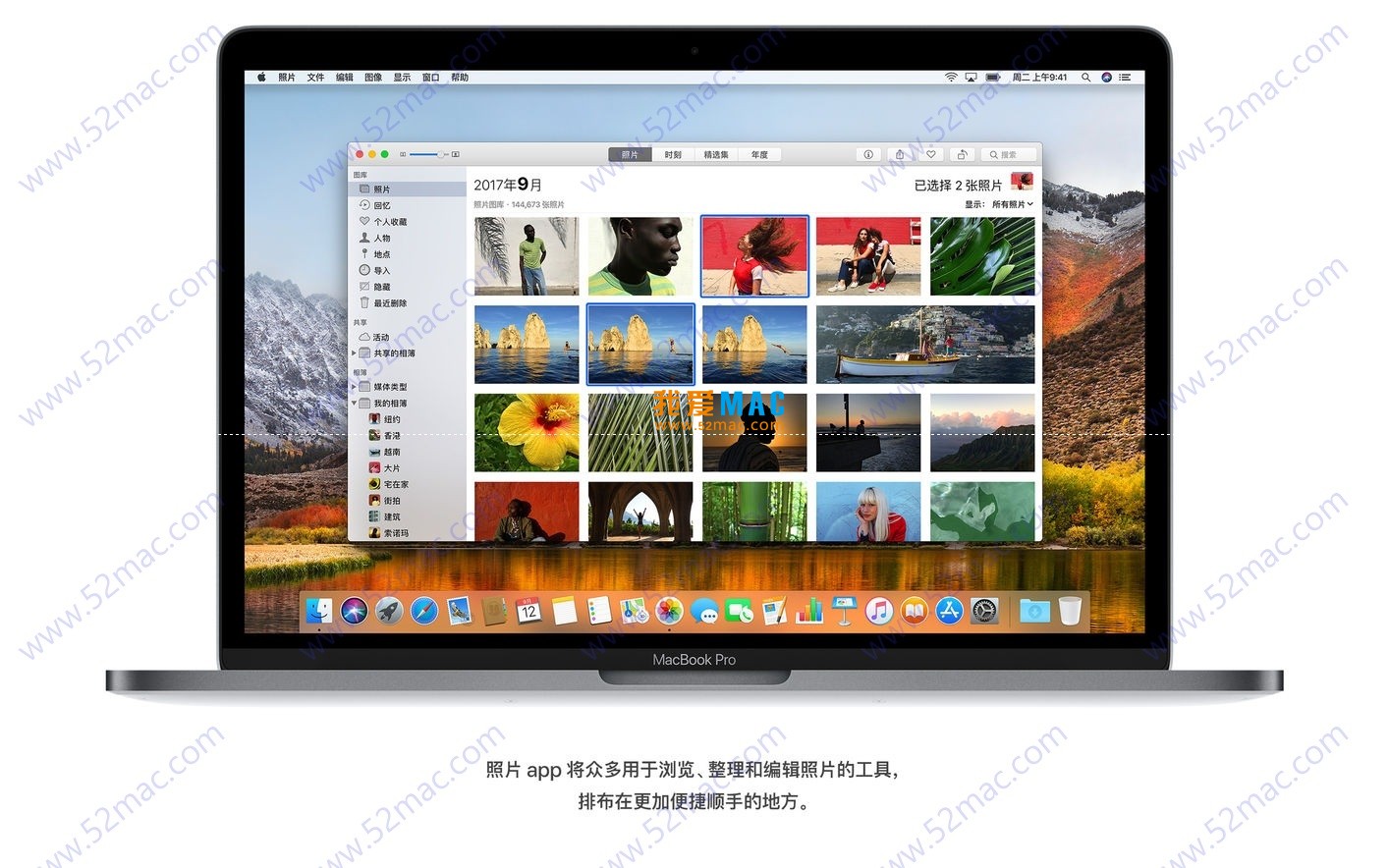
以下以“使用‘照片’应用编辑一张图片并导出”为例,展示在 macOS High Sierra 中的完整操作流程。这套流程同样适用于其他创作类应用。
启动应用有多种方式,选择最适合你的即可。
方法一: 点击程序坞上的“照片”图标。如果未在程序坞,可打开 Launchpad (F4),找到并点击“照片”图标。
方法二: 使用聚焦搜索 (Spotlight)。按下快捷键 ⌘ + 空格键,输入“照片”,然后按回车键启动。
聚焦搜索是macOS效率提升的关键。它不仅能启动应用,还能快速查找文件、进行计算,甚至查询天气。建议日常多用这个功能。
打开“照片”应用后,系统会自动显示你的照片图库。如果这是首次使用,可能需要先导入照片。
导入时,建议勾选“导入后删除原始文件”选项,这样可以节省存储空间。当然,如果你需要保留备份,则不要勾选。
照片应用的编辑功能在High Sierra中得到了显著增强。以下是具体操作步骤。
⌘ + Z 撤销操作,⇧ + ⌘ + Z 重做。曲线工具是对专业用户的诚意之作。你可以像在Photoshop中一样,精确调整照片的对比度和色调。对于普通用户,建议从“光效”滑块开始,逐步熟悉。
导出时,根据用途选择合适格式。例如,分享到社交媒体可选JPEG,打印则建议使用TIFF。
至此,一个完整的“项目”(照片编辑与导出)流程结束。你可以通过访达 (⌘ + N 打开新窗口) 在导出位置找到最终文件。
掌握以下技巧,可以大幅提升你在macOS High Sierra上的工作效率。这些技巧来自多年使用经验,经过反复验证。
访达是文件管理的核心,用好它等于掌握了系统的钥匙。
⇧ + ⌘ + G 可输入绝对路径直接跳转。快速预览功能在Mac社区中被广泛赞誉。它支持数百种文件格式,包括Office文档、PSD文件甚至3D模型。按空格键的瞬间,内容即呈现。
High Sierra中的Safari在隐私保护方面做出了重要改进。这些设置值得每个用户关注。
⌘ + ,),在“隐私”选项卡中勾选“阻止网站跟踪”。智能防跟踪功能通过机器学习识别跟踪器,有效保护你的浏览隐私。根据苹果官方说明,这一功能在High Sierra中首次引入,后续版本持续优化。
如果你拥有多台苹果设备,这些功能将大幅提升你的工作效率。
⌘ + C),可直接在另一台 Mac 或 iOS 设备上粘贴 (⌘ + V)。通用剪贴板支持文本、图片、文件等多种格式。但需要注意的是,剪贴板内容仅在短时间内有效,且不支持跨账户传输。
在长期使用macOS High Sierra的过程中,用户可能会遇到一些典型问题。以下FAQ基于社区反馈和苹果官方文档整理。
解决方案:
⌥ + ⌘ + Esc 打开“强制退出应用程序”窗口,选择无响应的应用,点击“强制退出”。如果强制退出后问题仍然频繁出现,建议检查活动监视器。打开“活动监视器”(位于“应用程序”>“实用工具”),查看该应用是否占用异常高的CPU或内存。
解决方案:
建议定期清理“下载”文件夹。很多用户下载文件后忘记清理,导致空间被大量占用。另外,使用第三方工具如CleanMyMac也可以辅助清理。
解决方案:
推荐的NTFS驱动包括Paragon NTFS for Mac和Tuxera NTFS for Mac。这两款软件经过广泛测试,兼容性较好。安装后,重启电脑即可正常读写NTFS硬盘。
解决方案:
sudo /Applications/Install macOS High Sierra.app/Contents/Resources/createinstallmedia --volume /Volumes/MyVolume.After creating the bootable USB drive, you can install the system on any compatible Mac. This is useful for system recovery or bulk deployment.
Solution:
Apple regularly releases RAW compatibility updates to support new camera models. It is recommended to keep your system updated to ensure the best compatibility.
Solution:
⌥ + ⌘ + P + R keys.Resetting NVRAM can resolve issues related to display, volume, and startup disk. This is a common troubleshooting step for Macs.
Solution:
It is recommended to check the compatibility of commonly used applications before system updates. You can visit the Mac App Store or the developer’s website to view the update logs.
The following table summarizes the most commonly used shortcuts in macOS High Sierra. It is recommended to print or save it for easy reference during daily use.
| Function | Shortcut (Mac) | Description |
|---|---|---|
| Focus Search | ⌘ + Space |
Quickly launch applications, search files, and perform calculations |
| Force Quit Application | ⌥ + ⌘ + Esc |
Open the Force Quit Applications window |
| Show Desktop | F11 or ⌘ + F3 |
Quickly hide all windows and show the desktop |
| Application Window Switching | ⌘ + Tab |
Switch between open applications forward |
| Switch Windows within the Same Application | ⌘ + ` (above the Tab key) |
Switch between multiple windows of the same application |
| Create a New Finder Window | ⌘ + N |
Open a new file management window |
| Quick Preview | Spacebar |
Preview the selected file |
| Go to Folder | ⇧ + ⌘ + G |
Jump to a specified folder in Finder |
| Screen Shot (Full Screen) | ⇧ + ⌘ + 3 |
Take a full-screen screenshot and save it to the desktop |
| Screen Shot (Region) | ⇧ + ⌘ + 4 |
Take a screenshot of a specified region and save it to the desktop |
| Hide Current Application Window | ⌘ + H |
Hide all windows of the current application |
| Minimize Current Window | ⌘ + M |
Minimize the current application window to the Dock |
| Close Current Window | ⌘ + W |
Close the active window of the current application |
| Exit Current Application | ⌘ + Q |
Exit the current application completely |
It is recommended to start memorizing from the most commonly used shortcuts, such as Focus Search and Force Quit. Practice using them daily, and you can form muscle memory within a week.
The following steps detail the process for a fresh installation or reinstallation. Please ensure to back up important data before proceeding.
sudo /Applications/Install macOS High Sierra.app/Contents/Resources/createinstallmedia --volume /Volumes/MyVolume.⌥ key to boot, select USB startup.The entire installation process takes about 30-60 minutes, depending on the hardware performance. After installation, the Mac will automatically restart into the setup wizard.
Assume you are a freelance designer who needs to create a brand manual for a client. Here is the complete operation process.
Use the “Notes” app to record requirements. Open Notes, create a new folder “Brand Manual Project”. Use Markdown syntax to list key points: Logo specifications, color schemes, font choices, etc.
Synchronize the client-provided materials from iCloud Drive. Use the Finder’s tagging system to add labels such as “Pending”, “Confirmed” to manage the materials.
Create a document framework using “Pages”. For graphic parts, use the “Preview” app for quick annotations. If professional design is needed, you can use Adobe Illustrator or Affinity Designer in conjunction.
Share the draft via iCloud shared links. The client can preview it directly in the browser without installing any software. Use the “Marking” feature to add annotations.
After finishing the modifications, export as PDF format. Use the “Preview” app to check the page layout, ensure there are no errors, and then send via email.
This case demonstrates the flexibility of macOS High Sierra in creative workflows. From Notes to iCloud, to the Preview app, the built-in tools can meet most needs.
macOS High Sierra 10.13.6 is a mature and stable operating system. Its interface design, file management capabilities, and system tools provide a reliable working environment for professional users. Through this detailed analysis, you should have a complete knowledge system from basic operations to advanced techniques.
If you encounter any issues during the download or installation process, feel free to leave a comment in the comments section. Our team will assist you immediately. Remember, regular data backups are an important habit when using any operating system.
This resource requires login to download
Log in
Mac System Switcher v1.26 Chinese Activation Download Bundle
Downloads:854 | 2026-10-19

MouseBoost Pro for Mac v3.0.1 Right-Click Assistant Professional Edition Chinese Activation Download
Downloads:3141 | 2026-10-19

Rectangle Pro for Mac v3.0.16 Window Management Tool Activation Download
Downloads:761 | 2026-10-19

Noir for Mac v2024.1.9 Safari Dark Mode Plugin Activation Download
Downloads:368 | 2026-10-19


Ratings & reviews
4.7
(Maximum 5 ratings, total 62 user reviews)
Let’s rate it.