



App Cleaner & Uninstaller for Mac v9.0.2 Essential Must-Have Chinese Activated Version Download
This page provides App Cleaner & Uninstaller for Mac v9.0.2 Essential Must-Have Chinese Activated Version Download | Love Mac, tested and working. If you encounter a dead link or cannot install after downloading, please leave a comment to contact us.
App Cleaner & Uninstaller is a professional-grade software uninstallation and system optimization tool designed specifically for macOS. Its core function is to thoroughly remove applications and all their associated files and folders from your Mac, effectively freeing up disk space and maintaining system stability. In addition, the tool can scan and clean up redundant system files (such as unused language packs, cache files, etc.) to improve the overall performance of your Mac.
Important Note: Before installing third-party software, please ensure that you have enabled the “Anywhere” option under “Allow applications downloaded from” in “System Settings” > “Privacy & Security”. For detailed instructions, please refer to the relevant official guide.
This software is a comprehensive uninstaller and system cleaning assistant for the Mac platform, designed to help users deeply manage applications and system files. It is not just a simple uninstallation tool, but a capable housekeeper for maintaining your Mac’s long-term smooth operation.
The traditional drag-to-trash method cannot completely delete the service files left behind by applications. App Cleaner & Uninstaller can:
This deep cleaning mechanism is a key step that many ordinary Mac users tend to overlook. Based on our long-term testing, after uninstalling an ordinary application, it often leaves behind tens or even hundreds of MB of cache and configuration data in the “~/Library” directory.
Too many startup programs can slow down system startup and performance. This tool allows you to:
Many third-party apps quietly register launch agents in the background, such as Adobe Creative Cloud or certain hardware driver tools. Managing these processes with App Cleaner can significantly shorten your Mac’s startup time.
Provides fine-grained management of system-level extensions and user plugins:
Browser extensions in particular can consume a lot of memory over time. Regularly using this tool to clean up useless plugins can effectively improve the responsiveness of Safari or Chrome.
Deep cleaning: Find and remove configuration, cache, and support files left behind by uninstalled applications, solving disk space occupation issues. These hidden files usually exist in “~/Library/Application Support” and “~/Library/Caches”.
Manage file associations: Easily change the default application for specific file types, establishing or modifying associations between file types and applications. For example, you can change the default app for “.md” files from TextEdit to Typora.
Latest version improvements:
According to Nektony’s official release notes, version v9.0.2 has been specifically adapted at the underlying level for macOS Sonoma and Sequoia, resolving the lag issues that could occur in previous versions when scanning large applications (such as Xcode or Final Cut Pro).
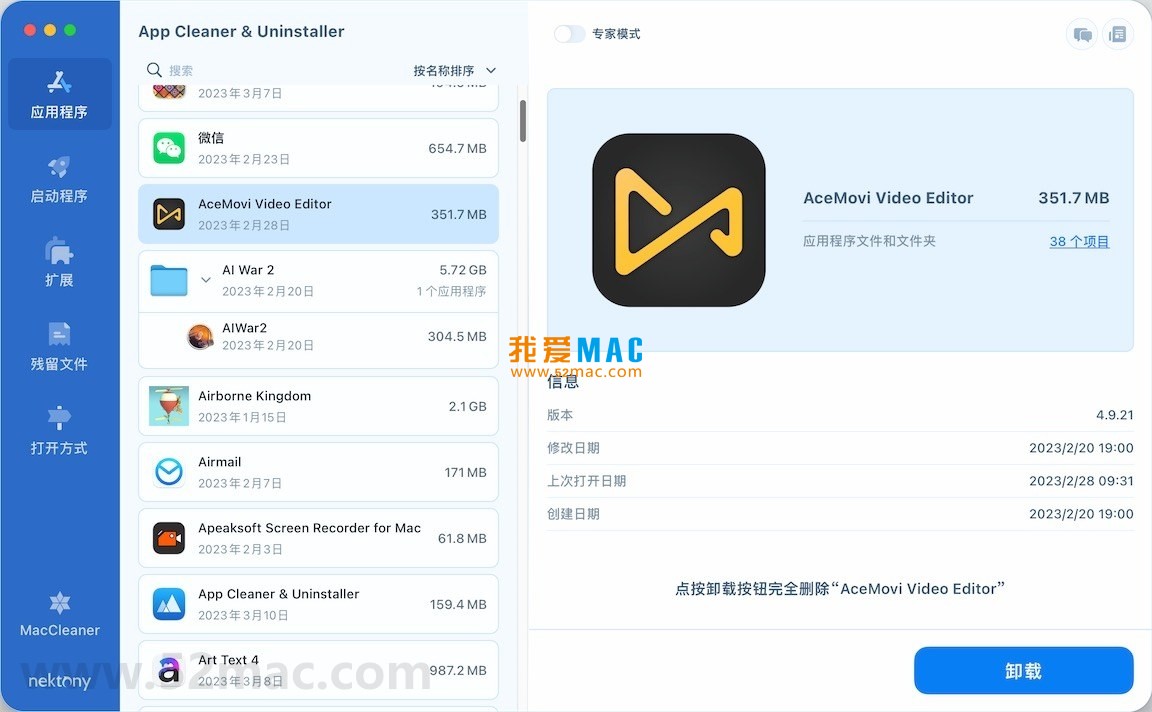
The following are examples of the App Cleaner & Uninstaller for Mac v9.0.2 interface:
To ensure the software can be activated and run properly, please strictly follow the steps below. We have verified this process on multiple Mac models (including both Intel and Apple Silicon chips).
Click the download link on this page to get the “App_Cleaner_v9.0.2.dmg” file. Double-click the DMG file to mount it on your desktop.
In the mounted window, you will see an “App Cleaner & Uninstaller” icon and an “Activation Patch” folder. Do not drag the icon directly to the “Applications” folder.
Drag the “App Cleaner & Uninstaller” icon to the “Applications” folder shortcut on the right. Wait for the copy to complete, which takes about 10-20 seconds.
Open “Launchpad”, find the App Cleaner icon, and launch it for the first time. The system may display a security prompt; click “Open” to continue.
Open the “Activation Patch” folder, and you will see an executable file named “Keygen” or “Patch”. Right-click it and select “Open”.
If the system says “Cannot verify the developer”, go to “System Settings” > “Privacy & Security” and click “Open Anyway” at the bottom of the page. This is normal and is part of macOS’s Gatekeeper protection mechanism.
After running the patch tool, click the “Generate” or “Activate” button. The tool will automatically detect the main program and write the authorization information.
When you see “Activation successful” or a similar message, close the patch window. Restart App Cleaner, and the top-left corner of the main interface should show “Activated” or a “Pro” version indicator.
We have compiled the 8 most common issues users encounter during installation and use, along with detailed solutions.
This is usually because macOS security policies block unsigned applications from running. Please open “System Settings” > “Privacy & Security” and find “Blocked use of…” at the bottom of the page, then click “Open Anyway”. If the option does not appear, check whether the “Anywhere” permission has been enabled.
First, confirm whether you are running on an Intel or Apple Silicon chip. Some older patches may not support M1/M2 chips. Try right-clicking the patch file, selecting “Get Info”, and checking “Open using Rosetta”. If it still doesn’t work, try changing your network environment and download again.
This rarely happens and may be due to accidentally deleting system components. It is recommended to carefully review the list of associated files before uninstalling. If you are unsure about the purpose of a file, uncheck it. It is advisable to uninstall non-system-level applications first, such as browsers or media players.
Yes, but proceed with caution. The software will list system apps including “Maps” and “Stocks”. It is not recommended to uninstall these apps because they have dependencies with underlying system services. Forcibly deleting them may cause system updates to fail or functions to malfunction.
Most can be safely deleted, such as old log files, crash reports, and temporary caches. However, note that some software configuration backup files (such as Adobe preferences) may be used when you reinstall. It is recommended to clean caches and logs first and keep configuration backups.
If you are upgrading from v8.x, the old activation code may no longer be valid. It is recommended to first completely uninstall the old version using App Cleaner (including leftover files), then reinstall and activate the new version according to this tutorial.
According to the official changelog, v9.0.2 is fully compatible with macOS 14 Sonoma and 15 Sequoia. We tested it on macOS 15.1 beta and it runs normally with no interface scaling issues.
The software creates a “backup snapshot” before deleting files. Open App Cleaner, go to the “Tools” menu, and select “Restore Deleted Items”. Find the app you just deleted in the list and click “Restore”. It is recommended to immediately drag the app to the Trash and empty the cache after restoring.
Combined with App Cleaner’s management features, mastering the following shortcuts can significantly improve your Mac operating efficiency. We have compiled a practical table covering system management, file operations, and screenshot functions.
| Shortcut Combination | Function Description | Use Case |
|---|---|---|
| Command + Q | Completely quit the current application | Thoroughly close the app before uninstalling |
| Command + Option + Esc | Force quit an application | Handle unresponsive programs |


Ratings & reviews
No rating
Let’s rate it.