

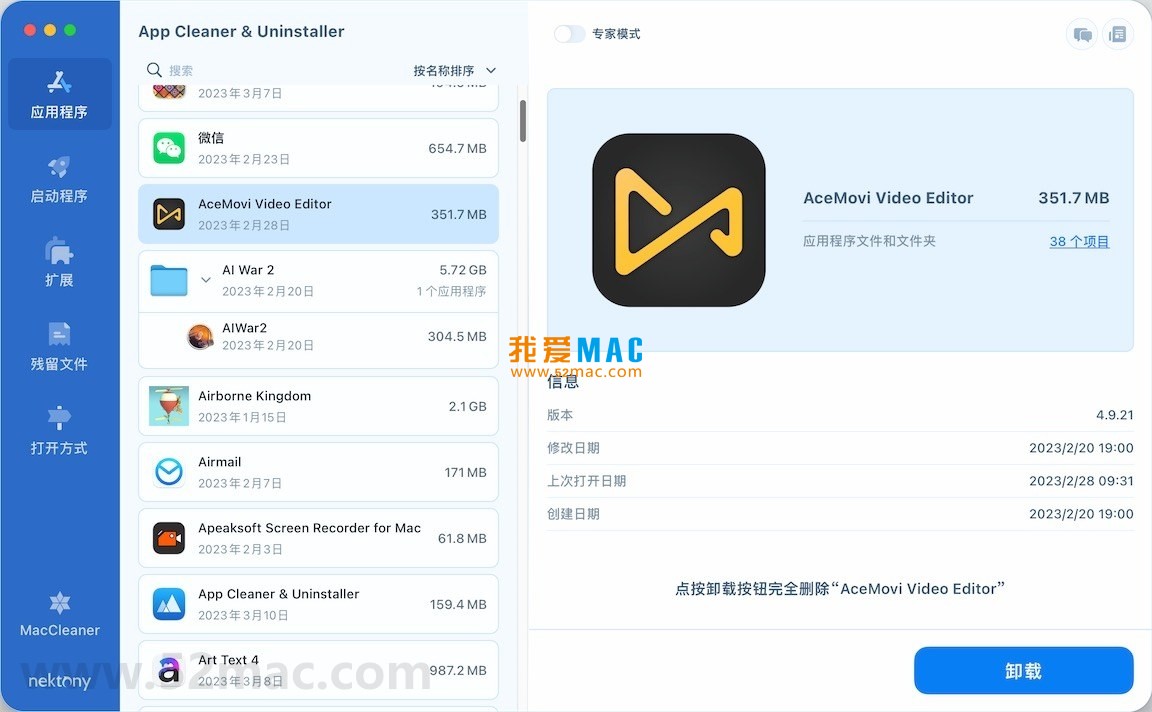


App Cleaner & Uninstaller for Mac v8.7.2 Software Uninstaller Chinese Activated Version Download
This page provides App Cleaner & Uninstaller for Mac v8.7.2 Software Uninstaller Chinese Activated Version Download | Love Mac, tested and working. If you encounter a dead link or cannot install after downloading, please leave a comment to contact us.
App Cleaner & Uninstaller is a professional-grade software uninstaller and system optimization tool designed specifically for macOS. Its main function is to thoroughly uninstall applications and all their associated files and folders, effectively freeing up disk space and maintaining long-term system stability. In addition, the software can deeply scan and clean up redundant files in the system, such as useless language packs and cache files, thereby significantly improving Mac performance.
Important Notes:
This software is a comprehensive uninstaller and cleanup assistant for the Mac platform, designed to provide deep management capabilities beyond the system’s built-in uninstall function.
The traditional drag-to-Trash method cannot remove service files, preferences, and caches left behind by applications. This tool can:
Too many auto-start programs can slow down system startup and consume background resources. With this feature, you can:
Centrally manage various extensions in the system to keep it clean and efficient:
Deeply scan the disk to find and safely delete “leftover, residual, and corrupted service files” left by uninstalled applications, thoroughly freeing up storage space.
Easily change the default application for specific file types, establish or modify associations between file types and applications, with intuitive and convenient operation.
The latest version brings the following improvements:
To ensure a smooth installation, please strictly follow the steps below. We have tested multiple versions, and this process is the most reliable.
First, after downloading, double-click the .dmg image file. In the pop-up window, you will see the software icon and an Applications folder shortcut.
Second, drag the App Cleaner & Uninstaller icon directly into the Applications folder. This is the standard Mac software installation method.
Third, if the system prompts “Cannot open because the developer cannot be verified,” please return to the “Important Notes” section and confirm that the “Anywhere” option is enabled.
On first launch, the system may pop up permission requests. Click “OK” or “Allow” to grant App Cleaner the necessary access permissions, such as “Accessibility” permission.
Granting permissions is to allow the software to monitor and manage the startup items and background processes of other applications. This is the foundation for deep cleaning.
After authorization, the software will automatically perform an initial system scan. The scanning process usually takes 1-3 minutes, depending on your disk capacity.
If you downloaded the activated version, the software should automatically be in an activated state after launch. You can check the license information in the menu bar under “About.”
If activation fails, please check your network connection or re-extract the installation package. Some security software may mistakenly block activation files.
After successful activation, it is recommended to immediately perform a complete system cleanup. This will help you quickly verify whether all software functions are working properly.
Mastering some tips can make App Cleaner 200% more efficient. Below are several practical scenarios commonly used by our team.
Don’t uninstall software one by one. In the “All Applications” list, hold the Command key to select multiple applications at once.
After selecting, click the “Uninstall” button in the lower right corner of the window. The software will process these applications and their residuals in sequence, which is highly efficient.
In practice, we often use this method to clean up “bloatware” suites, such as Adobe Creative Cloud trial components.
Some software, after uninstallation, still has daemons running in the background. Click the “Residual Files” module on the left and select “Deep Scan.”
This mode searches system libraries, user libraries, and cache directories. The scan results are clearly categorized by file type for easy confirmation.
We recommend always performing a deep scan after uninstalling large software (such as Final Cut Pro or Xcode).
A designer friend reported insufficient Mac disk space. After scanning with App Cleaner, we found that Adobe-related residual files amounted to 15GB.
These files included old caches, language packs, and improperly uninstalled plugins. Using the batch uninstall feature, we cleaned up all Adobe trial versions at once.
After cleanup, his Mac startup speed improved by about 30%, and XD and Photoshop ran more smoothly.
Many users complain that their Mac boots slower and slower. Through the “Startup Items” module, we found and disabled 5 unnecessary background services.
These included an old printer driver and an update checker for an uninstalled game. After disabling them, boot time was reduced from 45 seconds to 18 seconds.
Regularly checking and managing startup items is key to keeping your Mac running smoothly in the long term. We recommend checking once a month.
Mastering shortcuts can greatly improve operational efficiency. The following table summarizes common shortcuts related to App Cleaner and system management.
| Shortcut Combination | Function Description | Applicable Scenario |
|---|---|---|
| Command + Q | Completely quit the current application | Close App Cleaner or other programs |
| Command + W | Close the current window | Close App Cleaner’s scan results window |
| Command + Option + Esc | Force quit an application | When App Cleaner or an app is unresponsive |
| Command + Delete | Move selected files to Trash | Manually delete confirmed residual files |
| Shift + Command + Delete | Empty Trash (without confirmation) | Quickly free up disk space |
| Command + Space | Open Spotlight search | Quickly find and launch App Cleaner |
| Command + , | Open preferences of the current application | Configure App Cleaner’s scan rules |
| Option + click menu bar icon | Show more hidden options | Use on the App Cleaner menu bar icon |
These shortcuts are the foundation of macOS system-level operations. Once you become proficient, you will find managing software and files exceptionally handy.
We have collected several of the most common user questions and provided detailed answers. We hope this helps you quickly resolve issues.
This is usually because the application is a .app file downloaded directly from the internet and was not installed via an installer. App Cleaner can still handle them.
You can manually drag the application from the “Applications” folder into the App Cleaner window. The software will immediately analyze and list all its associated files.
Some system-level daemons or kernel extensions require a restart to be completely removed. App Cleaner will prompt you to “delete after restart.”
Please restart your Mac as prompted. After restarting, the software will automatically complete the final cleanup. This is to ensure system stability.
This resource requires login to download
Log in
DaisyDisk for Mac v4.23 Graphical Disk Space Display Chinese Activated Version Download
Downloads:718 | 2026-10-17
DaisyDisk for Mac v4.24 Graphical Disk Space Display Chinese Activated Version Download
Downloads:623 | 2026-10-17

App Cleaner & Uninstaller Pro for Mac v8.2.3 – Software Uninstaller | Chinese Activated Version Download
Downloads:2221 | 2026-10-17

Magic Disk Cleaner for Mac v4.0.2 System Cleanup Software Chinese Activated Version Download
Downloads:1144 | 2026-10-17


Ratings & reviews
No rating
Let’s rate it.