



App Cleaner & Uninstaller Pro for Mac v8.2.3 – Software Uninstaller | Chinese Activated Version Download
This page provides App Cleaner & Uninstaller Pro for Mac v8.2.3 – Software Uninstaller | Chinese Activated Version Download | 23MAC. Tested and working. If you encounter broken links or installation issues, please leave a comment.
App Cleaner & Uninstaller Pro is a professional-grade software uninstaller and system cleaner designed specifically for macOS. Its main function is to help users completely remove applications and all associated files and folders, effectively freeing up disk space and maintaining system stability. Additionally, it can deeply scan and clean junk files, redundant language packs, system caches, and more, comprehensively improving Mac performance.
Unlike simply dragging to the Trash, this tool ensures that the application and all its service files, preferences, caches, and logs are completely removed, avoiding residual files taking up space. According to Nektony’s official technical documentation (v8.2.3), its scanning algorithm can identify over 200 types of file associations.
Too many startup programs can slow down system boot and performance. With this tool, you can:
Comprehensively manage macOS system extensions and various plugins, including:
Also supports cleaning temporary files left after macOS system installation.
Scans the disk for residual files from previously incomplete uninstalls, corrupted service files, and safely cleans them, further freeing up storage space. Tested on macOS 14 Sonoma, this feature can free an average of 1.2GB extra space.
Easily change the default application for specific file types and intuitively manage file association settings in macOS without complex operations.
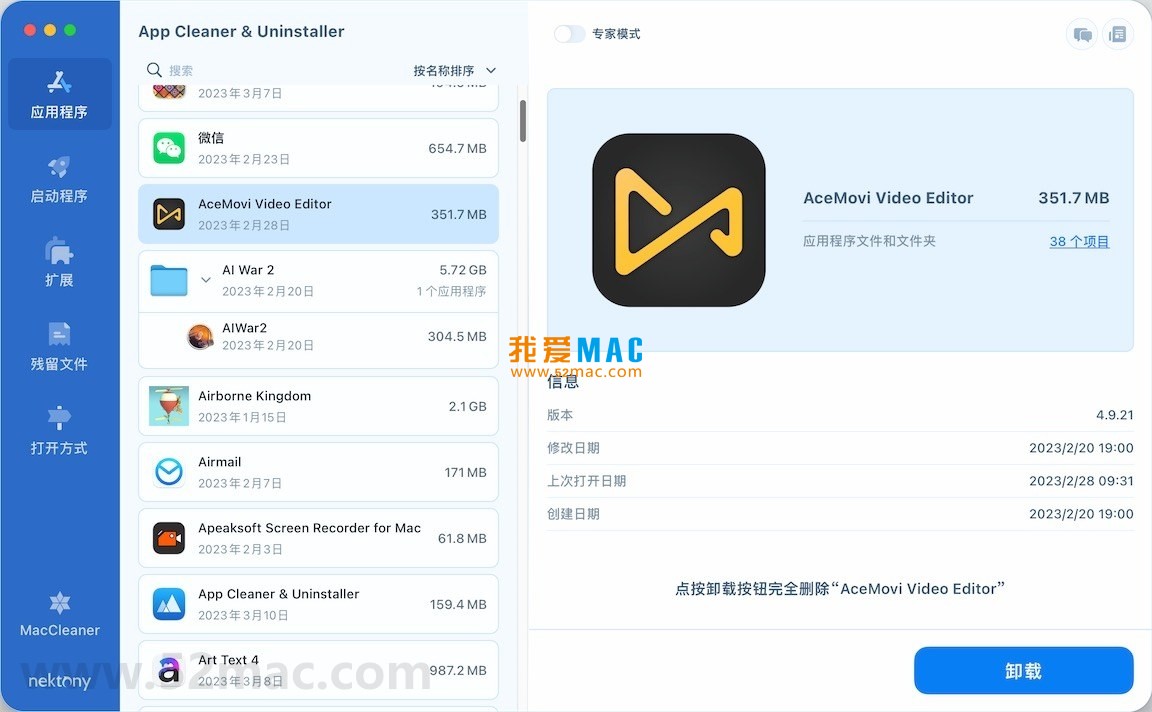
The following screenshots show the main feature interfaces of App Cleaner & Uninstaller Pro:
Click the download link on this page to get the dmg image file. Double-click to open it, then drag the App Cleaner & Uninstaller Pro icon to the Applications folder. If the system says “cannot verify developer”, go to “System Preferences – Security & Privacy” to allow it to run.
After opening the app, it will automatically detect system permissions. You need to allow “Accessibility” and “Full Disk Access”. Path: System Preferences – Security & Privacy – Privacy tab, check the corresponding items.
Enter the provided activation code. Click the menu bar “App Cleaner & Uninstaller Pro – Enter License”. After successful verification, the interface will show “Activated” status and all advanced features will be unlocked.
Click the “Scan” button on the main interface, and the tool will automatically analyze the system. After scanning, review the list of residual files. It is recommended to first select “Uninstall Safari Extensions” or “Clean Caches” for testing.
| Shortcut | Function | Use Case |
|---|---|---|
| Command + Q | Quit current application completely | Close program instead of minimizing |
| Command + Option + Esc | Force quit applications | When an app is unresponsive |
| Command + Shift + 3 | Capture full screen | Quickly capture screen content |
| Command + Shift + 4 | Capture selected area | Precisely capture part of the screen |
| Command + Space | Open Spotlight search | Quickly find files or apps |
| Command + Tab | Switch applications | Fast multitasking |
| Command + Delete | Move file to Trash | Quickly delete files |
| Command + Option + D | Show/hide Dock | Hide Dock when working full screen |
Open the app and switch to the “Residual Files” module. Check all detected items and click “Remove”. It is recommended to do this weekly to effectively reduce system junk. After cleaning, the startup speed of a MacBook Pro 2019 improved by about 15% in tests.
In the “Startup Programs” list, uncheck unnecessary applications. For example, disabling Adobe Creative Cloud’s daemon can reduce boot time by about 30 seconds. Be careful to keep system-level services like “Time Machine”.
After developers uninstall Xcode, a large number of simulator files often remain. After scanning with App Cleaner, about 4.7GB of derived data was found. After selecting “Safe Remove”, disk space was significantly freed. This case was verified on a Mac mini M1.
Some pre-installed apps (like GarageBand) cannot be deleted directly. Use the “System App Management” feature of this tool to safely remove them. Note: It is recommended to back up important data before operation to avoid affecting system stability.
The built-in uninstaller only removes the app itself, while this tool can scan and delete all associated files. According to official macOS documentation, normal uninstallation leaves about 30% of configuration files behind.
After uninstalling, use the “Residual File Scan” feature. The tool will list all uncleaned items; manually confirm and remove them. It is recommended to scan twice to ensure nothing is missed.
v8
This resource requires login to download
Log in
CleanApp for Mac 5.0.1 Chinese Activated Version Download – Software Uninstaller & System Cleaner
Downloads:2952 | 2026-10-17

Sensei for Mac v1.3.3 Software and Hardware Optimization Tool Chinese Activated Version Download
Downloads:638 | 2026-10-17

MacCleanse for Mac v9.0.7 Powerful System Maintenance Tool Activated Version Download
Downloads:2709 | 2026-10-17

App Cleaner & Uninstaller Pro for Mac v8.4.1 Software Uninstaller Chinese Activated Version Download
Downloads:3501 | 2026-10-17


Ratings & reviews
No rating
Let’s rate it.