

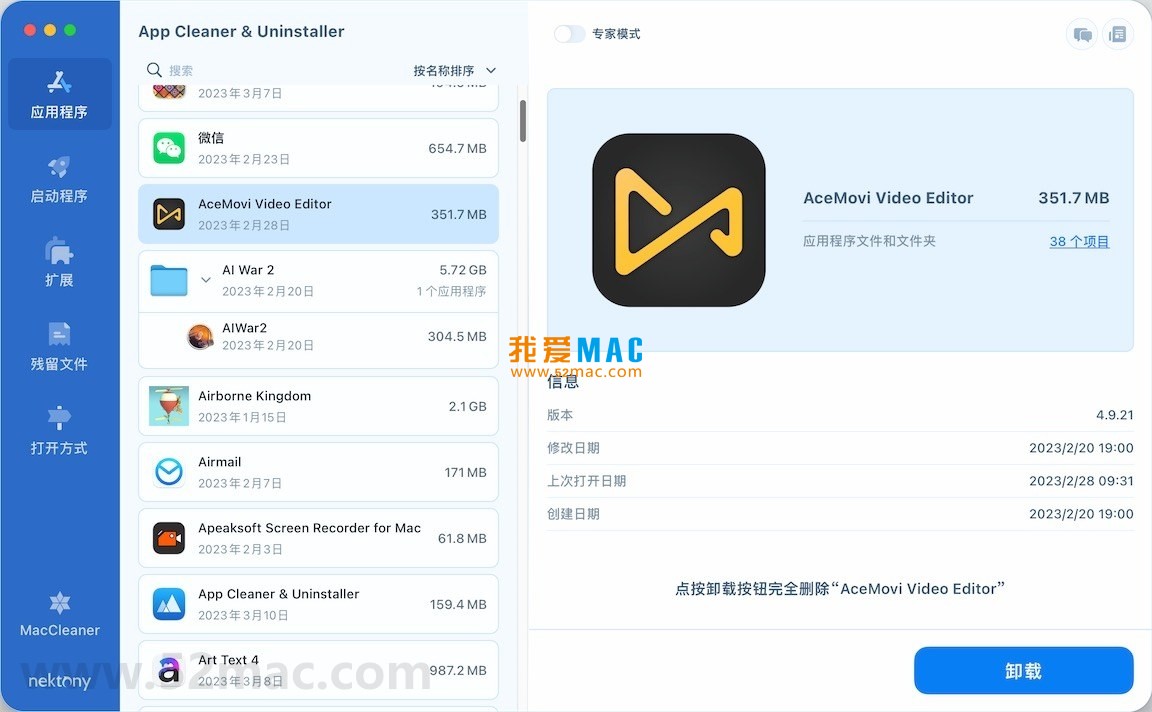


App Cleaner & Uninstaller Pro for Mac v8.4.2 – Software Uninstaller Chinese Activated Version Download
This page provides App Cleaner & Uninstaller Pro for Mac v8.4.2 – Software Uninstaller Chinese Activated Version Download | 爱上MAC. It has been tested and is working. If you encounter invalid links or inability to install after downloading, please leave a comment to contact us.
App Cleaner & Uninstaller Pro is a professional-grade software uninstaller and system cleaner designed specifically for macOS. Its main function is to thoroughly remove applications and all their associated files and folders, effectively freeing up disk space and maintaining system stability. In addition, the software can deeply scan and clean useless files, redundant language packs, system caches, and more, comprehensively improving Mac performance.
In the macOS ecosystem, many users habitually drag application icons to the Trash when uninstalling software. This seemingly simple approach actually leaves behind a large number of residual files. These “digital junk” files accumulate over time, slowing down system response and taking up valuable storage space. App Cleaner & Uninstaller Pro was created to solve this pain point. It acts like a meticulous housekeeper, helping you wipe away every “footprint” of each application.
According to a review report from the well-known tech media MacWorld, Macs that have not cleaned up system residual files for a long time may experience a 15% to 20% decrease in running speed. Using a professional uninstaller can effectively avoid this situation. App Cleaner & Uninstaller Pro stands out among similar software with its deep scanning algorithm, making it a capable assistant for maintaining Mac health.
The traditional drag-to-Trash method cannot completely delete residual service files of applications. This tool can:
For example, when you uninstall Adobe series software, manual deletion often leaves a large number of cache and configuration files in the “Library” folder. App Cleaner & Uninstaller Pro precisely locates these “escaped fish” and removes them with one click, restoring your Mac to a clean state.
Too many startup programs slow down system boot speed and overall performance. With this feature, you can:
Many users find that their Mac boots slower and slower, often because there are too many background startup items. For example, WeChat, Tencent Meeting, Thunder, and other software are set to launch at startup by default. In the “Startup Items” module of App Cleaner & Uninstaller Pro, you can see all startup programs at a glance and easily disable unnecessary ones, bringing boot speed back to its peak.
Provides centralized management of system-level extensions, including:
Although browser extensions are convenient, too many or malicious extensions can severely slow down web page loading speed and even leak privacy. With this tool, you can easily manage those extensions hidden deep in the system, just like cleaning up your desktop, ensuring system security and stability.
Specialized scanning and cleaning of remaining files from deleted applications and corrupted service files, thoroughly freeing up disk space. This feature is very practical for users who frequently install and uninstall software, helping you recover “hidden” storage space.
Easily modify the default opening program for specific file types in macOS, and intuitively manage the association between files and applications. For example, when you don’t want to use the system’s built-in Preview to open images but want to use Photoshop by default, this feature comes in handy.
Core Value: App Cleaner & Uninstaller Pro is not just an uninstaller, but a comprehensive macOS system maintenance solution that helps users keep their computers clean and efficient.
To ensure you can smoothly use App Cleaner & Uninstaller Pro v8.4.2, here is a detailed installation step guide. Please follow the order strictly to avoid unexpected issues.
First, obtain the installation package from the download link provided on this page. It is recommended to use Safari or Chrome browser for downloading. After downloading, do not rush to double-click open it; first check whether the file size is complete to avoid corruption during download.
The downloaded file is usually a .dmg disk image file. Double-click the file, and the system will automatically mount a virtual disk. At this point, you will see a new disk icon on the desktop containing the application installer.
This is the most classic installation method for Mac software. Drag the “App Cleaner & Uninstaller Pro” icon in the disk window with the mouse onto the “Applications” folder icon next to it. The system will automatically complete the copying process.
Open the “Applications” folder, find and double-click App Cleaner & Uninstaller Pro. On first launch, macOS may prompt “Cannot verify developer.” This is the Gatekeeper protection mechanism at work; don’t worry. At this point, go to “System Preferences” -> “Security & Privacy” -> “General” and click the “Open Anyway” button.
After the software starts, it will enter the main interface. Find the “Activate” or “Register” option in the menu bar. Enter the activation code provided on this page (usually in the accompanying documentation included in the download) and click the “Activate” button. After success, the software will display “Activated” status, and all features can be used without restrictions.
After successful activation, it is recommended to perform a full disk scan first. Click the “Scan” button on the interface, and the software will automatically detect all cleanable residual files and uninstallable applications in the system. After scanning is complete, you can selectively clean as needed.
In the process of using a Mac, mastering some common shortcuts can greatly improve work efficiency. Below is a carefully organized shortcut table covering high-frequency scenarios in daily operations.
| Function Category | Shortcut Combination | Function Description |
|---|---|---|
| System Operations | Command + Q | Quit the current application |
| Command + Option + Esc | Force quit applications (similar to Windows Task Manager) | |
| Command + Shift + 3 | Capture full screen and save to desktop | |
| File Management | Command + C | Copy selected files |
| Command + V | Paste files | |
| Command + Delete | Move files to Trash | |
| Text Editing | Command + Z | Undo the previous action |
| Command + F | Find content in a document | |
| Command + A | Select all content | |
| Browser | Command + T | Open a new tab |
| Command + W | Close the current tab | |
| Window Management | Command + M | Minimize the current window |
| Command + H | Hide the current application window |
To help you better use App Cleaner & Uninstaller Pro, we have compiled 8 of the most common questions and answers.
Answer: This is usually because the application you uninstalled itself does not take up much space, or the residual files cleaned are relatively small. It is recommended that you use the software’s “Clean Residual Files” feature for a full disk scan. Sometimes you will find a large number of system caches and temporary files, which are the real “big consumers” of space.
Answer: No need to worry at all. App Cleaner & Uninstaller Pro’s scanning mechanism is very intelligent; it only identifies residual files related to uninstalled applications. Before deletion, the soft
This resource requires login to download
Log in
DaisyDisk for Mac v4.11 Find Useless Files Chinese Activated Version Download
Downloads:2779 | 2026-10-17

Sensei for Mac v1.4.2 Software and Hardware Optimization Tool Chinese Activated Version Download
Downloads:1580 | 2026-10-17
Sensei for Mac v1.5.4 Software and Hardware Optimization Tool Chinese Activated Version Download
Downloads:1229 | 2026-10-17

App Cleaner & Uninstaller Pro for Mac v8.2.4 Software Uninstaller Chinese Activated Version Download
Downloads:3118 | 2026-10-17


Ratings & reviews
No rating
Let’s rate it.