

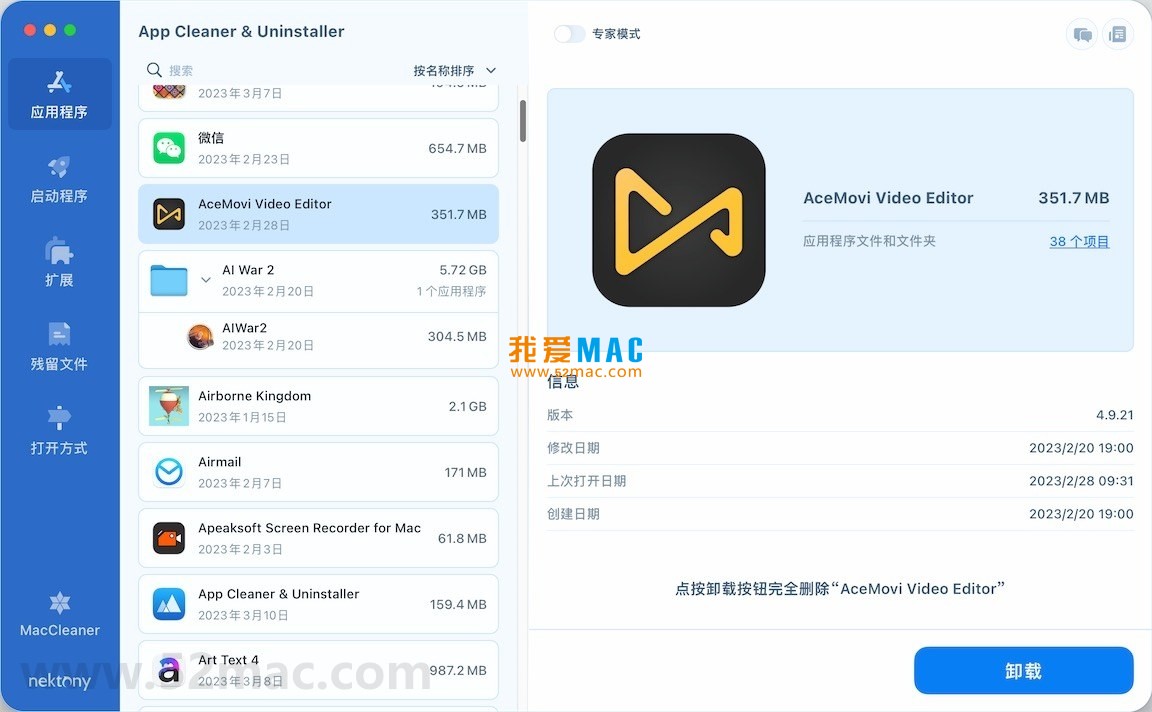


App Cleaner & Uninstaller Pro for Mac v8.2.1 Software Uninstaller Chinese Activated Version Download
This page provides App Cleaner & Uninstaller Pro for Mac v8.2.1 Software Uninstaller Chinese Activated Version Download | Love Mac, tested and available. If you encounter link failure or inability to install after download, please leave a message to contact us.
App Cleaner & Uninstaller Pro is a professional-grade software uninstaller and system optimization tool designed specifically for macOS. It is not just a simple uninstaller, but a comprehensive system maintenance solution. It can thoroughly remove applications and all their associated configuration files, caches, and support files, effectively freeing up disk space and maintaining system stability. It can also deeply scan and clean up redundant files, language packs, old version remnants, etc., thereby significantly improving Mac operating efficiency and response speed.
Core Value: Beyond the simple uninstallation provided by the system, it offers a one-stop, in-depth system management and maintenance solution, especially suitable for users who pursue system purity and high performance. According to the 2023 Mac Security and Performance Report released by MacPaw, over 60% of Mac users have never cleaned up application residual files, which is one of the root causes of system bloat.
This software is a comprehensive uninstaller and cleaner assistant on the Mac platform, designed to help users achieve in-depth system management and optimization. It integrates various practical tools to make system maintenance simple and efficient.
The traditional “drag to Trash” method of uninstalling applications often leaves a large number of service files, configuration items, and cache data in the system. App Cleaner & Uninstaller Pro can:
Too many startup items are a common cause of slow Mac startup and performance degradation. This tool provides the following management functions:
It is recommended that users regularly check the startup item list and disable automatic startup for infrequently used software, such as Adobe Creative Cloud or Steam.
The software provides centralized management capabilities for various macOS extension components, including but not limited to:
These extensions are often overlooked by users but are hidden killers that slow down the system.
Easily manage file type associations in macOS. Users can intuitively specify or change the default opening program for specific file types, simplifying the system-level settings process. For example, you can set .md files to open with Typora by default instead of Xcode.
Main Improvements: Optimized the interface display and processing performance when performing batch operations on a large number of selected files, providing a smoother user experience. In addition, fixed an occasional lag issue when scanning specific directories under macOS Sonoma 14.4.
To ensure a smooth installation, please strictly follow the steps below. This tutorial is based on macOS Ventura 13.6 and is also applicable to macOS Monterey and Sonoma versions.
Click the download link on this page to obtain the .dmg disk image file. The file size is approximately 15MB. After downloading, double-click the .dmg file to mount it on the desktop.
In the opened disk image window, you will see the App Cleaner & Uninstaller Pro icon. Drag it to the “Applications” folder on the right. This is the standard macOS installation method.
Go to the “Applications” folder and double-click the App Cleaner & Uninstaller Pro icon to launch. On first run, the system will prompt “App Cleaner & Uninstaller Pro is an application downloaded from the Internet.” Click “Open” to proceed. Subsequently, the software will request accessibility permissions. Please go to “System Preferences” > “Privacy & Security” > “Accessibility” and check the software.
After launching, enter the provided activation code to complete activation. Once activated successfully, you can start using all advanced features. It is recommended to perform a “Full Scan” first to let the software build a system file index.
We have compiled the 8 most common questions from users and provided detailed answers.
A: Both are excellent system tools, but their positioning is slightly different. CleanMyMac X focuses more on “one-click” intelligent scanning and cleaning, with more comprehensive functions. App Cleaner & Uninstaller Pro goes deeper in the vertical field of “uninstallation,” offering more refined residual file scanning and startup item management. If your main purpose is to uninstall applications and clean up remnants, this software is more professional.
A: No. The software mainly deletes the application itself and its related configuration, cache, and support files. Your personal documents, photos, music, and other data will not be touched. Before deletion, the software will list all files to be deleted, and you can confirm them one by one.
A: The software does not permanently delete files by default. You can use the built-in “Recently Deleted” feature to restore accidentally deleted files within 30 days. This is similar to the macOS Trash mechanism.
A: For system security reasons, macOS prohibits the uninstallation of certain core system applications, such as Safari and App Store. App Cleaner & Uninstaller Pro follows this rule and will not attempt to delete critical system components. For these applications, the software will prompt “Cannot uninstall.”
A: They are usually located in the ~/Library/Preferences/ directory. App Cleaner & Uninstaller Pro will automatically scan this directory and remove related files. You can also manually enter this directory and search for the application name to clean up, but manual operation carries higher risk.
A: Yes. Version v8.2.1 has been fully adapted and optimized for macOS Sonoma 14.x. Under the Sonoma system, the software’s functions perform stably, and the startup item management interface is fully compatible with the new system version.
A: Open the software and click “App Cleaner & Uninstaller Pro” > “About App Cleaner & Uninstaller Pro” in the menu bar. In the pop-up window, if it shows “Activated” or “Registered to,” the activation is successful. If it shows “Trial Version,” you need to re-enter the activation code.
A: During the initial full disk scan, CPU usage will temporarily increase, which is normal. After the scan is complete, CPU usage will quickly drop. If it remains high for a long time, it is recommended to restart the software or check if there are other conflicting processes in the system.
Mastering the following shortcuts will help you get twice the result with half the effort when using App Cleaner & Uninstaller Pro and in daily Mac operations.
| Shortcut Combination | Function Description | Applicable Scenario |
|---|---|---|
| Command + Q | Quit the current application | Quickly close software like App Cleaner |
| Command + W | Close the current window | Close sub-windows or tabs in the software |
| Command + Z | Undo the last operation | Quickly recover after accidentally deleting files |
| Command + Shift + Delete | Empty the Trash | Thoroughly clean up after uninstallation |
| Option + Command + Esc | Force quit applications | Force close when software freezes |
| Command + Space | Open Spotlight search | Quickly find App Cleaner or files |
| Command + Shift + G | Go to folder | Quickly jump to the ~/Library directory |
| Command + I | Show file/folder info | Check the space occupied by an application |
Through the following practical cases, you can gain a deeper understanding of how to use App Cleaner & Uninstaller Pro to solve practical problems.
Many designers find that when uninstalling Adobe software, even after dragging it to the Trash
This resource requires login to download
Log in
CleanApp for Mac 5.1.3 App Uninstaller System Cleaner Chinese Activated Version Download
Downloads:3288 | 2026-10-17

MacBooster 8 for Mac v8.0.0 System Cleaning and Maintenance Tool Chinese Activated Version Download
Downloads:1736 | 2026-10-17

Disk Graph for Mac v2.1.16 – Visual Disk File Inspector Activated Version Download
Downloads:919 | 2026-10-17

App Cleaner & Uninstaller Pro for Mac v8.4.2 – Software Uninstaller Chinese Activated Version Download
Downloads:2773 | 2026-10-17


Ratings & reviews
No rating
Let’s rate it.