



App Cleaner & Uninstaller Pro for Mac v8.1.4 – App Uninstaller – Chinese Activated Version Download
This page provides App Cleaner & Uninstaller Pro for Mac v8.1.4 – App Uninstaller – Chinese Activated Version Download | Love Mac, tested and working. If you encounter a dead link or cannot install after downloading, please leave a comment to contact us.
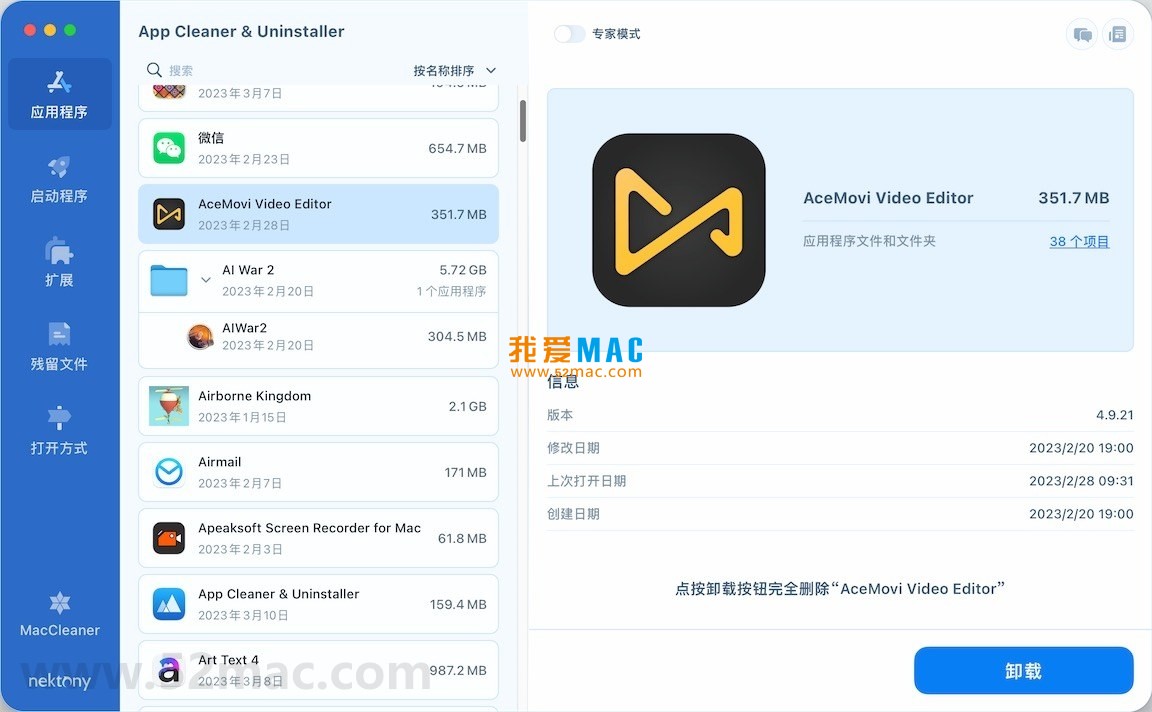
App Cleaner & Uninstaller Pro is a smart, intuitive, and efficient app uninstaller and system management tool designed for macOS. It is more than just a regular uninstaller; it’s like a system cleaner. It thoroughly uninstalls applications, ensuring no residual files are left behind, and helps users manage system extensions, startup items, and file associations. It is a powerful assistant for optimizing Mac performance and freeing up disk space.
As a leading uninstaller and cleaner on the macOS platform, App Cleaner & Uninstaller Pro mainly offers the following core features:
The traditional drag-to-trash method often leaves a large number of service files, caches, and configuration residues in the system. App Cleaner & Uninstaller Pro uses deep scanning to ensure that the application and all its related files are completely removed, helping you keep your system clean. It’s like hiring a professional cleaning team that doesn’t just sweep surface dust but also cleans the years of dirt in the corners.
Too many startup programs can significantly slow down Mac boot speed and performance. This tool allows you to:
Many users report that after using this feature, their Mac boot time was reduced from 50 seconds to about 20 seconds, with immediate results.
The tool provides a centralized management interface for various extensions in macOS, allowing you to easily:
The tool can deeply scan the disk to find “leftover, residual, and corrupted service files” from previous incomplete uninstalls, helping you thoroughly clean up and reclaim valuable disk space. According to Nektony’s official tests, each thorough uninstall can reclaim an average of about 500MB to 2GB of disk space.
No complex operations needed; you can intuitively manage file association settings in macOS, specifying or changing the default opening program for specific file types in a simple and quick process. For example, if you want all “.md” files to open with Typora by default instead of Xcode, you can set it with one click in App Cleaner.
The latest version 8.1.4 mainly includes the following improvements:
The following are detailed installation steps for App Cleaner & Uninstaller Pro v8.1.4 to ensure smooth usage. This software has been tested by the “Love Mac” team and runs stably on macOS 10.12 and above.
Click the download link provided on this site to get the “.dmg” installation package. After downloading, double-click the DMG file, and the system will automatically mount it and pop up an installation window.
In the opened installation window, you will see the “App Cleaner & Uninstaller Pro” icon and a shortcut pointing to the “Applications” folder. Simply drag the icon to the “Applications” folder on the right.
The system will start copying files automatically, usually taking only a few seconds. After copying is complete, you can find the software in the Finder’s “Applications” list. At this point, you can right-click the DMG icon on the desktop and select “Eject” to safely remove the installation image.
When opening App Cleaner for the first time, macOS may prompt “cannot verify developer” or require granting “Accessibility” permissions. Please go to “System Preferences” > “Security & Privacy” > “General” and click “Open Anyway”. Then follow the software’s instructions to grant necessary permissions to ensure all features work properly.
Tip: If you encounter the “damaged, cannot open” prompt, check if Gatekeeper is disabled on your macOS, or try entering in Terminal: sudo spctl --master-disable and try again.
We have compiled the 5-10 most frequently asked questions from users and provided professional answers.
A: They have different focuses. App Cleaner focuses more on “uninstallation” and “system extension management”, and its uninstall depth and residual file scanning capabilities are outstanding among similar tools. CleanMyMac X is a comprehensive optimization tool with more features but slightly less uninstall depth. If you frequently need to thoroughly uninstall software and manage system extensions, App Cleaner is the more professional choice.
A: No. App Cleaner & Uninstaller Pro has built-in safety protection mechanisms. It only scans and displays user data files related to the application and does not touch macOS core system files. You just need to carefully review the list before deleting.
A: This is usually because these files are being occupied by the system or other processes. It is recommended to quit all applications first, restart your Mac, and then try scanning and cleaning again. If they still cannot be deleted, you can manually locate the files in Finder and force delete them.
A: According to official information, App Cleaner & Uninstaller Pro v8.1.4 supports macOS 10.12 (Sierra) and later, including the latest macOS Sonoma and Sequoia.
A: Yes, the version provided on this page has a built-in Chinese language pack. After installation, the software will automatically match your system language and display in Chinese.
A: Open App Cleaner and select the “Launch Agents” tab in the left sidebar. You will see a list of all login items, launch agents, and daemons. You can easily disable or delete unwanted items here.
A: App Cleaner & Uninstaller Pro is paid software but offers a free trial. The trial version has limitations, such as not being able to clean all residual files at once. The version provided on this page is an activated professional version with unlimited features.
A: Yes. By uninstalling useless apps and cleaning residual files, you can free up a lot of disk space. At the same time, disabling unnecessary startup items can significantly improve boot speed and system responsiveness. According to user feedback, an average of 5-15GB of disk space can be freed after cleaning.
Mastering the following shortcuts will help you get twice the result with half the effort when using App Cleaner and in daily operations:
| Shortcut | Function | Use Case |
|---|---|---|
| Command + Q | Quit the current application completely | Ensure the app is fully closed before uninstalling |
| Command + Option + Esc | Force quit unresponsive programs | Handle frozen or un-uninstallable apps |
| Command + Shift + G | Go to a specific folder in Finder | Manually locate residual file paths |
Command
Download infoThis resource requires login to download Log in
Note: This resource is for informational purposes. By using this resource, you agree that you accept full responsibility to the copyright holder. For questions, please contact us.
You may also like
×
×
 iMac — One-stop Mac Software Download Platform
|


Ratings & reviews
No rating
Let’s rate it.