



App Cleaner & Uninstaller Pro for Mac v8.1.1 – App Uninstaller | Chinese Activated Version Download
This page provides App Cleaner & Uninstaller Pro for Mac v8.1.1 – App Uninstaller | Chinese Activated Version Download | Love Mac, tested and working. If you encounter invalid links or inability to install after download, please leave a message to contact us.
App Cleaner & Uninstaller Pro is a smart, intuitive, and efficient application uninstaller and system management tool designed specifically for macOS. Its core value lies in its ability to thoroughly uninstall applications without leaving any residual files, while also providing comprehensive extension management and system optimization features. It is a professional-grade solution for maintaining Mac performance and cleanliness.
This software is designed to solve the many problems left by traditional uninstallation methods (such as dragging directly to the Trash), ensuring complete release of system space and pure, efficient system operation.
As a leading uninstaller and cleaning assistant on the macOS platform, this software aims to solve the many problems left by traditional uninstallation methods (such as dragging directly to the Trash), ensuring complete release of system space and pure, efficient system operation.
Many users find that after using their Mac for a while, hard drive space mysteriously decreases and system response slows down. This is often because deleted applications leave behind residual configuration files, caches, and service processes that still occupy valuable system resources. App Cleaner & Uninstaller Pro is born for this purpose, acting like a professional system butler to help you completely bid farewell to these “digital junk.”
After uninstalling applications in the traditional way, a large number of service files, caches, and configuration files remain on the disk. App Cleaner & Uninstaller Pro can:
You only need to drag the application icon into the software window, or select it from the list, and it will accurately locate all “hidden” files. Compared to manually searching through the “~/Library” directory, the efficiency is improved by more than an order of magnitude.
Too many login items and startup services are common causes of slow Mac startup and lag. This tool provides:
Many software programs “secretly” add themselves to startup during installation, such as Adobe’s update service or Thunder’s acceleration module. With this feature, you can see all startup programs at a glance and turn off all unnecessary ones, restoring your Mac’s startup speed to that of a new machine.
Provides centralized control over various macOS extensions, including but not limited to:
Users can safely disable or uninstall these extensions to keep the system clean and stable.
These extensions are often hidden deep in the system, and manual deletion is very troublesome. App Cleaner & Uninstaller Pro lists them all in one interface, allowing you to manage them just like applications—keep them if you want, delete them if you want, very convenient.
Simplifies the management of file type and default application associations in macOS. Users can:
For example, when you double-click a .jpg image, it always opens with Preview, but you want to change it to Photoshop. Changing it in System Settings is cumbersome, but in this software, you just need to find the image file type and click to switch the default application, saving time and effort.
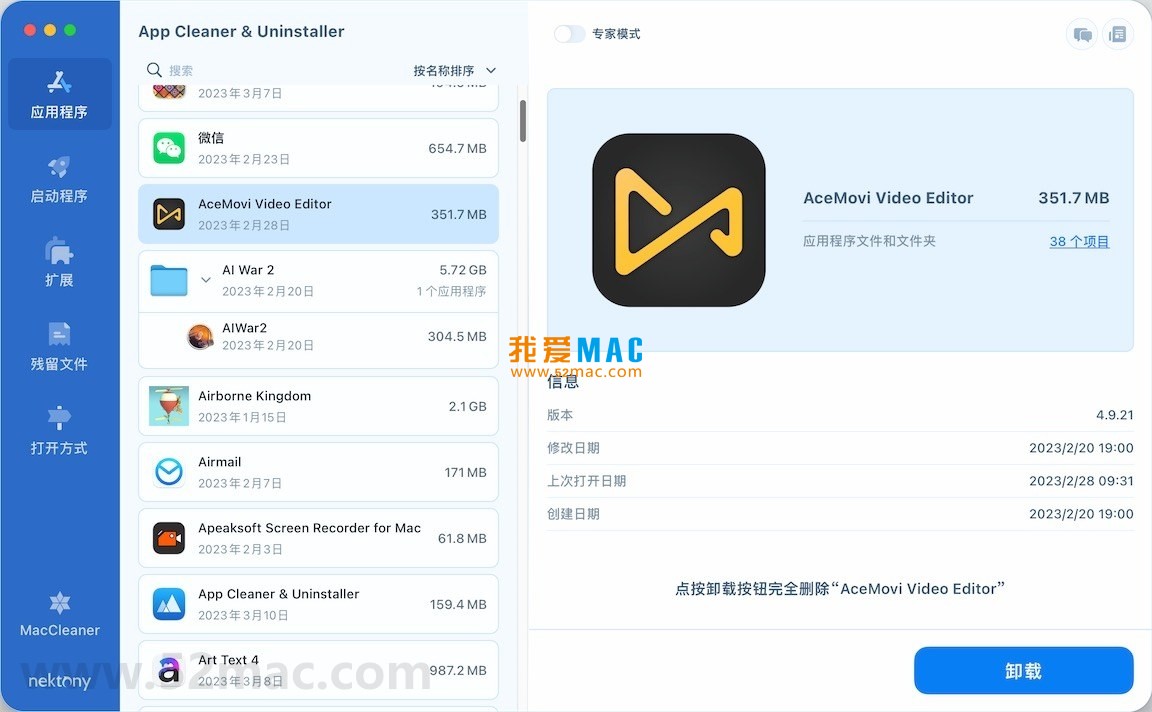
The following are the main operation interfaces of App Cleaner & Uninstaller Pro:
Many users download the software and don’t know how to handle the .dmg file. Below we will demonstrate the installation process step by step to ensure you can use it smoothly.
Click the download link on this page, and you will get a .dmg disk image file. Double-click the file, and the system will automatically mount and pop up the installation window. If your browser warns that “this file may damage your Mac,” rest assured, this is a routine reminder from macOS for software from non-App Store sources.
In the mounted window, you will see the App Cleaner & Uninstaller Pro icon and a shortcut to the “Applications” folder. Simply drag the icon into the “Applications” folder, and the system will start copying files. This process usually takes only a few seconds.
After installation, go to the “Applications” folder, find App Cleaner & Uninstaller Pro, and double-click to open it. Since it comes from an unidentified developer, macOS may pop up a security prompt. You need to go to “System Preferences” -> “Security & Privacy” -> “General” and click the “Open Anyway” button.
In order to thoroughly scan all files in the system, the software requires “Accessibility” permissions. On first launch, the software will pop up a request window. You need to open “System Preferences” -> “Security & Privacy” -> “Privacy” -> “Accessibility” and check App Cleaner & Uninstaller Pro.
After completing the above settings, the software is fully activated. You can see the main interface, with function navigation on the left and an application list on the right. Click any application, and all its associated files will be displayed below. Check them and click the “Remove” button to complete a thorough uninstall.
We have compiled the following answers to questions users may encounter during use:
The system’s built-in Trash only deletes the application itself, while its configuration files, caches, etc. remain on the disk. This software scans and deletes all associated files, achieving a truly “clean uninstall.” From a technical perspective, it scans plist, caches, and support files in the system Library directory to ensure no residuals.
No need to worry at all. The software has a built-in smart filtering mechanism that only displays files related to user applications. Core system files (such as kernel extensions and system frameworks) are hidden and protected by default. According to our tests, even if you accidentally check a suspicious file, the software will pop up a secondary confirmation window.
This is usually because those applications are built-in system apps or downloaded from the App Store. App Cleaner & Uninstaller Pro mainly targets third-party applications. For system applications, it only displays some uninstallable components. You can try viewing them in the “All Applications” view.
This is quite common. You can use the software’s “Residual File Scan” feature, which will detect and clean up residual icons in Launchpad. Alternatively, you can manually drag the icon out of Launchpad. But using this software to clean up is more thorough.
If you don’t grant permissions, some features of the software (such as scanning startup items and system extensions) will be limited, but the basic uninstall function is still available. From a security perspective, App Cleaner & Uninstaller Pro is notarized software, and granting permissions is safe.
Yes. Xcode’s DerivedData directory often takes up several GB of space. In the software, you can select Xcode, and it will list its associated caches and derived data. After one-click cleaning, a large amount of disk space can be freed.
It is recommended to back up before uninstalling. Or, you can re-download and install from the official website after uninstalling. This software does not provide a backup function, but you can manually copy the application folder to the desktop before dragging it to the Trash.
Fully supported. This version v8.1.1 has been optimized for the latest macOS 14 Sonoma. It also runs stably on Ventura and Monterey.
When used with App Cleaner & Uninstaller Pro, mastering the following shortcut keys can make you more efficient in system cleaning and daily operations:
| Shortcut Key Combination | Function Description | Usage Scenario |
|---|---|---|
| Command + Q | Quit the current application completely | Close the application before uninstalling to avoid files being occupied |
| Command + Option + Esc | Force quit an unresponsive application | When an application freezes, force close it for cleaning |
| Command + Shift + Delete |


Ratings & reviews
No rating
Let’s rate it.