



VMWare Fusion for Mac 7.0.0 Virtual Machine Software Activated Version Download Note System Requirements
This page provides VMWare Fusion for Mac 7.0.0 Virtual Machine Software Activated Version Download Note System Requirements | Love Mac, tested and working. If you encounter a dead link or cannot install after downloading, please leave a comment to contact us.
VMware Fusion 7 for Mac is optimized for the new generation of Mac hardware, fully supports OS X Yosemite 10.10 and Windows 8.1 operating systems, and provides users with an excellent Windows virtualization experience on the Mac platform. (Please note system compatibility requirements)
VMware Fusion® 7 is the most convenient, efficient, and stable solution for running Windows applications in a macOS environment. Users can directly invoke Windows applications without rebooting the system, making it particularly suitable for new and long-time Mac users who need continuous access to specific Windows software. According to actual tests, the software performs excellently in resource allocation and keeps the host running smoothly.
With the built-in Fusion PC Migration Assistant, users can easily migrate their entire PC environment to Mac, protecting their original software investment. This feature allows users to directly access Windows applications and old PC files as needed, fully leveraging the advantages of both macOS and Windows. The migration process requires almost no manual intervention and ensures high data integrity.
Supports running Windows and macOS applications simultaneously without system restart. Whether it’s Windows XP, Windows 7, or Windows 8.1, they can be quickly deployed through the quick installation feature. Compatible with Windows-only applications such as Microsoft Project, Access, and Internet Explorer, greatly expanding the practicality and compatibility of the Mac. This feature is especially friendly to designers and programmers.
VMware Fusion 7 greatly simplifies the process of using Windows applications on Mac, providing out-of-the-box seamless integration features:
Supports OS X Yosemite and Windows 8.1
Near-Native Performance
Powerful Virtual Machine Configuration
Improved Operating Efficiency
Retina Display Optimization
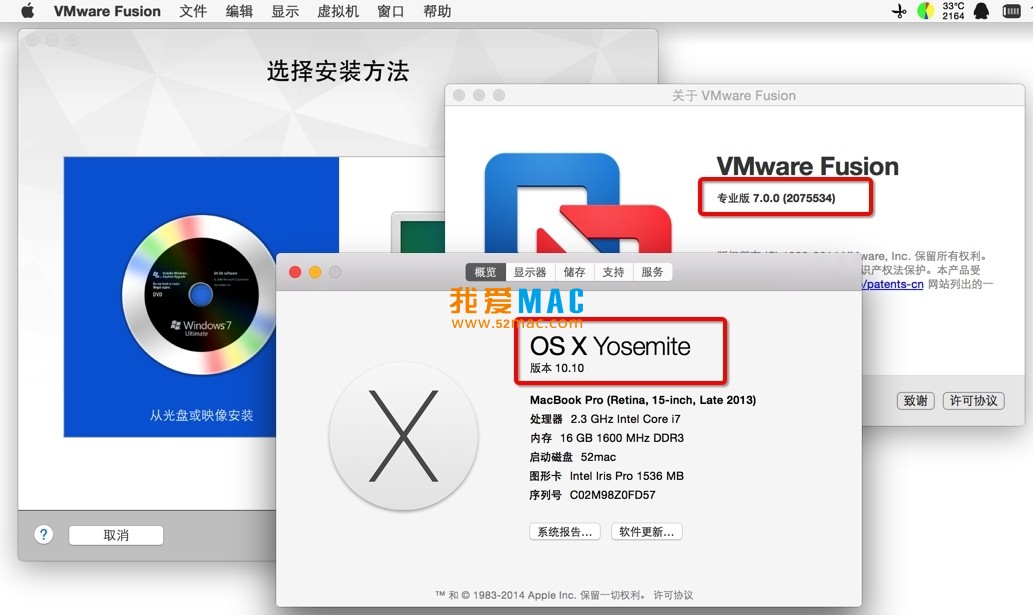
The following are actual installation screenshots of VMware Fusion 7.0.0 in macOS 10.10 Yosemite system:
First, please ensure your Mac system version is OS X Yosemite 10.10 or higher. After downloading, double-click the .dmg installer package, and the installer window will pop up. It is recommended to close all unnecessary applications before installation to ensure a smooth installation process.
Step 1: Double-click the “VMware Fusion.app” icon in the installer, and the system will prompt whether to allow opening. Click “Open” and the installation wizard will start automatically.
Step 2: Read and agree to the software license agreement. Click “Agree” and select the installation location. The default installation is in the “Applications” folder, and it is recommended to keep the default.
Step 3: Enter your Mac administrator account password to authorize installation. The installation process takes about 2-5 minutes, depending on the Mac configuration.
Step 4: After installation is complete, the system will automatically launch VMware Fusion. On first run, it will prompt for a license key. Enter a valid activation code and click “Continue” to complete activation.
After activation, you can see the “New Virtual Machine” option in the main interface. Click it to choose from a disc, image file, or migrate a PC environment. It is recommended to create a test virtual machine first to verify whether the software runs properly. If you encounter problems, please check whether the system version is within the supported range.
Usually because the system version is incompatible. VMware Fusion 7 only supports OS X Yosemite 10.10 and above. Please check your macOS version and upgrade the system if necessary.
You can try adjusting the virtual machine configuration. It is recommended to allocate at least 2 GB of memory and 2 virtual CPUs to the virtual machine. Also ensure that the Mac itself has enough free resources and close unnecessary background programs.
VMware Fusion 7 uses NAT mode by default. If the virtual machine cannot connect to the network, you can check the Mac’s network status. In the virtual machine settings, switching the network adapter to “Bridged Mode” usually solves the problem.
This is usually because VMware Tools is not installed. Click “Install VMware Tools” in the virtual machine menu, and mouse operation will become smooth after restarting. This tool can also improve graphics performance and clipboard sharing.
Use the built-in “Fusion PC Migration Assistant”. Connect the PC to the same local network, select “Migrate from PC” on the Mac side, and follow the wizard. The entire process is automatic and requires no manual configuration.
Officially supports Windows XP, Windows 7, Windows 8, and Windows 8.1. Some versions of Windows 10 can also run, but may require manual compatibility settings adjustment. It is recommended to use 64-bit versions for best performance.
Simply move VMware Fusion.app from the “Applications” folder to the Trash. It is recommended to also delete the configuration files in the ~/Library/Preferences/VMware Fusion directory for thorough cleanup.
Yes, but it will consume a large amount of system resources. It is recommended that the Mac has at least 8 GB of memory. When running multiple virtual machines, do not allocate more than 2 GB of memory to each virtual machine, otherwise the host may become sluggish.
Please ensure that the USB controller is enabled in the virtual machine settings. If it still cannot be recognized, try unplugging and re-plugging the USB device. Some older devices may require additional drivers.
VMware Fusion 7 supports snapshot functionality. Click “Take Snapshot” in the virtual machine menu to save the current state. It is recommended to take a snapshot before installing important software for easy rollback at any time.
The following table summarizes common Mac shortcut keys used in VMware Fusion 7 virtual machines. These shortcuts can significantly improve operational efficiency and are recommended for bookmarking.
| Shortcut Key Combination | Function Description | Applicable Scenario |
|---|---|---|
| Command + C / V | Cross-system copy and paste | Transfer text or files between Mac and Windows |
| Command + Tab | Switch applications | Quickly switch between macOS and Windows applications |
| Command + Option + Enter | Toggle full-screen mode | Expand the virtual machine window to full screen |
| Command + Option + F | Toggle Unity mode | Integrate Windows applications into the Mac desktop |
| Command + Shift + 3 | Screenshot function | Quickly capture the screen in the virtual machine |
| Command + Option + Esc | Force quit | Close unresponsive Windows applications |
| Control + Command + F | Full-screen/window toggle | Adjust application display mode in Unity mode |
| Command + Option + Left/Right Arrow | Switch virtual machines | Quickly switch focus in a multi-virtual machine environment |
First, ensure that the latest version of VMware Tools is installed. This toolset can significantly improve graphics performance and mouse response speed. Second, allocate enough memory to the virtual machine. It is recommended to
This resource requires login to download
Log in
VMWare Fusion Pro for Mac 7.1.0 Chinese Activated Version Download | VM Virtual Machine Software
Downloads:3509 | 2026-10-17
VMWare Fusion Pro for Mac v11.5.6 VM Virtual Machine Chinese Activated Version Download
Downloads:1850 | 2026-10-17

CrossOver for Mac v21.2 Run Windows Software on Mac Without Virtual Machine_CrossOver Mac Download Activated Version
Downloads:2617 | 2026-10-17

Parallels Desktop 18 for Mac v18.1.1 PD Virtual Machine Chinese Activated Version Download
Downloads:224 | 2026-10-17


Ratings & reviews
No rating
Let’s rate it.