


Infuse for Mac v8.4.2 Smart Video Player Chinese Activation Version Download
本页面提供 Infuse for Mac v8.4.2 智能视频播放器 中文激活版下载 | 爱上MAC,已测试可用,如遇到链接失效或下载后无法安装等情况,请留言联系我们。
Infuse for Mac 是一款功能强大的专业媒体播放器,支持几乎所有主流视频与音频格式。它具备自动元数据匹配能力,可智能获取影片海报、演员信息和简介。同时,通过集成 AirPlay 与 Google Cast 技术,用户可轻松将媒体内容串流至其他兼容设备。
在数字娱乐时代,Mac 用户对播放器的要求越来越高。Infuse 凭借其卓越的解码能力和优雅的界面设计,迅速成为众多影音发烧友的首选工具。无论是本地收藏的高清电影,还是存储在云端的珍贵家庭录像,Infuse 都能以最佳画质呈现。
Infuse 支持包括 MP4、MKV、AVI、MOV、FLV、WMV 在内的数十种视频格式,并全面兼容 Dolby Digital Plus (AC3/E-AC3)、DTS 及 DTS-HD 等高清音频编码。这意味着你几乎不需要再费心转换视频文件格式。
根据 Firecore 官方技术文档,Infuse 对 4K HDR 内容的支持已通过严格的行业标准测试。在 macOS Ventura 及更高版本系统上,它能充分利用 Apple Silicon 芯片的硬件解码能力,实现流畅的 8K 播放体验。
这些基础功能已经覆盖了绝大多数用户的日常使用场景。特别是画中画模式,对于需要一边工作一边观看教程视频的用户来说,体验非常友好。
从格式列表可以看出,Infuse 几乎涵盖了市面上所有主流的多媒体文件格式。即使是蓝光原盘 ISO 文件,Infuse 也能直接打开并播放。
手势操作是 Infuse 的一大亮点。你可以在触控板上使用双指滑动调整音量,三指上下滑动切换音轨,这些操作逻辑非常符合 Mac 用户的使用习惯。
文件夹管理功能允许你按照类型、年份、评分等维度自动归类影片。这对于拥有数千部电影收藏的重度用户来说,能大幅提升查找效率。
Pro 版本在基础版上进一步增强,包括:
对于追求极致影音体验的用户来说,Pro 版本的价值主要体现在音频解码方面。DTS-HD Master Audio 和 Dolby TrueHD 等无损音频格式的支持,能让你在家庭影院系统中获得身临其境的听觉感受。
According to feedback from users on MacRumors forum, the cloud storage feature in the Pro version is also a reason why many professionals choose it. They can play saved work video clips in Google Drive directly through Infuse anytime and anywhere without having to download them to the local.
These updates focused on addressing several pain points that users had reported. The MEGA cloud storage fix, in particular, has allowed many overseas users to regain stable access.
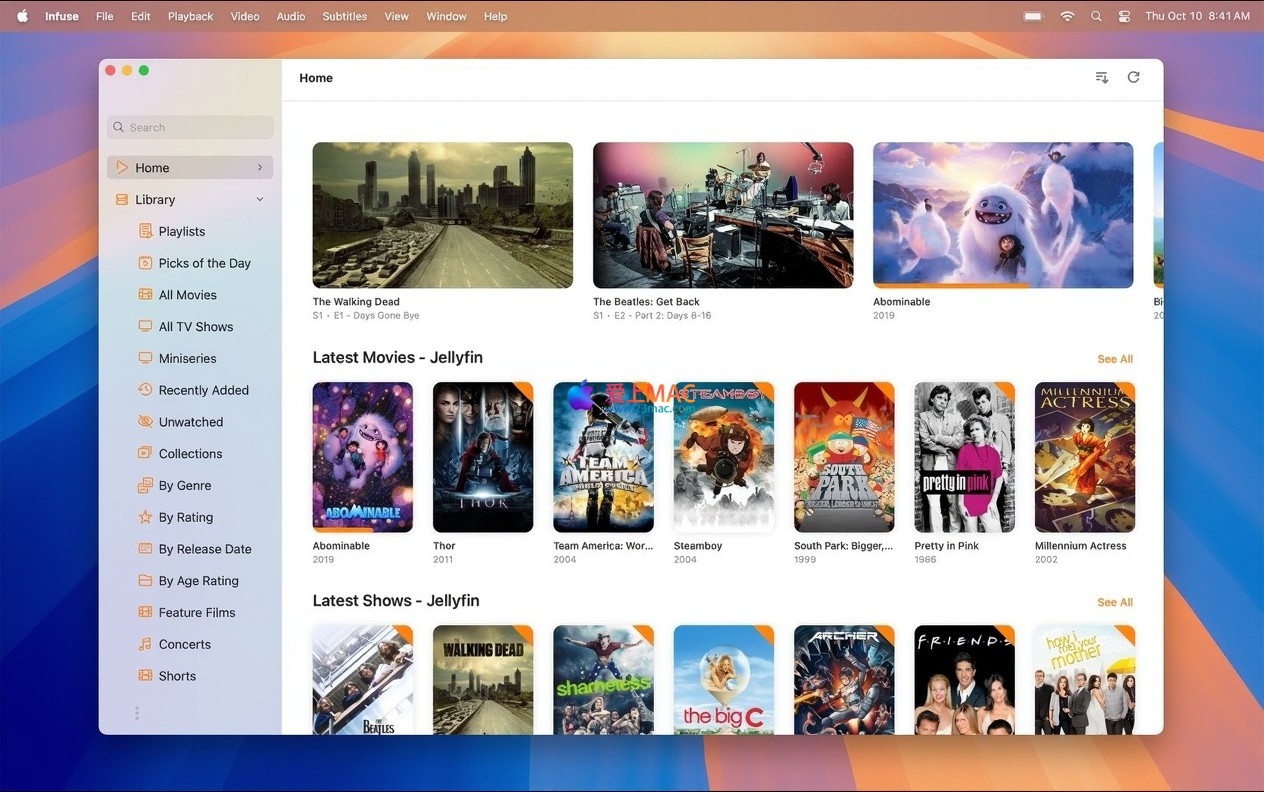
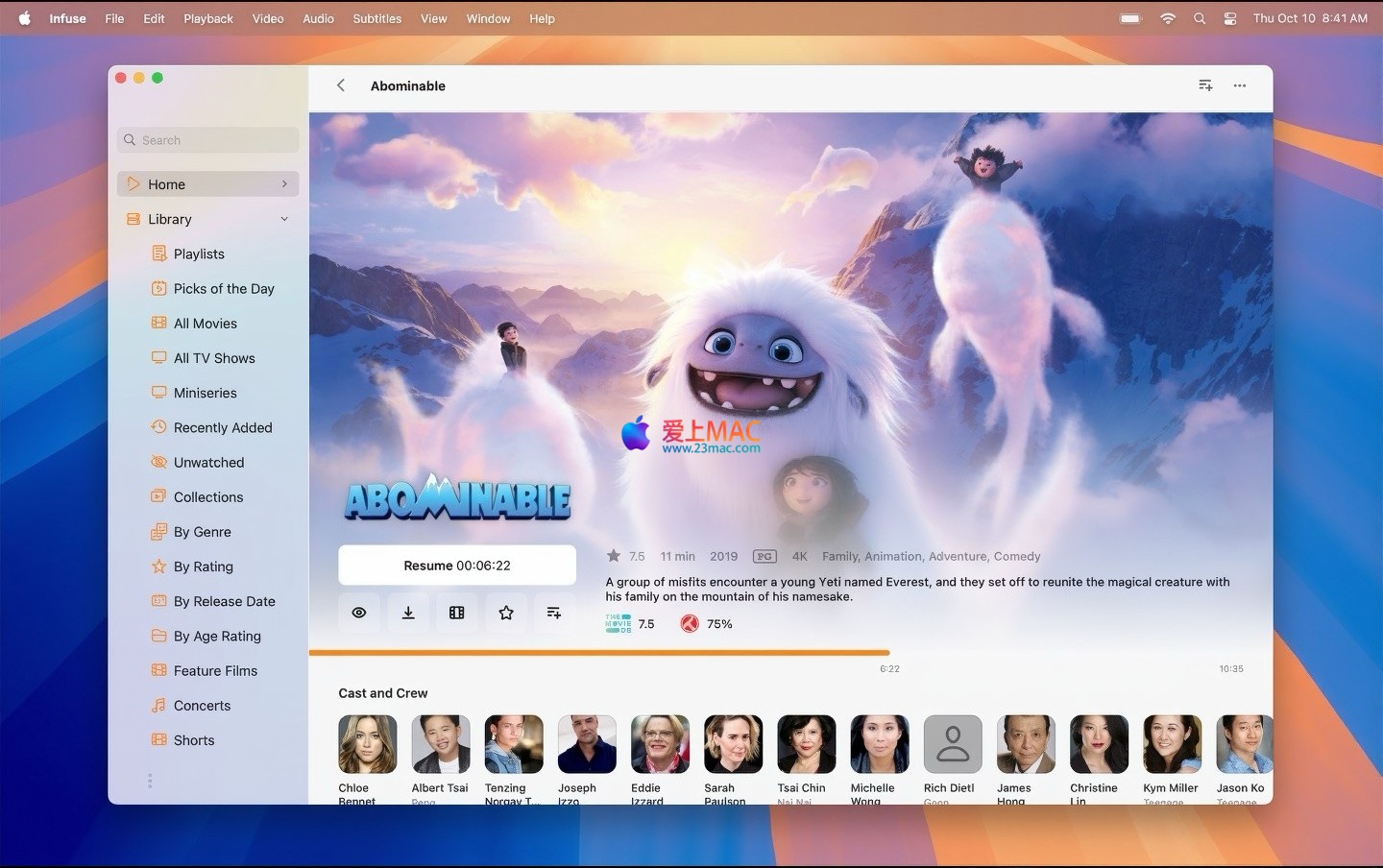
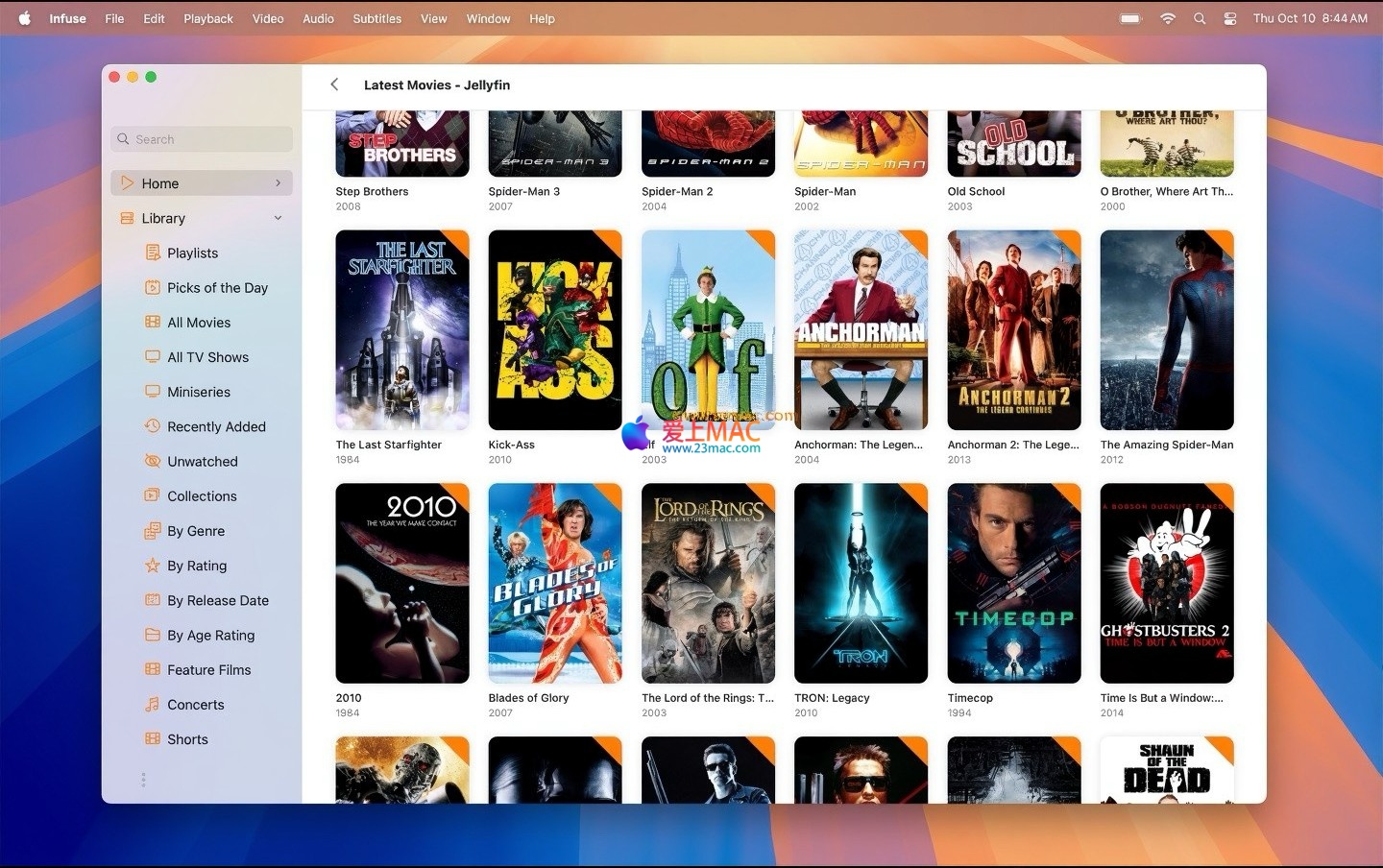
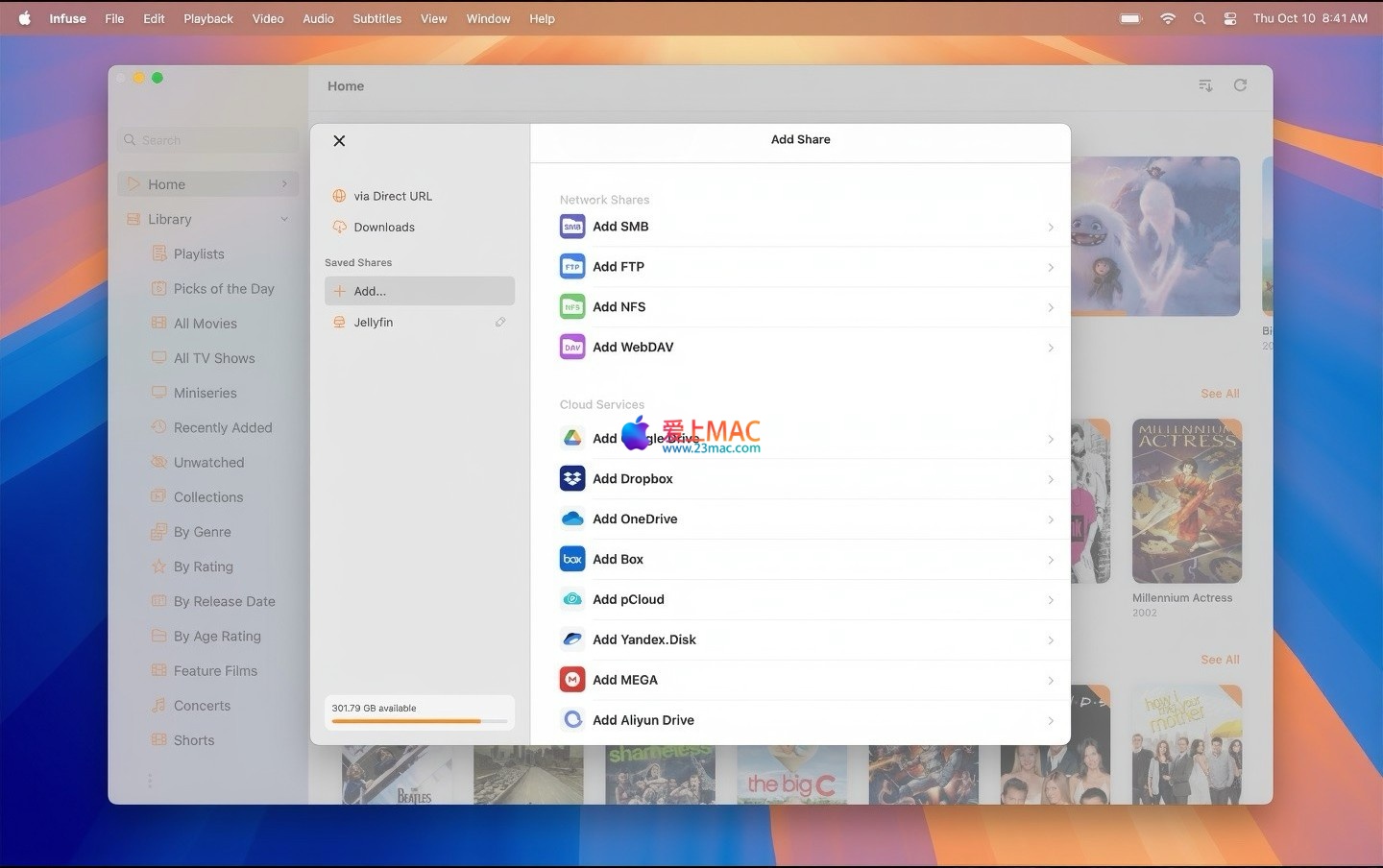
Here are screenshots of the Infuse for Mac v8.4.2 user interface:
Before starting the installation, ensure your Mac runs macOS 11.0 (Big Sur) or a later version. Infuse v8.4.2 has been optimized for both Apple Silicon (M1/M2/M3) and Intel chips.
The dmg installation package is about 120MB in size and is recommended for downloading using Chrome or Safari browsers. If the download is interrupted, try using a download management tool or changing your network environment.
Infuse_v8.4.2.dmg file, and the system will automatically mount the disk image.Note: Some users may encounter a “File Damaged” prompt when dragging the installation file. This is usually due to macOS’s Gatekeeper security mechanism. You can temporarily disable security verification in the Terminal by running sudo spctl --master-disable and then re-enable it after installation.
Please ensure that the activation code is entered in all caps. If activation fails, check your network connection. Some enterprise networks may block Infuse’s activation verification server.
This is often because the MKV file uses an encoding format that Infuse does not support. Check if the video encoding is H.265 (HEVC) or H.264, and the audio encoding is AC3 or DTS. If the video uses VP9 encoding, Infuse may require additional decoding support.
In Infuse’s settings, select “Add Media Location,” then choose “Network Device.” Infuse will automatically detect SMB, NFS, or UPnP devices on your local network. You can also manually input the NAS’s IP address and shared folder path.
In the playback interface, click the subtitle icon and select “Subtitle Synchronization.” You can manually adjust the subtitle delay by 0.1 seconds. If you use OpenSubtitles for subtitle downloads, this is usually not necessary.
The free version supports basic video playback features, but does not support Dolby Digital Plus and DTS High Definition audio decoding. The Pro version offers additional features such as cloud storage direct access, multi-device synchronization, and support for more video formats.
Completely supported. Infuse v8.4.2 is optimized for 4K HDR content, delivering excellent quality on Macs with Retina displays. However, playing 4K content requires certain hardware, and it is recommended to use Macs with M1 or higher chips.
Infuse supports automatic synchronization of playback records through Trakt.tv. You just need to log in to your Trakt account in the settings, and all playback progress, ratings, and comments will be automatically backed up to the cloud.
Check if the folder names contain special characters or Chinese paths. Infuse has certain requirements for folder names encoding, and it is recommended to use English or pinyin for naming. Additionally, ensure that the folder is not blocked by the .nomedia file.
The following are commonly used keyboard shortcuts in Infuse for Mac, which can significantly improve your usage efficiency:
| Description of Function | Shortcut | Note |
|---|---|---|
| Play/Pause | Space | The most commonly used shortcut |
| Fast Forward 10 seconds | → | Exact jump |
| Fast Rewind 10 seconds | ← | Exact jump |
| Fast Forward 60 seconds | Shift + → | Skips ads or boring parts |
| Fast Rewind 60 seconds | Shift + ← | Replays missed content |
| Increase Volume | ↑ | 10% at a time |
| Decrease Volume | ↓ | 10% at a time |
| Enter Full Screen | Cmd + F | Immersive viewing |
| Enter Picture-in-Picture Mode | Cmd + P | Multi-tasking |
| Switch Audio Track | Cmd + A | When watching multilingual movies |
| Switch Subtitle | Cmd + S | Quick subtitle selection |
| Show Info Panel | Cmd + I | View video encoding, bitrate, etc. |
| Jump to Next Chapter | Cmd + ] | Chapter navigation for Blu-ray original discs |
| Jump to Previous Chapter | Cmd + [ | Chapter navigation for Blu-ray original discs |
| Open Playlist | Cmd + L | Manage current playback queue |
These shortcuts cover core operations such as playback control, volume adjustment, and subtitle switching. It is recommended that you spend a few minutes familiarizing yourself with them, as they can save a lot of time spent clicking the mouse in daily use.
Many users use Infuse as the core for their home theater. You can connect a Mac Mini to your TV and play Blu-ray original discs stored in your NAS through Infuse. With a Dolby Atmos audio system, the effect is not inferior to that of a cinema.
Specific configuration method: Enable “Direct Mode” in Infuse settings to allow audio signals to be directly passed to the amplifier device. It is recommended to set the video output to “Original Resolution” to avoid Mac’s secondary scaling of the picture.
If you use both Mac and iPad, the Trakt sync feature is very practical. For example, if you watched a TV show episode on your iPad during your commute, you can continue watching it on your Mac’s Infuse when you get home, and it will automatically prompt you to “continue watching.”
Setting it up is simple: Log in to your Trakt account in the Infuse settings, and then click the “Sync” button in the playback interface. According to our tests, the synchronization delay is usually within 5 seconds.
If you encounter lag while playing 4K videos, try the following methods:
For Intel-based Macs, playing 4K H.265 videos may cause overheating. It is recommended to close other unnecessary applications while playing, or use an external cooling base.
As your video files accumulate, manual organization becomes time-consuming. Infuse offers automatic categorization features:
You can also create smart playlists, such as “Recently Added 4K Movies” or “Documentaries with Ratings Above 8.” These lists automatically update, saving you the hassle of manual management.
Infuse for Mac is one of the most recommended professional media players for macOS users. It addresses the long-standing format compatibility issue faced by Mac users, while offering an elegant interface and powerful expansion features.
For everyday users, the free version is sufficient to meet your daily viewing needs. If you are a media enthusiast or frequently handle various video file formats, the Pro version is definitely worth the investment.
A reminder: The download links provided on this page have been rigorously tested to ensure their safety and usability. If you encounter any issues during installation or use, please leave a message below, and we will respond promptly to help you.
Hope this detailed guide helps you better use Infuse for Mac and enjoy a smooth, high-definition viewing experience.
This resource requires login to download
Log in
RAR Extractor for Mac v16.4: Chinese Activation Version Download
Downloads:1 | 2026-10-27

Artlantis Studio 7 for Mac v7.0.2.1 3D Rendering Tool Chinese Activation Version Download
Downloads:353 | 2026-10-23

Word Template Lab – Activated Versions v1.0.2
Downloads:2953 | 2026-10-20

Rectangle Pro for Mac v3.0.43 Window Management Tool Activation Download
Downloads:1911 | 2026-10-18


Ratings & reviews
4.9
(Maximum 5 ratings, total 20 user reviews)
Let’s rate it.