

Infuse for Mac v8.4.1 Chinese Activation Version Download
Here is the page providing Infuse for Mac v8.4.1 Smart Video Player Chinese Activation Version Download | LoveMAC has tested and available, if you encounter issues with the download link or the installation after downloading, please leave a message to contact us. Infuse for Mac is a powerful and beloved media player application known for its outstanding format compatibility and smooth user experience. It can play almost all mainstream video and audio file formats seamlessly and automatically fetch and match the film metadata (such as posters, cast information, and summaries). Additionally, through the integration of AirPlay and Google Cast technologies, users can easily stream media content from Mac to other compatible devices.
Infuse supports including but not limited to the following formats:
Special native support for Dolby Digital Plus (AC3/E-AC3), DTS, and DTS-HD high-definition audio is provided.
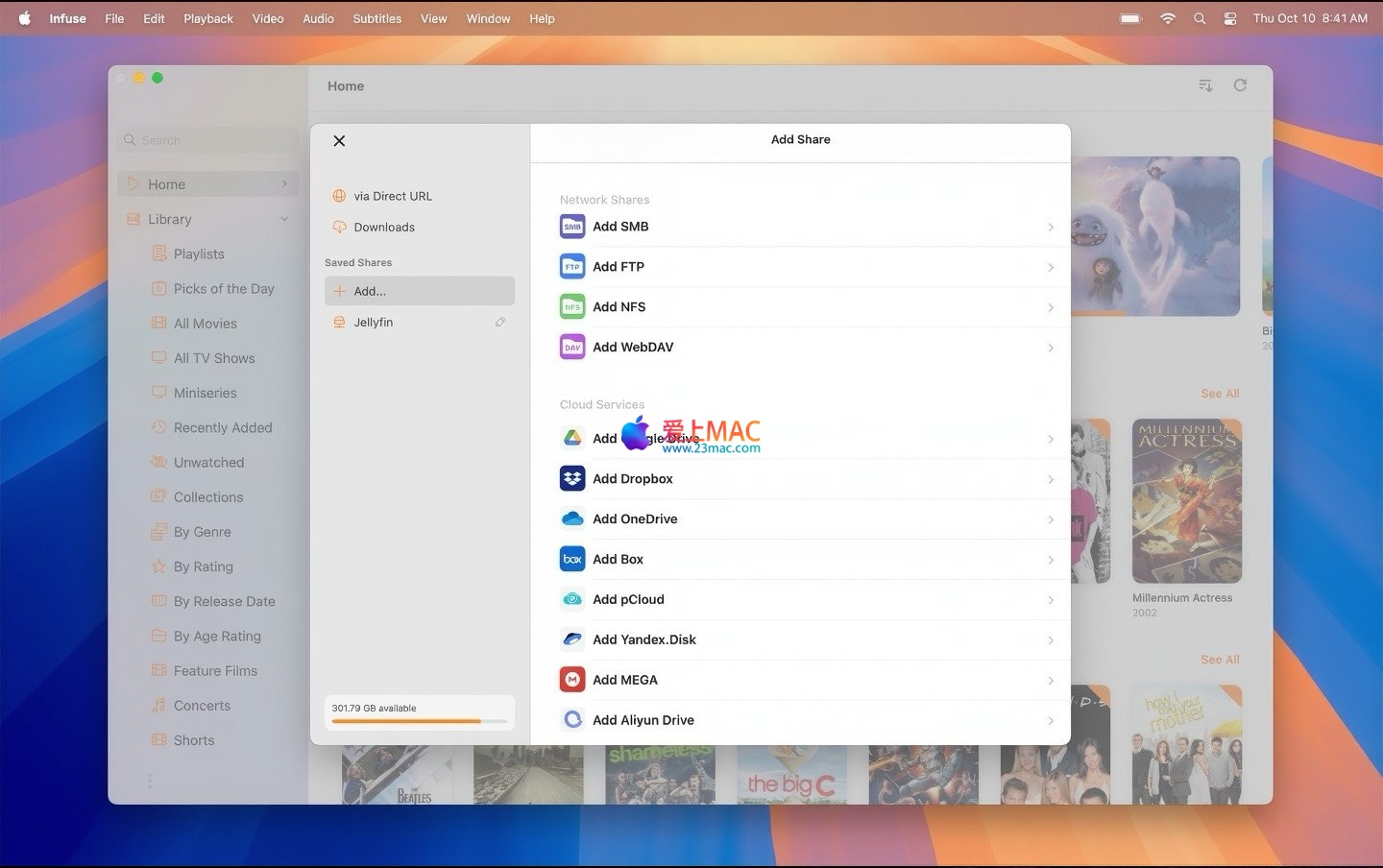
It can directly browse and play media content from various sources:
Upgrade to the Infuse Pro version to unlock the following advanced features:
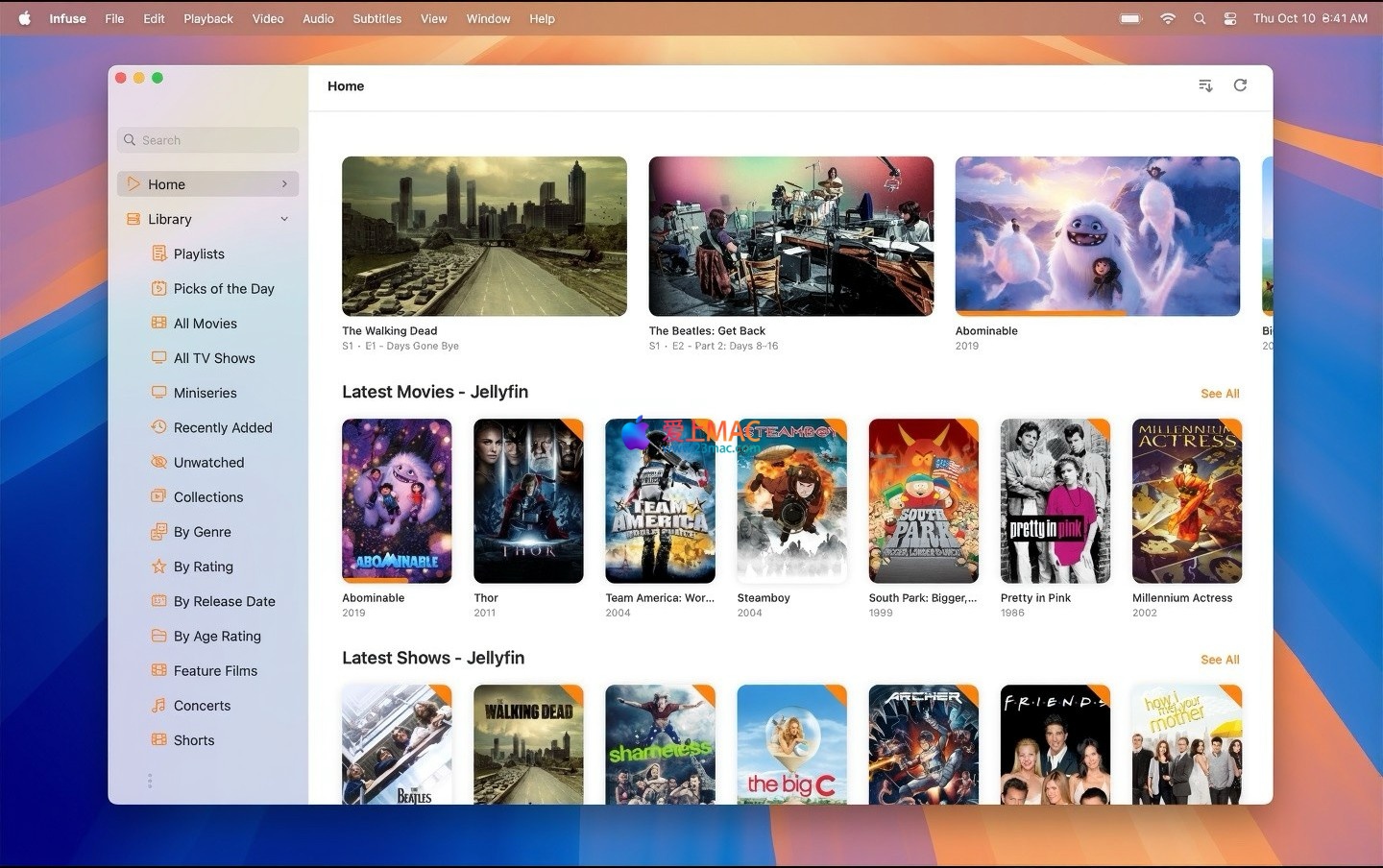
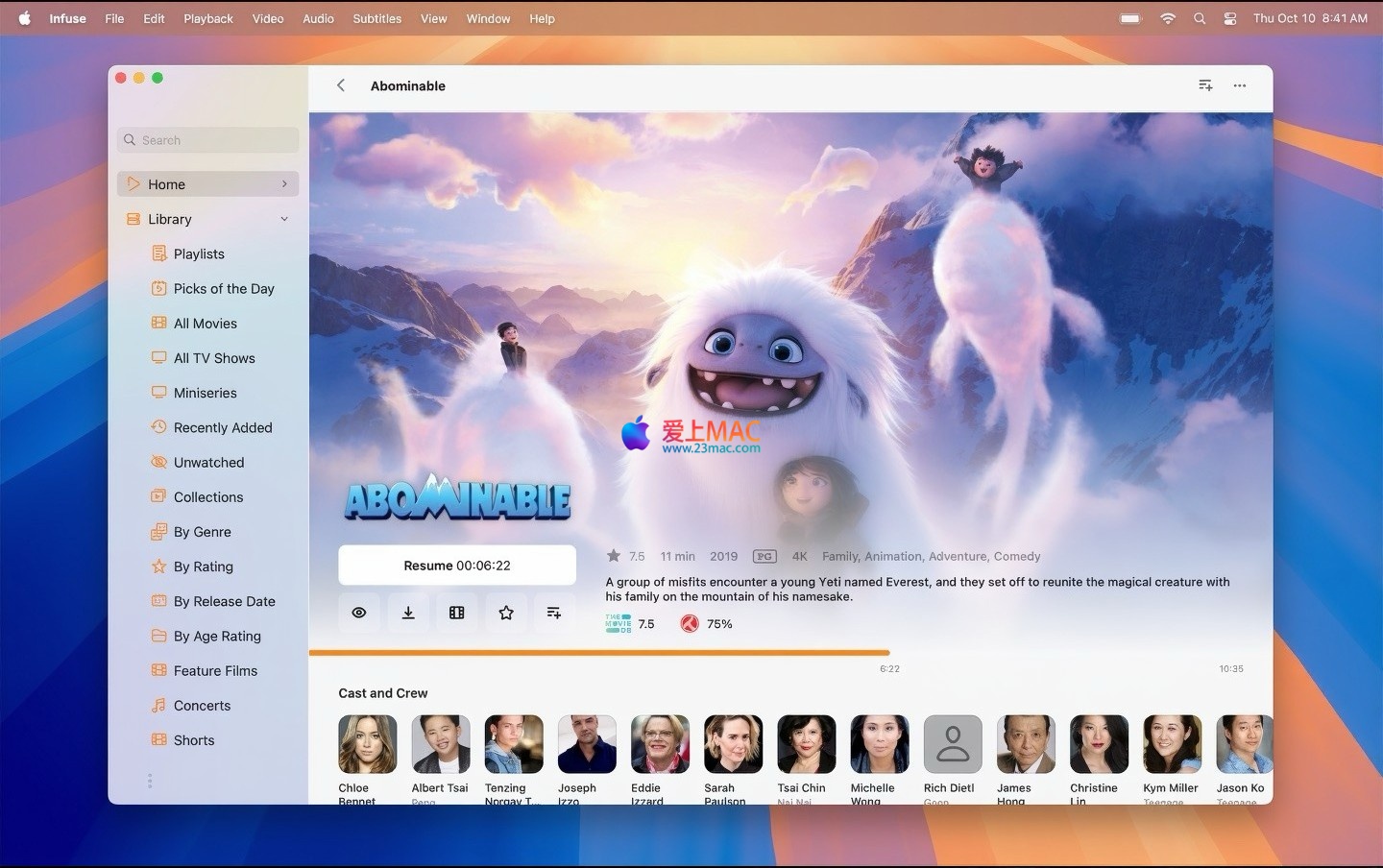
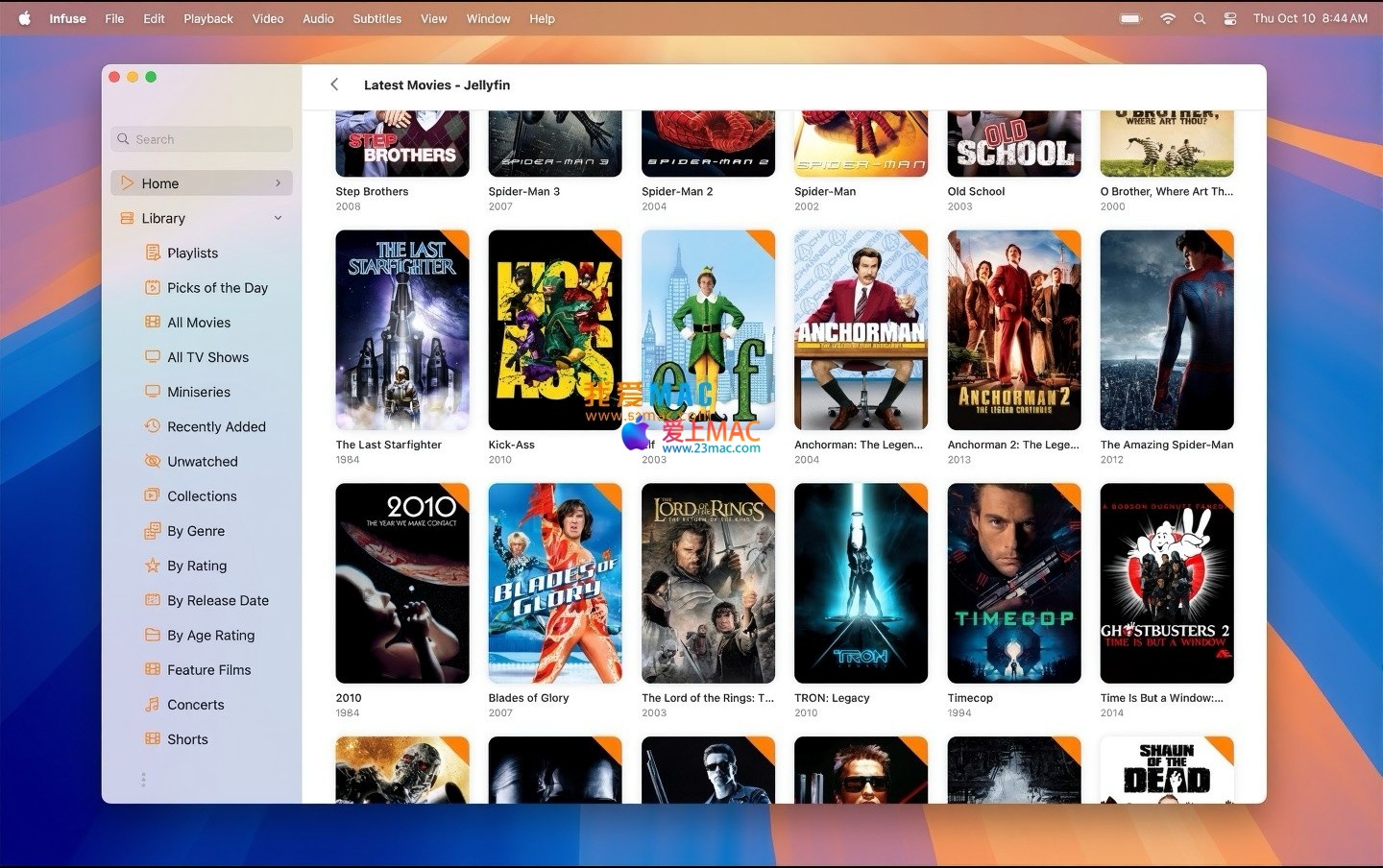
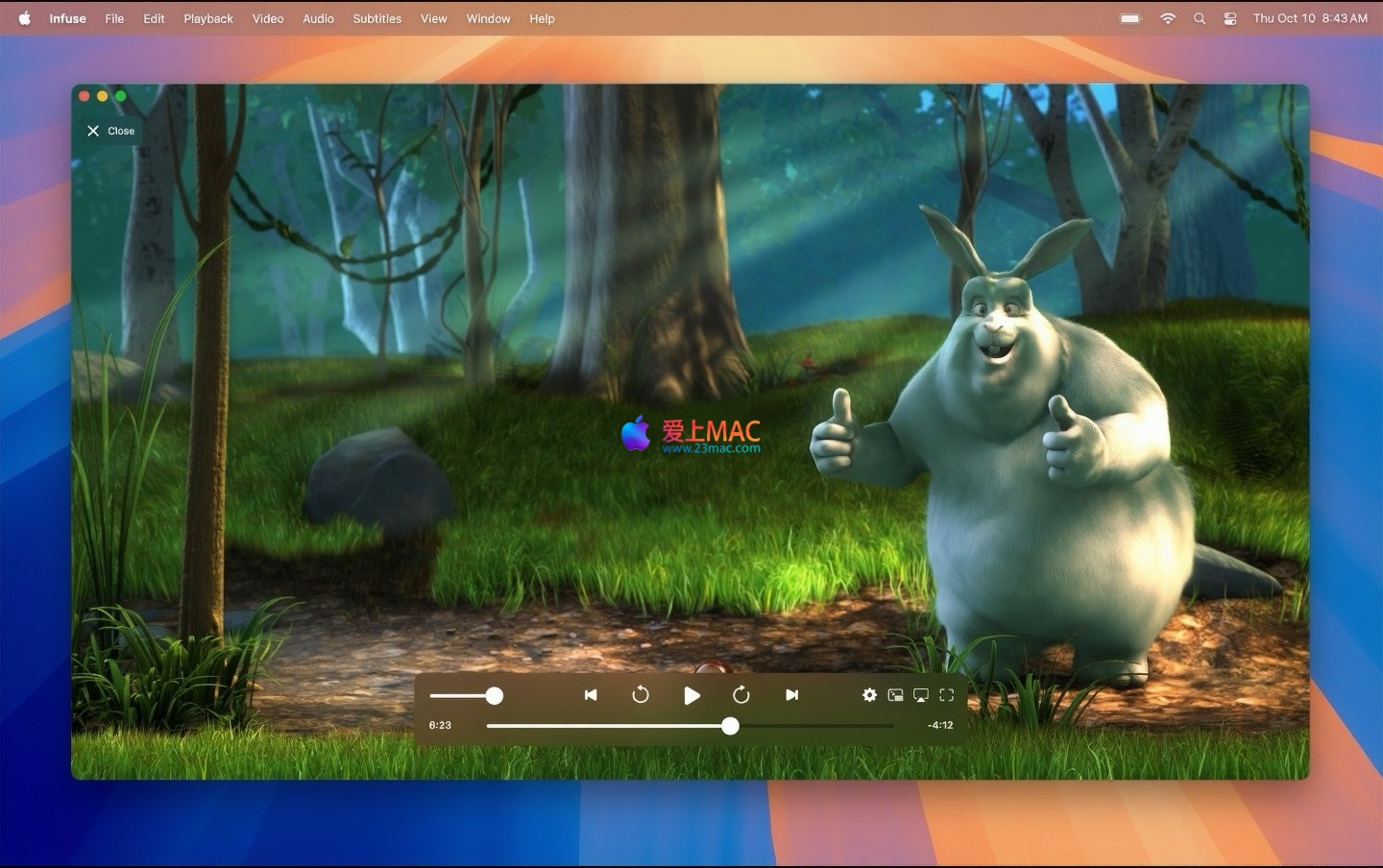
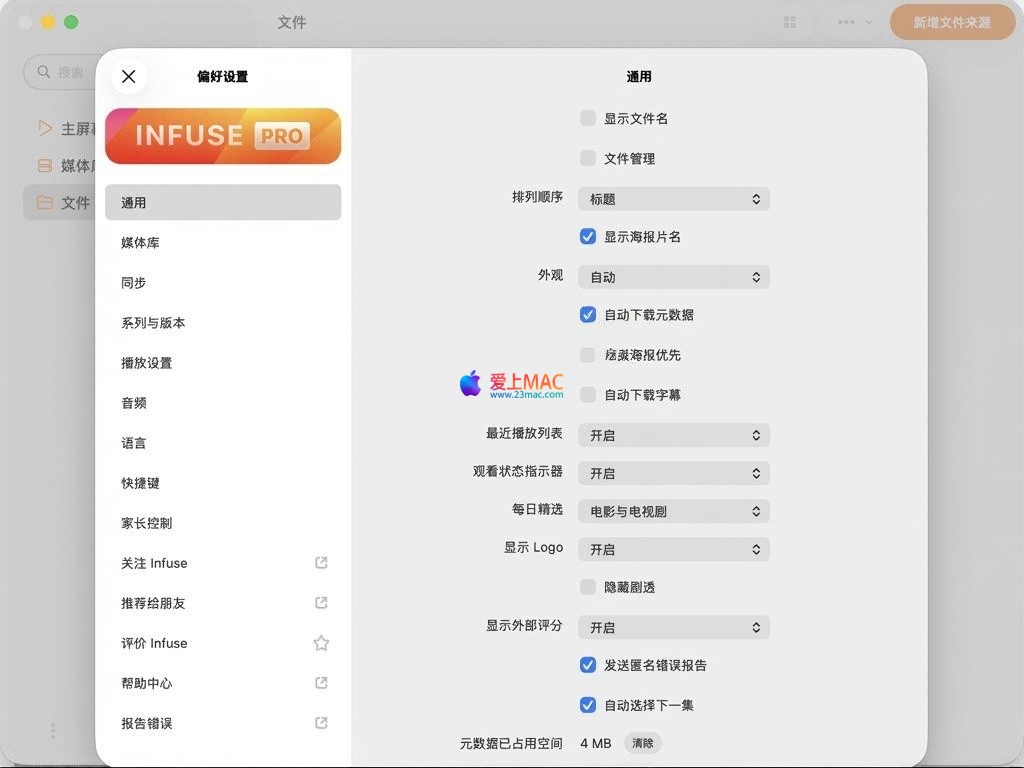
Here are screenshots of the Infuse for Mac software interface:
The installation process for Infuse for Mac is straightforward. Here are the steps based on version v8.4.1, ensuring a smooth setup.
Download the Infuse for Mac v8.4.1 Chinese activation version installation package from our website. The file format is usually .dmg. Double-click to open the .dmg file, and you will see the application icon and a shortcut to the “Applications” folder.
Drag the Infuse icon directly to the “Applications” folder. This is the standard installation method for macOS, requiring no additional settings. After the drag, Infuse will be found in the “Launchpad”.
When you first open Infuse, the system will prompt “From an unidentified developer”. Go to “System Preferences” > “Security & Privacy” > “General”, and click “Open”. Afterward, enter the administrator password to confirm. This step is only needed once.
After the software starts, click the “Infuse” menu > “Purchase Infuse Pro”. In the pop-up window, enter the activation code (the activation code is typically included in the download package or sent via email). After activation, all advanced features will be unlocked.
After activation, it is recommended to configure the media library. Click “File” > “Add Folder”, and select the local folder or network location where you store the videos. Infuse will automatically scan and match metadata. You can also add cloud storage accounts, such as Google Drive.
Add media after that, and play a 4K video file to check if it plays smoothly and the subtitles are correctly loaded. If everything is fine, the installation and configuration are complete. If you encounter any issues, refer to the FAQ section below.
We have compiled the following frequently asked questions based on user feedback. These answers can help you quickly resolve common issues.
This is usually due to Gatekeeper security restrictions. Open the Terminal and enter the command: sudo spctl --master-disable. Then press Enter. Try opening Infuse again. If the problem persists, check file integrity and re-download.
Confirm that the activation code matches the current version. Activation codes for v8.4.1 may not be compatible with older versions. If downloaded from our website, the activation code is usually found in the “Activation Instructions.txt” within the download package. Contact customer service for a new code.
Check the audio track settings. In the playback interface, click the audio icon and switch different audio tracks. MKV files may contain DTS or TrueHD audio tracks, requiring Pro version support. The free version only supports AAC and MP3.
Place the .srt file in the same folder as the video file, keeping the same name (e.g., “movie.mkv” and “movie.srt”). Infuse will automatically recognize it. Alternatively, load subtitles manually by clicking “Subtitle” > “Load Subtitle File” during playback.
Ensure that Mac and NAS are in the same local network. In Infuse, click “Add Folder” > “Network Device” > “SMB”. Manually input the NAS’s IP address and login credentials. If SMB protocol versions are incompatible, enable SMB 2 or 3 in the NAS settings.
Check the Mac hardware performance. Infuse requires M1 or higher chips to play 4K HDR content smoothly. If using an Intel Mac, disable “Hardware Acceleration” in the “Settings” > “Playback”. In the “Settings” > “Playback”, reduce “Video Quality” to 1080p.
In Infuse settings, find “Accounts” > “Trakt.tv”. Click “Log In”, and the webpage will redirect to the Trakt authorization page. Confirm the authorization, and Infuse will automatically sync. If synchronization fails, check the Trakt server status.
The free version supports common formats but limits Dolby audio and some cloud storage. The Pro version unlocks all formats, AirPlay, cloud storage, and cross-device synchronization. The Pro version also supports H.266 encoding. The Pro version is a one-time purchase, not a subscription.
This is usually an encoding issue. In Infuse settings, go to “Subtitle” > “Default Encoding”, and select “UTF-8”. If the subtitle file is GBK encoded, manually convert it to UTF-8. Use “TextEdit” or “Subtitle Edit” tools for conversion.
Drag Infuse to the Trash. Then delete the remaining files: go to “~/Library/Application Support/” and “~/Library/Preferences/”, delete all folders and plist files containing “Infuse”. Finally, empty the Trash.
The following table summarizes the commonly used keyboard shortcuts for Infuse for Mac. These shortcuts can significantly improve operational efficiency, and it is recommended to save them.
| Shortcut | Function Description |
|---|---|
| Space | Play/Pause |
| ← / → | Rewind/Forward 10 seconds |
| ↑ / ↓ | Increase/Decrease Volume |
| Cmd + F | Fullscreen/Exit Fullscreen |
| Cmd + L | Switch Playlist |
| Cmd + T | Switch Track |
| Cmd + U | Switch Subtitle |
| Cmd + R | Reload Current File |
| Cmd + Shift + F | Search Media Library |
| Cmd + , | Open Preferences |
These shortcuts are fully effective in Infuse 8.4 version. After getting used to them, you will find the operations very smooth.
Below, I share some advanced usage tips. These tips come from the actual experiences of experienced users, which can help you fully leverage the potential of Infuse.
Many users only consider Trakt as a backup tool. Actually, you can combine Trakt’s list functions. After rating a film in Infuse, Trakt will automatically generate a “rating list.” This way, you can directly filter films with a rating of 8 or above in the Infuse main interface, quickly finding your favorites.
If multiple people in your home use Macs, it’s recommended to connect Infuse to a Jellyfin server. Jellyfin can create independent accounts for each family member. After logging into Infuse, you will only see the media library associated with your account. This avoids chaos, especially suitable for families with children, limiting access to inappropriate content.
Infuse’s chapter function is very practical for TV shows or documentaries. During playback, pressing Cmd + Number Key (e.g., Cmd + 3) directly jumps to the 3rd chapter. This is more precise than fast-forwarding. You can also view all the chapter lists in the “play” menu and jump to any chapter with a single click.
Friend Xiao Wang used Infuse paired with Synology NAS. He first stored all Blu-ray original discs on the NAS. Then, he added the NAS’s SMB share in Infuse. During playback, Infuse automatically decodes the DTS-HD track. Through AirPlay, audio is streamed to the audio system, and video is output to a 4K display. The whole process is smooth, with an experience媲美专业播放机.
User Xiao Li often travels. He installed a Plex server at home and used Infuse on his traveling MacBook to connect to Plex. Through Plex’s remote access feature, Xiao Li can play home 4K videos smoothly in the hotel. Infuse automatically transcodes to 1080p to adapt to network bandwidth. He can also sync his viewing progress using Trakt, allowing him to continue watching at home.
If the automatically matched covers in Infuse are unsatisfactory, you can replace them manually. In the media library, right-click on a film and select “Get Info.” In the “Cover” area, upload a local image. Similarly, you can edit the summary and cast list. These local metadata will be prioritized over online data, suitable for managing niche or self-produced content.
A teacher friend used Infuse to manage thousands of teaching videos. He organized them into folders by course. Infuse automatically identifies and generates posters. He used the “fixed folder” feature to fix each course to the main screen. Students can directly access courses by course name. Through Trakt, he can track each student’s viewing progress.
Infuse for Mac v8.4.1 is a trustworthy media player. It resolves the format compatibility issue and provides an intelligent media management experience. We have detailedly explained from installation to daily use. I recommend you to upgrade to the Pro version to unlock Dolby audio and cloud storage support.
If you encounter any issues during installation or use, please leave a message below. Our team will respond promptly. Remember, the download links provided on this page have been tested and are available. If they fail, please contact us immediately. I hope Infuse becomes an indispensable companion for your Mac’s audio-visual needs.
This resource requires login to download
Log in
Adobe After Effects CC 2019 for Mac v16.1 Activation Edition Download
Downloads:1905 | 2026-10-24

Adobe After Effects 2024 for Mac v24.0.1 Crack Edition Download
Downloads:273 | 2026-10-24

Bear Simulator for Mac
Downloads:1358 | 2026-10-23

Best Ancestry Software for Mac v10.2.2 Chinese Activation Download
Downloads:3608 | 2026-10-20


Ratings & reviews
4.7
(Maximum 5 ratings, total 49 user reviews)
Let’s rate it.