



Valentina Studio for Mac v11.5.3 Database Management GUI Tool Activated Version Download
This page provides Valentina Studio for Mac v11.5.3 Database Management GUI Tool Activated Version Download | Love Mac, tested and available. If you encounter invalid links or inability to install after download, please leave a message to contact us.
Valentina Studio for Mac is a cross-platform database tool for database architects, developers, database administrators (DBAs), and even end users. It is compatible with a variety of mainstream relational database management systems (RDBMS), including MySQL, PostgreSQL, SQLite, SQL Server, and ValentinaDB. The tool integrates data modeling, SQL development, server management, and database operations, providing comprehensive graphical interface support.
Valentina Studio provides a series of powerful visual editors, supports multi-tab operations on different databases or servers simultaneously, and includes various database utilities (such as import/export, dump, diagnostics, clone, reindex, etc.). Its main functional modules include:
In addition to basic functions, Valentina Studio also offers the following advanced features to facilitate professional database development and management:
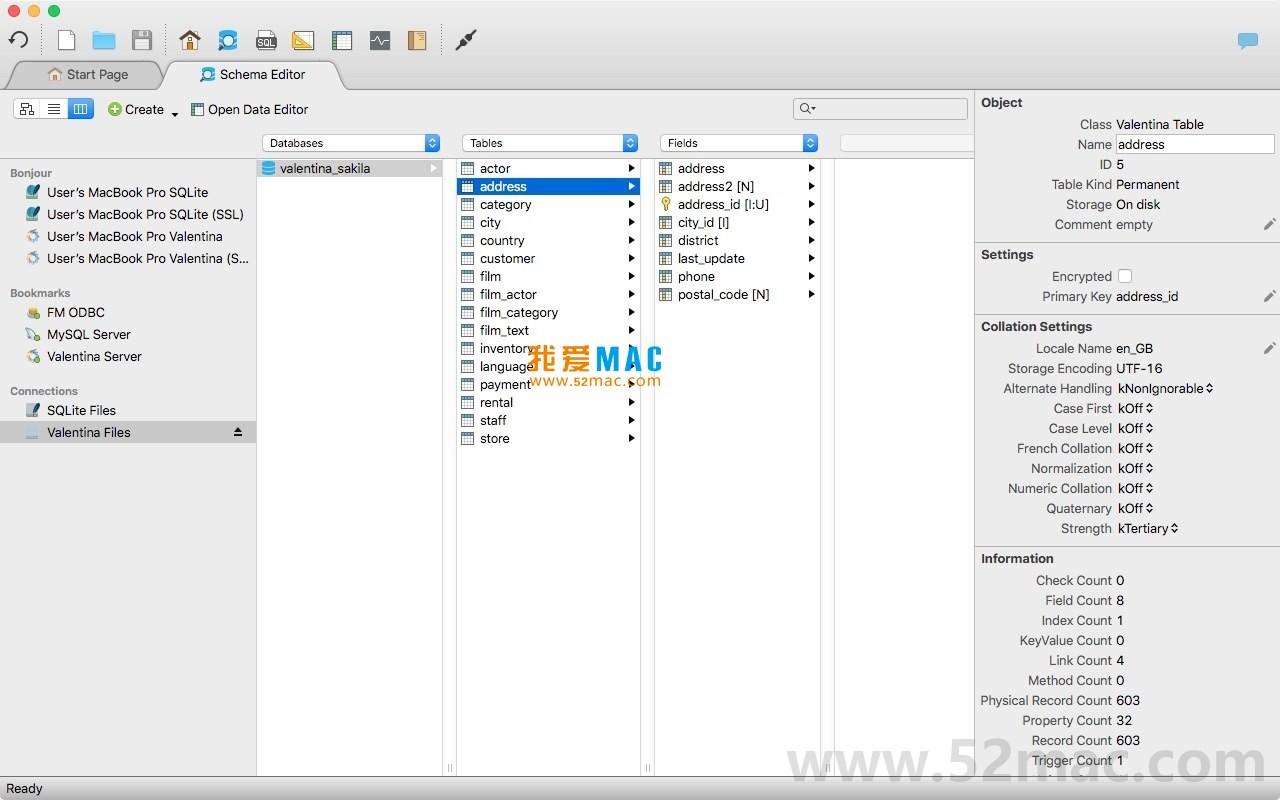
The following are screenshots of the main functional interfaces of Valentina Studio for Mac:
Main Interface – Provides a unified entry point for database connection and management.
Data Editing and Query Interface – Powerful grid-based data operations and visual query building.
Diagram Design and Modeling Interface – Visual database design supporting forward/reverse engineering.
SQL Editor and Script Management – Feature-rich SQL development environment.
Server Management and Settings Interface – Centrally manage database server configurations and users.
Before starting the installation, please ensure your Mac system version is macOS 10.13 or higher. It is recommended to reserve at least 500MB of disk space.
Download the Valentina Studio for Mac v11.5.3 activated version installer from the link provided on this page. After downloading, double-click the .dmg file to mount it.
In the installation window that appears, drag Valentina Studio.app onto the Applications folder icon on the right. The system will automatically complete the copying process.
Open the “Applications” folder, find and double-click the Valentina Studio icon. If the system prompts “Cannot verify developer”, go to “System Preferences” > “Security & Privacy” > “General” and click “Open Anyway”.
After launching, the software will pop up an activation window. Please use the activation code or registration file included in the archive to complete activation. If the activation code is invalid, please check whether you have disconnected from the network.
After successful activation, restart the software. In the menu bar, select “Help” > “About” to confirm the version number is 11.5.3 and there is no trial period limit. You can now use it normally.
We have compiled several common problems encountered by users, hoping to help you troubleshoot quickly.
A: This is usually a security restriction of macOS Gatekeeper. Please first ensure you are disconnected from the network, then open “Terminal” and enter the command: sudo spctl --master-disable and press Enter. Then try opening the application again.
A: Please confirm whether you are operating offline. Some activation codes require offline activation. Also, check whether extra spaces or line breaks were included when copying the activation code.
A: Open the software, click “New Connection”, and select “MySQL”. Enter the IP address or domain name in the “Host” field, with the default port 3306. Fill in the username and password, then click “Test Connection”. If successful, you can save and use it.
A: Of course. When creating a new connection, select “SQLite”, then browse and select the local .db or .sqlite file. No username or password is required.
A: Please check whether the “Language” option at the bottom left of the SQL editor is correctly set to the corresponding database type (e.g., MySQL, PostgreSQL). If not set, manually select it to activate highlighting.
A: Right-click the database name in the left navigation bar and select “Dump Database”. In the pop-up window, check “Include Structure” and “Include Data”, then choose the export path. Click “Start” to generate a complete .sql file.
A: First try restarting the software. If the problem persists, go to the “~/Library/Logs/Valentina Studio/” directory to view the crash log. Send the log file to official technical support or leave a message on this site, and we will assist in analysis.
A: Yes. Use the “SQLDiff” function under the “Tools” menu. Select the source database and target database respectively, and the software will automatically compare and generate a differentiated migration script.
Mastering shortcuts can greatly improve your database operation efficiency. Below is a summary of commonly used shortcuts in Valentina Studio.
| Shortcut | Function Description | Applicable Scenario |
|---|---|---|
Cmd + N |
New database connection | Quickly add a new server or file database |
Cmd + R |
Run current SQL query | Most commonly used operation in SQL editor |
Cmd + Shift + R |
Run selected SQL statement | Execute only the highlighted code |
Cmd + S |
Save current editing content | Save table structure, data, or SQL script |


Ratings & reviews
No rating
Let’s rate it.