



WonderPen for Mac v2.0.7 – Professional Writing Software (Chinese Activated Version) Download
This page provides WonderPen for Mac v2.0.7 – Professional Writing Software (Chinese Activated Version) Download | LoveMac, tested and working. If you encounter invalid links or installation issues after download, please leave a comment to contact us.
WonderPen is a professional writing software for the macOS platform, designed to provide a smooth and efficient creative experience for writers, students, editors, and writing enthusiasts. Its intuitive interface and rich features help users easily complete the entire process from brainstorming and writing to finalizing their work.
The software integrates multiple core features designed to enhance writing efficiency and experience, mainly including:
This update mainly includes the following feature optimizations and bug fixes:
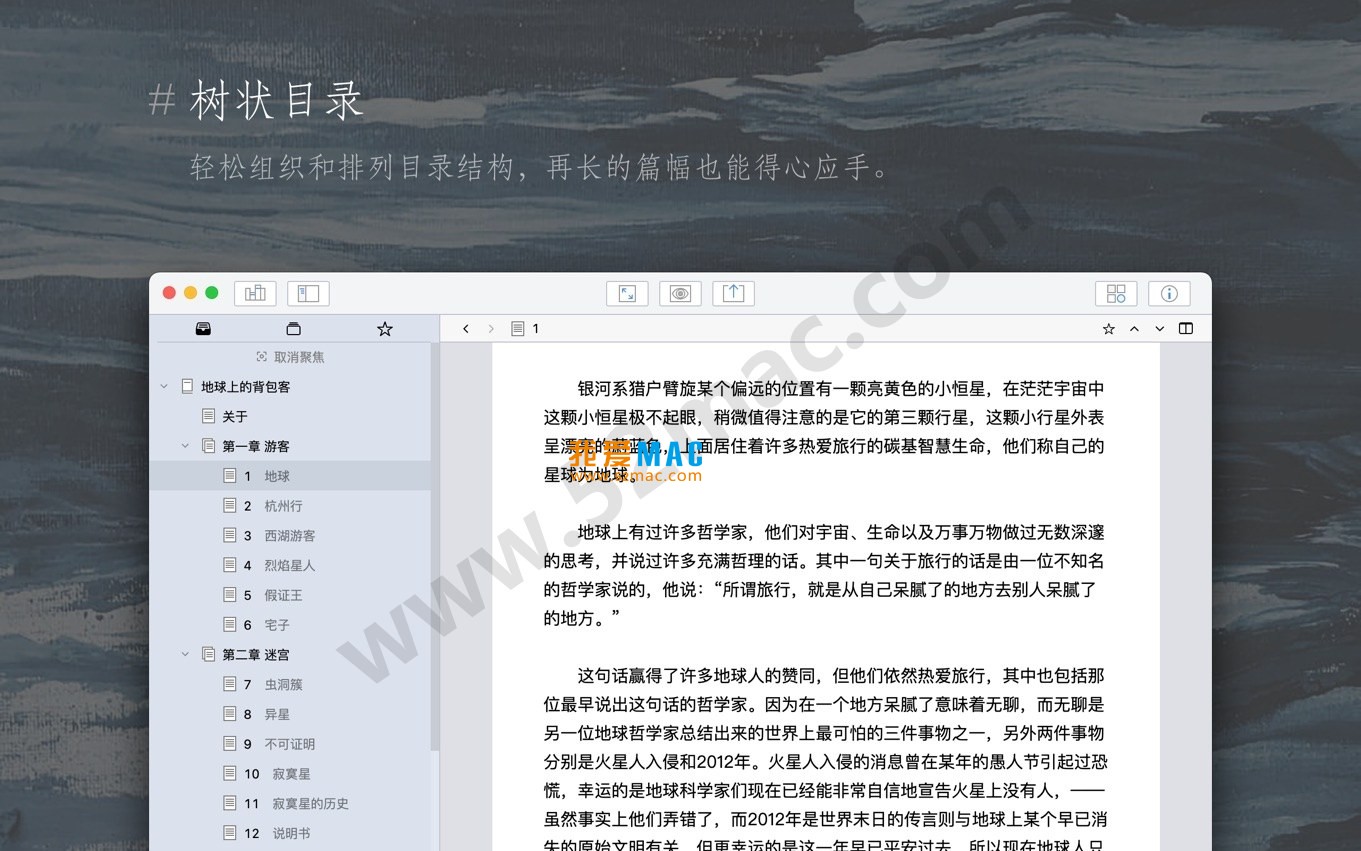
Below are the main interface displays of WonderPen:
The installation process of WonderPen for Mac v2.0.7 is not complicated, but to ensure smooth activation, it is recommended to follow the steps below strictly.
Please confirm that your Mac system version is macOS 10.13 or higher. Also, it is recommended to exit all antivirus software or security guards to avoid mistakenly deleting cracked files.
After downloading, you will get a disk image file named WonderPen_2.0.7.dmg.
If you encounter a “file is damaged” prompt during installation, please check whether Gatekeeper or SIP protection has been disabled. For specific methods, please refer to our related tutorials on the site.
We have compiled several questions frequently asked by users, hoping to help you quickly resolve issues.
Please first confirm whether you are offline. Some activation strategies require offline operation. Also, check whether the activation code is copied completely, and be careful not to miss spaces.
This is usually caused by an outdated system version or cache conflicts. Please try updating macOS to the latest version. If the problem persists, delete the ~/Library/Preferences/com.wonderpen.plist preference file and try again.
WonderPen has a built-in automatic backup feature. You can find historical versions in Preferences > Backup. Click “Restore” to retrieve content from a specific point in time.
When exporting PDF, the software attempts to embed fonts. If the target computer lacks the corresponding fonts, the layout will be messed up. It is recommended to check the “Embed all fonts” option in “Export Settings” before exporting.
When a large number of high-definition images or sticky notes are added to the whiteboard, performance will decrease. You can try compressing images to below 2MB or turning off the “real-time rendering” feature.
Currently, WonderPen only supports the macOS platform. However, you can sync documents to other devices via iCloud or third-party cloud drives for reading.
Version 2.0.7 optimized the interface state memory feature. If you find the layout different from before, you can manually adjust the split ratio, close the software, and reopen it to lock the new layout.
Mastering the following shortcuts can double your writing efficiency. These shortcuts also apply in WonderPen.
| Shortcut | Function Description | Use Case |
|---|---|---|
| ⌘ + B | Bold selected text | Headings or key content |
| ⌘ + I | Italicize selected text | Quotes or emphasis |
| ⌘ + K | Insert hyperlink | Reference external materials |
| ⌘ + Shift + [ | Switch to previous tab | Quick switching between multiple documents |
| ⌘ + Shift + ] | Switch to next tab | Quick switching between multiple documents |
| ⌘ + Option + F | Trigger full-text search | Find specific keywords |
| ⌘ + Shift + D | Enable focus mode | Immersive writing |
| Control + Shift + Space | Insert current date | Journals or notes |
Just looking at the feature list is not enough. We share a few tips that have been tested and proven useful.
Many writers’ biggest headache when creating long novels is chaotic chapter structure. WonderPen’s tree-structured directory supports unlimited nesting levels.
Practical case: Writing a 300,000-word historical novel. You can create “Volume 1” and “Volume 2” under the root directory. Under “Volume 1”, create “Chapter 1: Prologue”, “Chapter 2: Storm Rising”. Under each chapter, you can further subdivide into “Scene A”, “Scene B”. Drag and drop to adjust the order, very intuitive.
Before starting to write, use whiteboard mode to organize your thoughts. You can place sticky notes of different colors on the canvas and connect them to indicate logical relationships.
Practical case: Planning a WeChat official account article. On the whiteboard, use blue sticky notes for “topic”, yellow for “materials”, green for “structure”. Quickly form an article outline through dragging and connecting. This feature is especially suitable for creators who need visual thinking.
Many users report that when writing late at night, enabling “Focus Mode” with “Night Mode” can greatly reduce eye fatigue.
Practical tip: In Preferences > Appearance, set “Night Mode” to “Automatically switch based on sunset”. This way, when the external light dims, the software will automatically enter eye-care mode without manual operation.
WonderPen for Mac v2.0
This resource requires login to download
Log in
Storyist 4 for Mac v4.2 Novel & Screenwriting Tool Activated Download
Downloads:3335 | 2026-10-17

WonderPen for Mac v2.2.8 – Professional Writing Software (Chinese Activated Version) Download
Downloads:1397 | 2026-10-17

Bike for Mac v1.18.4 Creative Writing Software Activated Version Download
Downloads:582 | 2026-10-17

iA Writer for Mac v7.2.4 Professional Writing App Chinese Activated Version Download
Downloads:1017 | 2026-10-17


Ratings & reviews
No rating
Let’s rate it.