This page provides Airmail 5 for Mac v5.0.9 Email Client Chinese Activated Version Download | Love Mac, tested and working. If you encounter broken links or installation issues after download, please leave a comment to contact us.
Airmail for Mac is a professional email client deeply optimized for macOS and iOS platforms. It is renowned for its outstanding performance, intuitive interaction design, and smooth user experience. Carefully designed, Airmail offers a unified, fast, and modern operation experience whether managing single or multiple email accounts. Its clean and clear interface helps users focus on email processing without distraction, making it a professional email management tool for the 21st century.
1. Core Features and Characteristics
1.1 Seamless Sync and System Integration
- iCloud Account Sync: Enables seamless data synchronization across devices.
- Handoff Support: Seamlessly switch tasks between Apple devices.
- Today Extension: Quickly access your inbox via Notification Center widget.
- Action and Share Extensions: Integrates Airmail editor and sharing features to boost productivity.
1.2 Multi-Account and Email Management
- Unified Inbox: Centrally manage emails from all email accounts.
- Broad Protocol Support: Compatible with Exchange, iCloud, Gmail, IMAP, POP3, Yahoo!, AOL, Outlook.com, Live.com, etc.
- Custom SMTP Aliases: Flexibly manage sender identities.
- Convenient Email Import: Supports importing data from Apple Mail, MBOX archive files, EML/EMLX files.
- Local Account Support: Meets localized email management needs.
1.3 Efficient Interaction and Operations
- Quick Reply and Offline Operations: Process emails anytime, anywhere.
- Flexible Message Management: Supports moving emails to specified mailboxes, with rich multi-touch gestures.
- Powerful Shortcuts: Supports Gmail-style shortcuts, custom global shortcuts, and quick actions for tagging, moving, archiving, and folder selection.
1.4 Smart Conversations and Views
- Smart Conversation Grouping: Group by message ID or subject, with reverse chronological order support.
- Mute CC Conversations: Avoid interference from irrelevant conversations.
- Personalized Visual Themes: Offers multiple interface themes, supports minimized and extended modes, and plain text rendering.
1.5 Notifications, Contacts, and Composition
- Fine-grained Notifications: Supports per-account settings, with alerts via Notification Center and custom actions.
- Contact Integration: Supports Gmail, Exchange, and macOS Contacts, with contact grouping, address filtering, and Open Directory search.
- Multi-functional Editor: Supports Exchange Global Address List, offers Markdown, HTML (including source code templates), and plain text composition modes, with bullet and numbered lists.
1.6 Advanced Sending and Management Features
- Flexible Sending Options: Supports auto CC/BCC, delayed send, resend, forward, and bounce handling.
- Signature Management: Supports multiple signatures per account, in Markdown, rich text, HTML source code, and plain text formats, with options to insert above or below quoted content.
1.7 Search, Filtering, and Organization
- Powerful Global Search: Supports cross-account search with real-time efficient filters.
- Multi-dimensional Classification and Filtering: Categorize by message, date, attachment, conversation, etc., and display all emails from the same user.
- Flags and Filters: Efficiently mark and categorize important emails.
- Folder and Tag Management: Supports creating, editing, deleting nested folders, custom iCloud sync colors and folder mapping, and integrates To-Do, Completed, and Notes functions.
1.8 Third-Party App Integration
“Send To” Feature: One-click send email content to numerous productivity tools, greatly extending your workflow:
- Task Management: OmniFocus, Things, Todoist, 2Do, Wunderlist
- Calendar: Fantastical, BusyCal, Calendar
- Notes: Evernote
- Reminders: Apple Reminders
1.9 Advanced and Utility Tools
- EML File Import/Export: Convenient email backup and migration.
- AppleScript Support: Supports automation scripts for advanced customization.
2. Version Update
Current Version: 5.0.9
This version mainly fixes several known issues and includes multiple detail optimizations and improvements, enhancing software stability and overall user experience.
3. Software Interface Preview
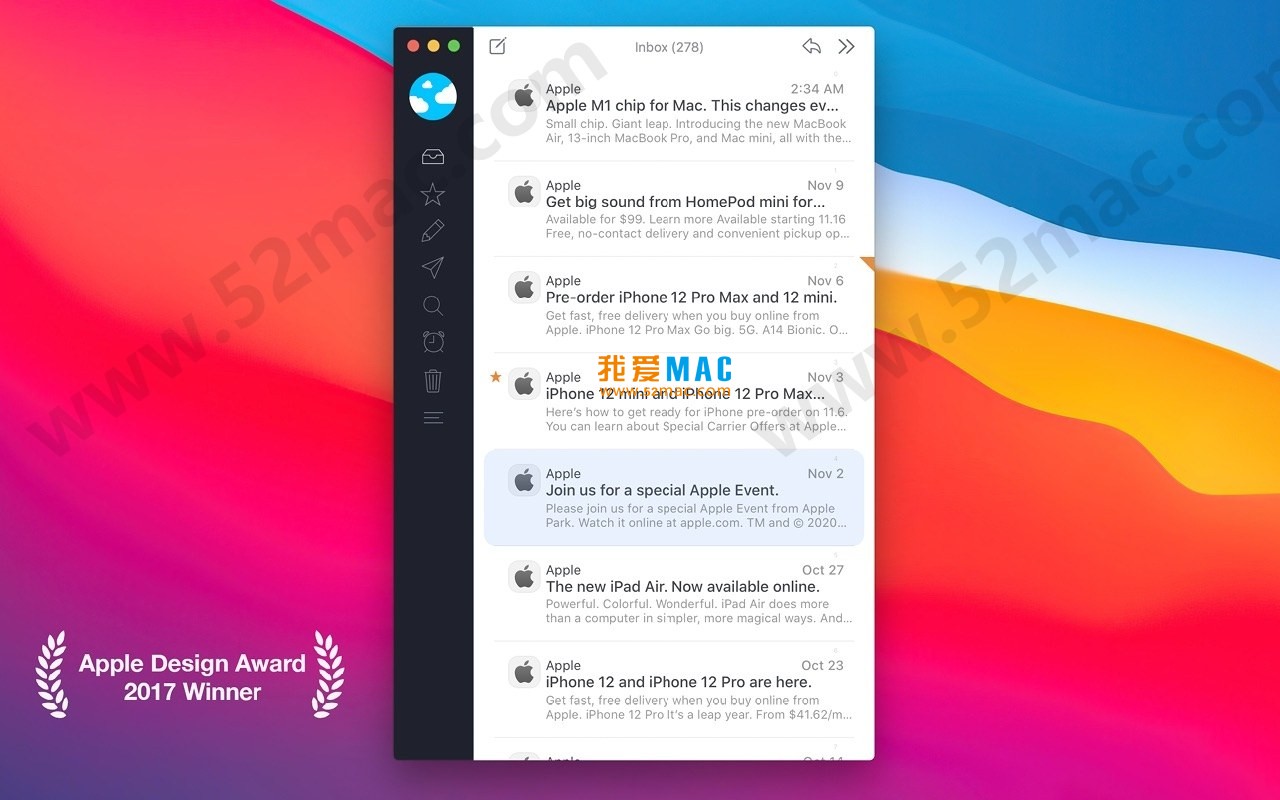
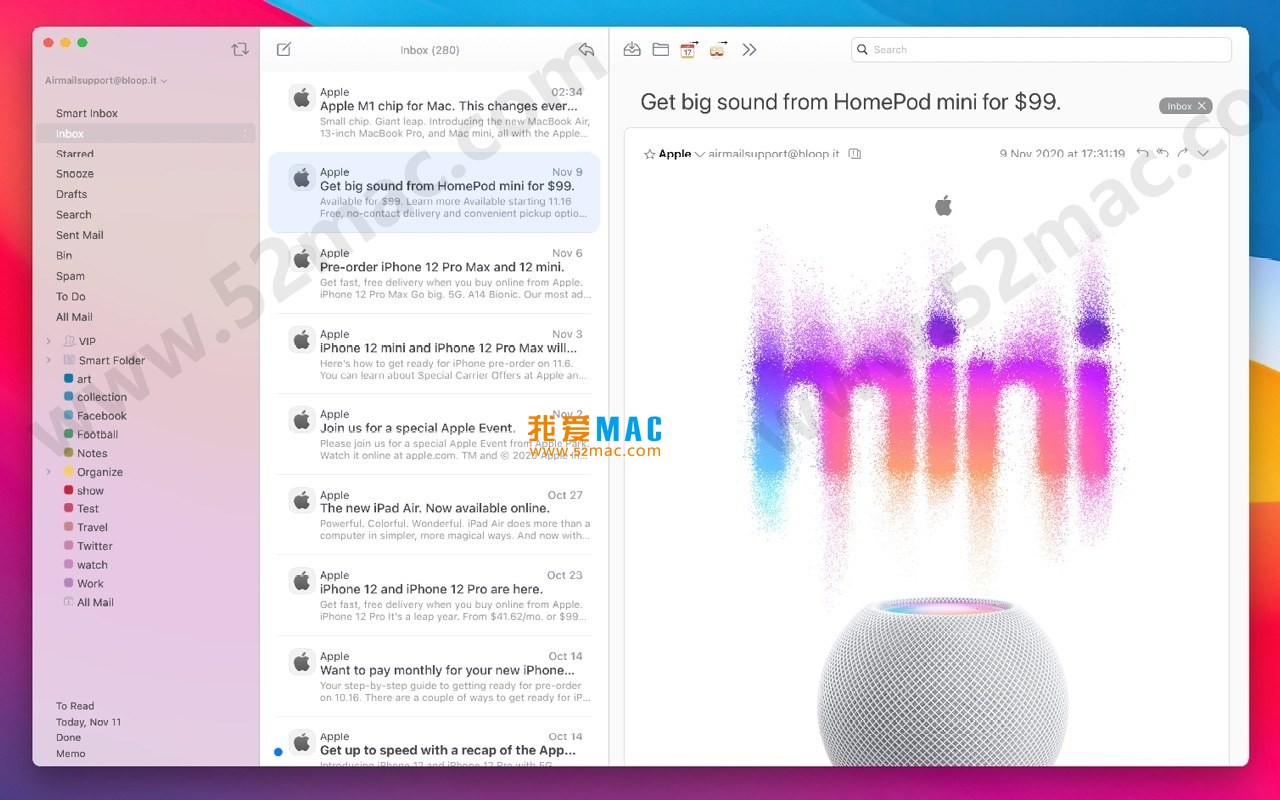
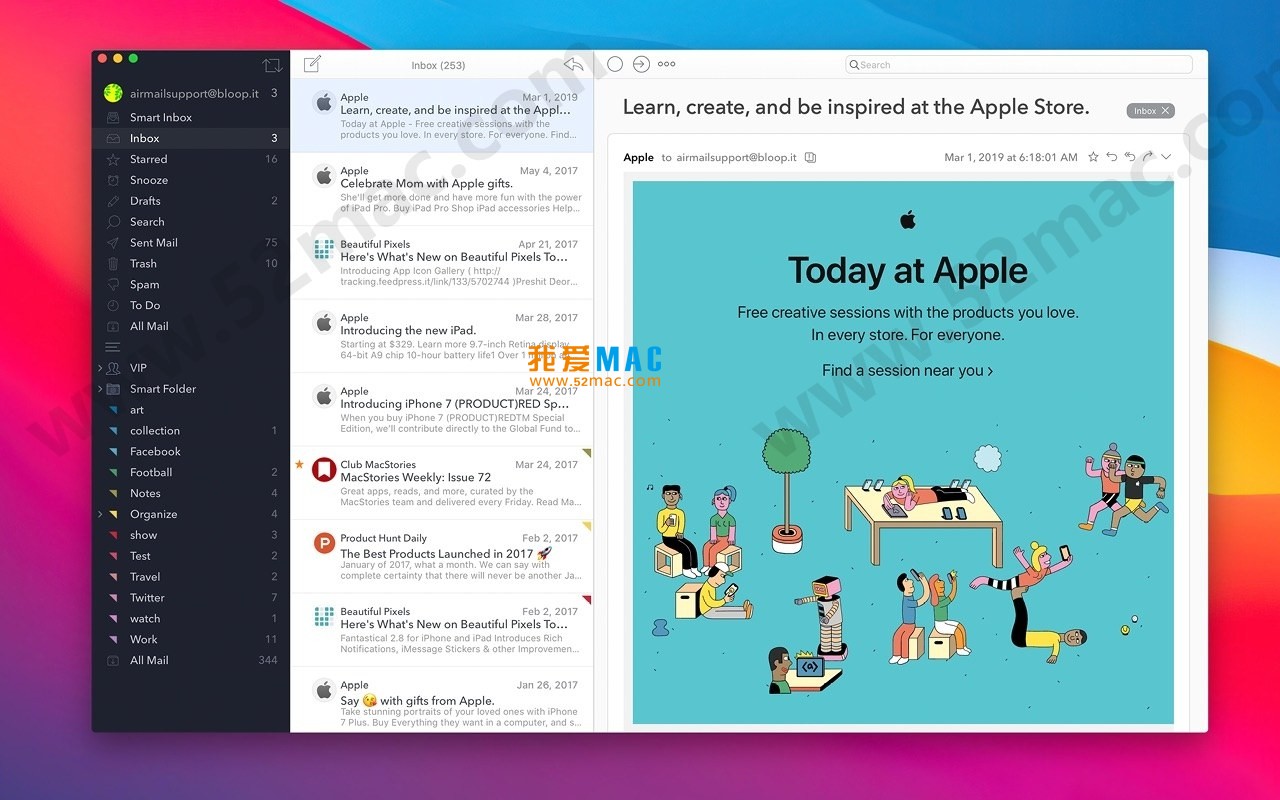
Below are screenshots of Airmail for Mac, showcasing its clean modern design and efficient functional layout:

4. Detailed Installation Guide
For first-time Airmail 5 users, the installation process is not complicated. Follow these steps to get started quickly.
4.1 Download and Installation Preparation
First, obtain the Airmail 5 installer from the download link provided on this page. The file is usually in .dmg format.
Double-click the .dmg file, and the installation window will pop up. Drag the Airmail icon on the left to the “Applications” folder on the right. Wait for the copy to complete.
4.2 First Launch and Account Configuration
When you first launch Airmail, you will see a welcome screen. Click “Get Started” to enter the account addition page.
Enter your email address and password. Airmail will automatically detect your email provider (such as Gmail, iCloud, Outlook, etc.). Click “Continue” to complete the configuration.
If automatic configuration fails, select “Manual Setup”. You will need to enter the incoming and outgoing server addresses, ports, and encryption methods. This information can usually be found on your email provider’s help page.
4.3 Advanced Account Settings
After adding an account, you can go to “Preferences” for tuning. In the “Accounts” panel, you can set signatures, default sender aliases, and SMTP servers.
In the “General” panel, you can adjust default fonts, reply behavior, and new email notification styles. It is recommended to enable “Unified Inbox” for easy management of multiple accounts.
4.4 Data Migration and Import
If you previously used Apple Mail or other clients, Airmail supports import. Go to the “File” menu and select “Import”.
Supports import from Apple Mail, MBOX files, EML/EMLX files. Select the corresponding source file, and Airmail will automatically parse and migrate your emails.
5. Common Mac Shortcuts Table
Proficiency with shortcuts can greatly improve email processing efficiency. Below is a summary of the most commonly used shortcuts in Airmail 5:
| Function Description |
Shortcut |
| New Email |
Cmd + N |
| Reply to Sender |
Cmd + R |
| Reply All |
Shift + Cmd + R |
| Forward Email |
Cmd + J |
| Archive Email |
Cmd + Shift + A |
| Delete Email |
Backspace or Cmd + Delete |
<td style="padding: 10px;border
Download info
This resource requires login to download
Log in
Note: This resource is for informational purposes. By using this resource, you agree that you accept full responsibility to the copyright holder. For questions, please
contact us.
×
![]()
Airmail 5 for Mac v5.0.9 Email Client Chinese Activated Version Download




Ratings & reviews
No rating
Let’s rate it.