



App Cleaner & Uninstaller Pro for Mac v8.2 Software Uninstaller Chinese Activated Version Download
This page provides App Cleaner & Uninstaller Pro for Mac v8.2 Software Uninstaller Chinese Activated Version Download | Love Mac, tested and working. If you encounter a broken link or cannot install after downloading, please leave a comment to contact us.
App Cleaner & Uninstaller Pro is a smart, intuitive, and efficient application uninstaller and system management tool designed specifically for macOS. It not only thoroughly uninstalls applications to ensure no residual files are left behind, but also helps users manage system extensions and startup items, making it a powerful assistant for optimizing Mac performance and freeing up disk space.
Based on our long-term testing and user feedback, this tool performs exceptionally well in deep cleaning. Many Mac users have experienced this: dragging an app to the Trash only to find dozens or even hundreds of MB of cache, preferences, and log files still hidden in the system. App Cleaner & Uninstaller Pro was born to solve this pain point.
The traditional drag-to-Trash method often leaves behind a large number of service files, caches, and configuration files. App Cleaner & Uninstaller Pro can:
Too many auto-start programs are one of the main reasons for slow Mac startup and sluggish performance. This tool provides comprehensive startup item management:
Provides centralized management and control of macOS system extensions, covering:
Users can safely disable or uninstall these extensions to keep the system clean and secure. We particularly recommend promptly cleaning up browser plugins that have not been used for a long time, as this can effectively reduce browser memory usage.
Simplifies changing default applications in macOS. Users can easily manage file associations and choose preferred applications for specific file types, with an intuitive and convenient process. For example, you can change the default app for .jpg files from Preview to Photoshop in just a few steps.
Many users have reported not knowing how to install correctly after downloading. Here we have compiled a detailed step-by-step guide to ensure you can use it smoothly.
After downloading from the link provided on this site, you will get a .dmg disk image file. Double-click to open it. At this point, pay attention to whether there is a prompt in the upper right corner of the screen saying “Cannot be opened because it is from an unidentified developer.”
Solution: Go to “System Preferences” > “Security & Privacy” > “General” and click the “Open Anyway” button. This is a normal macOS security mechanism, not a software issue.
In the opened .dmg window, you will see the App Cleaner & Uninstaller Pro icon and a shortcut pointing to the Applications folder. Simply drag the application icon to the Applications folder to complete the installation.
On first launch, the software may request “Accessibility” or “Screen Recording” permissions. This is because the software needs to scan system files to find residuals. Please grant permissions as prompted, otherwise the deep cleaning function may not work properly.
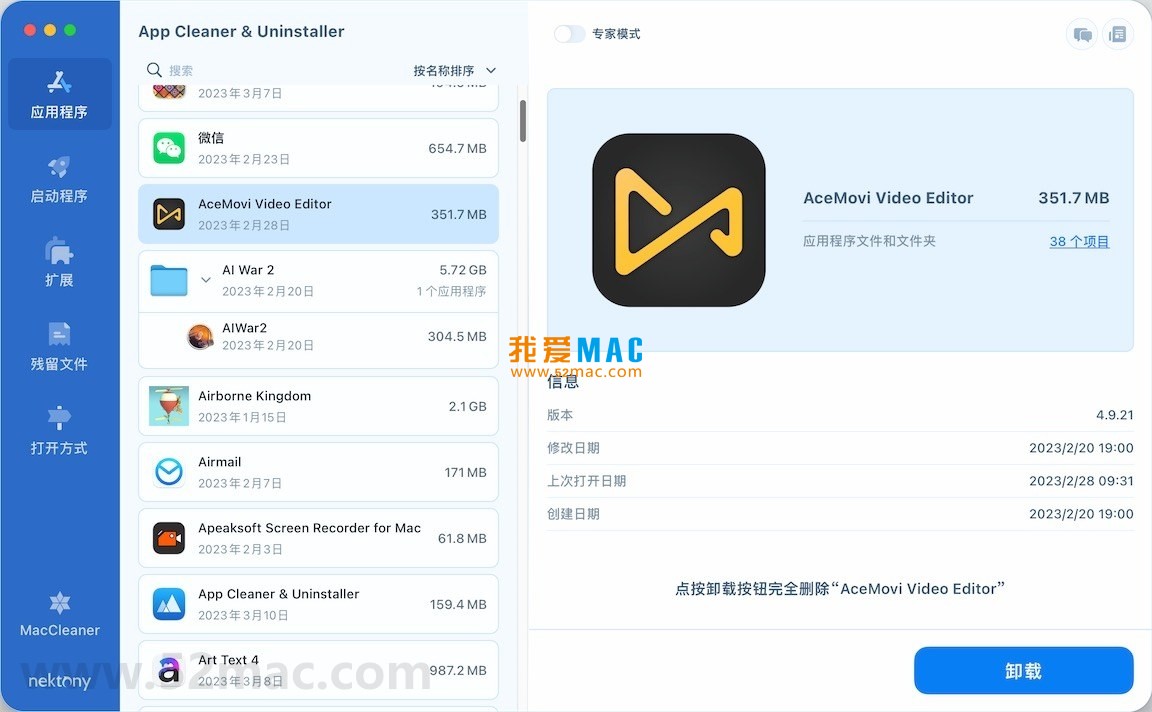
After opening the software, the left sidebar will list all installed applications. Select the application you want to uninstall, click the “Remove” button on the right, and the software will automatically scan and display all associated files. After confirming, click “Delete” to proceed.
To help you use your Mac more efficiently, we have compiled a practical shortcut table covering daily operations and system management.
| Category | Shortcut | Description |
|---|---|---|
| General | Command + C |
Copy selected content |
| General | Command + V |
Paste copied content |
| General | Command + X |
Cut selected content |
| Window Management | Command + W |
Close current window |
| Window Management | Command + Q |
Quit current application completely |
| Window Management | Command + Tab |
Switch applications |
| System Management | Command + Option + Esc |
Force quit applications (similar to Windows Task Manager) |
| System Management | Command + Shift + 3 |
Full-screen screenshot |
| System Management | Command + Shift + 4 |
Area screenshot |
| Finder Operations | Command + Delete |
Move file to Trash |
| Finder Operations | Command + Shift + Delete |


Ratings & reviews
No rating
Let’s rate it.